






 Free Download

 Windows

If you’ve ever experienced that “oh-no” moment when an important PDF file suddenly disappears, you know how frustrating it can be. Whether you accidentally deleted it, lost it after formatting a drive, or clicked “Don’t Save” before closing the document, don’t panic just yet. There may still be a way to get your PDF back.
Keep reading this guide to learn how to recover deleted, lost, or unsaved PDF files on Windows using several practical methods.
Method 1. Recover PDF with Professional PDF Recovery Software 🔥
RecoveryFox AI is a powerful document recovery tool that supports PDF recovery from a wide range of devices, including internal drives and external storage devices such as HDDs, USB drives, and SD/TF/CF cards. Its straightforward workflow makes it a beginner-friendly option for recovering deleted PDF files.
Install the software, then follow these steps to recover lost PDF files on Windows.
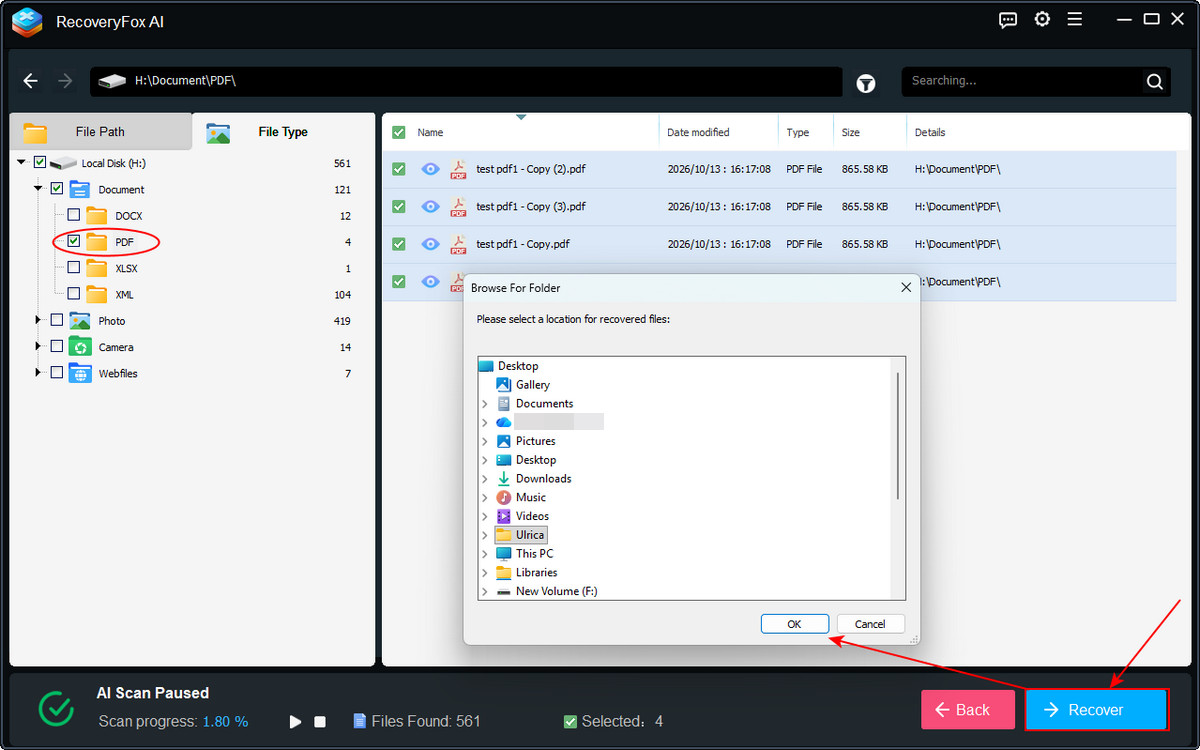
Step 1. Launch RecoveryFox AI, select the file location where the deleted or lost PDF files were stored. Click it to start scanning.
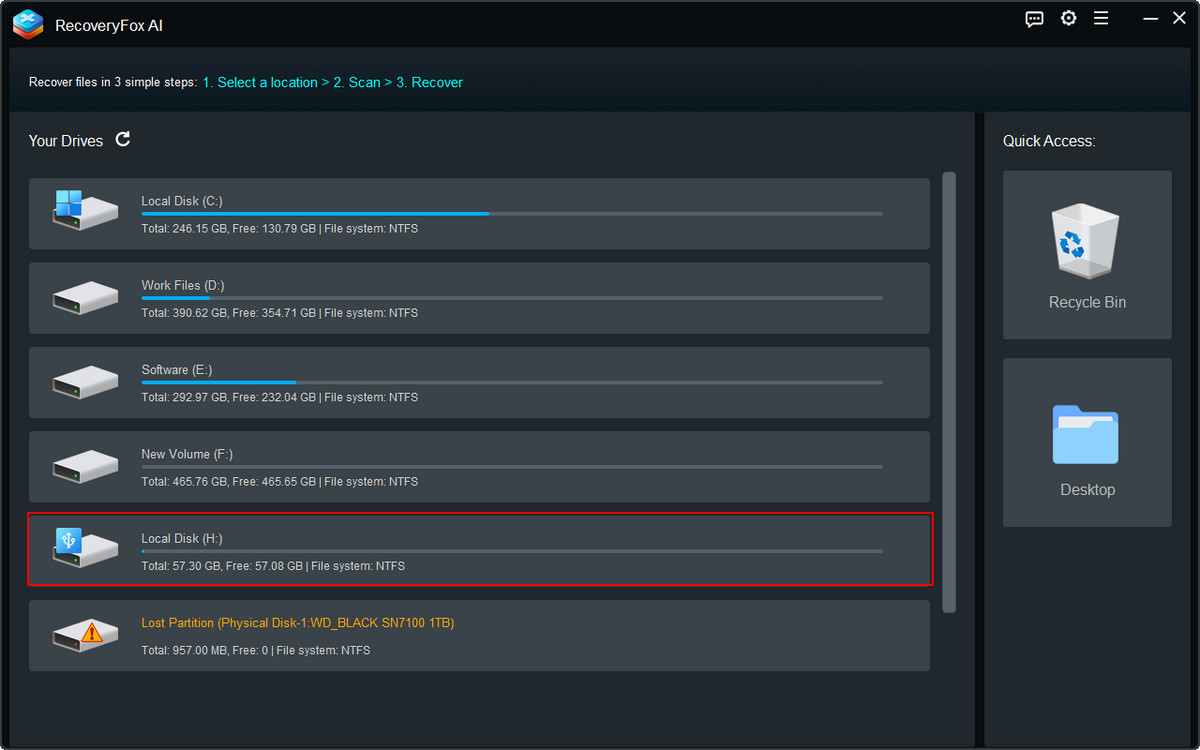
Step 2. This software offers two scanning modes: Quick Scan and AI Scan.
Once Quick Scan is complete, AI Scan starts automatically. You can pause and resume AI Scan at any time.
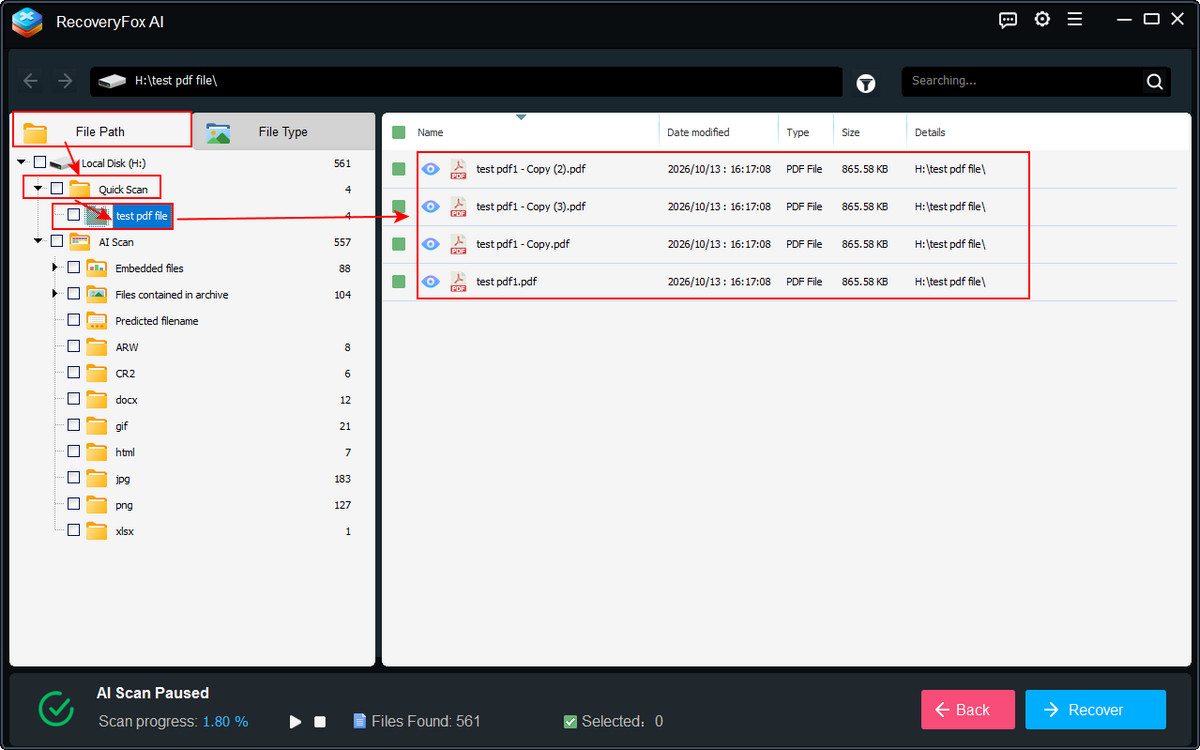
After the scan finishes, browse the results under the File Path and File Type tabs.
For recently deleted PDF files, go to File Path > Quick Folder. You may find your lost files there with their original filenames and folder structures intact.
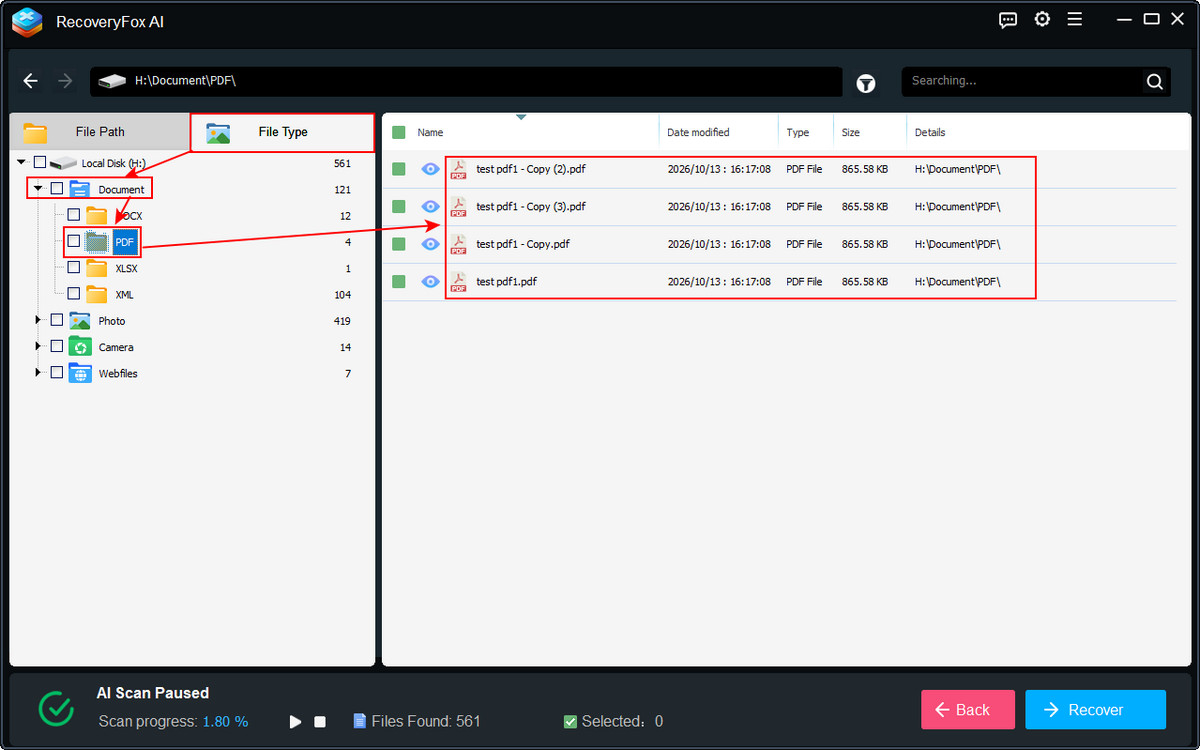
If the original filename is missing or you're scanning a formatted, RAW, or unallocated drive, go to File Type > Document > PDF to locate your files.
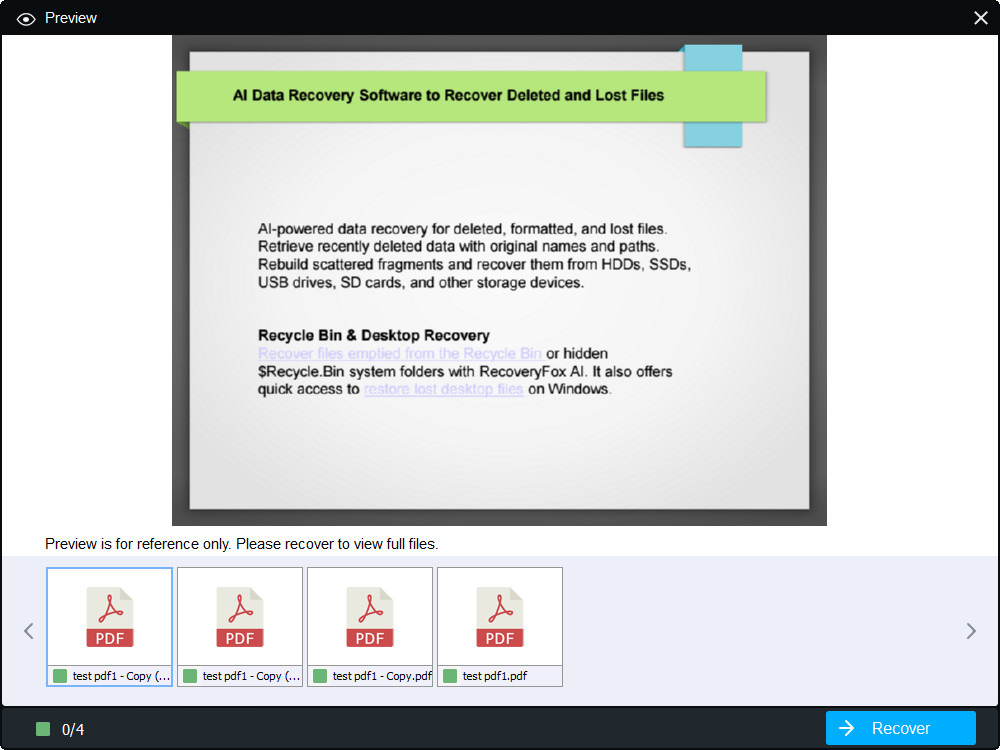
Step 3. Click the eye icon next to a file to preview the PDF and check its contents.
Step 4. Select the files you want to restore and click Recover. Save the recovered files to a different storage location rather than the drive where the data was lost.
Method 2. Recover Deleted PDF Files with Windows File Recovery
Windows File Recovery is a free command-line utility from Microsoft that can help recover deleted files from local storage devices, including internal drives, external drives, and USB drives. It supports recovery from NTFS, FAT, exFAT, and ReFS file systems, depending on the recovery mode and storage device.
Step 1. Download and install Windows File Recovery from the Microsoft Store.
Step 2. Open it from the Start menu.
Step 3. Identify the source drive where the PDF files were deleted and choose a different destination drive to save the recovered files.
Step 4. Enter a recovery command in the following format, replacing the drive letters with yours:
winfr source-drive: destination-drive: /regular /n *.pdfFor example, if the deleted PDF files were stored on drive H: and you want to save recovered files to drive F:, enter:
winfr H: F: /regular /n *.pdfPress Enter > Y to start the recovery operation.
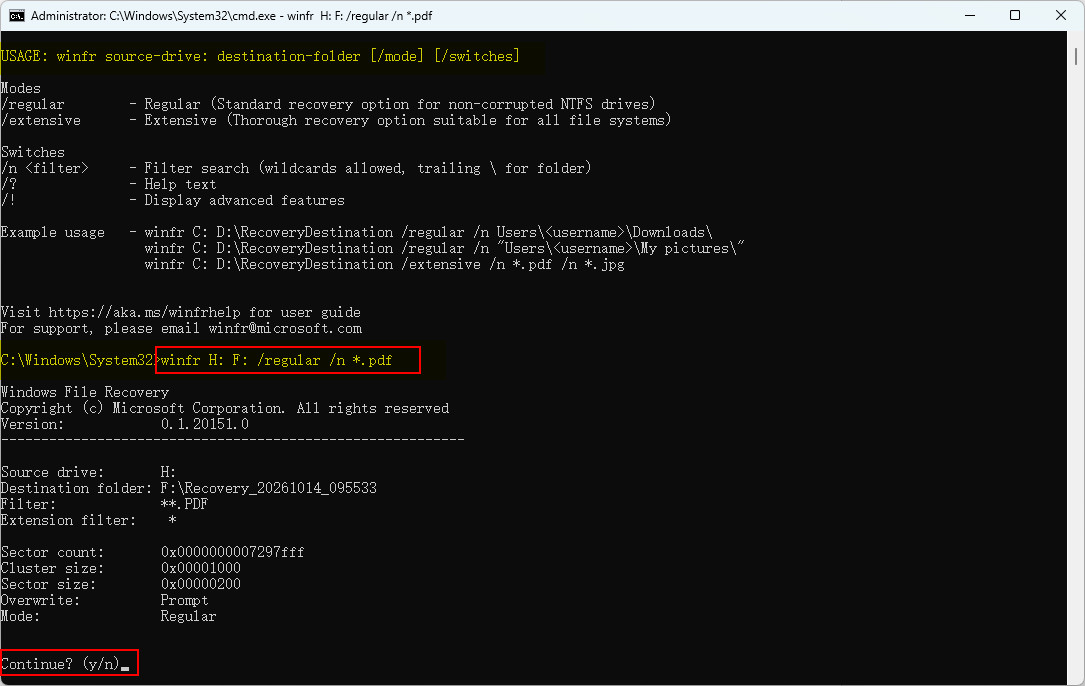
If the files were deleted a long time ago or the drive has been formatted, you may need to use Extensive mode instead:
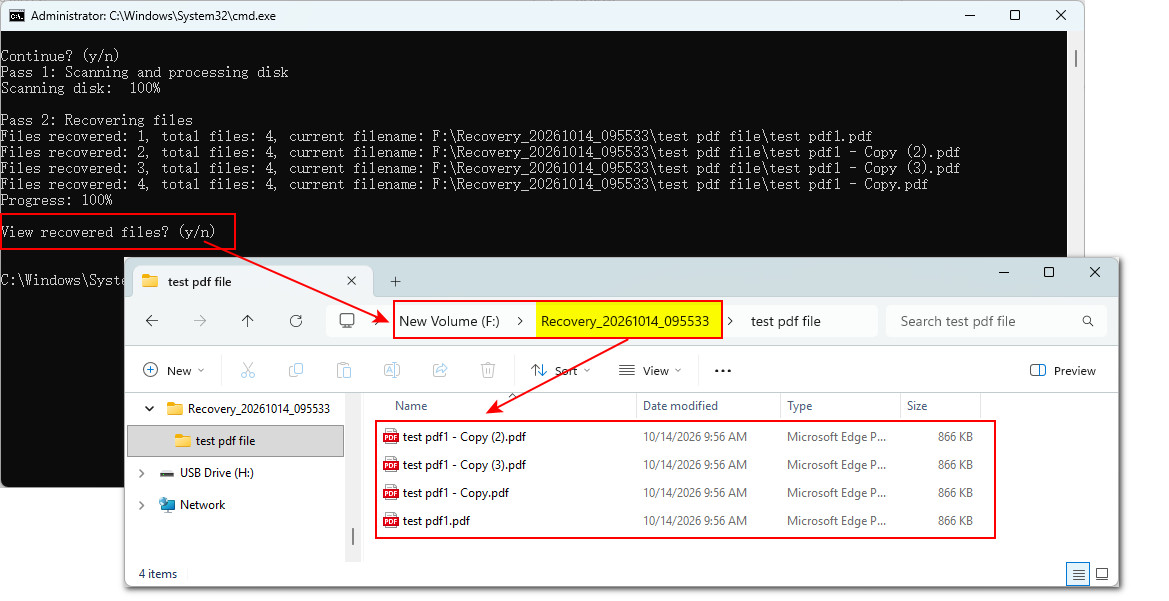
winfr H: F: /extensive /n *.pdfStep 5. Once the scan completes, press “Y” to open the output folder. The folder is usually named in this format:
Recovery_[date-time]
Method 3. Check the Recycle Bin for Deleted PDF File
When you delete a PDF file using the Delete key, Windows usually sends this file to the Recycle Bin, allowing you to restore it later.
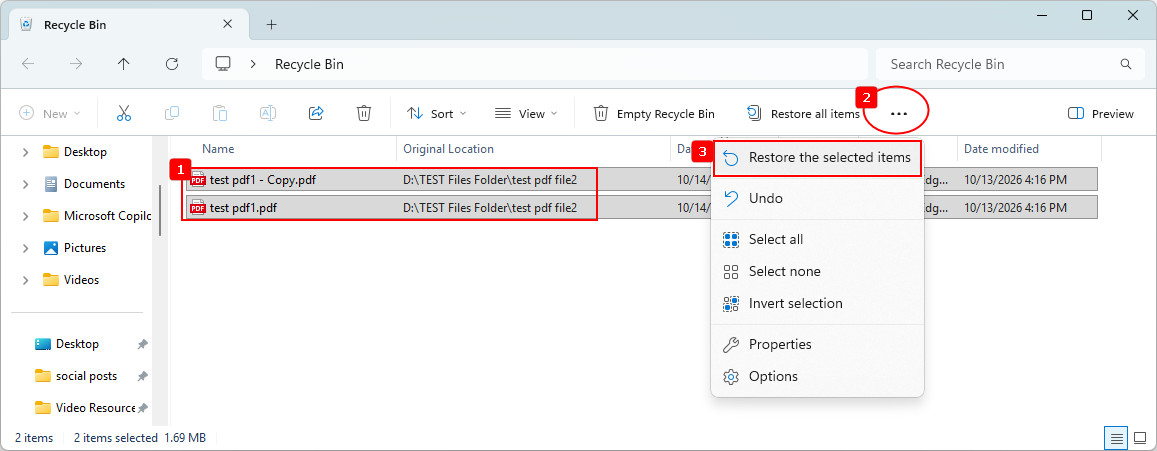
Step 1. Open the desktop Recycle Bin.
Step 2. Find the PDF file you want to restore, right-click it and select “Restore the selected items”. Windows will return it to its original location.
Step 3. Open the original folder and check whether the PDF file has been restored successfully.
Method 4. Search for Lost PDFs in File Explorer
Sometimes, a PDF file is not actually deleted. You may have accidentally moved it, saved it in a different folder, or forgotten its filename. Windows File Explorer can help you search your computer for existing PDF files.
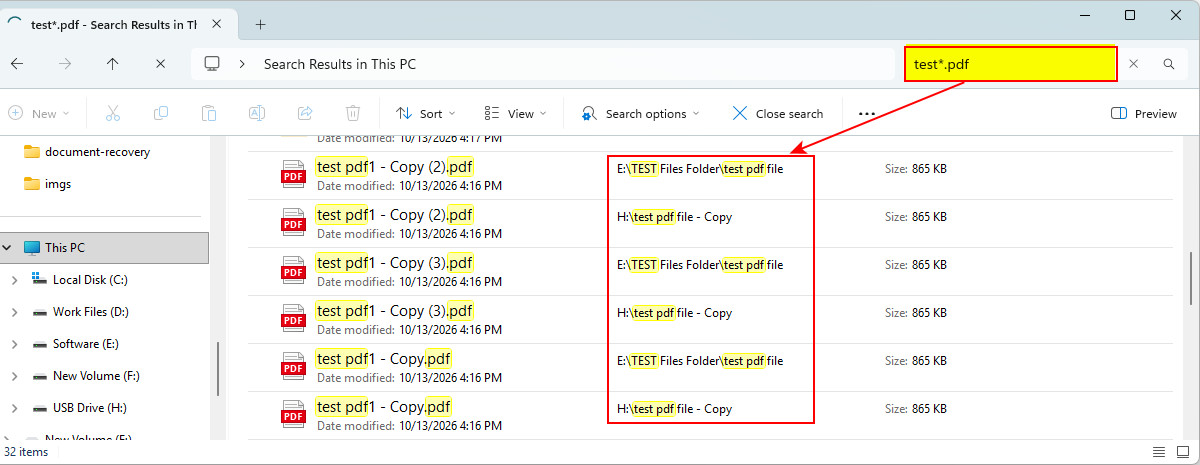
Step 1. Open File Explorer and select This PC to search across your accessible drives.
Step 2. Click the search box in the upper-right corner, type this search term and press Enter:
*.pdfWindows will search for PDF files in the selected location. If you remember part of the filename, include it in your search to narrow down the results. For example:
test*.pdfStep 3. When you find the missing PDF, right-click it and select Open file location to identify where it is stored. You can then move or copy it to your preferred folder.
Method 5. Restore Lost PDF Using Previous Version
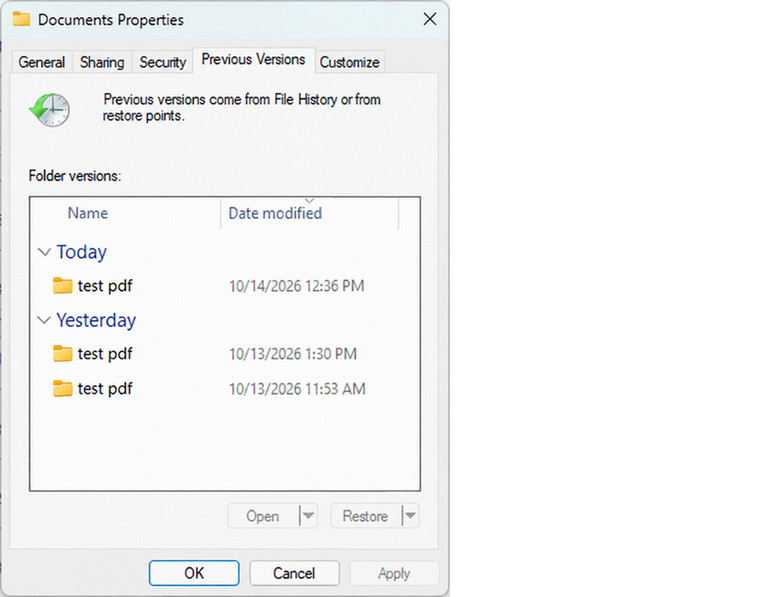
Windows Previous Versions may let you restore an earlier copy of a folder containing your PDF. This method works only if a suitable previous version or backup is available.
Step 1. Open File Explorer and navigate to the folder where the PDF was originally saved.
Step 2. Right-click the folder and select Properties.
Step 3. Open the Previous Versions tab. Check whether any earlier versions of the folder are listed.
Step 4. Select a version dated before the PDF was deleted or modified. Choose “Open in File History” to preview its content or “Restore to” to save the selected file to a safe location if these two options available.
Method 6. Restore PDFs from OneDrive or Another Cloud Backup
If you’ve synced local critical PDF files to OneDrive, Google Drive, Dropbox, or another cloud storage service, you may be able to restore them from the cloud or its trash folder.
Step 1. Open OneDrive and sign in to your account.
Step 2. Search for the missing PDF by its filename or browse the folder where it was originally stored.
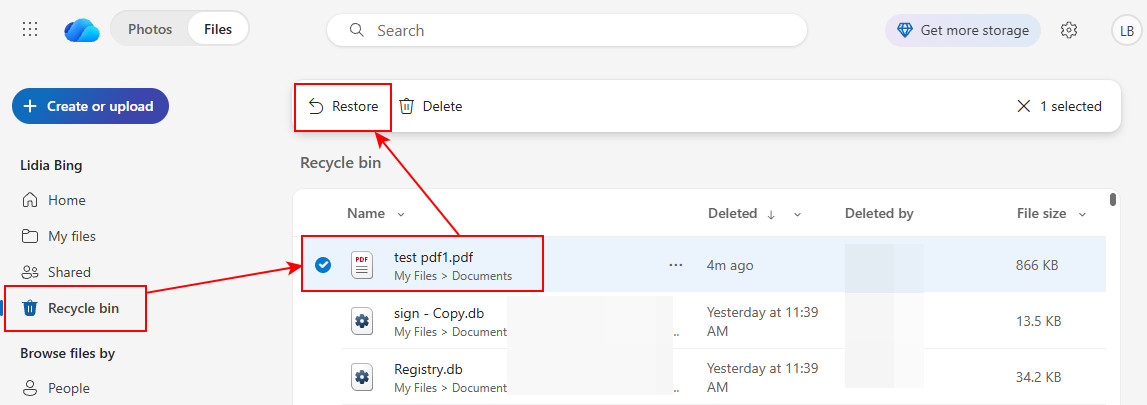
Step 3. If you cannot find the file, open its Recycle Bin and look for the PDF you want to recover.
Step 4. Select the PDF file and click Restore. The file should return to its original cloud location.
Method 7. Use AutoSave to Recover Unsaved PDF Edits
Some PDF editors, like Adobe Acrobat, has the AutoSave or similar feature, helping periodically save changes to a temporary file without modifying the original PDF. If the application closes unexpectedly, you may be able to recover changes made since the last automatic save. However, changes made after the most recent autosave may be lost.
Step 1. Restart Adobe Acrobat.
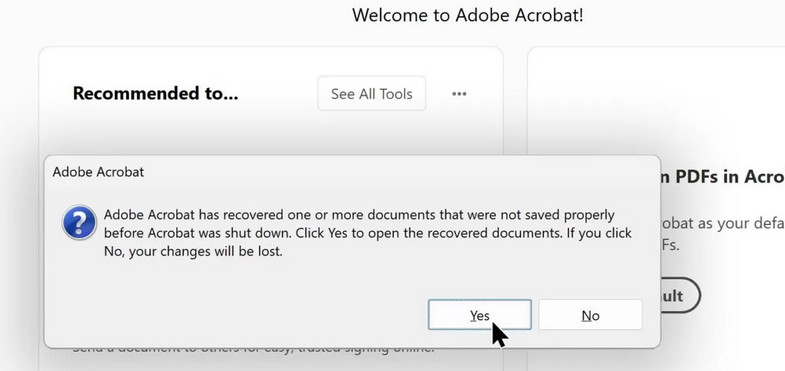
Step 2. If Acrobat detects recoverable autosaved changes, a pop-up window will appear, prompting you to recover unsaved PDFs.
Step 3. Click Restore or "OK" to save the changes to a safe location.
⚠️ Acrobat deletes the autosave file when you close the document normally, save it manually, or revert to the last-saved version. AutoSave also does not work in certain situations, including documents whose security settings have changed or PDFs displayed in a web browser. It is designed to recover changes to an open PDF, not to recover a PDF file that was permanently deleted.
Method 8. Search Windows Temporary Folders for Unsaved PDFs
Windows and some PDF editors create temporary files while processing documents. In certain situations, a temporary copy or related recovery file may remain after an application crashes or a document fails to save. Although these files are not necessarily recoverable PDFs, checking temporary folders may be worth trying.
Step 1. Press Win+ R, type %temp%, and press Enter to open the temporary folder in File Explorer.
Step 2. Sort the files by Date modified to find files created around the time you were working on the PDF.
Step 3. Look for files with relevant timestamps or names associated with the application you used. You can also search the folder for *.pdf.
Step 4. If you find a potentially useful file, copy it to a secure folder before attempting to open it.
Step 5. Try opening the copied file with your PDF reader if it has a .pdf extension.
If it has an unfamiliar extension, check the application’s documentation before changing it. Renaming a file to .pdf does not convert it into a valid PDF, so only try this when you have a reasonable basis to believe the file contains PDF data.
In Conclusion
Losing an important PDF file doesn’t always mean it’s gone forever. Whether you accidentally deleted it, formatted a drive, misplaced it, or lost unsaved changes, you can try different recovery methods depending on your situation.
Check the Recycle Bin, search File Explorer, restore a previous version or cloud backup, or use Windows File Recovery to retrieve deleted PDFs.
For deleted PDF recovery, the most trustworthy approach is RecoveryFox AI. You can preview the scan results before recovering the files, then save the recovered PDFs to a different storage location to avoid overwriting lost data.
Act quickly and avoid saving new files to the affected drive to improve your chances of successful PDF recovery.
FAQs about Deleted PDF Recovery
Q 1. How do I recover a PDF deleted from the Recycle Bin?
First check backups and Windows Previous Versions/File History. If no backup exists, stop using the affected drive and run a PDF-focused scan with a reliable Recycle Bin recovery software; save recovered files to a different drive.
Q 2. Can I recover an unsaved PDF after Adobe Acrobat crashes?
Possibly. Restart Acrobat and accept the recovery prompt if it appears; then immediately use File > Save As to preserve the recovered version. AutoSave only preserves changes up to the last automatic save interval.
Q 3. Where are Adobe Acrobat temporary or AutoSave files stored?
On Windows, they may be under Acrobat’s AppData or Temp folders, such as:
🔸 C:\Users\Yourusername\AppData\Roaming\Adobe\Acrobat\DC
🔸C:\Users\Yourusername\AppData\Local\Temp
Temporary recovery files may use extensions such as .tmp or .dat, so do not assume every recoverable file ends in .pdf.
Q 4. Can I recover a PDF from a USB drive, SD card, or external hard drive?
Yes, often. Stop writing new data to the device, connect it to a computer, scan it with the RecoveryFox AI flash drive recovery software, and save any recovered PDFs to the computer or another drive not back to the source device.
Q 5. What should I do first to maximize PDF recovery success?
Stop saving, downloading, or installing anything to the affected drive; check the Recycle Bin, cloud recycle bin, backups, and application recovery options; then use recovery software only if necessary. Avoid saving recovered files to the same location they were lost from.

A technical content writer for RecoveryFox AI at WonderFox Soft, creating clear guides on data recovery, storage technologies, and Windows troubleshooting. She specializes in simplifying complex technical topics and enjoys exploring technology, running, and discovering new experiences.





 English ^


