
-
Solutions ∨
-
Support ∨
-
Resources ∨
-
About ∨
-

Recovering permanently deleted photos is possible with RecoveryFox AI. This photo recovery software supports a wide range of mainstream image formats, camera-specific formats, AutoCAD files, image project files with layer effects, and more.
Available on:  Windows
Powered by advanced AI technology, RecoveryFox AI can accurately identify and restore JPG, PNG, RAW, and many other image formats from scattered data fragments on your device. Recovered images are automatically categorized by type for faster search and easy browsing.

JPG, JPEG

GIF

BMP

PNG

AI

ARW

AVIF

CR2

CR3

CRW

DNG

EPS

ICO, ICON

NEF

ORF

PCX

PEF

PSD

RAF

RW2

SVG

TGA

TIF, TIFF

WEBP
| Category | Formats |
| Camera Raw Image Formats | ARW, DCR, MRW, PTX, RW2, RAW |
| Raster Image Formats | AVIF, HEIC, JPG-LARGE, WBMP, WDP, THM, DIB, FPX, PCD, PIC |
| Vector & Graphics Formats | AI, CDR, DRW, SVGZ, WMF, EMF, EMZ |
| Design, Project & Page Layout Formats | PSDX, ABR, AEP, PSB, CSH, XMP, AFDESIGN, AFPHOTO, AFPUB, CPT, CDT, CSL |
| Animation & Multimedia Formats | ANI, FLA |
| Document & Diagram Formats | DJVU, VSDX, ODG, SDA, MDI |
| Icon & Interface Assets | ICON, ICNS |
| Subtitle & Niche Formats | SUP, PZL |
 Important to Know
For photo formats not listed above, there’s still a high chance of recovery using our Quick Scan. The sooner you scan, the better your recovery chances.

1. A working Windows computer (all versions supported).
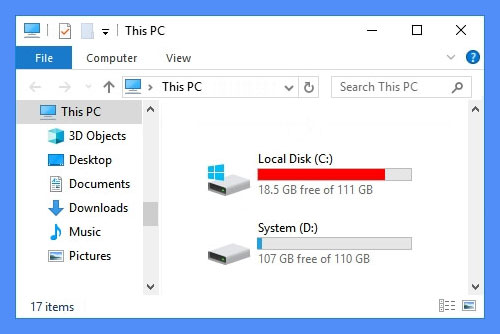
2. Ensure at least 2 logical partitions on your computer e.g., (C:) and (D:) drives.
* To check your disk partitions, press Win+X keys to open Disk Management.
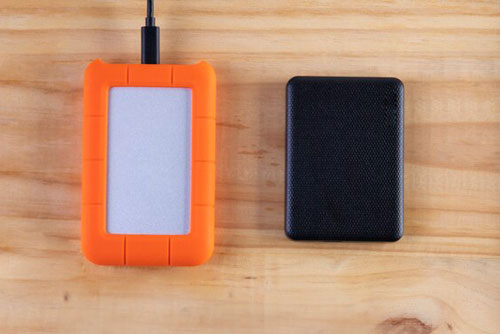
3. For single-partition computer, use a USB or external hard drive.
DO NOT create, move, or save new files on the partition containing the lost files, as this could overwrite your valuable data.
98%
recovery success rate. Ensure no new data is written to the target disk for the best results.
3
steps only: Select location > Scan > Preview and Recover. Easy peasy!
100+
universal formats that AI scan can precisely identify and rebuild from scattered fragments into complete files.
All
types of files are recoverable in Quick Scan mode (if no data overwriting occurs).
100%
secure. Non-destructive recovery to your original data and drive with read-only mode.
10,000+
found files including images, document files, texts can be restored and saved in minutes.
Available on:  Windows
All Solutions
Before you start, you may want to know:
1. RecoveryFox AI can restore regular photos or professional camera images that are even partially overwritten. However, the recovered image only shows the content of the intact area of the data.
2. The software can also accurately scan and recover 3D model files, such as 3DS, STL, OBJ, DXF, WRL, DWG, RVT, FBX, IFC, and more, although these files are not categorized as images.
3. Some image project files with layer effects, such as PSD, EPS, and AI files, have a more complex structure. If parts of these files have been overwritten, it is usually impossible to fully recover them as editable layered files.
RecoveryFox AI is a smart and user-friendly picture recovery software that helps you quickly restore lost or deleted photos and videos from memory cards, cameras, external hard drives, computer drives, USB flash drives, or other storage devices.
In this video, we will show you how to recover deleted footage from Insta360 X5 on Windows.
From vacation snapshots to professional photography, RecoveryFox AI gets them back. It works by scanning your device for deleted data and restoring them into complete files intelligently. Just follow the steps below to recover lost photos from an SD card, USB, or other storage media on Windows effortlessly.
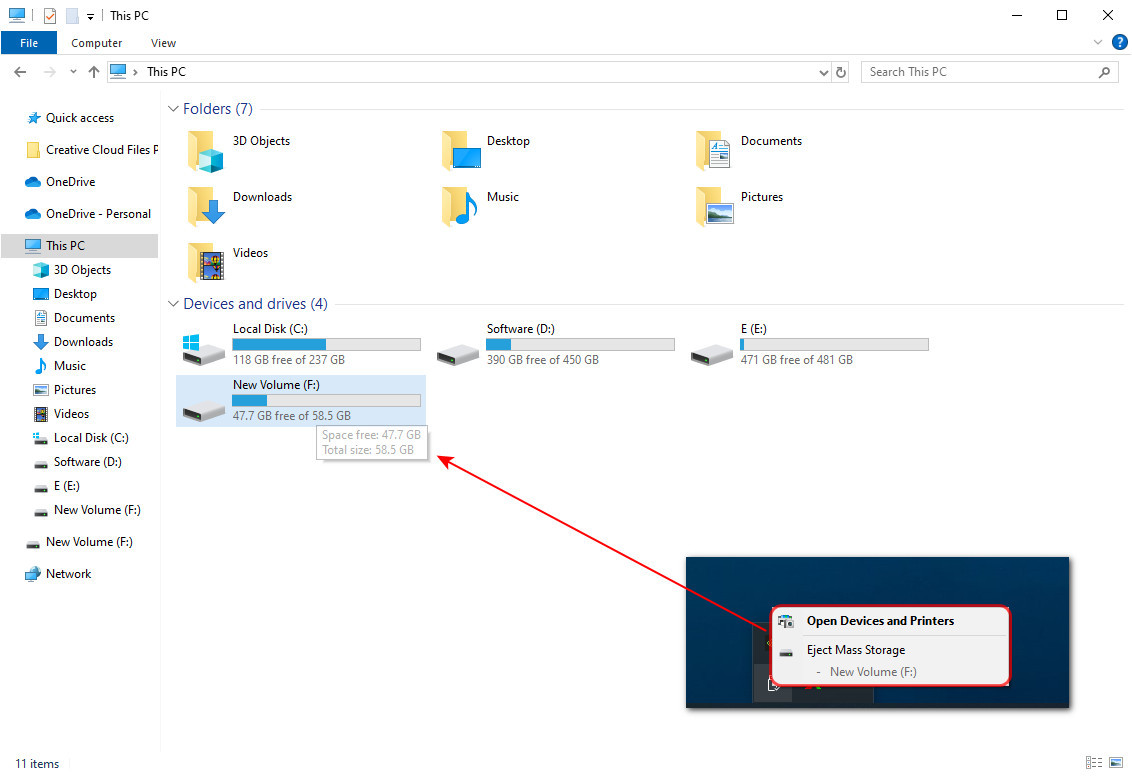
Step 1. Connect Your USB to PC
Insert your USB flash drive into your computer’s USB port or an external adapter.
Step 2. Select File Location
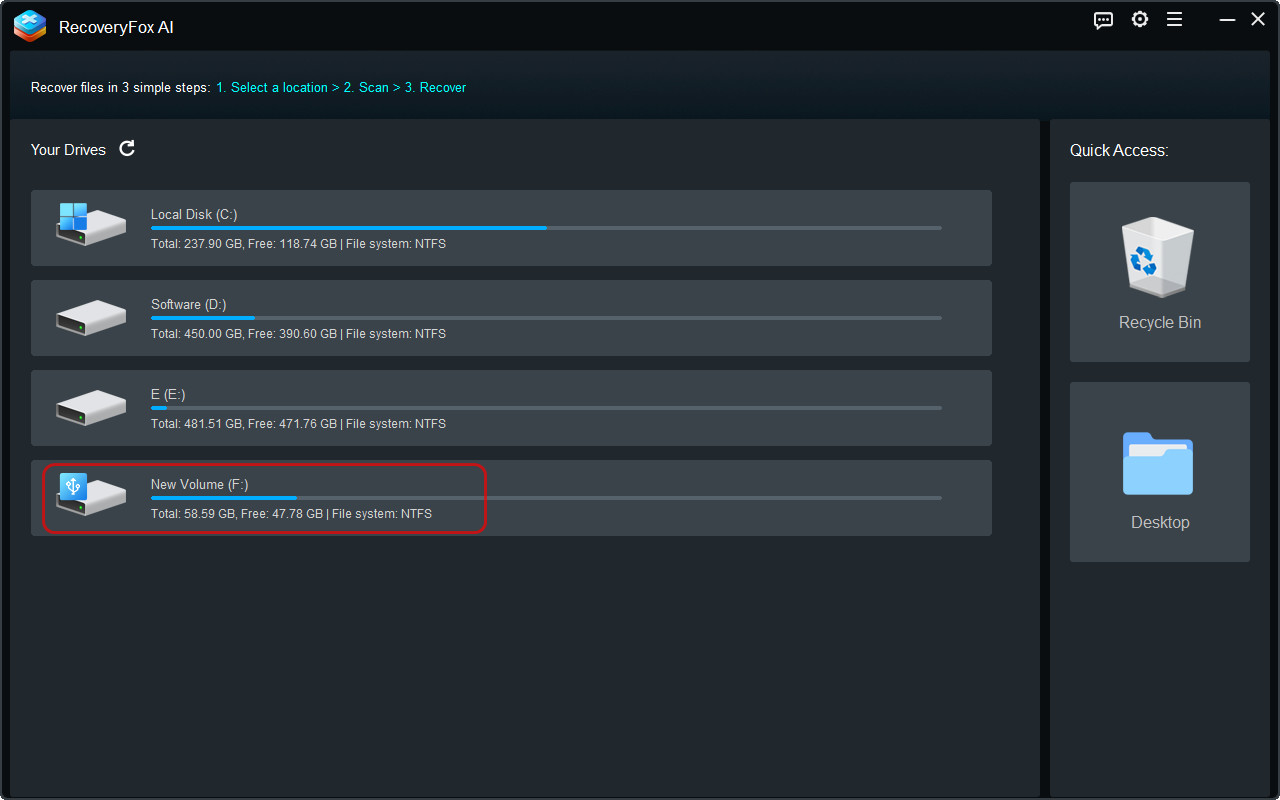
Launch the delete photo recovery tool. On the startup interface, select the flash drive from the list of available drives to start a scan.
Step 3. Start Scanning
RecoveryFox AI will begin scanning your flash drive for lost or deleted photos. The scan time may vary from a few minutes to several hours, depending mainly on the drive size and file volume. You can pause or stop AI Scanning any time if you want to preview the found files early.
After stopping or completing the scan, narrow the results by filters like File Path, File Type, Modified Date, or File Size.
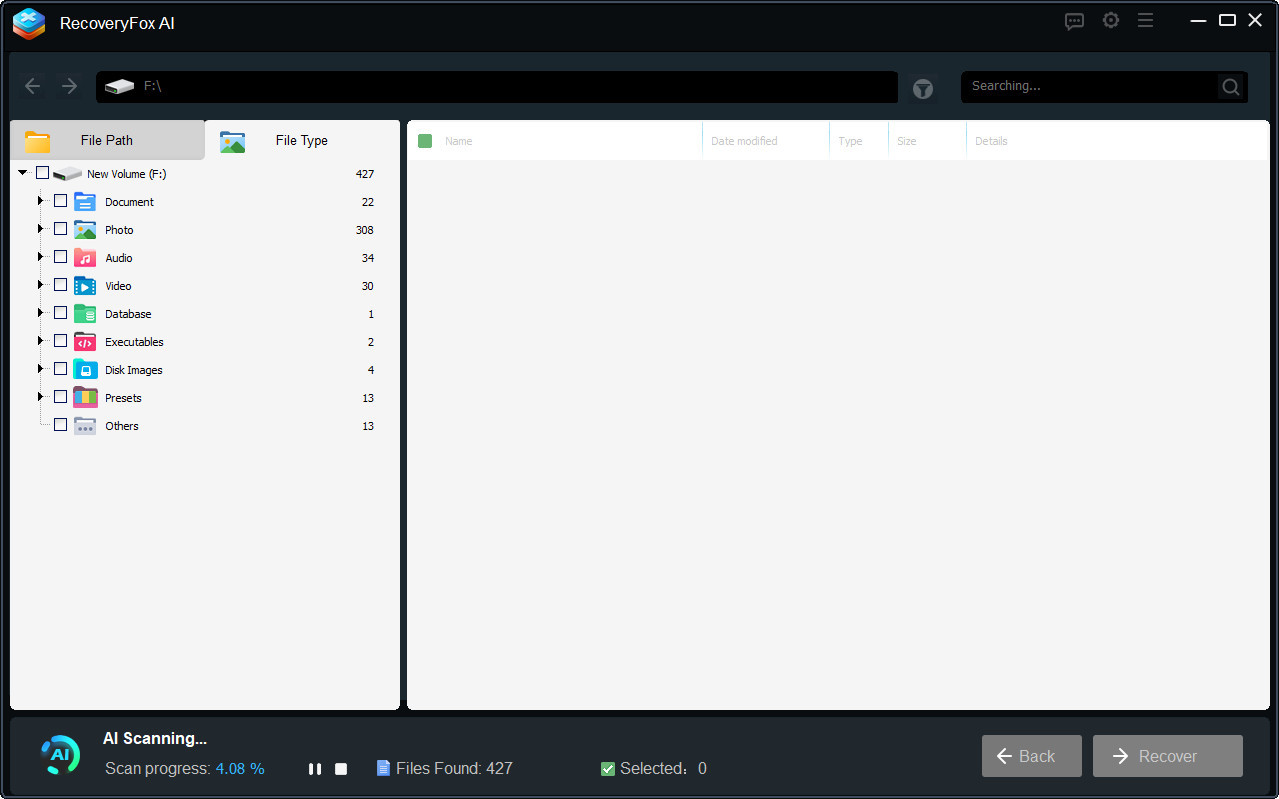
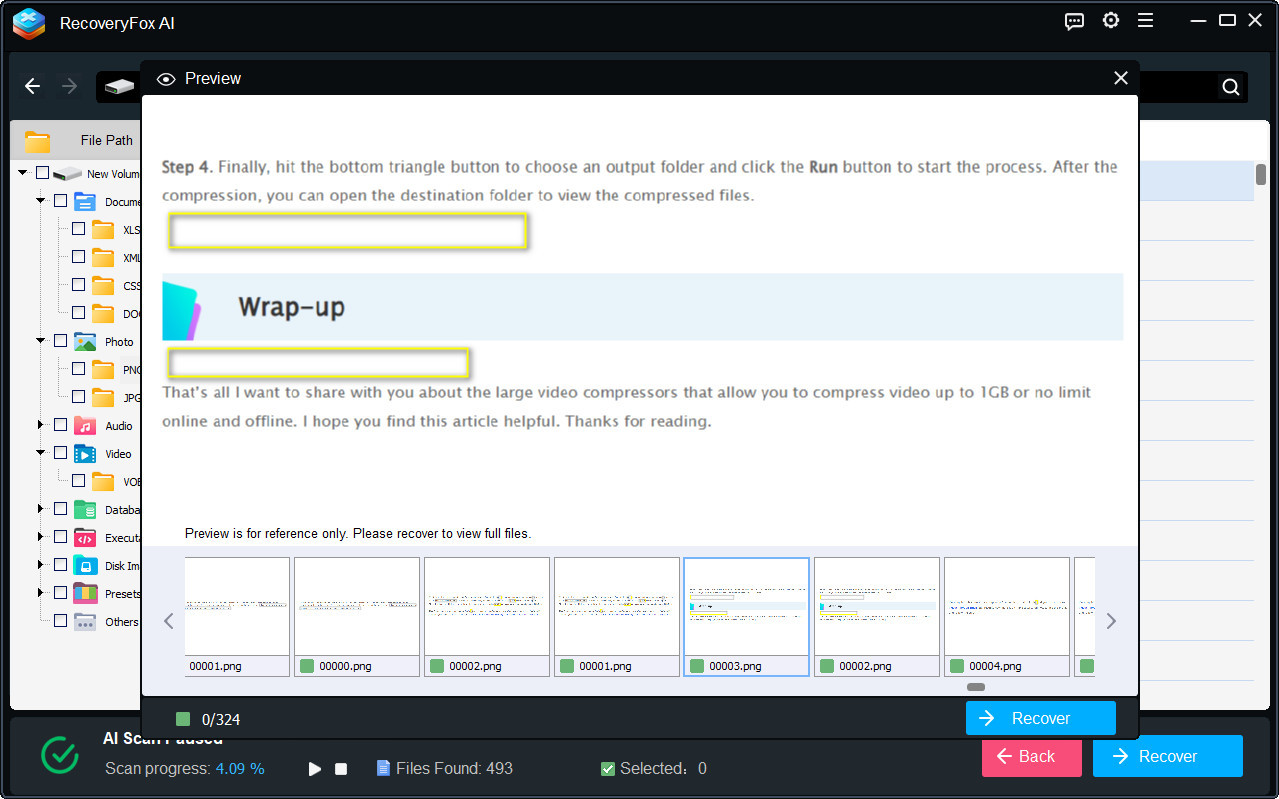
Step 4. Preview and Recover
To preview a photo, simply right-click the file and select “Preview.”
📢 The preview feature supports most common image formats, along with selected camera RAW files and professional formats, including 3DMAX, CAD, and Revit (BIM models).
However, for layered design files such as PSD, AI, EPS, as well as certain professional RAW formats like NEF, preview is not available. In these cases, you will need to recover the files first, then open them using the appropriate software.
Then, select the photos you want to recover and click "Recover". You can choose to recover individual files or all pictures under a certain photo format folder.
To prevent data overwriting, it's best to select a different drive or use an external USB drive or a hard disk.
To recover deleted photos from emptied Recycle Bin, the software will run a Quick Scan which usually completes within minutes and even shorter.
For other locations, AI Scan will automatically go on after Quick Scan ends for a more thorough and in-depth data scanning and rebuilding. With this AI-enhanced ability, even long-term deleted files and partially overwritten data fragments can be retrieved. The AI Scan process may take hours or even days mainly depending on your drive size, the number of files, and PC specs.
To enjoy a faster data recovery solution, you can go to ‘Settings’ before you start selecting file locations. Then allow skipping unallocated space on the disk, ignoring temporary files, damaged archive formats, or files embedded in files you don't need.
Scan Settings for Photo Recovery:
Pictures saved in compressed archives or embedded within other files, such as documents, can also be recovered with RecoveryFox AI.
To perform the most thorough image recovery, go to “Settings” in the menu bar and make sure to uncheck the following two options before starting the scan:
 Skip files inside archives
Skip files inside container files
Available on: Windows
1. Can I recover permanently deleted photos?
Yes. For the best recovery results, stop using the storage device immediately after data loss and start the recovery process as soon as possible. RecoveryFox AI can help restore photos lost due to accidental deletion and also supports recovery after quick formatting of your storage device.
2. Can I recover photos from a corrupted or damaged SD card?
Yes. RecoveryFox AI Photo Recovery can help you recover photos from corrupted or damaged SD cards.
First, ensure your SD card is recognized by your computer. Then launch the software and select the SD card to begin scanning. After the AI scan is complete, preview the recoverable photos and restore them to a safe storage location.
3. How do I recover deleted photos from a digital camera?
With RecoveryFox AI Photo Recovery, you can easily recover deleted photos and videos from most digital camera models.
Connect your camera to your computer using a USB cable, then launch the software and start the scan. Once the scan is finished, preview the recovered files and choose a secure location to save them.
4. Is RecoveryFox AI safe?
Yes. RecoveryFox AI is 100% clean, free from bundled software, malware, and ads. Before purchasing, you can use the unregistered version to scan your drive and preview many recoverable files at no cost, allowing you to verify whether your data can be recovered before upgrading.
Tell us what kind of help you are looking for and we’ll help you out.

Support
Get quick help with your order, license code, registration, refund, software issues, etc., on our Support Home.
If you need further assistance, contact us at: support@wonderfoxrecovery.com

Collaboration
Interested in our product? Don’t wait! Join our Partner Program as an affiliate or reseller to grow your business.
You can also connect with us at: market@wonderfoxrecovery.com



Terms and ConditionsPrivacy PolicyLicense AgreementRefund PolicyCookies Policy
Copyright © 2026 RecoveryFox. All Rights Reserved.


 English ^


