






 Free Download
 Windows


Is It Possible to Recover Deleted Files in Windows 11?
Yes! Deleted files are usually not gone forever.
In most cases, they can still be recovered, as long as the data hasn’t been overwritten. That’s why avoiding or minimizing use of the affected drive after data loss is crucial.
Drawing on our recovery experience, we’ve summarized the most common causes of data deletion and the suggested solutions for each scenario:
| File Deletion Scenarios | Recover Solutions |
| Press “Delete” | • Use Undo Delete (Ctrl +Z) • Restore from Recycle Bin |
| Files permanently deleted due to: • Shift + Delete • Files too large to go into the Recycle Bin • Recycle Bin auto-deletion • Copy-paste errors • Replace a file with the same name • Quick format |
• RecoveryFox AI (🔥️) • Windows File Recovery • File History • Cloud backup (OneDrive) |
| Files deleted due to: • Software update or conflict • System update or crash (logical error) • Virus or malware attack |
• RecoveryFox AI (🔥️) • Windows File Recovery • File History • System Restore (for system files) • CHKDSK (works on logical/file system errors) • Cloud backup (OneDrive) |
| Physical drive damage or bad sectors (clicking, grinding, buzzing noises) | • Cloud backup • Contact professional data recovery service |
How to Recover Permanently Deleted Files in Windows 11?
If your files were permanently deleted, follow these two golden rules to improve recovery success rate:
- Stop using the affected drive immediately
- Use the right recovery tool as soon as possible
Method 1. Recover Deleted Files Using RecoveryFox AI
Scan, preview, then recover! RecoveryFox AI makes recovery easy for everyone. It supports recovery of documents, photos, videos, audio files, and more from internal drives, HDDs, SSDs, USB drives, SD cards, cameras, and other storage devices.
👉 Here is how to restore permanently deleted files in Windows 11 using RecoveryFox AI:
Step 1. Download and install RecoveryFox AI.
(⚠️ Important: Never install recovery software on the drive you want to recover data from, as this may overwrite recoverable files.)
Step 2. Connect your external device (if applicable) and launch RecoveryFox AI.
Select the target drive or location and start scanning.
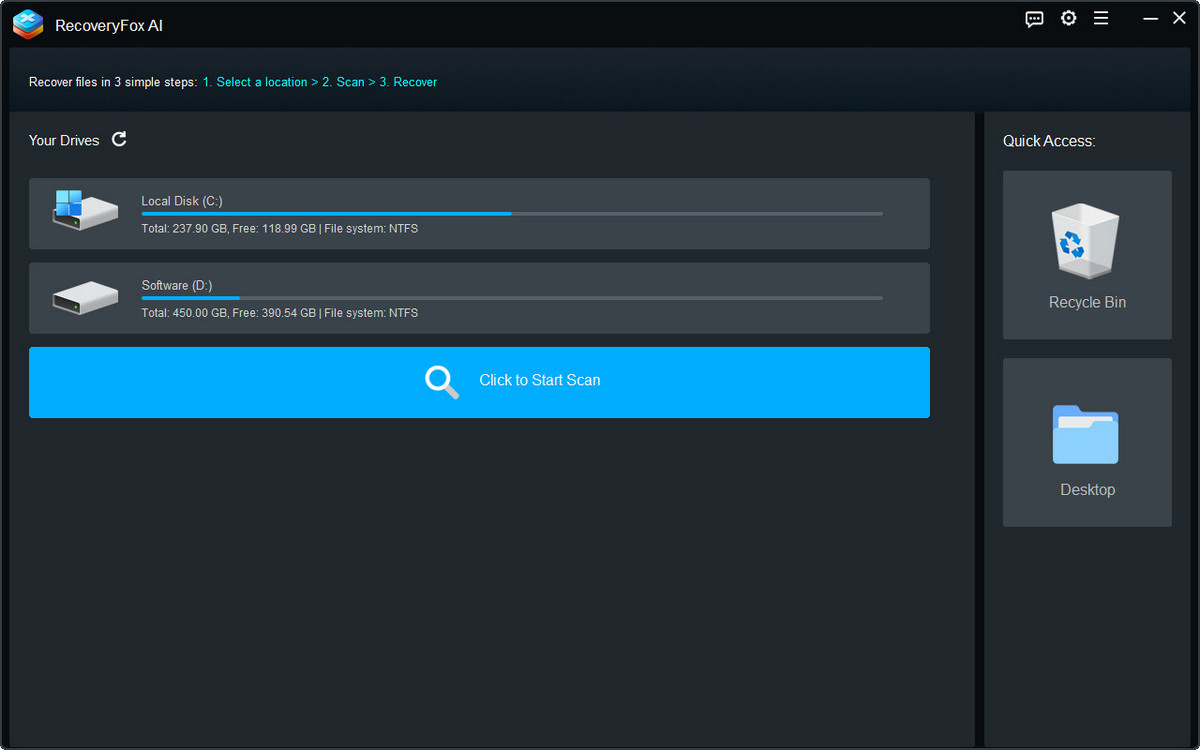
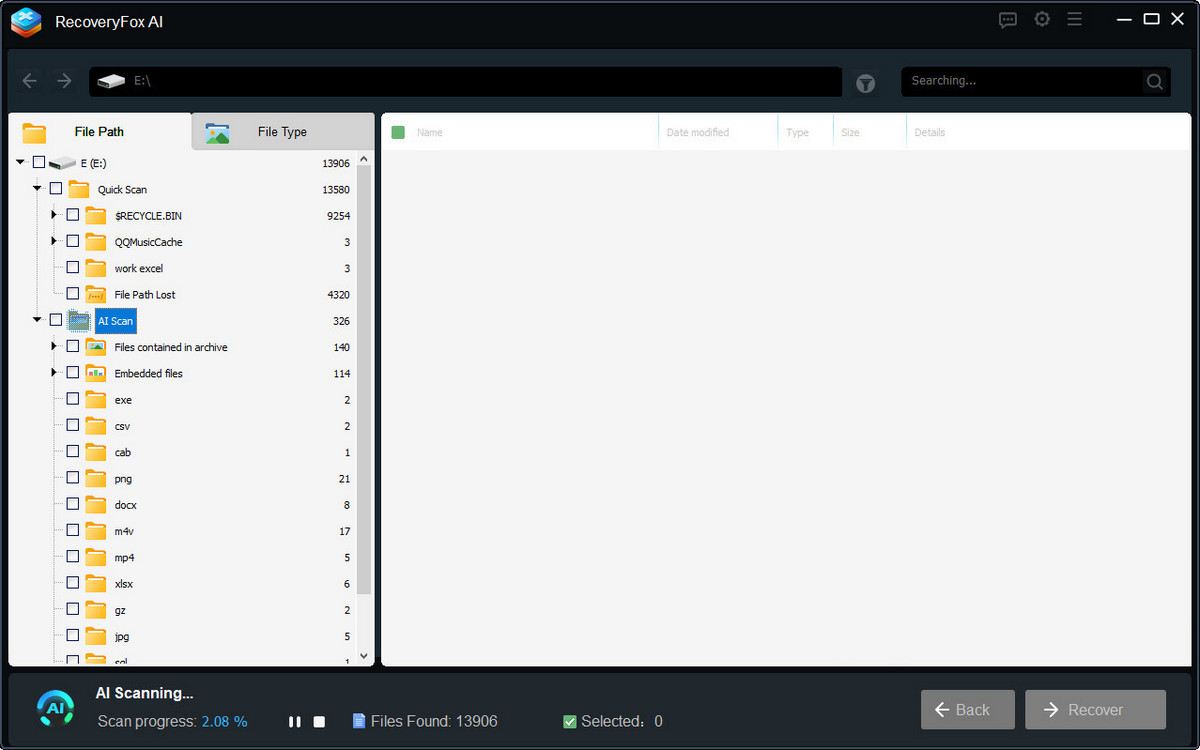
Step 3. The tool begins with Quick Scan, which is designed for recently deleted files.
Once completed, AI Scan runs automatically for deeper recovery.
You can pause the scan and review results under the Quick Scan folder in File Path.
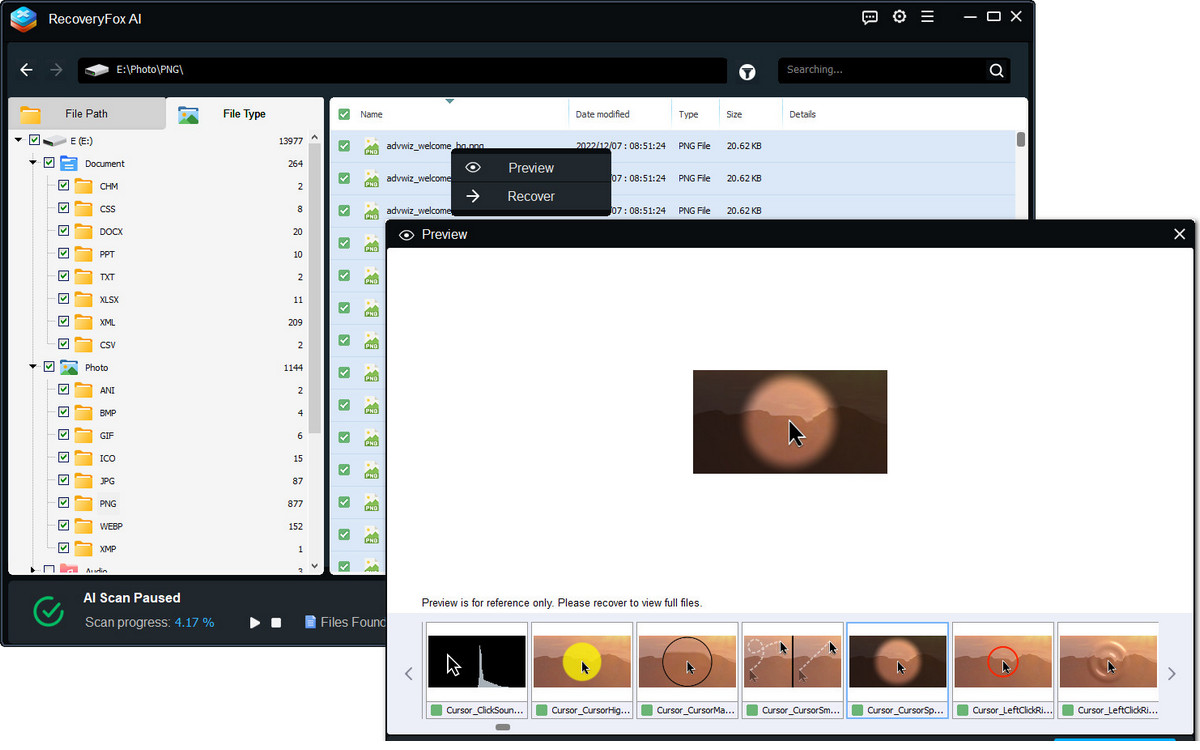
Step 4. The filter results by File Type, Filename, Modified Date, or Size.
Right-click any file to Preview or Recover it.
Method 2. Restore Deleted Files Using Windows File Recovery
Windows File Recovery is a free, command-based tool from Microsoft. It’s very powerful and supports a wide range of file types and storage devices. However, non-tech-savvy may find it to be complex to run with.
👉Here is how to recover permanently deleted files in Windows 11 using it:
Step 1. Download Windows File Recovery from the Microsoft Store and then open it.
Step 2. You will find a simple instruction sheet inside. The basic recovery syntax is:
winfr source-drive: destination-drive: [/mode] [/switches]
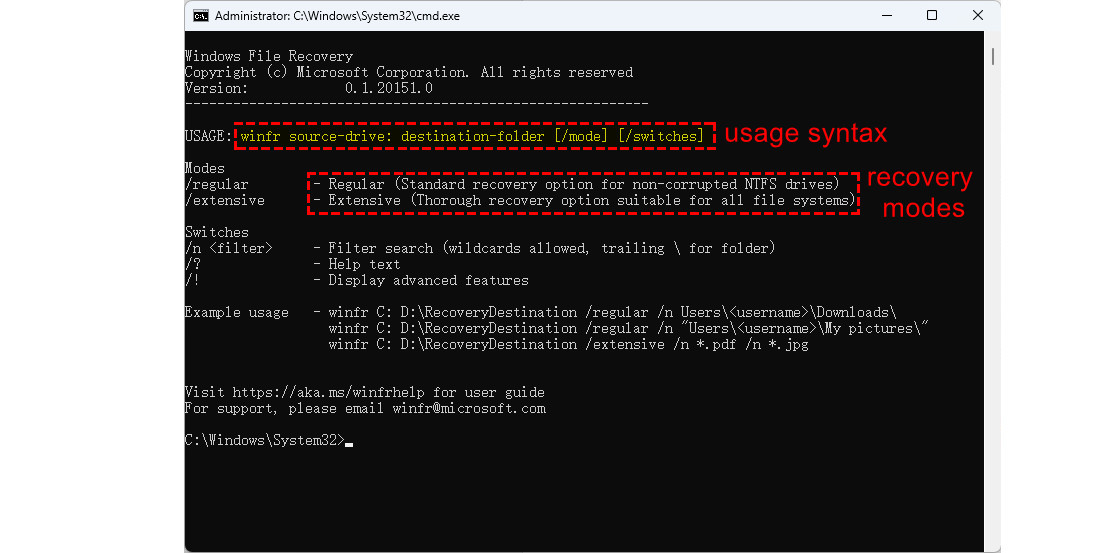
Step 3. Run a command based on your scenario.
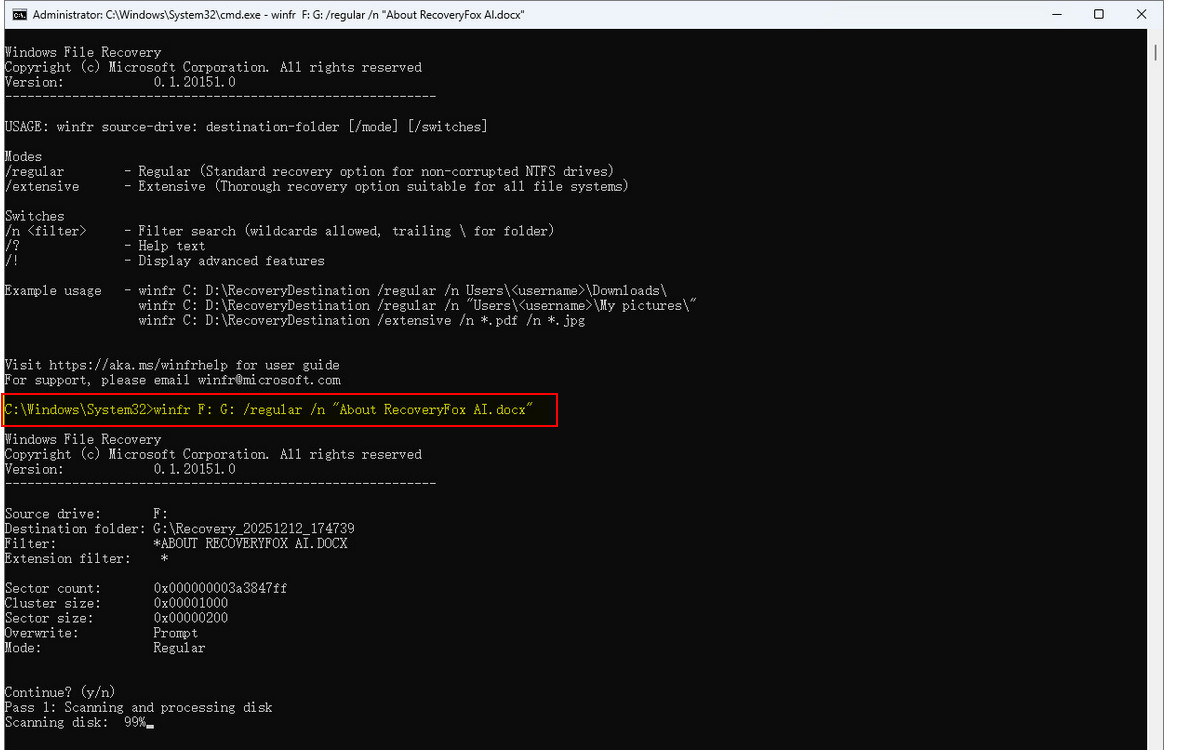
For example, if you want certain files from F: to G:, run this command and press Enter:
winfr F: G: /regular /n “About RecoveryFox AI.docx”
Use quotation marks for file paths with spaces. If [Regular mode] fails, try [Extensive mode].
Step 4. When the scan completes, press Y to view recovered files.
How to Recover Deleted Files in Windows 11 without Software?
You actually don’t need to install any third-party tools if your files are still in the Recycle Bin or were backed up using Windows features.
Method 1. Press Ctrl + Z to Undo Deleted Files in Windows 11
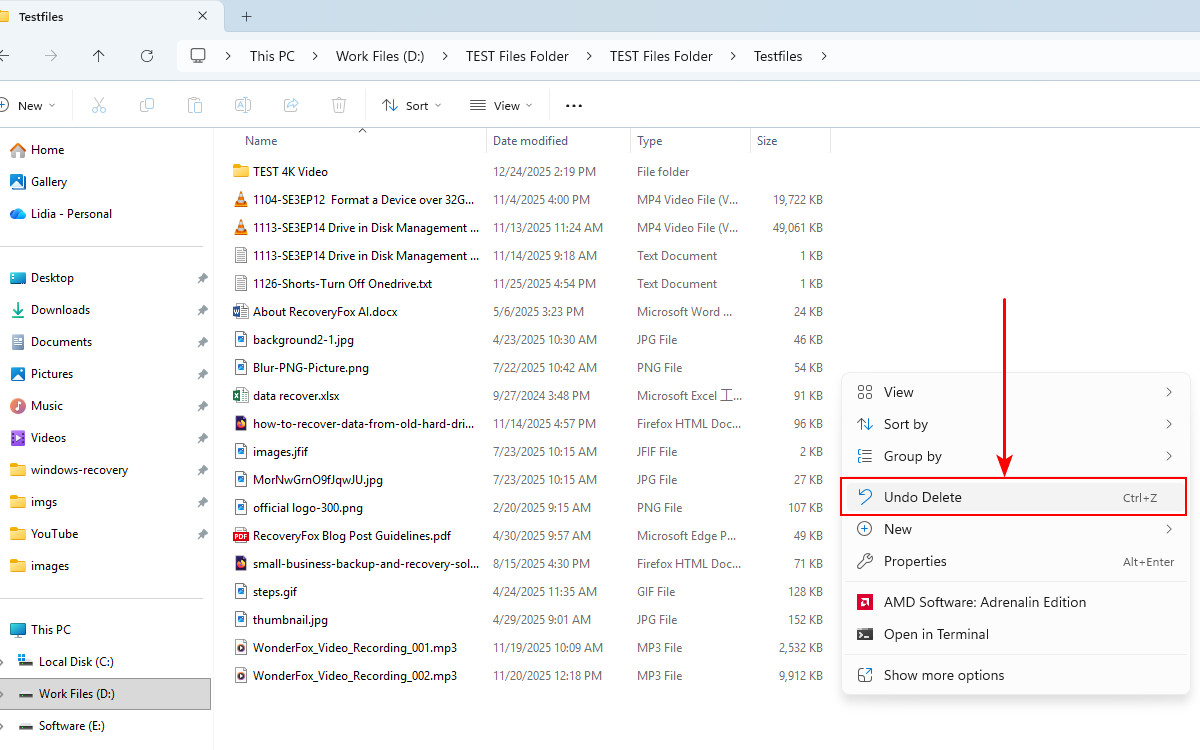
Some Windows shortcuts helps simplify everyday tasks. If you accidentally delete a file in File Explorer, you can often restore it instantly by pressing Ctrl + Z, without leaving the current window.
The undo operation works in reverse order, restoring the most recently deleted file first. If you deleted multiple files consecutively, pressing Ctrl + Z repeatedly will recover them one by one in a last-in, first-out sequence.
Alternatively, you can right-click inside the folder and select “Undo Delete” from the option menu.
Method 2. Restore Deleted Files in Windows 11 from Recycle Bin
Another simple method is to check the Recycle Bin.
👉Follow these steps to restore deleted files in Windows 11:
Step 1. Open Recycle Bin from desktop on your Windows 11.
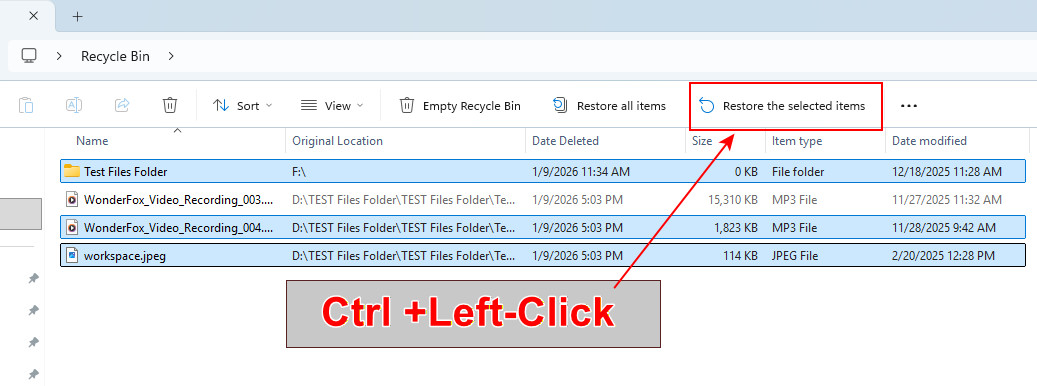
Step 2. Find the file you want to recover, select it and choose “Restore the selected items”.
Step 3. To restore multiple files, hold on the Ctrl key, then select any needed files to recover.
Method 3. Recover Deleted Files on Windows Using File History
If you have enabled the File History feature in Windows 11 and happened to back up the folder where your deleted files were stored, you’re in luck.
👉 Follow these steps to restore a previous backup version:
Step 1. Open the folder that used to contain your deleted files.
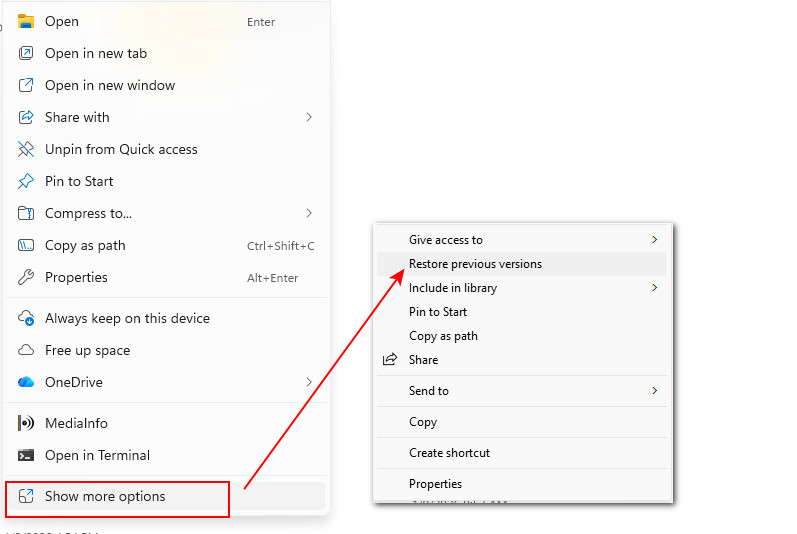
Step 2. Right-click on the folder (or the drive letter if the files were stored in the root directory of the drive), expand “Show more options”, and choose “Restore previous versions”.
Step 3. From the list of versions, choose the one that includes copies of your deleted files or folder.
Step 4. It’s recommended that you open it in the File History window, where you can preview the files.
Step 5. Once confirmed, click the green Restore button to save the previous version to a different location.
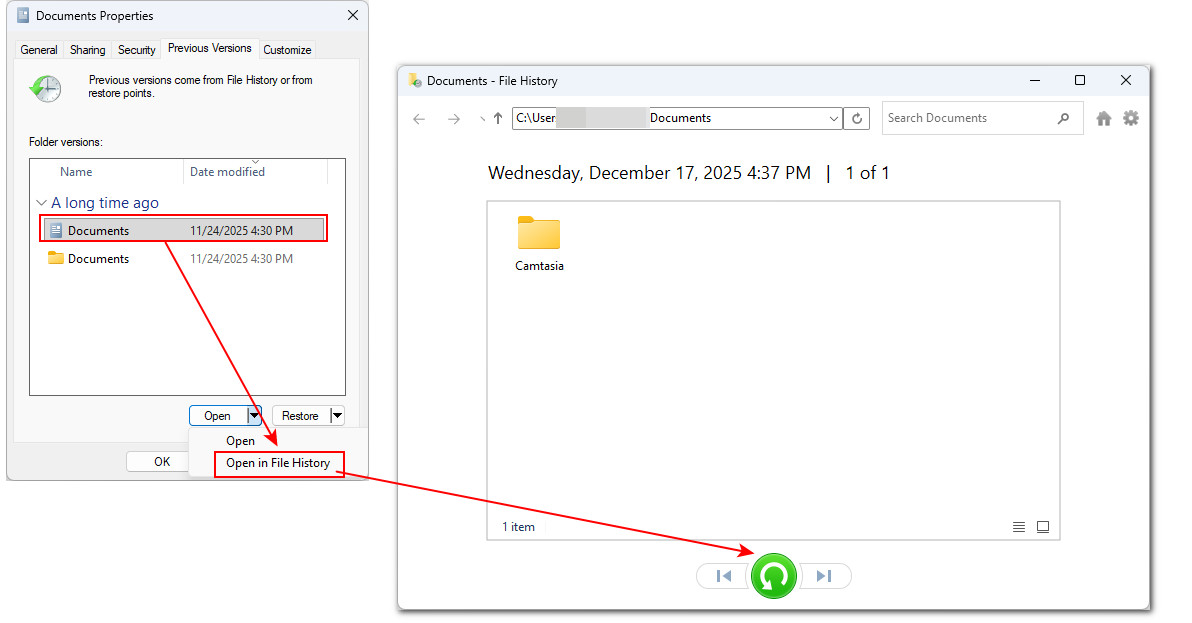
📢 File History is a built-in Windows backup tool, but it is disabled by default. If you don’t turn it on, you won’t be able to access previous versions of your files and will only see the message “There are no previous versions available."
Method 4. Recover Deleted Windows Files Using System Restore
Accidentally delete important system files and your computer is acting up? Or want to roll back a problematic Windows update or driver? System Restore can restore them all if you’re fortune enough to have enabled it in advance.
👉Here is how System Restore revert your Windows 11 to a previous point before the issue occur:
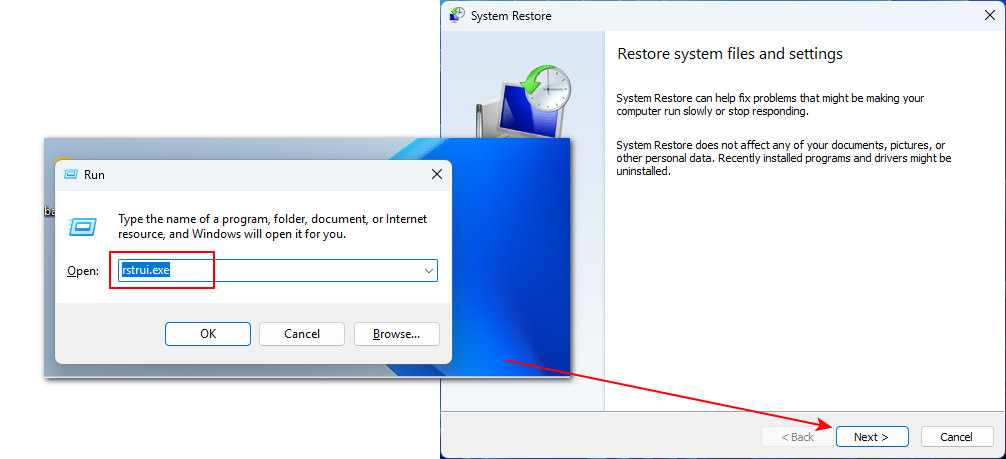
Step 1. Press Windows + R, type “rstrui.exe”, and press Enter.
Step 2. Then, click Next and you’ll see a list of available restore points.
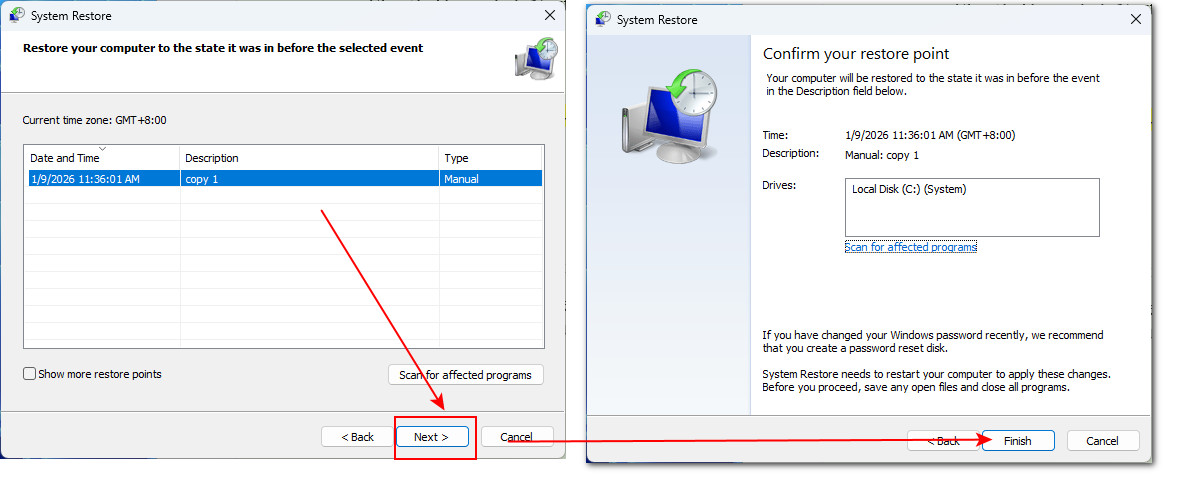
Step 3. Select a restore point created before the issue occurred.
Step 4. Click Next > Finish.
Step 5. Be patient and let the process to be completed fully. Once done, your Windows will restart automatically.
⚠️ Warning: System Restore cannot recover deleted personal files such as documents, photos, or videos. It only restores system-related files with specific monitored extensions, including system files, drivers, and registry-related components.
Besides, this will remove all system changes made after the selected restore point. So, after restoring, you need to reinstall or reconfigure the lost programs or system settings.
Method 5. Recover Missing Files in Windows 11 Using CHKDSK
Sometimes, files go missing not because they were deleted, but due to file system errors or bad sectors on the drive. In such cases, running CHKDSK, a built-in Windows disk repair utility, can help fix these errors and potentially make the files accessible again.
👉 Here is how:
Step 1. Open File Explorer and navigate to the drive that originally contained the missing files.
Step 2. Click the address bar, type “ cmd”, and press Enter to open Command Prompt with the drive path set.
Step 3. In the Command Prompt window, enter the following command:
chkdsk [YourDriveLetter]: /f /r /x
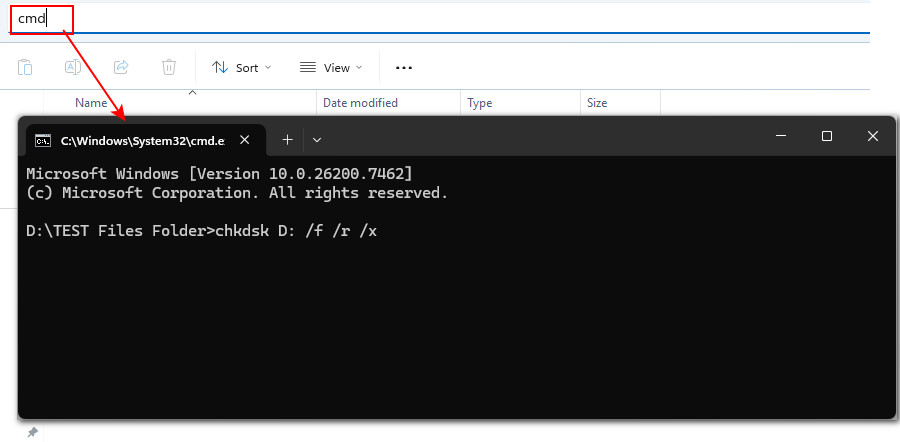
Step 4. Press Enter and allow CHKDSK to scan and repair the drive. The process may take some time, especially on large drives.
Step 5. After the scan completes, restart your computer if prompted and check whether the missing files are accessible again.
⚠️ However, if your drive becomes RAW, CHKDSK usually cannot access or repair it because Windows no longer recognizes a valid file system. You may see an error message like "CHKDSK is not available for RAW drives." In such cases, you will need a dedicated RAW data recovery tool to recover lost files.
Method 6. Restore Deleted Files in Windows 11 Using Cloud Backup
OneDrive is automatically available in Windows 11 and starts to sync and back up files from personal libraries and your desktop once you sign in with a Microsoft account.
👉 If your files were previously synced to OneDrive, you can restore them using the following steps:
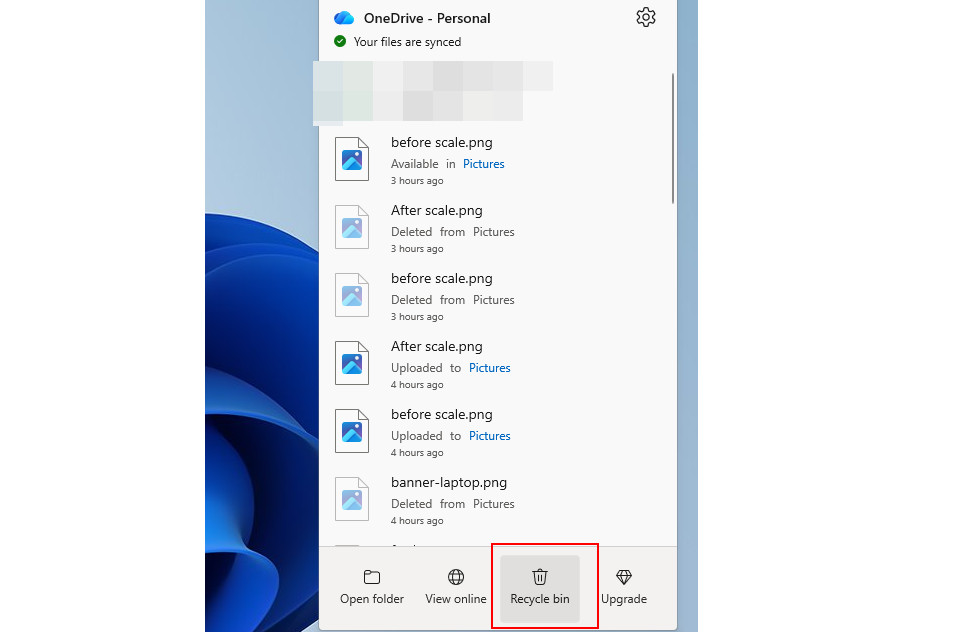
Step 1. Open OneDrive and click Recycle Bin at the bottom.
Step 2. You’re be directed to the OneDrive website. Sign in with your Microsoft account.
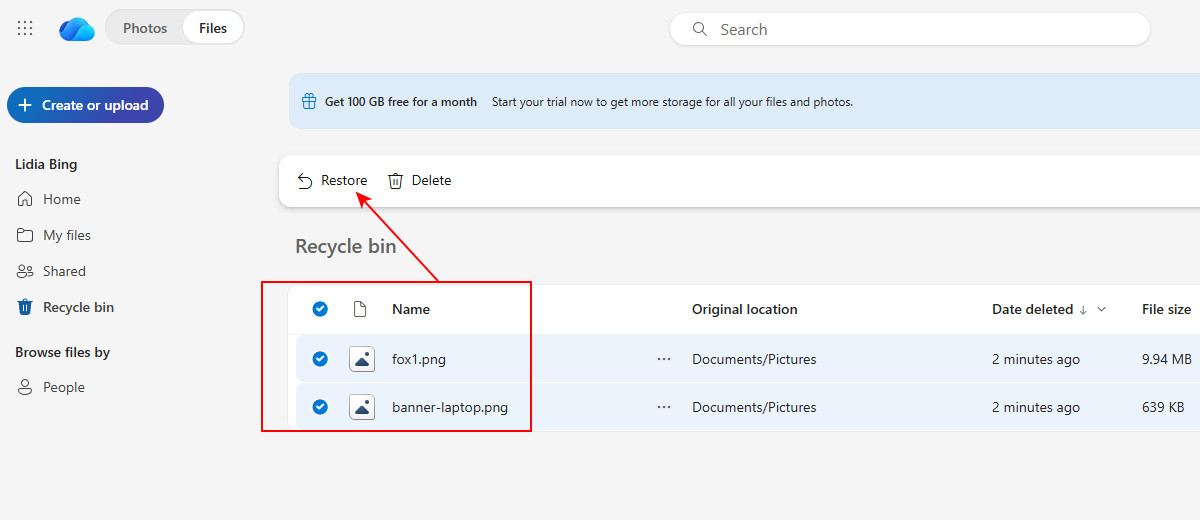
Step 3. Select Recycle bin from the left navigation pane.
Step 4. Locate the deleted files you want to retrieve, select them, and click Restore.
Step 5. The restored files will be returned to their original locations on your PC and in OneDrive.
Method 7. Professional Data Recovery Service
If all the above methods fail, or your data loss is caused by physical damage to the device, contacting a professional data recovery service may be the best option.
Please note that professional data recovery services are usually expensive. In addition, to protect your personal data and avoid misunderstandings, make sure you clearly confirm the following points with the service provider in advance:
- Pricing: Total cost for the entire recovery process
- Timeframe: Estimated turnaround time from start to finish
- Failure policy: What happens if the recovery is unsuccessful (e.g., no data, no fee)
- Communication & device handling: How and how often the provider will contact you with recovery progress updates, and whether your storage device will be returned or disposed of if recovery fails.
Conclusion
Recovering deleted files can be challenging, but even permanently deleted data is not always lost forever. Your chances of successful recovery increase significantly if you take the right actions immediately:
- Stop using the device to avoid data overwriting.
- Act quickly with an appropriate recovery method.
In this guide, we introduced 9 recovery methods to recover deleted files in Windows 11. These solutions also apply to other Windows versions and a wide range of data loss scenarios.
Among them, RecoveryFox AI is highly recommended for beginners who prefer a simple, click-and-done solution. With Quick Scan for fast recovery and free file preview before restoration, it offers an efficient and user-friendly way to get your lost files back.

A technical content writer for RecoveryFox AI at WonderFox Soft, creating clear guides on data recovery, storage technologies, and Windows troubleshooting. She specializes in simplifying complex technical topics and enjoys exploring technology, running, and discovering new experiences.





 English ^


