
-
Solutions ∨
-
Support ∨
-
Resources ∨
-
About ∨
-

RecoveryFox AI helps recover deleted or lost Word, Excel, PowerPoint, PDF, and other documents from internal drives, external hard drives, USB drives, SD cards, and other supported storage devices.
Available on:  Windows
Documents can be lost due to accidental deletion, formatting, software errors, storage device issues, interrupted file transfers, and other common data loss scenarios. RecoveryFox AI helps recover lost or deleted documents from supported storage devices in these situations.

Accidental Deletion

Formatted Drives

An Emptied Recycle Bin

Lost/Deleted Partitions

RAW or Unallocated Storage

Overwritten by a File with the Same Filename

Virus/Malware Attacks

System Corruption

Software Issues

More data loss scenarios…
RecoveryFox AI helps recover lost or deleted Excel workbooks, Word documents, PowerPoint presentations, PDF files, TXT files, and more document files from supported storage devices. Its powerful AI Scan can also identify corrupted document fragments and reconstruct them into complete files for recovery when possible.

Word (docx, doc, docm ,dotm, dotx...)

Excel (xlsx, xls, xlsb, xltx, xlsm...)

PPT (ppt, pptm, ppsm, ppsx, pptx, pps...)


RTF

TXT

XML

CSV

CSS

CHM

DBF

Html (html, mhtml, htm...)

JSON

MHT

ODP

ODS

THMX

XPS
RecoveryFox AI supports more than common Word, Excel, PowerPoint, and PDF files. It can also recover document and document-related files created by other office suites, word processors, diagramming and mind-mapping software, email clients, citation managers, subtitle editors, and text editors.
| Microsoft Office Suite & Related Microsoft Apps | DOT, POT, WPS, WRI, PUB, VSD, MPP, MPT, MPD, OFT, MSG, PST, ONE, ONEPKG, OXPS, SNP, PWI… |
| OpenOffice/LibreOffice/StarOffice Suite | ODT, OTT, SXW, SDW, SXC, SDC, SDD, ODF… |
| Apple iWork Suite & Related Apple Apps | PAGES, NUMBERS, KEYNOTE… |
| Adobe Creative Suite | IND, INDD, PMD, PS… |
| Specific Word Processors/Text Editors | ABW, AWW, WPD… |
| Specific Diagramming/Mind Mapping Software | EDDX, EDOC, XMIND, OPX… |
| Email Clients & Data General/Cross-Client | EML, MHT, LDIF… |
| Citation Management Software | RIS |
| Subtitle/Lyric Editors | SRT, SUB, LRC… |
| Generic Text Formats | RTF, MD, TXT… |
 Important to Know:
For documents not listed here, there’s still a good chance to recover them with our Quick Scan, especially if you act quickly after data loss occurs.
Can't find your document format on the supported list and Quick Scan fails to recover it? Please reach out to us at: support@wonderfoxrecovery.com
Let us know the file extension, and we’ll see if we can add AI Scan support for it. Got a complete sample file? That’s even better, as it helps us improve and recover your file more accurately.

A working Windows computer (all versions supported)
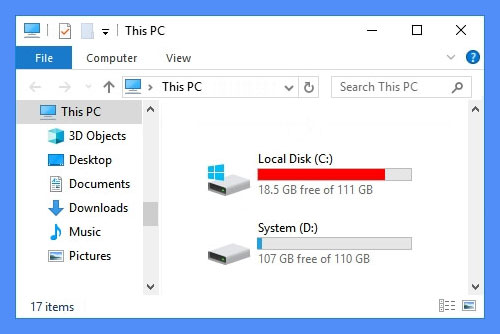
2. Ensure at least 2 logical partitions on your computer e.g., (C:) and (D:) drives.
* To check your disk partitions, press Win+X keys to open Disk Management.
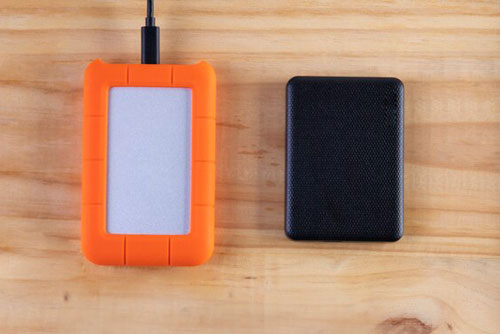
3. For a single-partition computer, use a USB or external hard drive to run software and store files.
Important: DO NOT create, move or save new files on the drive where deleted documents are stored. Overwriting data may make recovery impossible.
98%
recovery success rate. Ensure no new data is written to the target disk for the best results.
3
steps only: Select location > Scan > Preview and Recover. Easy peasy!
100+
universal formats that AI scan can precisely identify and rebuild from scattered fragments into complete files.
All
types of files are recoverable in Quick Scan mode (if no data overwriting occurs).
100%
secure. Non-destructive recovery to your original data and drive with read-only mode.
10,000+
found files including images, document files, texts can be restored and saved in minutes.
Available on:  Windows
Data loss doesn’t always mean everything is gone. Thanks to advanced AI scanning, RecoveryFox AI can help you get back as much valuable content as possible, even from damaged files.
With RecoveryFox AI, you still have a chance to recover partial text, tables or other contents from most common document formats such as Word, Excel, PPT, PDF, TXT, etc. Even if part of the data in the file structure is damaged, it can identify the undamaged data and rebuild it into a complete file.
Some documents don’t just store text; they might also include inserted images, videos, or other media files. Even if the document itself (especially its structure) is overwritten or corrupted, there’s still a chance that the embedded files can be recovered separately.
All Solutions
Whether you accidentally deleted an important PowerPoint presentation file, a Word document assignment, or a valuable .txt file, don't worry, RecoveryFox AI can easily help you. In this video, we will guide on how to use it to recover deleted or unsaved doucments like PDF files on Windows.
In this video, we will show you how to recover your deleted .xlsx files and preview entire workbooks before recovery with RecoveryFox AI.
RecoveryFox AI supports a wide range of document file types and can retrieve lost data from internal drives, external hard drives, USB flash drives, SD cards, and other storages that are still detectable and the files are not heavily overwritten.
Here is how to recover lost document files from a RAW USB drive.
Step 1. Select File Location
Launch RecoveryFox AI. On the startup interface, find and select the drive where your lost documents were stored. Clicks to start scanning.
🔎 Scan Settings for Document Recovery:
Before starting recovery, open Settings on the menu bar and uncheck the following 2 options if you want to recover all documents.
 Skip files inside archives
This option is selected by default. When enabled, the tool will skip scanning contained files in compressed document formats (e.g. DOCX, PPTX, or XLSX). However, if you need these contained files, manually unchecked the option. But this may cause large archive files to be included in the scan results, leading to computer lag or freeze.
Skip files inside container files
Enabled by default. Container files are similar to archives, but they store embedded files without compression. For example, Office documents containing images or attachments. When enabled, RecoveryFox AI scans only the container file itself and skips its embedded files. Turn this option off if you want RecoveryFox AI to scan for and recover files contained within container files. This can be useful when the container file is damaged, as embedded files may still be recoverable individually.
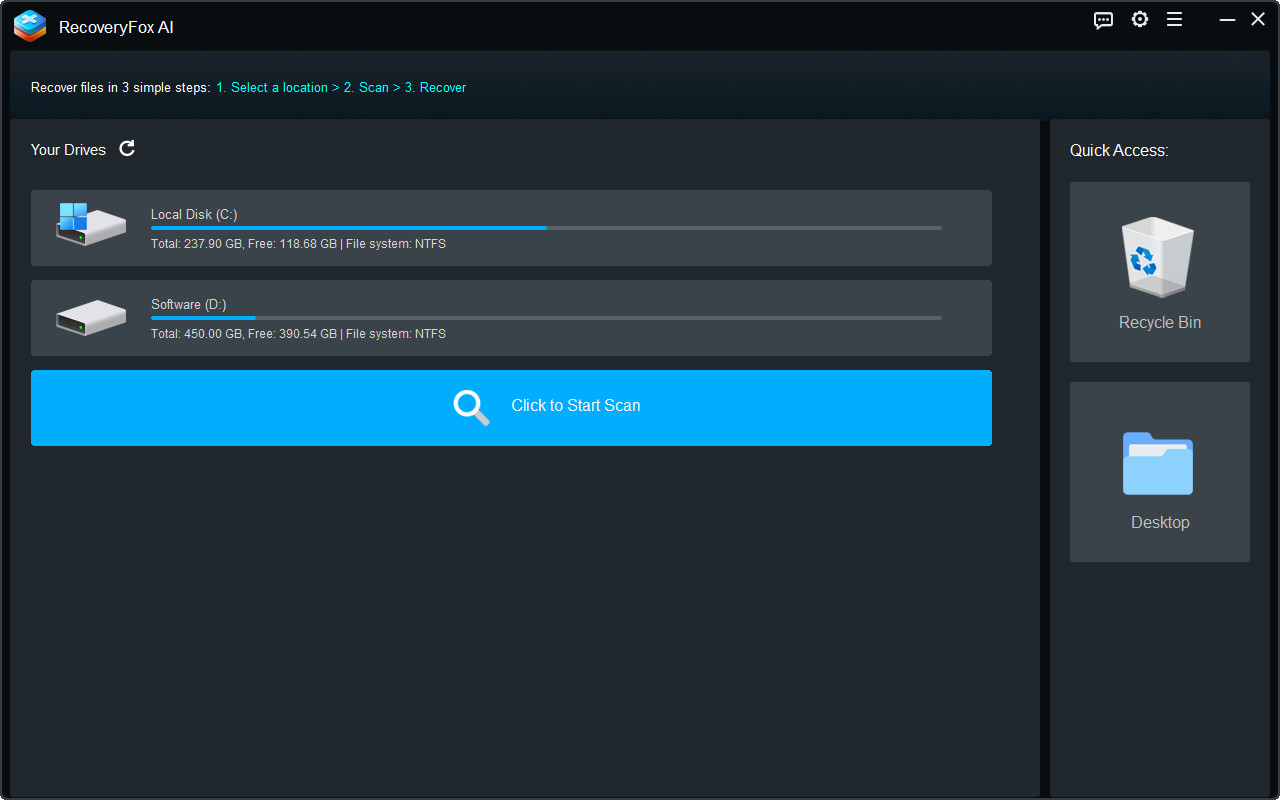
Step 2. Start Scanning
Quick Scan starts first and is best for recently deleted files. It can often preserve their original filenames and folder structure if you act quickly after deletion and avoid writing new data to the drive.
For more complex data loss cases, such as formatted or corrupted drives, AI Scan provides a deeper and more thorough scan. It starts automatically after Quick Scan finishes.
You can browse the scan result list in real time while AI Scan is running. You can also pause or stop the scan at any time to preview recoverable Office files such as Word, Excel, and PowerPoint with their original formatting, styles, and layouts.
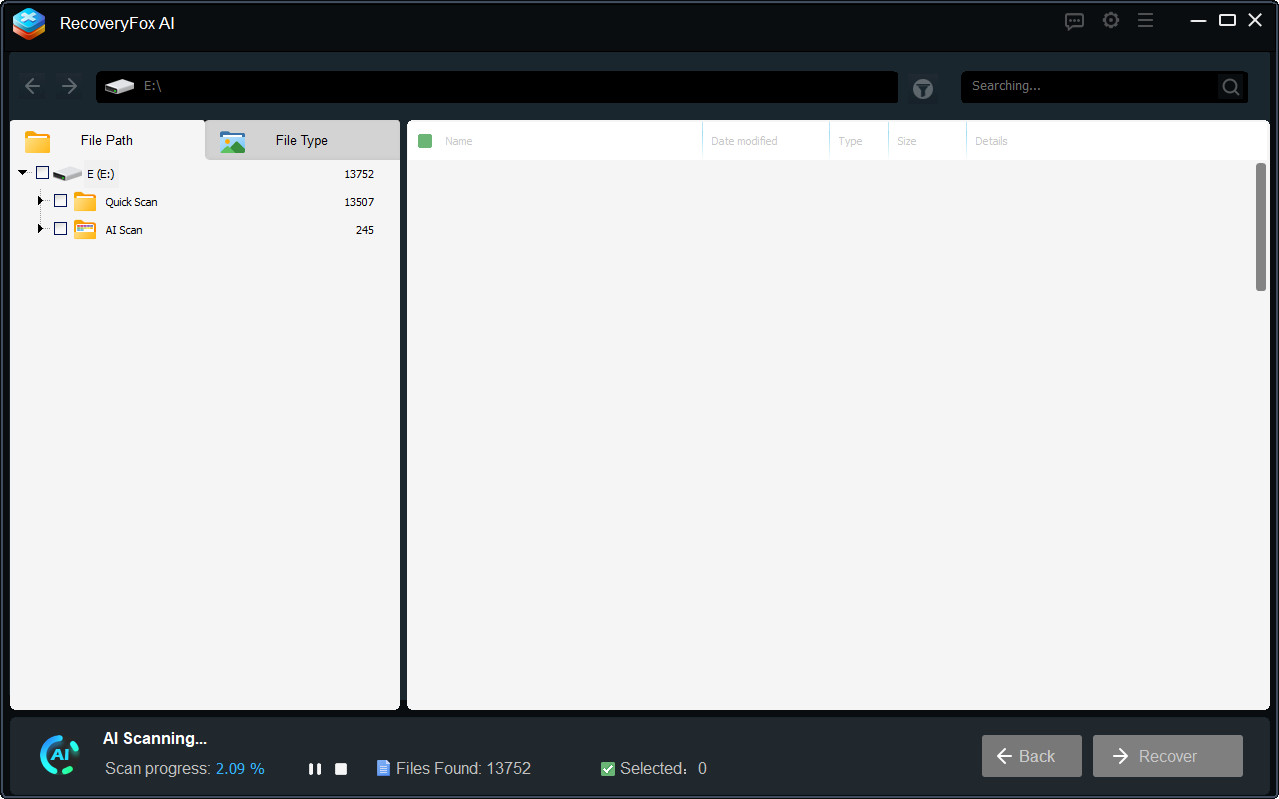
Step 3. Preview and Recover
Use the File Path, File Type, or Keywords filters to quickly find the files you need.
Then, click the eye icon to preview a document file in detail.
Select the files or folders you want, click “Recover”, and choose a safe location to save the recovered files.
To avoid overwriting the original data, do not save recovered files to the same drive they were recovered from.
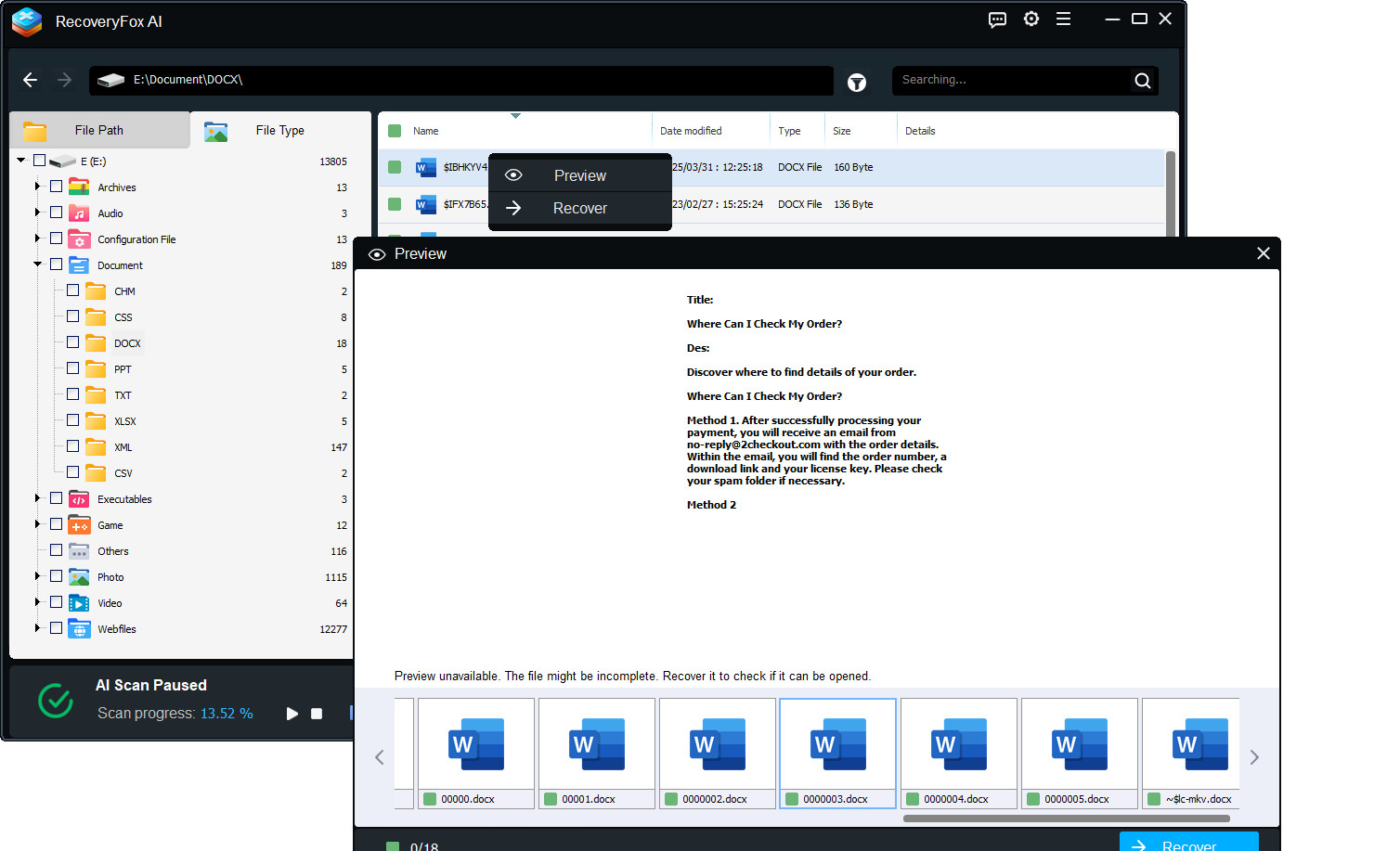
Preview Explanation:
❶ The preview feature displays only a partial result of the file, providing a reference for what may be recoverable. To view the full content, you must recover the file first.
❷ For some documents that cannot be previewed, they can still be recovered. After recovery, the file may be a complete file or a partially usable file (if parts of the document have been overwritten).
To recover documents from an emptied Recycle Bin, RecoveryFox AI runs a Quick Scan that usually finishes in just a few minutes.
For other locations, AI Scan will automatically go on after Quick Scan ends for a more thorough and in-depth data scanning and rebuilding. With this AI-enhanced ability, even long-term deleted files and partially overwritten data fragments can be retrieved. The AI Scan process may take hours or even days mainly depending on your drive size, the number of files, and PC specs.
To enjoy a faster data recovery solution, you can go to ‘Settings’ before you start selecting file locations. Then allow skipping unallocated space on the disk, ignoring temporary files, damaged archive formats, or files embedded in files you don't need.
Available on: Windows
1. Is it possible to recover lost or deleted files?
Yes, it is. With reliable data recovery software like RecoveryFox AI, you can fast recover lost or permanently deleted files from your Windows computer or other storage devices.
2. How to recover a deleted Word document?
First, check this folder to see if your lost document file is still available: C:\Users\Your_Username\AppData\Local\Microsoft\Word
If you can’t find it, don’t worry! Use RecoveryFox AI to scan and restore your documents effortlessly. Please act quickly for the best recovery chances.
3. Can you retrieve a Word document that wasn't saved?
Yes, in some cases. If Word created a temporary or AutoRecover file, you may be able to retrieve an unsaved document. RecoveryFox AI can also help recover deleted or lost Word files if the data still exists on the drive
4. Is RecoveryFox AI free?
RecoveryFox AI lets you scan and preview recoverable files for free. To recover your files, you’ll need to choose a paid plan and unlock the “Recover” feature.
Tell us what kind of help you are looking for and we’ll help you out.

Support
Get quick help with your order, license code, registration, refund, software issues, etc., on our Support Home.
If you need further assistance, contact us at: support@wonderfoxrecovery.com

Collaboration
Interested in our product? Don’t wait! Join our Partner Program as an affiliate or reseller to grow your business.
You can also connect with us at: market@wonderfoxrecovery.com



Terms and ConditionsPrivacy PolicyLicense AgreementRefund PolicyCookies Policy
Copyright © 2026 RecoveryFox. All Rights Reserved.


 English ^


