
-
Solutions ∨
-
Support ∨
-
Resources ∨
-
About ∨
-

RecoveryFox AI is a reliable solution for internal and external hard drive recovery. Powered by advanced AI algorithms, it supports any hard drive brands such as Seagate, Western Digital, Toshiba, and more. It can rescue data lost due to deletion, formatting, corruption, and other common scenarios.
Available on:  Windows

Emptied Recycle Bin

Permanent Deletion
Shift + Delete

Hard Drive Formatting

Overwritten by a file with the same filename

Hard Drive Corruption/Failure

Suddenly shutdown computer

Virus/Malware
Software conflicts

OS Crash

Unallocated/RAW Hard Drive
Deleted/Lost Partition

More data loss scenarios…

1. A working Windows computer (all versions supported).
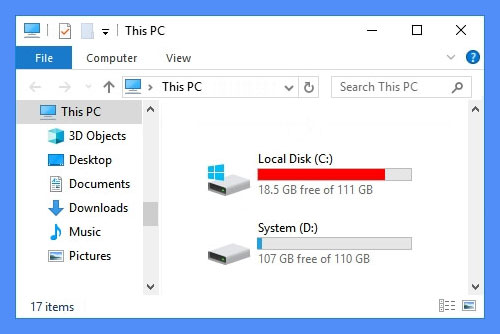
2. Ensure at least 2 logical partitions on your computer e.g., (C:) and (D:) drives.
* To check your disk partitions, press Win+X keys to open Disk Management.
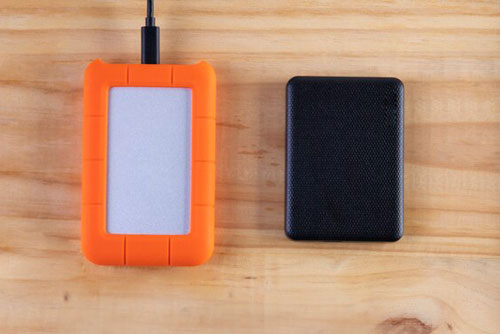
3. For a single-partition computer, use a USB or external hard drive to run software and store files.
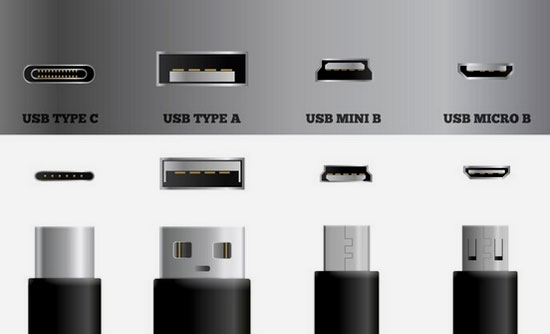
4. For external formatted or crashed hard drive, prepare an adapter or compatible cable if needed.
 Important: After a drive has been formatted or crashed, DO NOT create, move, or save new files on the affected drive. Overwriting data may make it unrecoverable.
98%
recovery success rate. Ensure no new data is written to the target disk for the best results.
3
steps only: Select location > Scan > Preview and Recover. Easy peasy!
100+
universal formats that AI scan can precisely identify and rebuild from scattered fragments into complete files.
All
types of files are recoverable in Quick Scan mode (if no data overwriting occurs).
100%
secure. Non-destructive recovery to your original data and drive with read-only mode.
10,000+
found files including images, document files, texts can be restored and saved in minutes.
Available on:  Windows
All Solutions
RecoveryFox AI not only retrieves deleted files from hard drives but also intelligently recovers data from old or failed drives, including those that are formatted, RAW, unallocated, or corrupted.
In this video, we will show you step by step how to recover data from an external hard drive on Windows using the AI-powered data recovery software.
RecoveryFox AI features a beginner-friendly interface that makes it easy for anyone to recover files from an external hard drive. Just follow these simple steps to perform seamless Western Digital hard drive data recovery.
📢 Optimize Scan Settings
To speed up the scanning process, you can go to “Settings” before selecting a location to scan. There, you can enable options such as skipping empty space, temporary files, damaged archives, or embedded files that you do not need to recover.
RecoveryFox AI offers an "Include Existing Files" option. When enabled, the software displays existing files from the selected device in a dedicated Existing Files folder under the File Path tab.
If you choose to show existing files, we also recommend enabling “Group Hidden Files Separately” for easier navigation and comparison. If you do not want existing files to appear in the scan results, simply disable Include Existing Files.
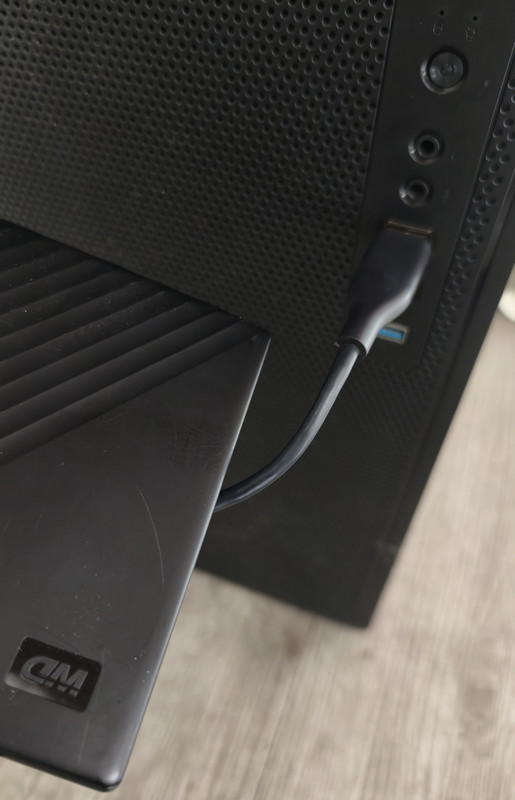
Step 1. Connect Your External Hard Drive to Your PC
Connect your external hard drive to your computer before starting the recovery process.
⚠️ Tip: If your computer detects the drive but you cannot access or see it in File Explorer, it is usually due to a missing drive letter or an unreadable file system. Check whether it appears in Disk Management or Device Manager. If the drive is recognized there, even if it is labeled as RAW or Unallocated, you can proceed with data recovery.
Step 2. Select File Location
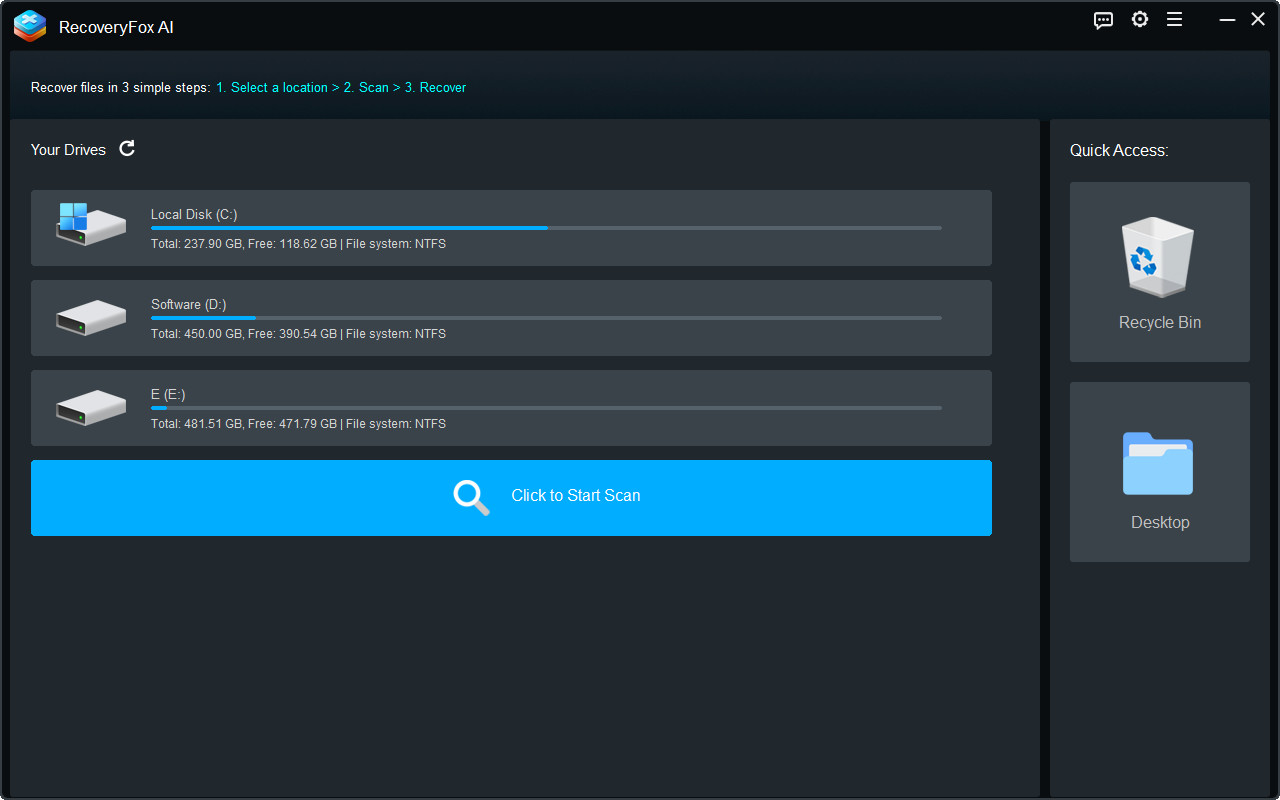
Launch RecoveryFox AI. On the home screen, find and select the inserted hard drive. Clicks to proceed.
Step 3. Start Scanning
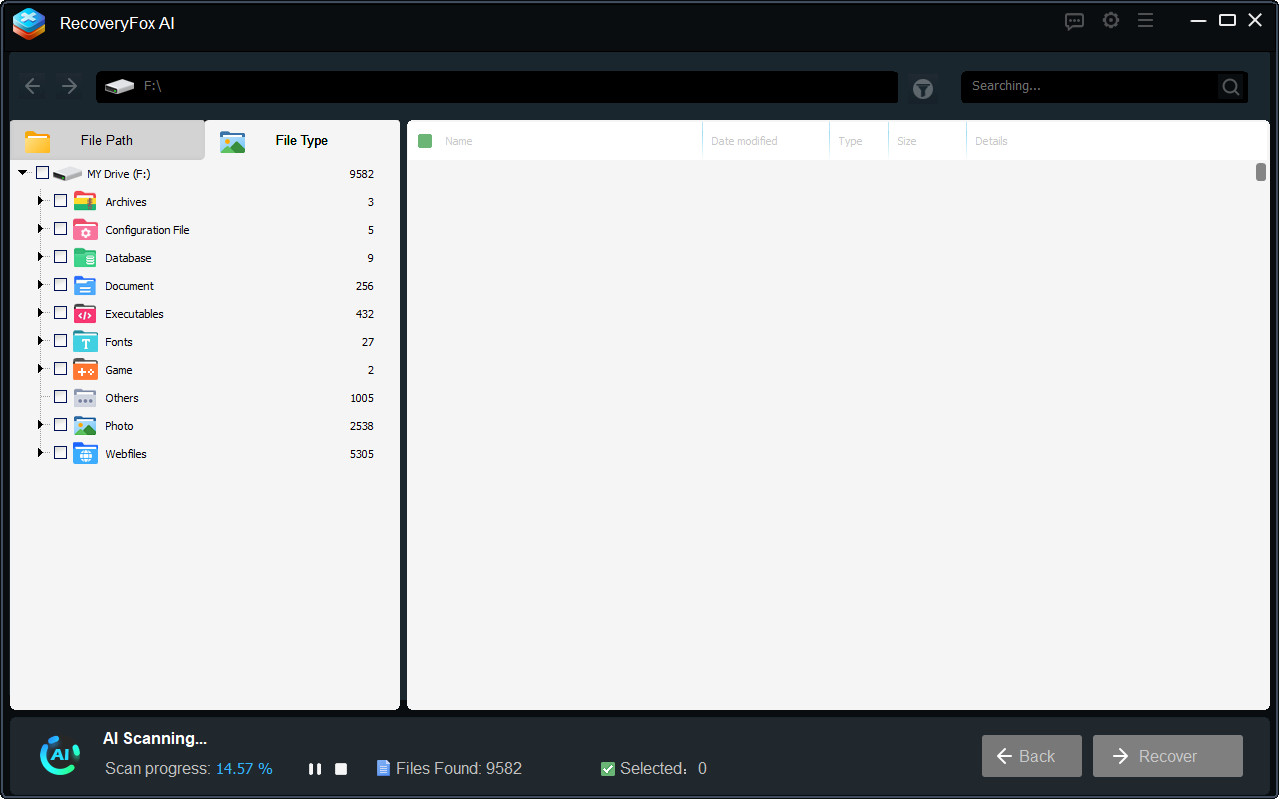
Then, RecoveryFox AI will begin scanning the selected drive. The scan time may vary from a few minutes to several hours, depending mainly on the drive size and file volume.
You can pause or stop AI Scanning any time if you wish to preview found files early.
Step 4. Preview and Recover
To preview a file, simply right-click on it and select “Preview”.
Then, select whatever items you want — whether it's all found files, folders of a specific type, subfolders, or individual files.
Click “Recover”, and then choose a safe location to save your files.
To prevent data overwriting, it's best to select a different drive or use an external USB drive.

RecoveryFox AI has two scan modes. For Recycle Bin file recovery, RecoveryFox AI runs a Quick Scan that usually finishes within minutes. After the scan, Recycle Bin files are organized under the corresponding drive folders in the File Path tab. Files with missing path information can be found in the File Path Lost folder.
For other scan locations, AI Scan automatically starts after Quick Scan finishes, performing a deeper analysis of the storage device. It can rebuild fragmented data and recover files that were deleted long ago or have partially lost their original metadata. Thanks to this AI-enhanced recovery technology, even partially overwritten data fragments may be recoverable. The AI Scan process may take hours or even days mainly depending on your drive size, the number of files, and PC specs.
Available on: Windows
1. How to fix a corrupted HDD?
Check if the drive appears in Disk Management. If it shows RAW, Unallocated, or has no drive letter, it usually indicates logical corruption, while physical damage requires professional recovery. If your data is important, recover it first using RecoveryFox AI before any repair to avoid overwriting files. After that, you can try simple fixes like assigning a drive letter or running CHKDSK to repair file system errors.
2. Can I retrieve data from a dead laptop?
Yes, often you can, if the storage drive is still working, remove it and connect it to another computer to copy the files. If the drive is damaged, you may need reliable laptop recovery software or a professional service.
3. How to recover data from a formatted external hard drive?
Before recovering data from your formatted hard drive, make sure your external hard drive is properly connected to your computer. Then:
• Run RecoveryFox AI and select the formatted drive.
• Start scanning the selected drive to detect lost data.
• Preview the found files and start formatted file recovery.
4. Is RecoveryFox AI safe?
Yes. RecoveryFox AI is 100% clean, free from bundled software, malware, and ads. Before purchasing, you can use the unregistered version to scan your drive and preview many recoverable files at no cost, allowing you to verify whether your data can be recovered before upgrading.
Tell us what kind of help you are looking for and we’ll help you out.

Support
Get quick help with your order, license code, registration, refund, software issues, etc., on our Support Home.
If you need further assistance, contact us at: support@wonderfoxrecovery.com

Collaboration
Interested in our product? Don’t wait! Join our Partner Program as an affiliate or reseller to grow your business.
You can also connect with us at: market@wonderfoxrecovery.com



Terms and ConditionsPrivacy PolicyLicense AgreementRefund PolicyCookies Policy
Copyright © 2026 RecoveryFox. All Rights Reserved.


 English ^


