
-
Solutions ∨
-
Support ∨
-
Resources ∨
-
About ∨
-

Recover data from formatted drive effectively and safely using RecoveryFox AI. This AI-powered data recovery software can restore lost files from a formatted hard drive, USB drive, SD card, and more storage media. Now, let’s see how it works.
Available on:  Windows

An emptied Recycle Bin

Desktop by using Shift + Delete

Overwritten by a file with the same filename

Crashed hard drives, system, software

Suddenly shutdown computer

Virus or malware attack or software conflicts

Computer blue screen of death

Lost/RAW/Unallocated/Deleted partitions

More data loss scenarios…

1. A working Windows computer (all versions supported).
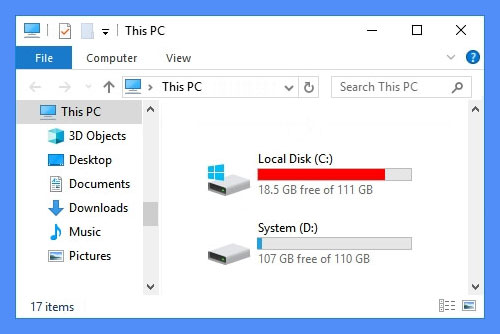
2. Ensure at least 2 logical partitions on your computer e.g., (C:) and (D:) drives.
* To check your disk partitions, press Win+X keys to open Disk Management.
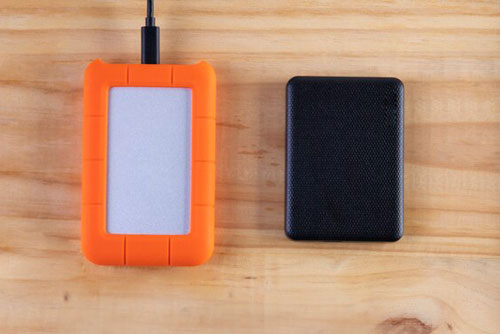
3. For a single-partition computer, use a USB or external hard drive to run software and store files.
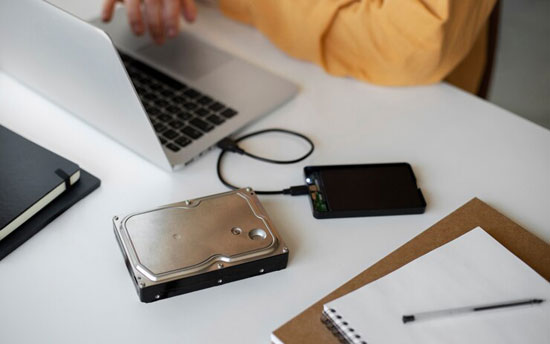
4. For external formatted drive recovery, prepare an adapter or compatible cable if needed.
 Important: After formatting, DO NOT create, move or save new files on the affected drive. Overwriting data may make recovery impossible.
98%
recovery success rate. Ensure no new data is written to the target disk for the best results.
3
steps only: Select location > Scan > Preview and Recover. Easy peasy!
100+
universal formats that AI scan can precisely identify and rebuild from scattered fragments into complete files.
All
types of files are recoverable in Quick Scan mode (if no data overwriting occurs).
100%
secure. Non-destructive recovery to your original data and drive with read-only mode.
10,000+
found files including images, document files, texts can be restored and saved in minutes.
Available on:  Windows
All Solutions
If you have formatted a drive, USB or SD card and lost all your valuables, don't worry. In this video, we will guide you to quickly recover formatted files from a hard drive on Windows using RecoveryFox AI.
RecoveryFox AI makes it easy to recover lost files from a formatted USB drive, SD card, HDD, or internal drives. Just follow these simple steps to learn how to use it to recover data from a formatted external drive.
📢 To speed up the scanning process, you can go to “Settings” before selecting a location to scan. There, you can enable options such as skipping empty space, temporary files, damaged archives, or embedded files that you do not need to recover.
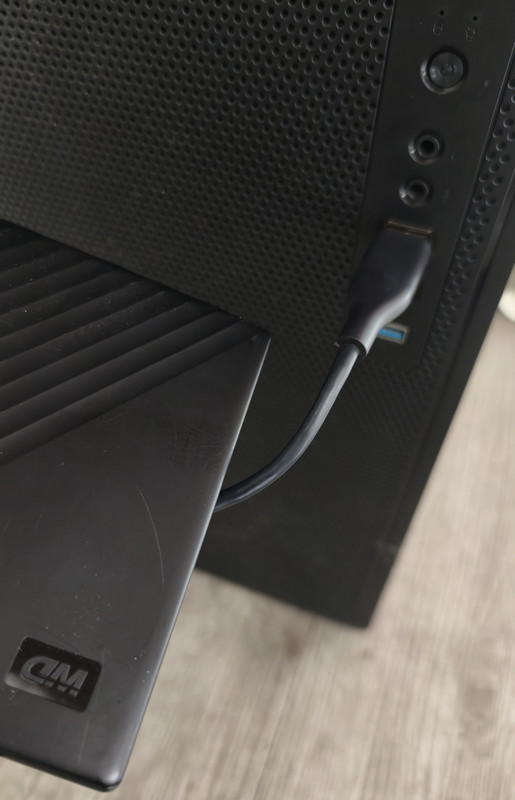
Step 1. Connect Formatted Drive to PC
If you need to recover data from an external HDD, SSD, USB, or SD card, plug it into your computer first.
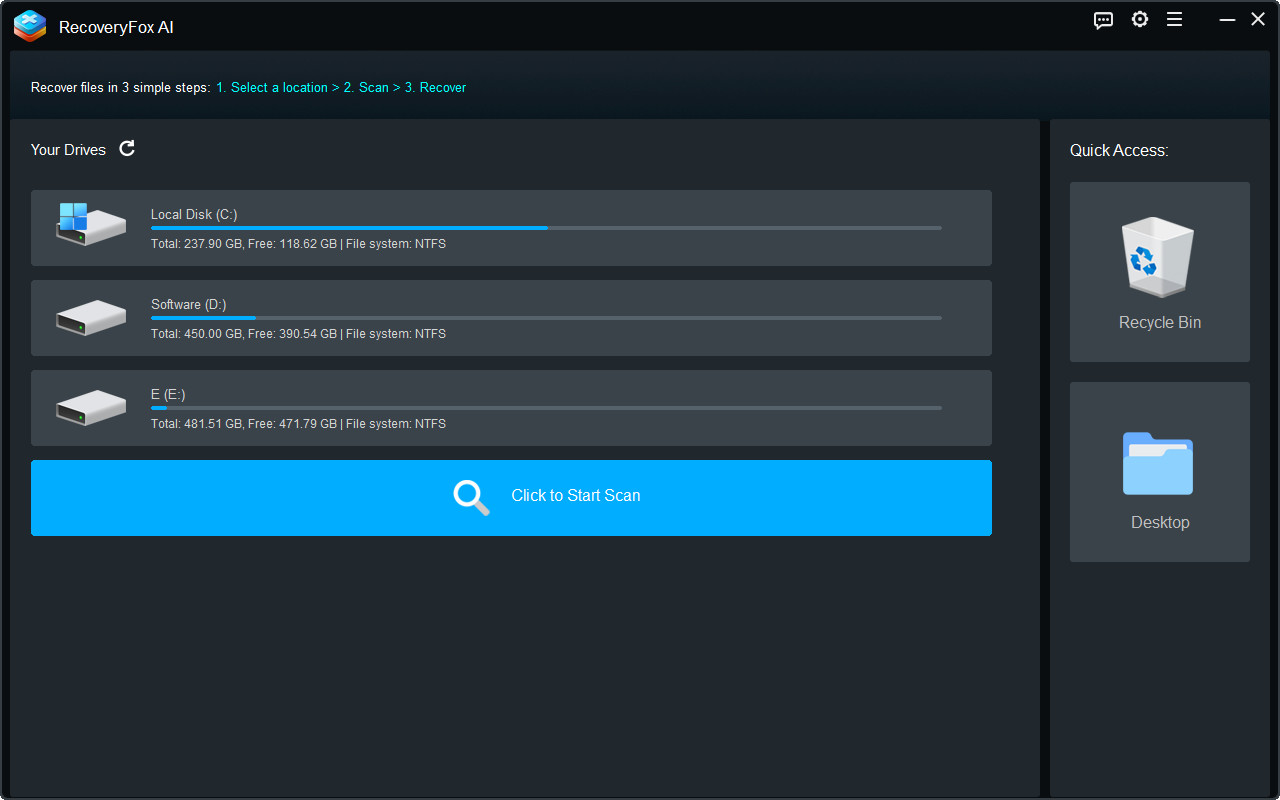
Step 2. Select File Location
Launch RecoveryFox AI. On the home screen, find and select the formatted drive where your lost files were stored. Clicks to proceed.
Step 3. Start Scanning
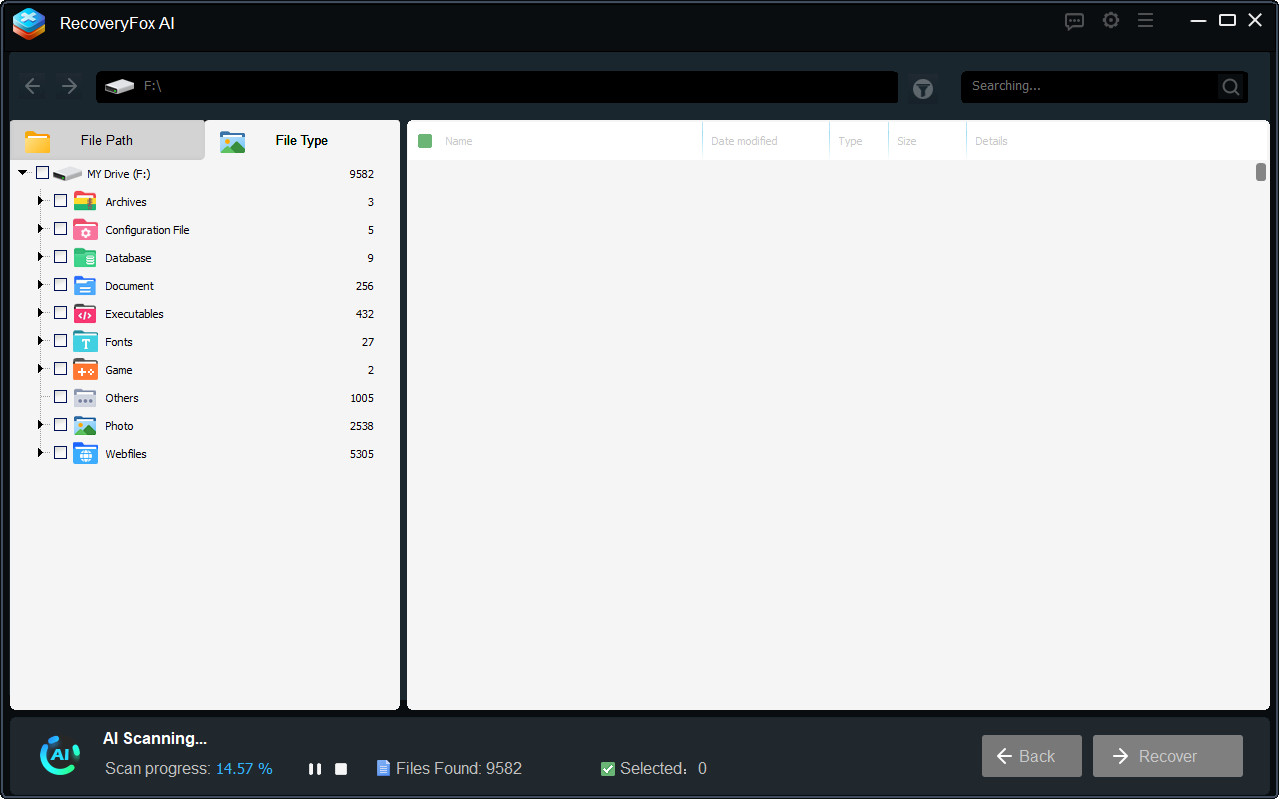
Then, RecoveryFox AI will begin scanning the selected drive. The scan time may vary from a few minutes to several hours, depending mainly on the drive size and file volume.
You can view scan result list in real time during the process. You may also pause or stop the AI Scan at any time to preview found files early.
Step 4. Preview and Recover
To preview a file, simply right-click on it and select “Preview”.
Then, select whatever items you want — whether it's all found files, folders of a specific type, subfolders, or individual files.
Click “Recover”, and then choose a safe location to save your files.
To prevent data overwriting, it's best to select a different drive or use an external USB drive.

For Recycle Bin file recovery, the software will run a Quick Scan which usually completes within minutes and even shorter.
For formatted drives, AI Scan will automatically go on after Quick Scan ends for a more thorough and in-depth data scanning and rebuilding. With this AI-enhanced ability, even long-term deleted files and partially overwritten data fragments can be retrieved. The AI Scan process may take hours or even days mainly depending on your drive size, the number of files, and PC specs.
1. Is it possible to recover files after formatting?
Yes, it is. Formatted data can still be recovered from HDDs, SSDs, SD cards, and USB flash drives.
To maximize your chances, act quickly with reliable data recovery software like RecoveryFox AI and never save new files on the formatted drive to prevent data from being overwritten.
2. How do I recover data from formatted partition in Windows 10?
First, ensure you have another drive (e.g., D:) or an external USB to save recovered files. Then, launch RecoveryFox AI > Select the formatted drive and start scanning > Preview recoverable files and restore them to a safe location.
3. How to recover data from a formatted external hard drive?
• Plug your formatted hard drive cable into the computer.
• Run RecoveryFox AI and select the formatted drive.
• Start scanning the selected drive to detect lost data.
• Preview the found files and start formatted file recovery.
4. Is RecoveryFox AI free?
RecoveryFox AI lets you scan and preview recoverable files for free, so you can evaluate the results before upgrading to unlock the Recover feature.
Tell us what kind of help you are looking for and we’ll help you out.

Support
Get quick help with your order, license code, registration, refund, software issues, etc., on our Support Home.
If you need further assistance, contact us at: support@wonderfoxrecovery.com

Collaboration
Interested in our product? Don’t wait! Join our Partner Program as an affiliate or reseller to grow your business.
You can also connect with us at: market@wonderfoxrecovery.com



Terms and ConditionsPrivacy PolicyLicense AgreementRefund PolicyCookies Policy
Copyright © 2026 RecoveryFox. All Rights Reserved.


 English ^


