






 Free Download


Windows PCs come with a built-in feature called “File History.” When enabled, it can create regular backups of your personal files. If your files are accidentally deleted or lost for any reason, you can use the “Previous Versions” feature to restore them or roll documents back to an earlier version before changes were made.
However, you may sometimes encounter this "There are no previous versions available" error, making it impossible to recover earlier versions.
In this guide, we outlines the common reasons why no previous versions are available. We also share a more effective method to recover your data without relying on File History or any backup.
Common Reasons for “There Are No Previous Versions Available”
◆File History Is Not Enabled
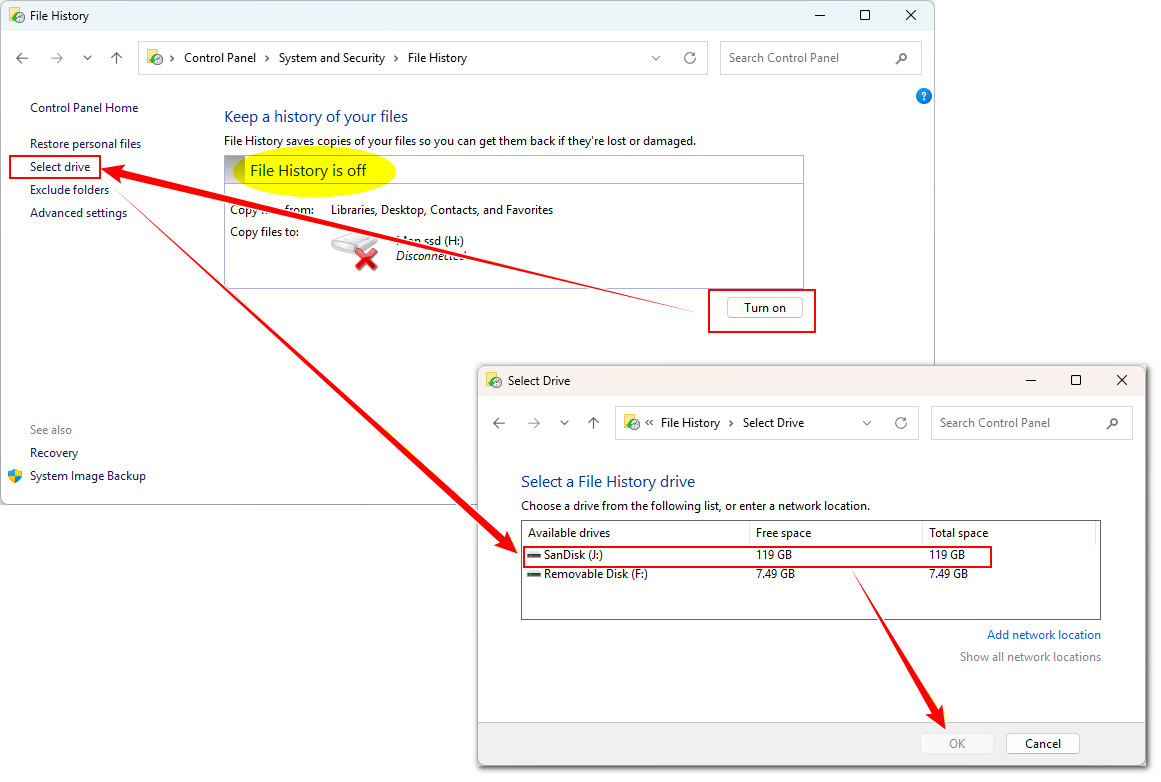
To enable File History on Windows, type "Control Panel" in the search box and open it. Locate "File History" and click the "Turn on" button below to enable it.
After that, click "Select drive" on the left and choose a drive to store backup files. Once configured, File History will start working properly.
◆The File Is Not Included in Backup
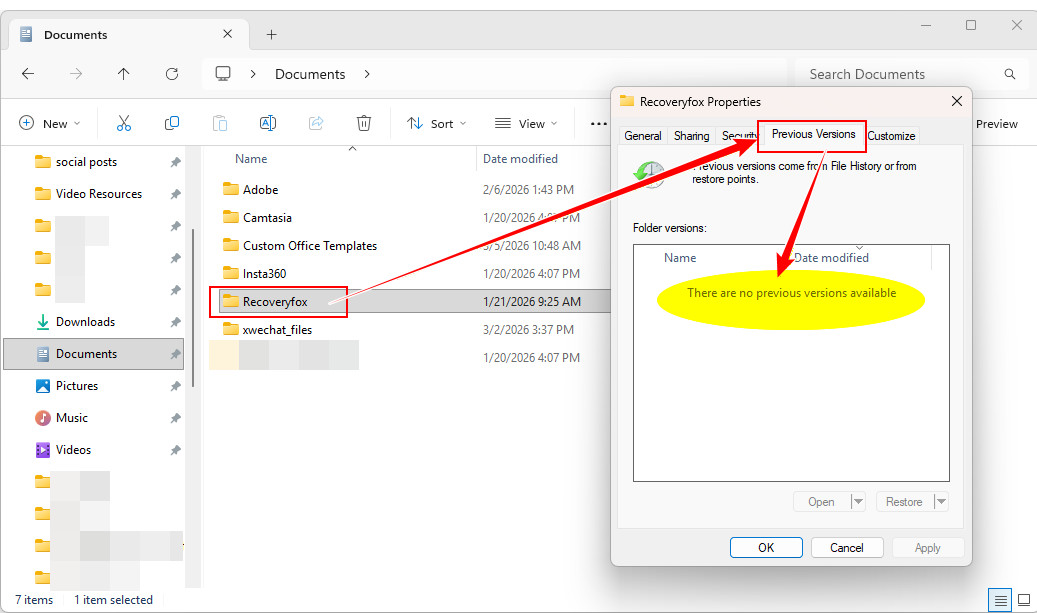
By default, File History backs up Libraries, Desktop, Contacts, Favorites, and offline OneDrive files. Users can also manually add or exclude folders.
If the file you want to restore is not included in the backup, you will see "There are no previous versions available," and the file cannot be recovered.
◆The File Has Not Been Backed Up Yet
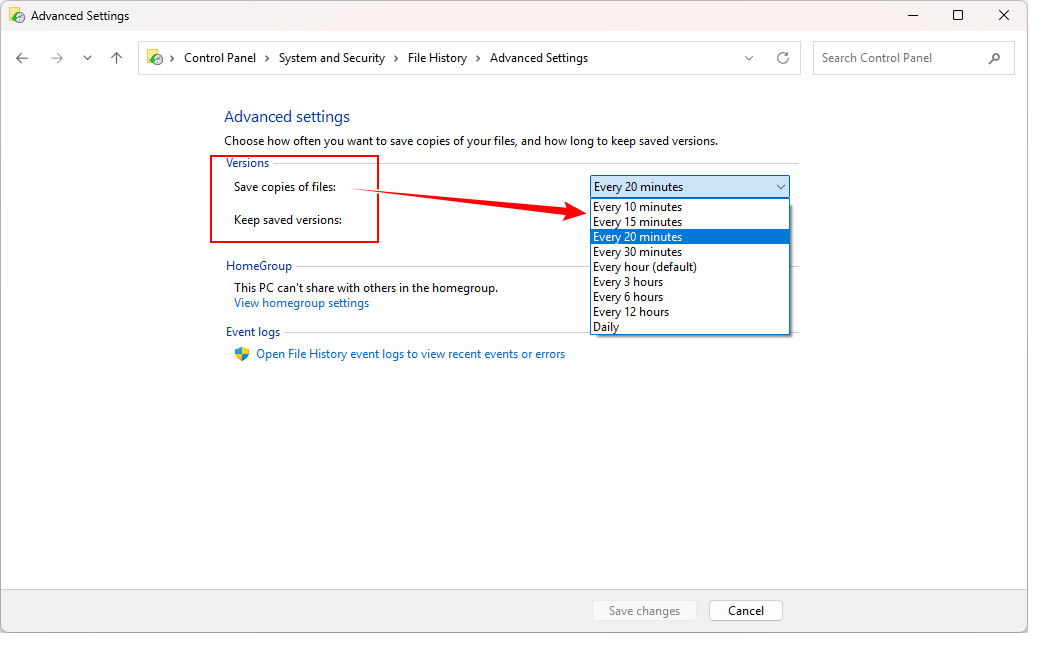
File History does not back up files immediately after they are created or modified. Instead, it runs at scheduled intervals, such as every hour or every few hours. Therefore, newly created files may not have been backed up yet.
◆Cannot Access Network Location
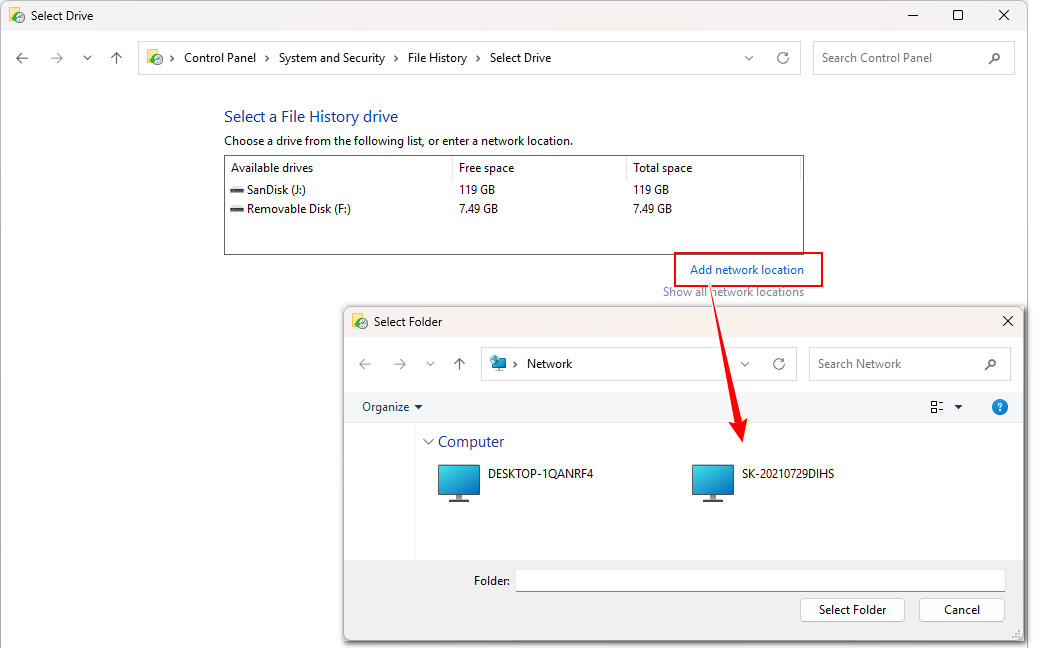
When selecting a backup drive, you can choose another PC on the same network. If that PC is unavailable (e.g., powered off), you won’t be able to restore previous versions from your own computer.
◆Cannot Access the Backup Drive
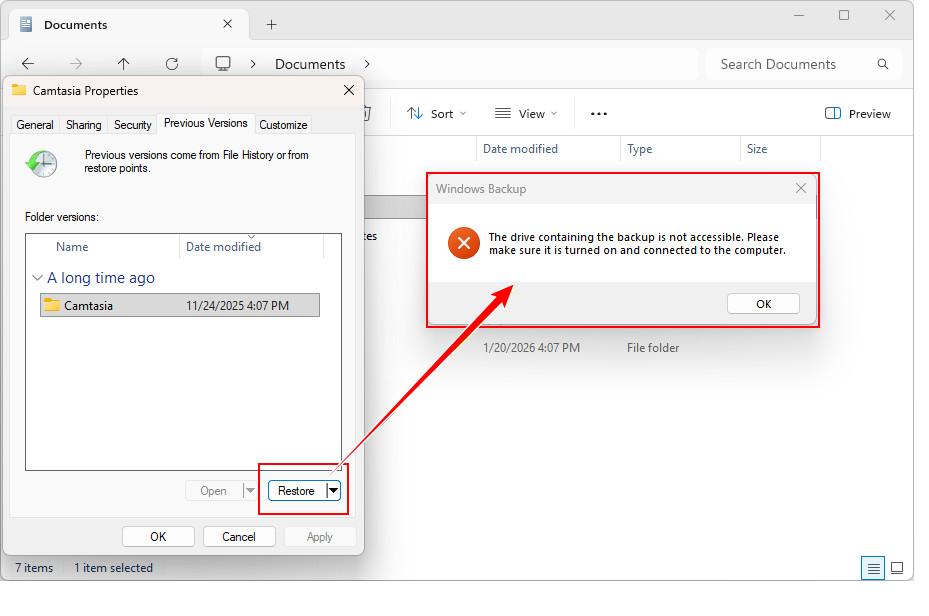
If there is a connection issue with an external device or a problem with the drive itself, File History may not be able to access the backup location. In this case, even though previous versions appear in the file "Properties," attempting to restore them will result in a "Drive is disconnected" error.
◆Backup Files Are Missing
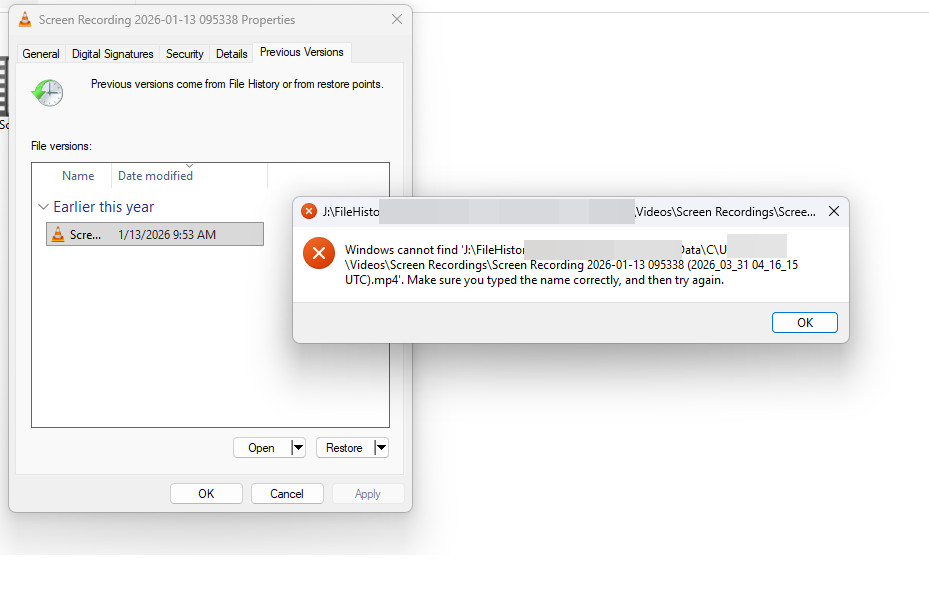
Backup files are stored as regular files on the selected drive, meaning they can be easily modified or deleted. As a result, user actions may accidentally remove them. In such cases, although previous versions appear in "Properties," you will see an "Item not found" error when trying to restore them.
◆Insufficient Drive Space
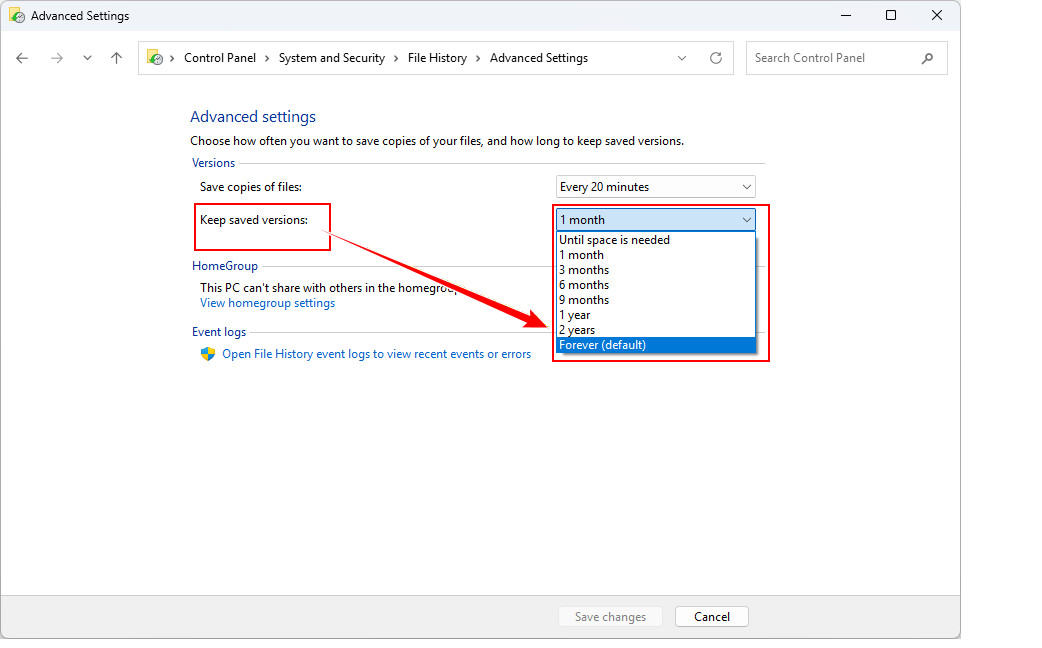
Depending on the settings, File History can create unlimited versions of backed-up files and store them indefinitely, which requires significant storage space. If the backup drive runs out of space, older versions may be deleted or new versions may not be created, making it impossible to restore the desired version.
How to Recover Files When No Previous Versions Are Available
The above are the main reasons for "there are no previous versions available" with File History in Windows. However, in many cases, even if the feature itself is fixed, the lost versions still cannot be recovered. In such situations, using data recovery software is a practical alternative.
RecoveryFox AI is a Windows data recovery tool. It can quickly scan storage devices and recover lost files even after the Recycle Bin has been emptied. Powered by an advanced AI Scan mode, it offers a higher success rate when recovering older or partially overwritten data. You can scan and preview recoverable files for free before making any commitment. If you’d like to give it a try, simply click the button below to download and install the software.
 Windows
Steps to Recover Data When No Previous Versions Are Available with File History
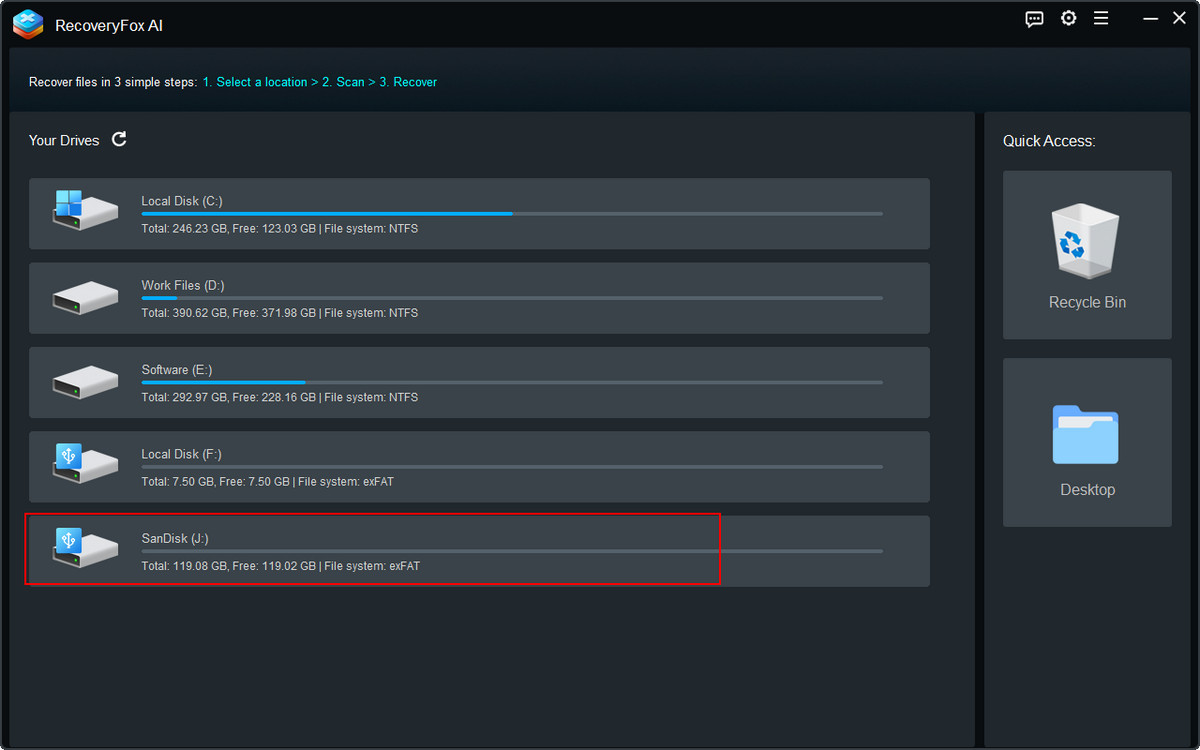
Launch RecoveryFox AI, select the drive where your files were originally stored, and start scanning for lost data.
Not only can you recover files that can’t be restored through File History, but you can also scan the backup drive itself to recover files, even if the File History backups have been deleted.
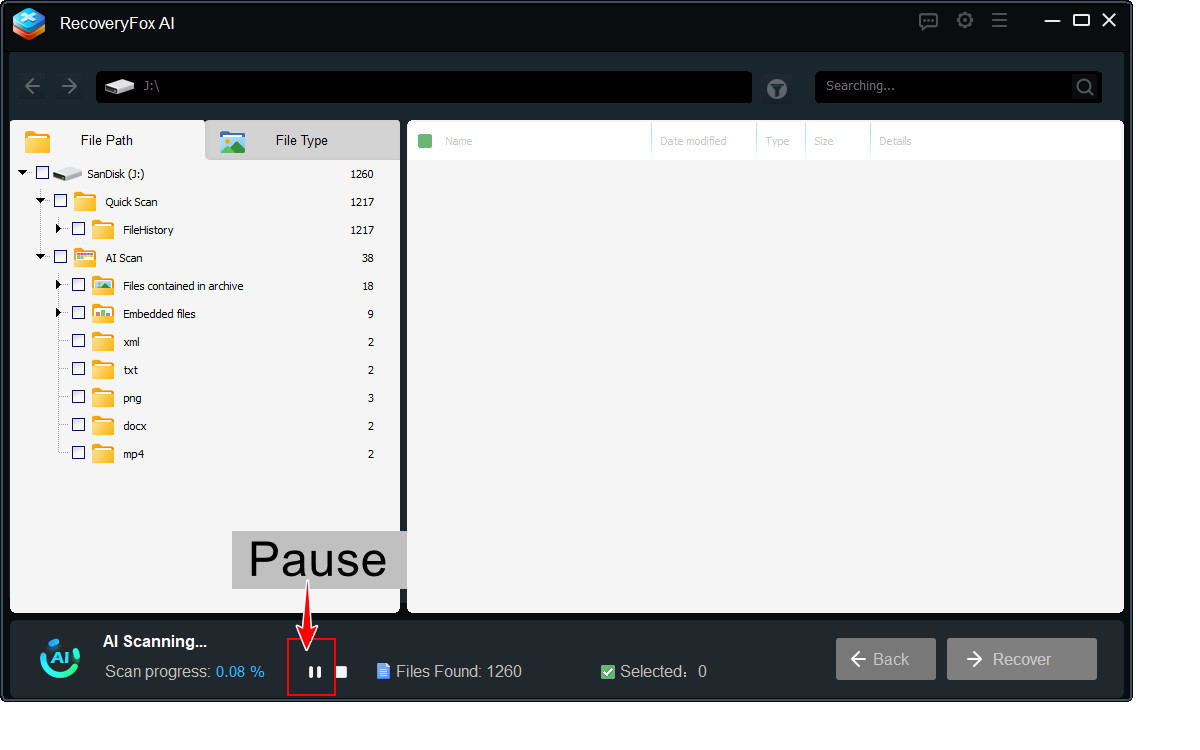
The scanning process includes a Quick Scan that works best for recently deleted files, and an AI Scan that can recover even partially overwritten files.
You can preview the result list during scanning, or pause the AI Scan process to view whether your target files have already been found.
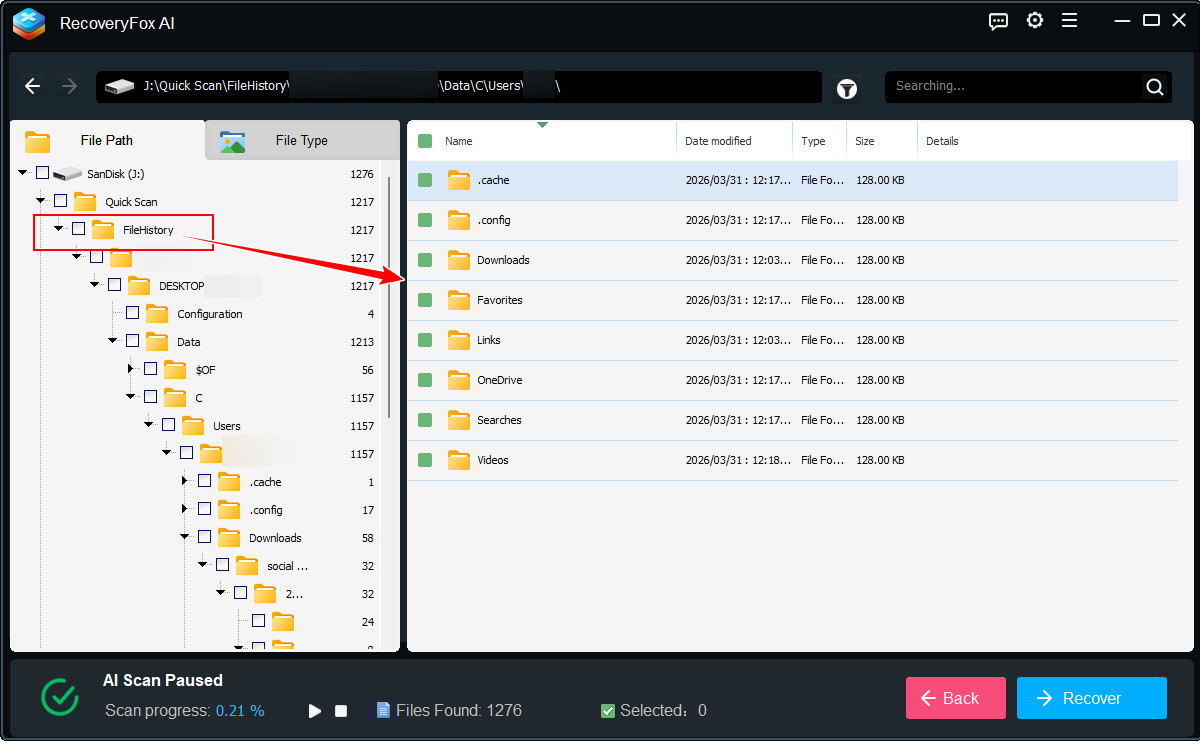
Files detected by the Quick Scan can be located by browsing their paths in the “Quick Scan” folder under the “Path” tab.
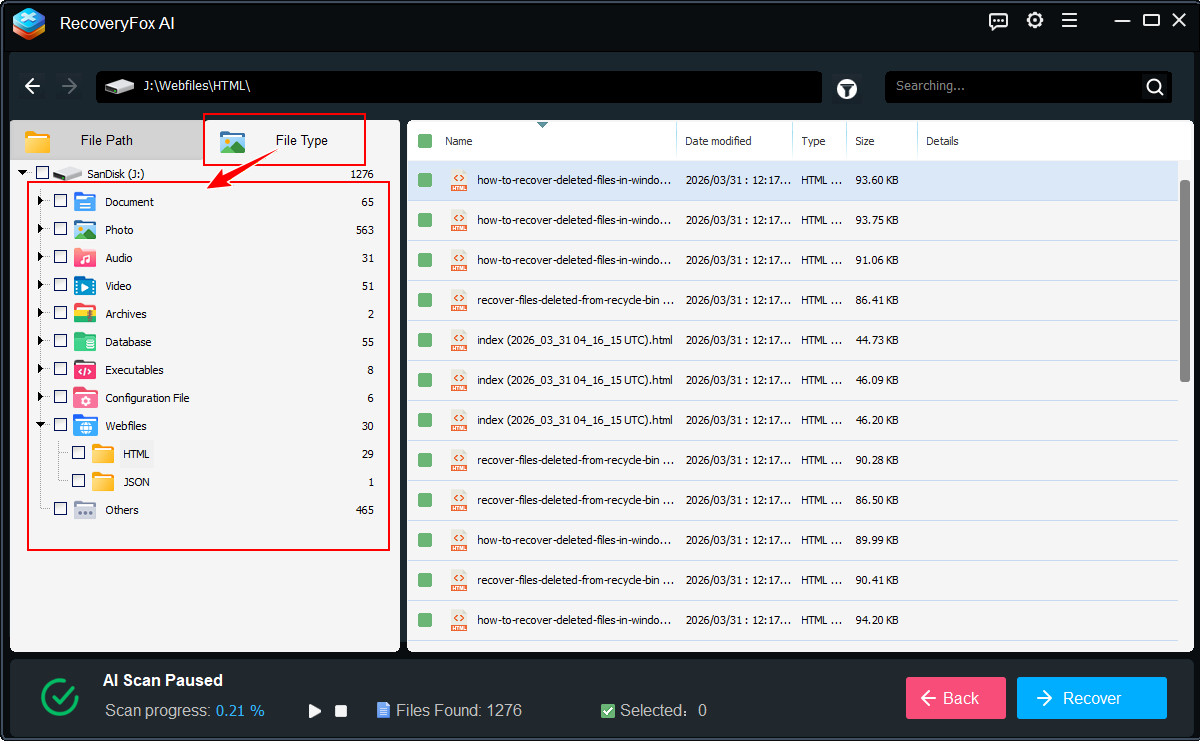
You can also search for files by type and specific formats using the “Type” tab.
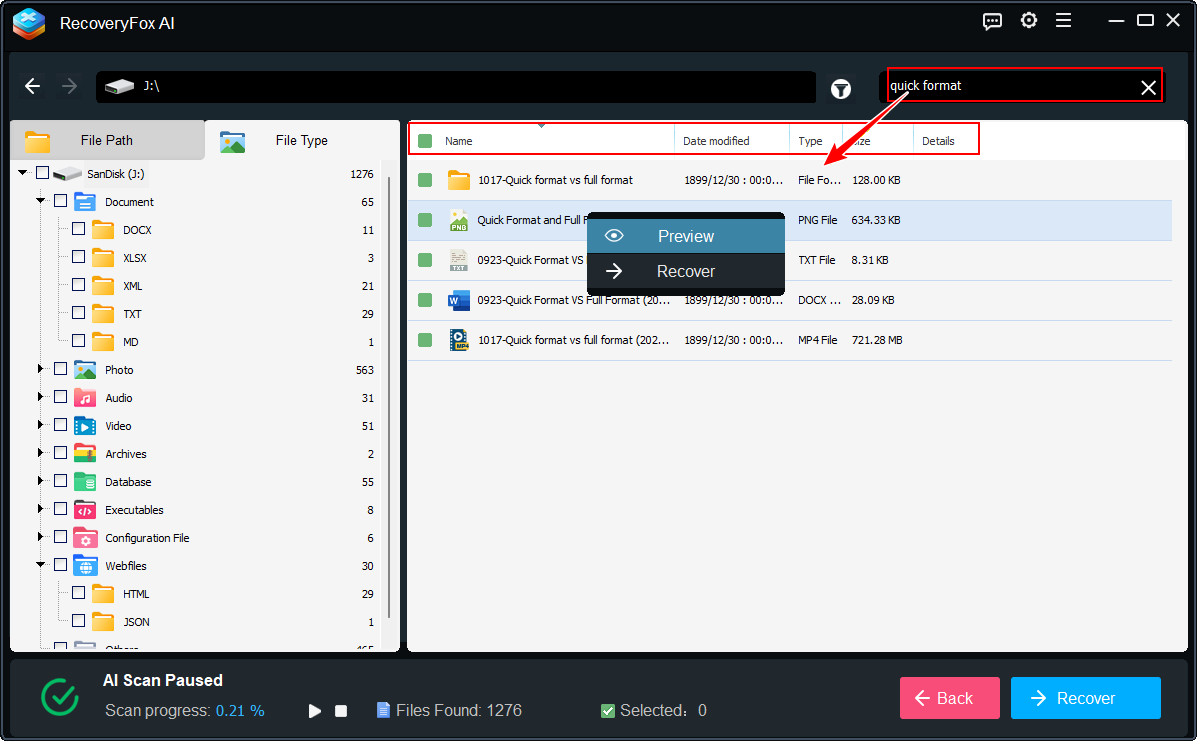
If there are many files, you can sort the file list on the right by Name, Date, Type, or Size. If you remember the file name, you can search for it directly. Additionally, for certain files such as images and documents, you can click it to “Preview" the file contents.
Once you find the files you want to recover, select them and click the “Recover” button in the bottom-right corner. To avoid overwriting data, be sure to save the recovered files to a different drive.
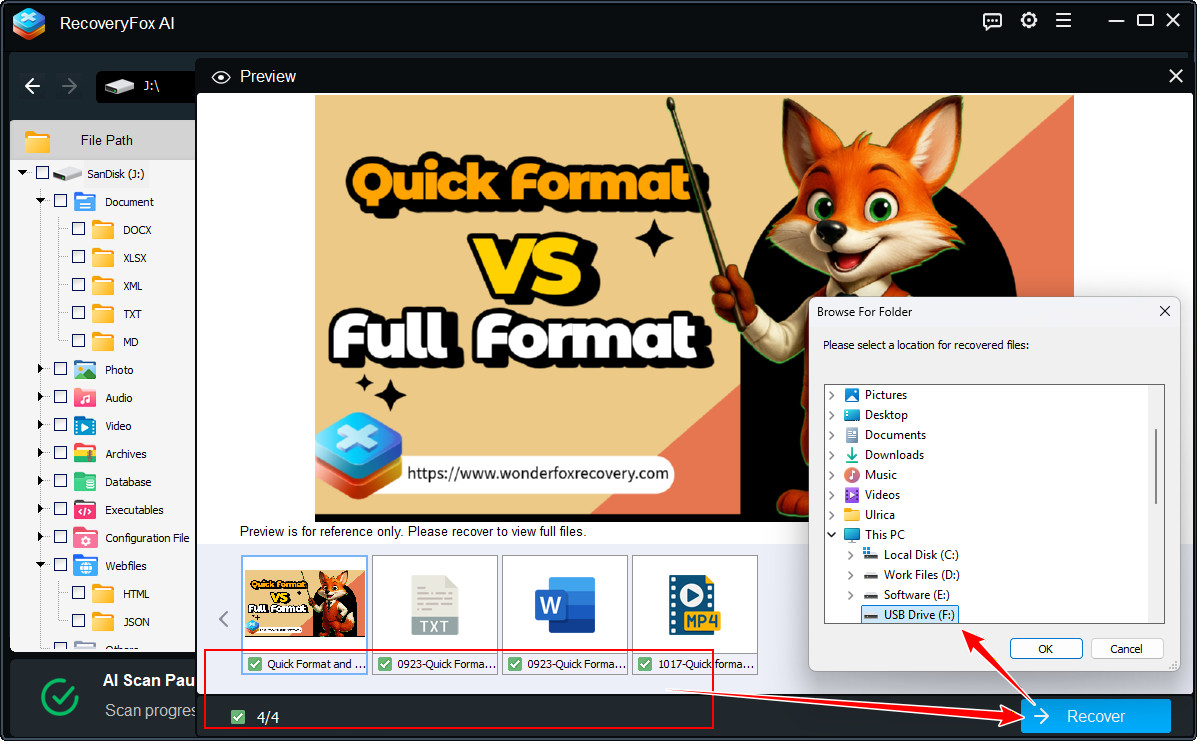
If the Quick Scan doesn’t find your target files, continue the scan and check the results again after the AI Scan completes.
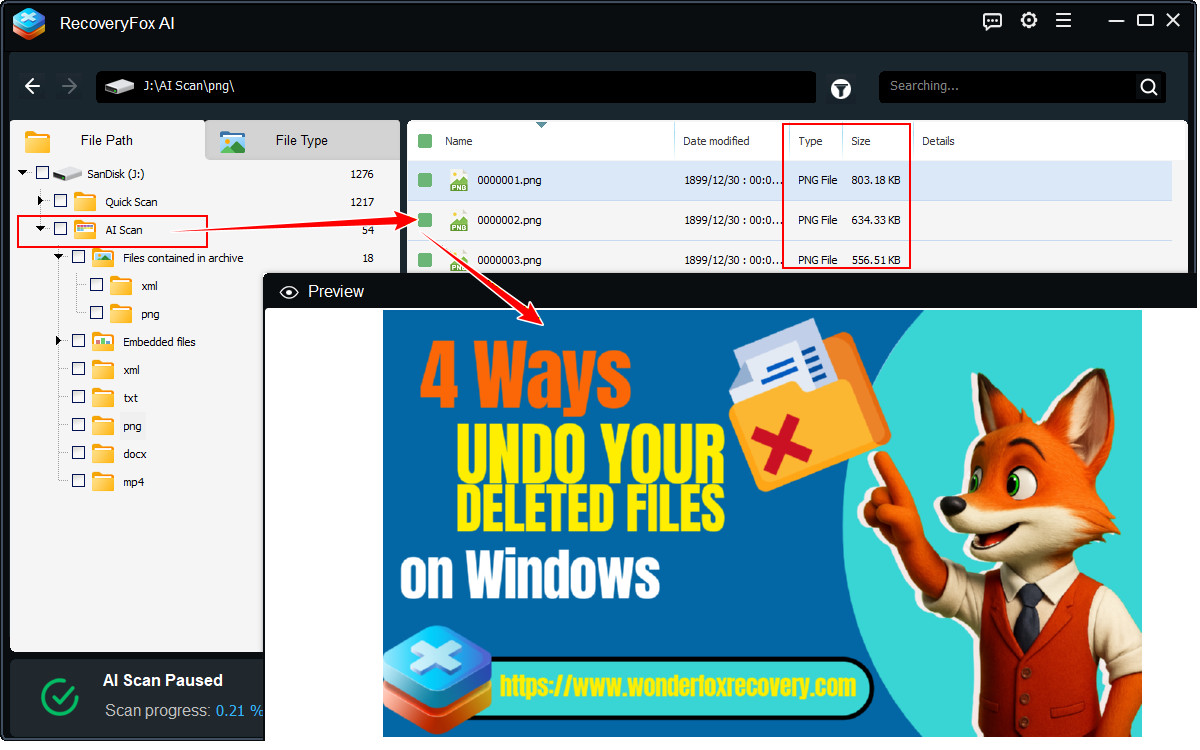
Keep in mind that files recovered through AI Scan may be missing details such as file names, original locations, or timestamps. To identify them, use the preview feature or browse within the AI Scan folder by file type or size.
Conclusion
This article explained the common reasons why there are no previous versions available with File History on a Windows PC, along with a practical solution for deleted file recovery. We hope you found this guide helpful.
RecoveryFox AI provides a powerful solution for recovering lost files when no backup versions are available. It supports a wide range of file types, including documents, photos, videos, audio files, and applications. With free scanning and file preview features, you can quickly check which files are recoverable before restoring them. Try RecoveryFox AI today to find and recover your missing files.

A technical content writer for RecoveryFox AI at WonderFox Soft, creating clear guides on data recovery, storage technologies, and Windows troubleshooting. She specializes in simplifying complex technical topics and enjoys exploring technology, running, and discovering new experiences.





 English ^


