






 Free Download


Are Files Deleted When You Empty the Recycle Bin?
Not immediately.
When you empty the Recycle Bin, Windows doesn’t wipe the data itself. It simply removes the file’s reference in the file system and marks that space as available for new data. The deleted files become harder to access, but they are still recoverable as long as you use a reliable data recovery tool.
They are only completely gone once new data overwrites them. That’s why avoiding or minimizing use of the affected drive is crucial after data loss.
! Know This for a Smooth Recycle Bin Recovery
Remember these three rules to make recovery smoother and more successful:
- After data loss, immediately close all running programs and avoid creating or saving new files. This helps prevent data from being overwritten.
- Know the exact source drive where your required files were originally stored.
- The source drive isn’t always C:
The last rule is important because most users assume that the source drive of all deleted files you see in the desktop Recycle Bin must be from Drive (C:). However, this is not how Windows handle deleted files.
In Windows, each drive and partition contains a hidden system folder called $Recycle.bin. When you delete a file, without using Shift + Delete, Windows removes it to this hidden folder on the same drive. The desktop Recycle Bin icon, meanwhile, offers users a unified interface to view and manage deleted files from all drives and partitions.
How to Recover Deleted Files from Recycle Bin after Emptying
Read on and pick the preferred recovery method from the following three tools.
Method 1. Recover Files Deleted from Recycle Bin with RecoveryFox AI (🔥)
When no backup is available, a reliable Recycle Bin recovery tool is usually required.
RecoveryFox AI offers a clean, intuitive interface, making it an excellent beginner’s choice. It includes a dedicated Recycle Bin recovery module, ideal for recovering recently deleted files from Recycle Bin after emptying.
What sets it apart from many other recovery tools is its improved Recycle Bin scan path detection, which can accurately show source drive-level Recycle Bin locations and intelligently identify historical partitions, making it much easier to locate and restore the right files quickly.
Download RecoveryFox AI to scan and preview recoverable images, documents, and other common file formats for free.
 Windows
Step 1. Launch RecoveryFox AI and you’ll see a simple interface displaying all available drives, along with quick access to Recycle Bin Recovery and Desktop Recovery.
Click Recycle Bin to start scanning immediately.
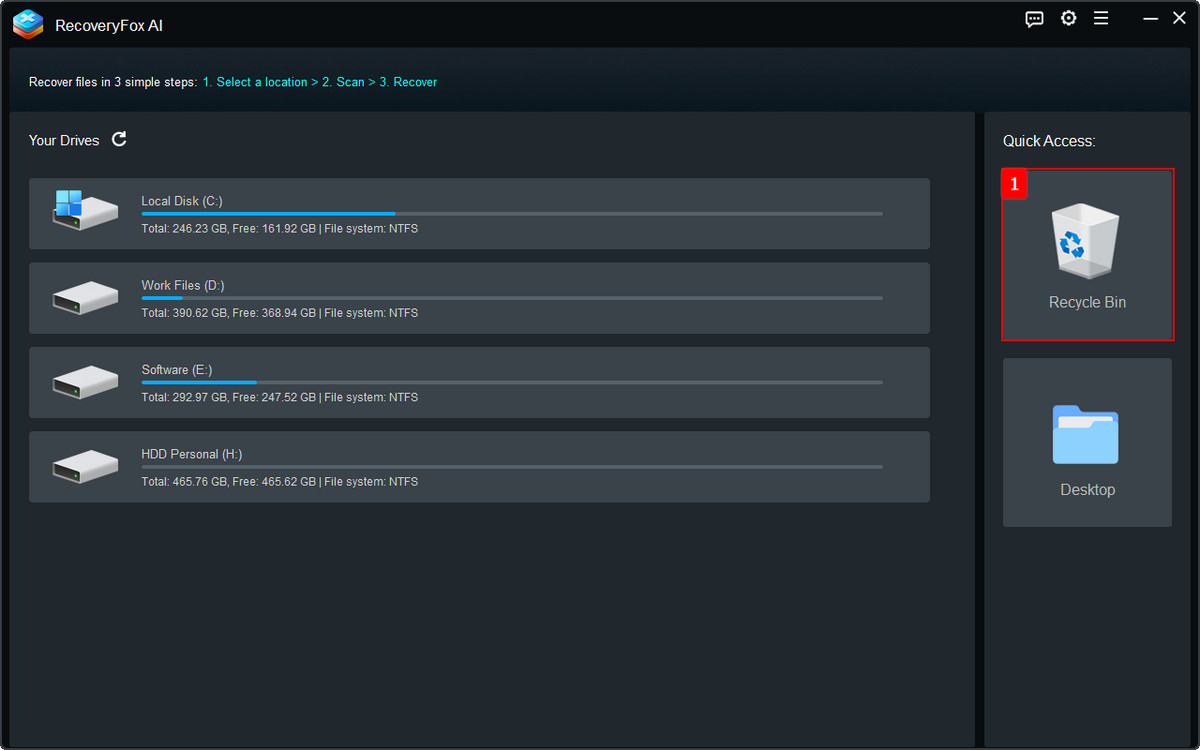
Step 2. RecoveryFox AI runs a Quick Scan mode to search for files deleted from the Recycle Bin. The scan typically completes within minutes and, in many cases, even faster.
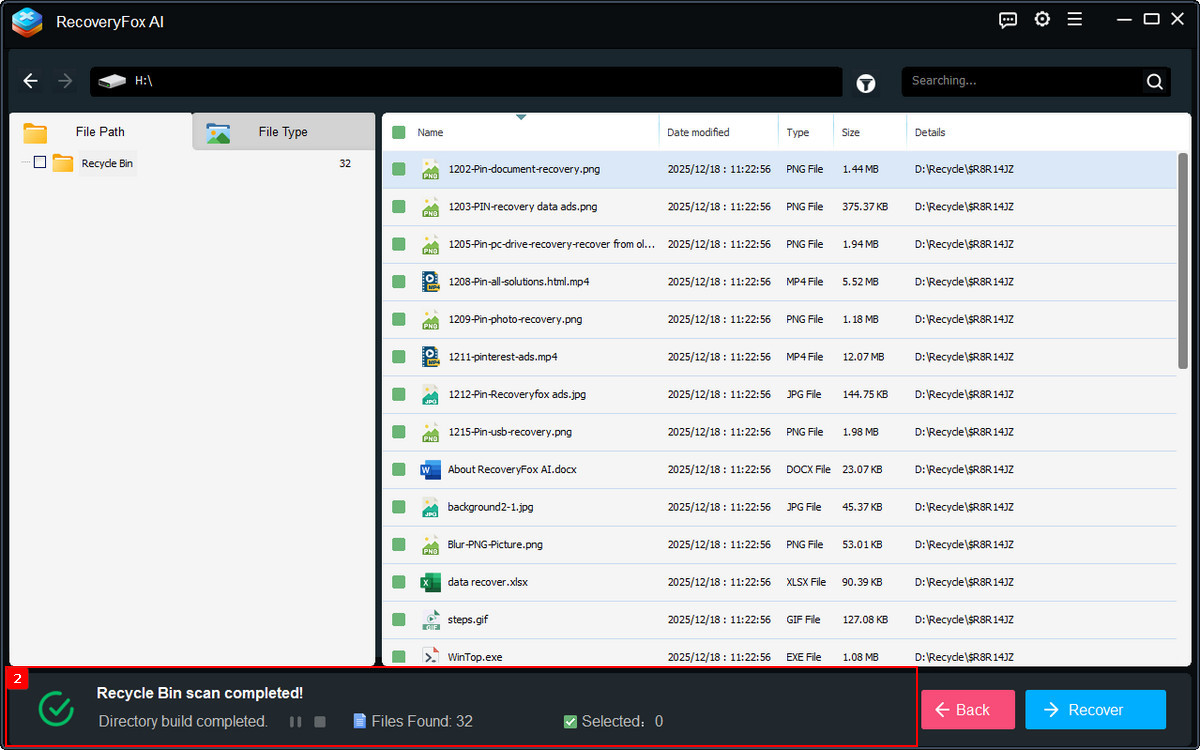
Step 3. Once done, you can view all recoverable files in the Recycle Bin folder under the File Path tab.
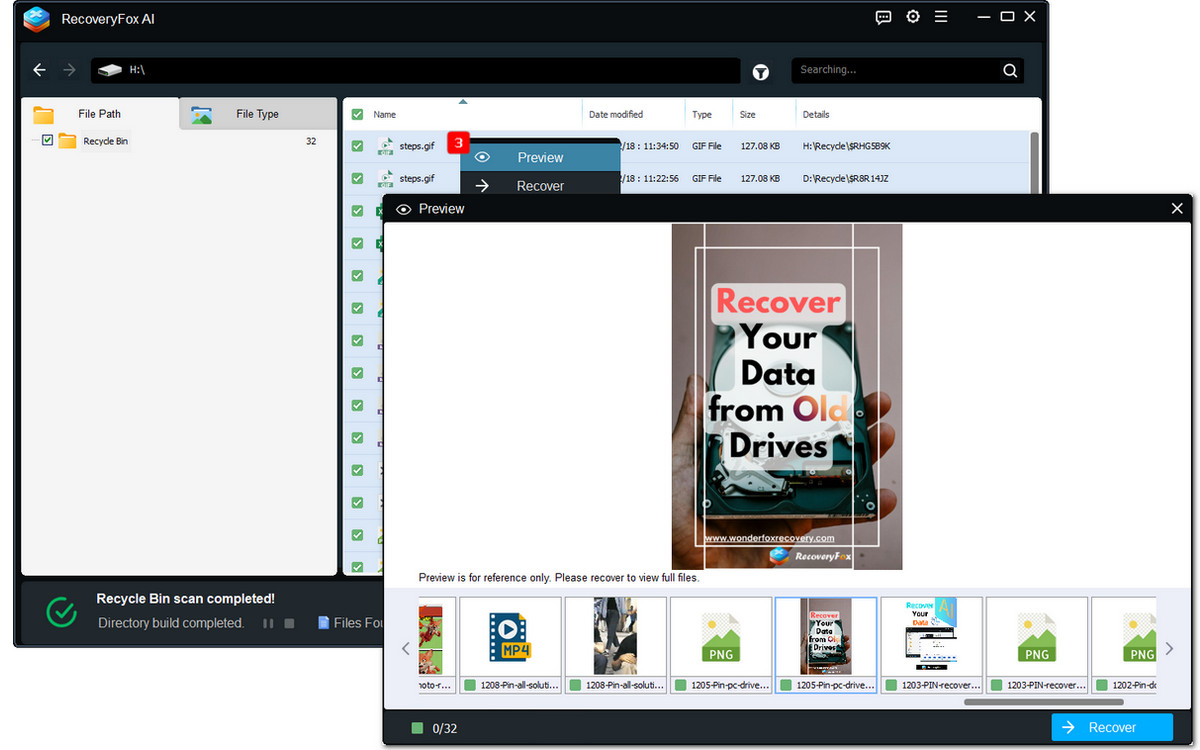
Select a file and right-click to choose Preview. If a file fails to preview, it doesn’t always mean it’s corrupted. Many files will open normally after you recover them.
To recover, select the items you need and hit Recover. Make sure to choose a different location when saving them.
After that, a window will pop up, allowing you to either view the recovered files or return to continue to recover other items.
Method 2. Recover Deleted Files from Recycle Bin Using Previous Versions
Previous Versions is a built-in feature on Windows 10 and 11. If you’ve ever turn on Backup and Restore, Restore Point (with System protection enabled), or File History, you can restore the backup or previous versions of files, folders, or drives after accidental loss or unexpected changes.
Here is how to get files back when deleted from recycle bin through File History:
Step 1. Open the drive or folder that used to contain the deleted files.
Step 2. Right-click within the folder and select “Properties”.
Step 3. Go to the “Previous Versions” tab and check if any backups or old versions are available.
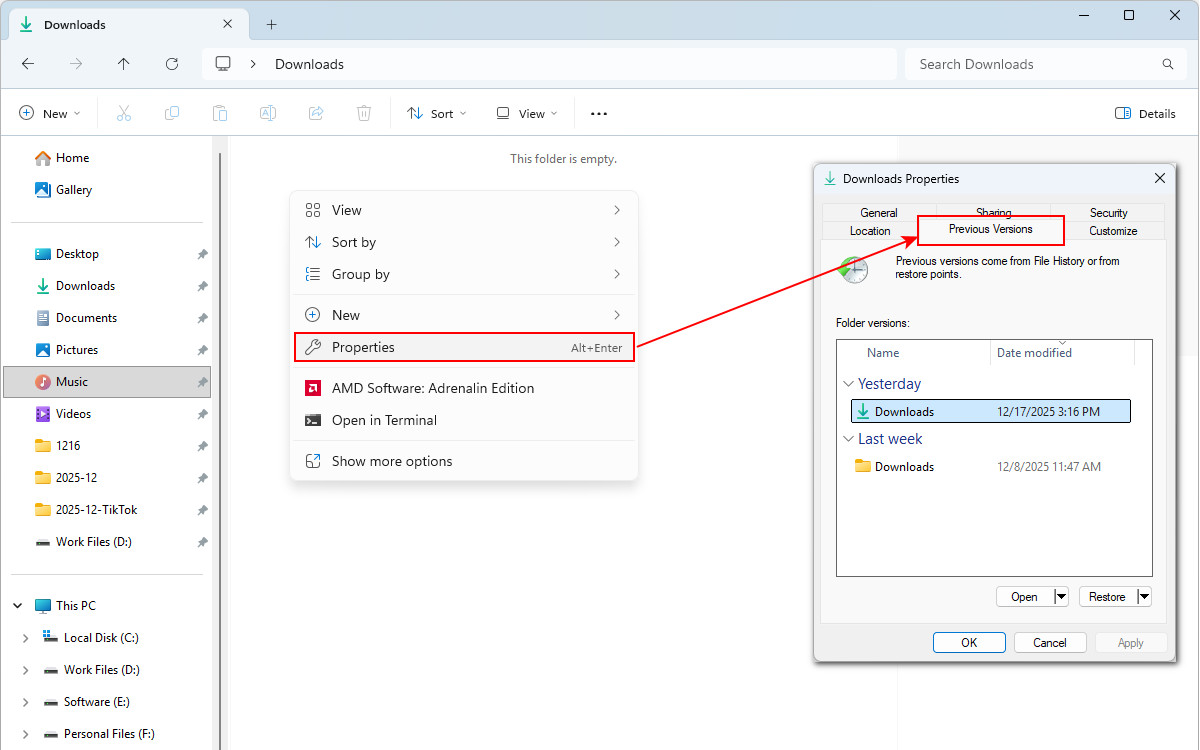
Step 4. If previous versions are available, choose one based on the date when the needed file still existed or are complete.
You can then open or restore that version.
If you see both “Open” and “Open in File History”, it’s recommended to select “Open in File History.” This option lets you preview the file contents before restoring and allows you to recover the file to a different location.
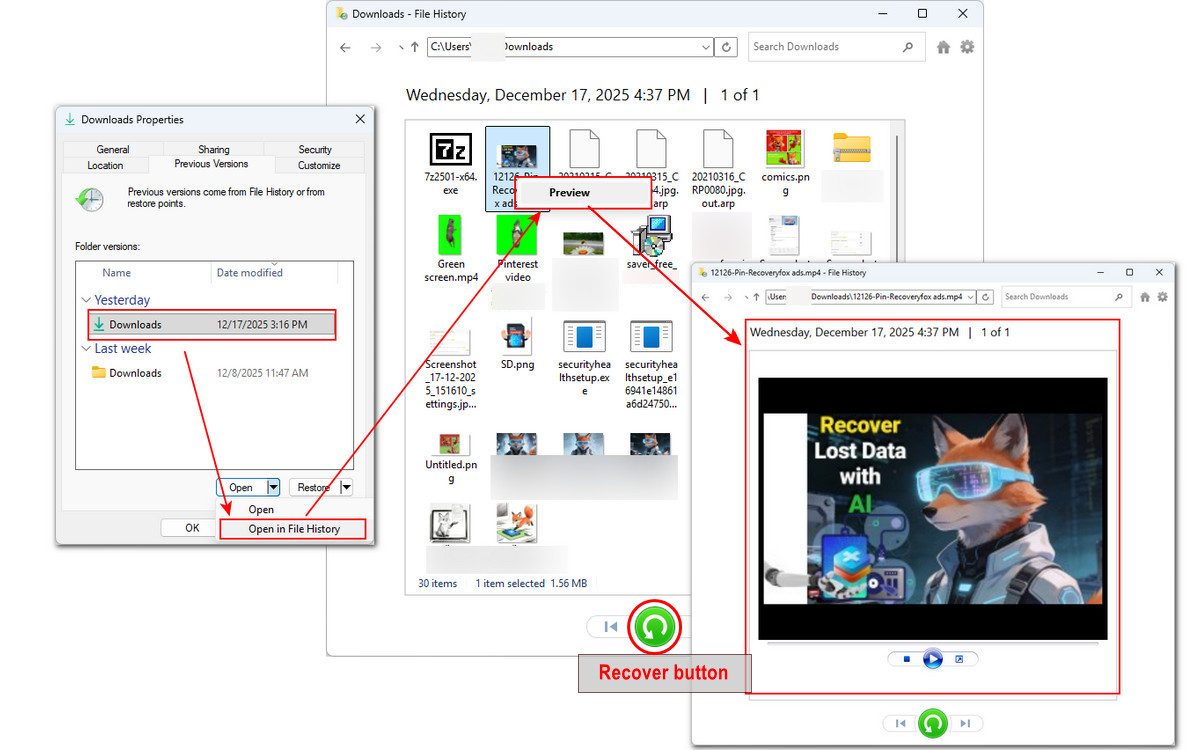
You may also see two restore options:
“Restore”— Replaces the current file with the selected previous version and cannot be undone.
“Restore to” — saves the recovered file to another location (a safer option to avoid overwriting data).
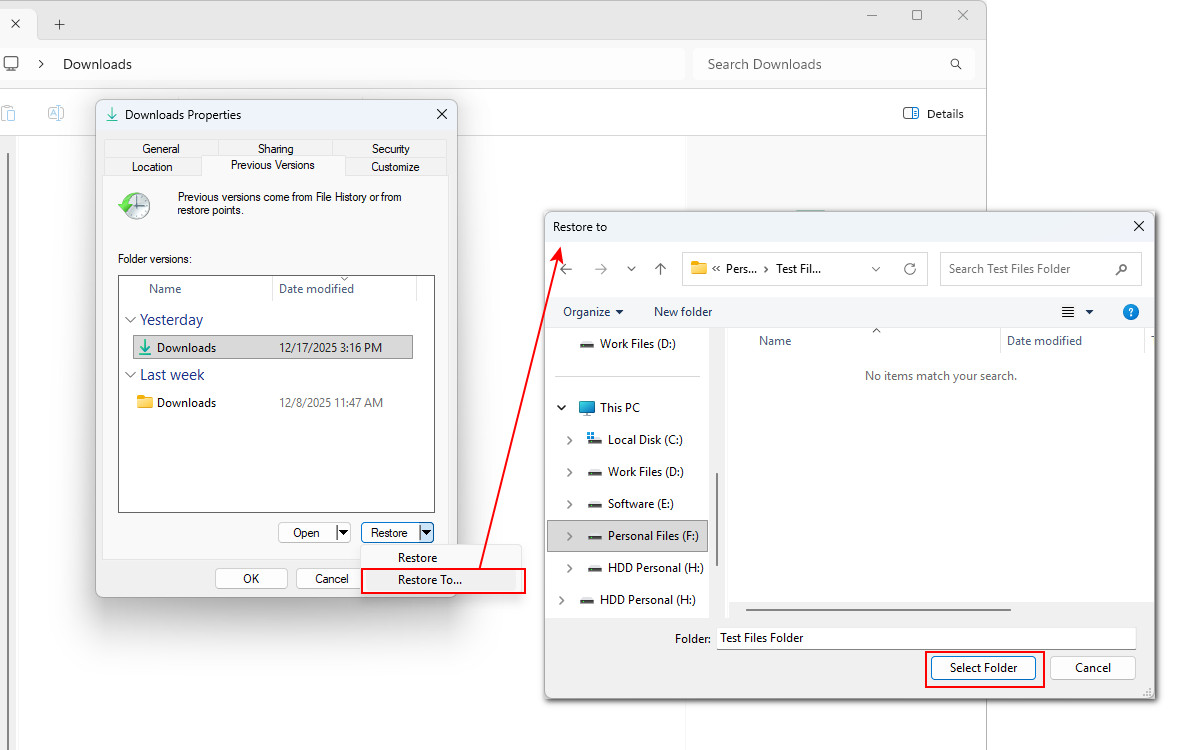
File History and Backup and Restore are built-in Windows backup tools, but they’re not enabled by default. Without prior setup, you’ll likely see the message “There are no previous versions available” when accessing the Previous Versions tab.
Method 3. Recover Recycle Bin after Emptying Using Windows File Recovery
Windows File Recovery is a free command-line tool for Windows 10 and 11 from Microsoft. You can use it to recover lost files from internal drives, external drives, and also USB devices. It supports a wide range of common file types, including video, images, and documents.
The basic syntax is:
winfr source-drive: destination-drive: [/mode] [/switches]
Just replace each element with what you need to recover.
- “winfr” is short for Windows File Recovery.
- “source-drive” is the drive letter where the deleted files were originally stored. For example, if the deleted files you see in desktop Recycle Bin were on Drive (D:), then the source drive letter is D:.
- “destination-drive” The drive letter or folder path where recovered files will be saved. This must be different from the source drive and has enough free space.
- [/mode] Windows File Recovery has two basic scan modes: Regular and Extensive.
Choose Regular mode to recover recently deleted files on a healthy NTFS drive; otherwise, choose Extensive mode, which is for formatted drives, non-NTFS drives, or whenever Regular mode fails. - [/switches] The additional filters that you can add to the commands for more precise recovery. For example, you can add the /n filter to refine the scan:
/n *.mp4 → recover only MP4 videos
/n D:\Work\Videos → recover everything from D:\Work\Videos
(📢📢 I ran the test on a 500GB NTFS hard disk drive. All the files that were emptied from the desktop Recycle Bin originally came from this Drive (F:). Therefore, F: is the source drive letter, and G: (a 64GB USB) will be used as the destination drive. )
Now, let’s see how Windows File Recovery restore files from emptied Recycle Bin:
Step 1. Install and open Windows File Recovery from the Microsoft Store.
Step 2. Once launched, a command-line window will pop up, and you’ll see the basic usage syntax, recovery modes, and some examples of how to proceed.
🔔 ‼️ For an emptied Recycle Bin, you can start with Regular mode on non-corrupted NTFS drives; if it fails or files are older or from other systems, switch to Extensive mode, which often takes longer time to complete.
Step 3. Type the following command and press Enter to recover all lost files from your source drive:
Winfr F: G: /regular
This uses the Regular mode to perform a quick scan for all lost files on F: drive and save them to G:.
Step 4. Then, confirm your settings by pressing “Y” to continue or “N” to restart.
To cut off the scan, press Ctrl + C.
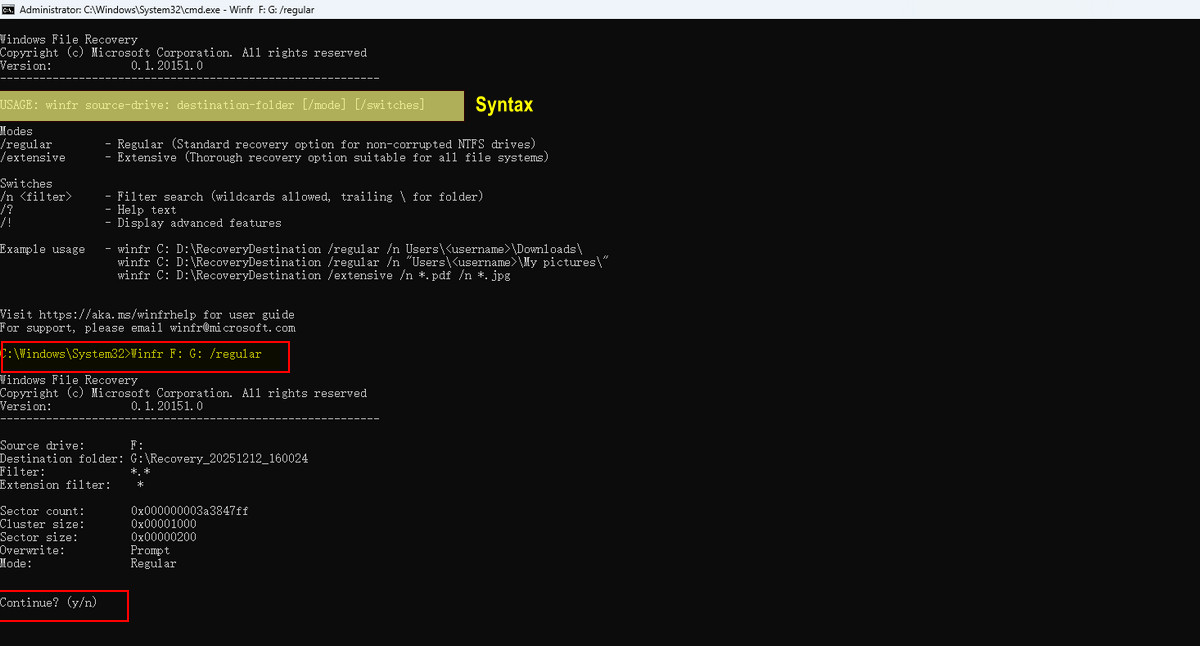
Step 5. Once the scanning process reaches 100%, press “Y” to open the designated destination folder, which can be named in this format: Recovery_[date-time].
Step 6. Check if the files emptied from the Recycle Bin are recovered.
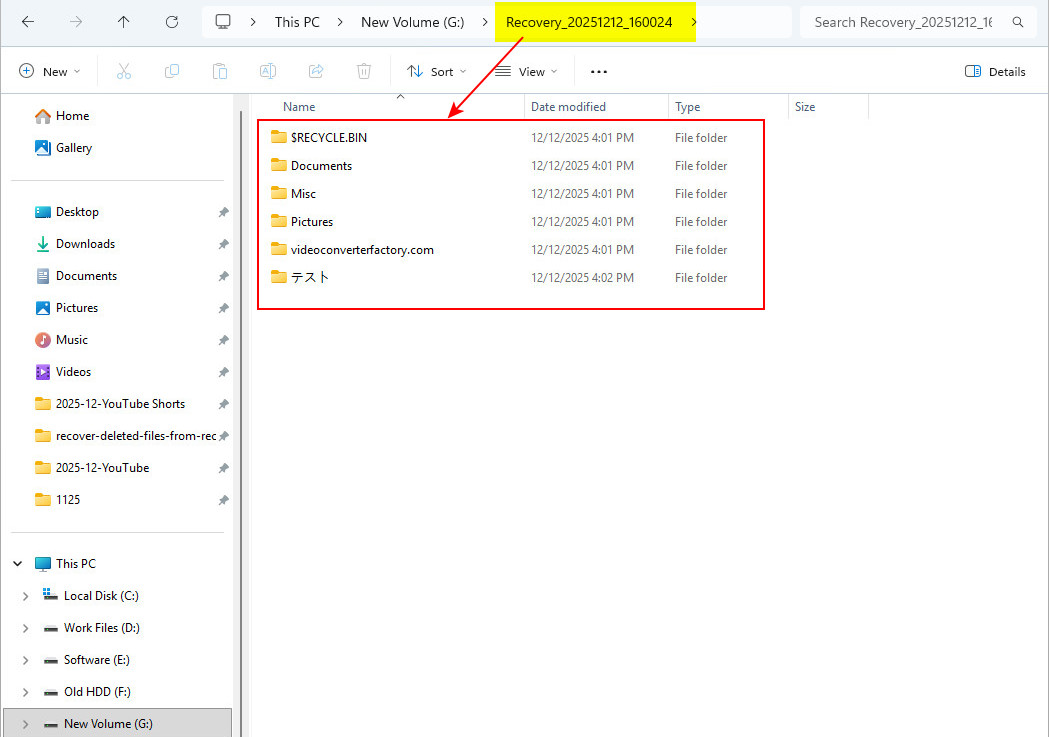
📢 By adding additional filters to your commands, Windows File Recovery can deliver more targeted and accurate results. For a complete list of supported recovery commands and usage examples, refer to this detailed guide:
Windows File Recovery: How to Recover Files for Free on Windows?
Final Thoughts
Recovering deleted files from the Recycle Bin after emptying is absolutely possible, as long as you act quickly and choose the right method.
You can start by checking for Previous Versions or any existing backups, since they offer the fastest recovery without extra tools.
For users who prefer a free solution, Windows File Recovery is an option, but it comes with a learning curve. As a command-line tool, many users report issues such as “command not parsing” or “no recoverable files”, especially when commands are entered incorrectly.
In this case, RecoveryFox AI provides a more reliable and efficient way to restore permanently deleted files. It delivers high recovery success rates, a beginner-friendly interface, and allows users to scan and preview files for free before recovery. Give it a free try now:
Windows
Recover Deleted Files from Recycle Bin after Empty FAQs
Q1. Can I recover files after emptying the Recycle Bin?
Yes, in many cases. Files are not immediately erased from the disk, but recovery is only possible if the data has not been overwritten.
Q2. How long do I have to recover deleted files after emptying Recycle Bin?
There is no fixed time limit. Recovery is possible until the deleted data is overwritten by new files. However, if Storage Sense or automatic cleanup is enabled, files may be removed or overwritten sooner, so recovery should be attempted immediately for the best chance of success.
📚 Related reading: Why Storage Sense Is Not Working on Windows & How to Fix It (Complete Guide)
Q3. What is the best way to recover files after Recycle Bin is emptied?
Start by checking OneDrive, File History, or Previous Versions, then use data recovery software if you have no backup. Stop using the drive immediately and restore recovered files to a different location to improve your chances.
Q4. Can Microsoft or Windows restore emptied Recycle Bin files?
No. Windows does not provide a built-in feature to directly restore files after the Recycle Bin has been emptied unless backups or previous versions exist.
Q5. Can I recover permanently deleted files without software?
Only if you have backups or cloud sync enabled. Without backups, recovery software like RecoveryFox AI is typically required.
📚 Related reading: Enable and Disable File History in Windows 10/11 | Complete Step-by-Step Guide
Q6. Why can’t I find my files in Recycle Bin after deletion?
Files may be permanently deleted, such as by Shift + Delete, too large for the Recycle Bin, deleted from external drives, or already removed when the Recycle Bin was emptied.

A technical content writer for RecoveryFox AI at WonderFox Soft, creating clear guides on data recovery, storage technologies, and Windows troubleshooting. She specializes in simplifying complex technical topics and enjoys exploring technology, running, and discovering new experiences.





 English ^


