






 Free Download
 Windows


If you’re dealing with a situation similar to the user in the Microsoft Community post below, you’re not alone. Data loss after formatting is more common than you might think. And in many cases, the files aren’t permanently gone. With the right approach, there’s still a strong chance of recovery.
Has anyone encountered a similar situation? Can you share some reliable recovery methods? I mainly want to recover files such as documents and photos. If there is a recommended tool, it is best to support Mac and Windows and be simple to operate. I hope everyone can provide some experience or effective tools, thank you!"
In the following section, we’ll walk you through one of the quickest and most effective methods to recover files from a formatted hard drive on Windows, whether it’s an internal disk or an external device.
Can You Recover Data After Formatting Hard Drive?
Yes. Data can usually be recovered from a formatted hard drive, as long as it has not been overwritten. Stopping further use of the drive and using professional formatted data recovery software will significantly improve your chances.
In practice, whether you can recover formatted hard drive data depends on several key factors:
- the type of formatting performed: Quick Format VS Full Format
- the storage device in use: HDD VS SSD
- whether new data has been written after formatting
A quick format usually offers a high chance of data recovery. Instead of erasing the actual files, it simply resets the file system index, leaving the original data physically intact on your disk. This means your files can still be recovered, as long as they haven’t been overwritten, which is why recovering data after a quick format is often still possible with the right approach.
But a full format goes further by overwriting data and scanning for bad sectors. This process takes more time and greatly reduces the likelihood of successful recovery.
The type of storage device also plays a critical role. On traditional hard disk drives (HDDs), data remains intact after formatting until it is overwritten, which makes recovery relatively reliable. However, solid-state drives (SSDs) behave differently due to the TRIM feature.
When TRIM is enabled on an SSD, deleted data may remain recoverable only for a short period after formatting. Once TRIM executes and clears those data blocks, the original files are typically no longer recoverable using standard software. For this reason, acting immediately after data loss is essential when dealing with SSDs.
How to Recover Files from Formatted Hard Drives on Windows?
RecoveryFox AI offers Windows users an intuitive, smart solution for recovering files from formatted hard drives. It features a simple 3-step workflow: Scan > Preview > Recover, making data recovery from formatted hard disks, accidental deletion, virus attacks, and other data loss scenarios easy for everyone.
This AI-powered tool not only supports formatted HDDs but also enables you to recover data from USB drives, SD cards, and other storage devices using file systems such as NTFS, exFAT, FAT32, XFS, HFS+, and so on.
Download RecoveryFox AI for free and see how to recover formatted HDD data using it:
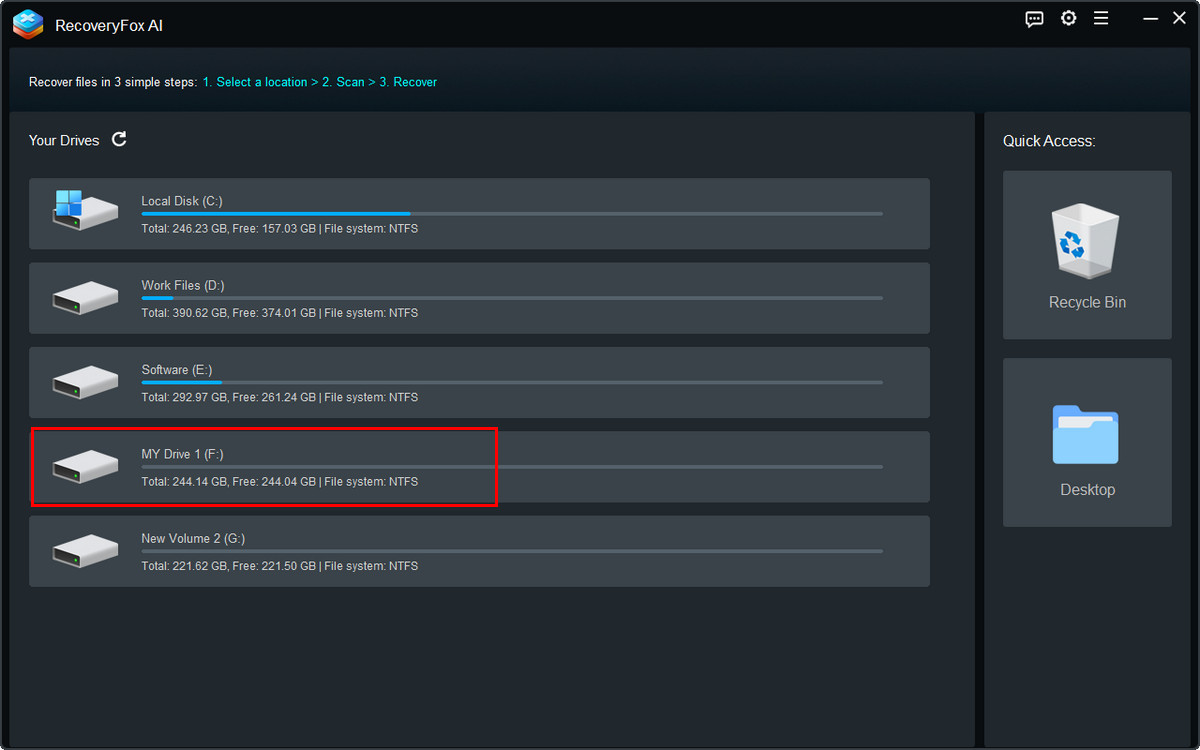
Step 1. Select the Formatted Hard Drive
If you’re recovering data from an external hard drive, connect it to your computer using a compatible adapter. Make sure the drive is recognized and appears under This PC in File Explorer.
Then, launch RecoveryFox AI and select the formatted hard drive you want to recover data from.
Simply click it to start scanning.
Step 2. Scan and Filter Your Files
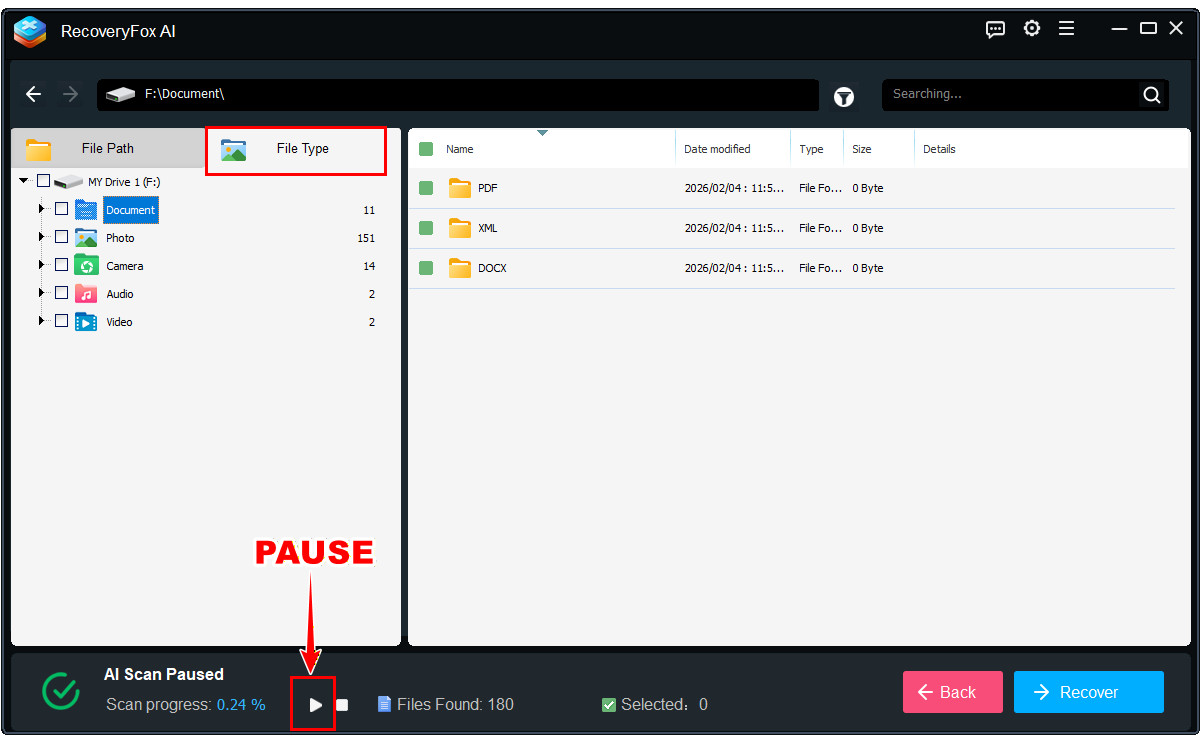
RecoveryFox AI always begins with a Quick Scan and then proceeds to an AI Scan for deeper and more thorough detection.
For formatted data recovery, Quick Scan alone is usually not sufficient because formatted drives often lose their original file system structure. Therefore, it is recommended to let the AI Scan complete for the best results.
Also, you can pause the AI Scan at any time to browse detected files by File Type.
Step 3. Preview and Recover Formatted Drive
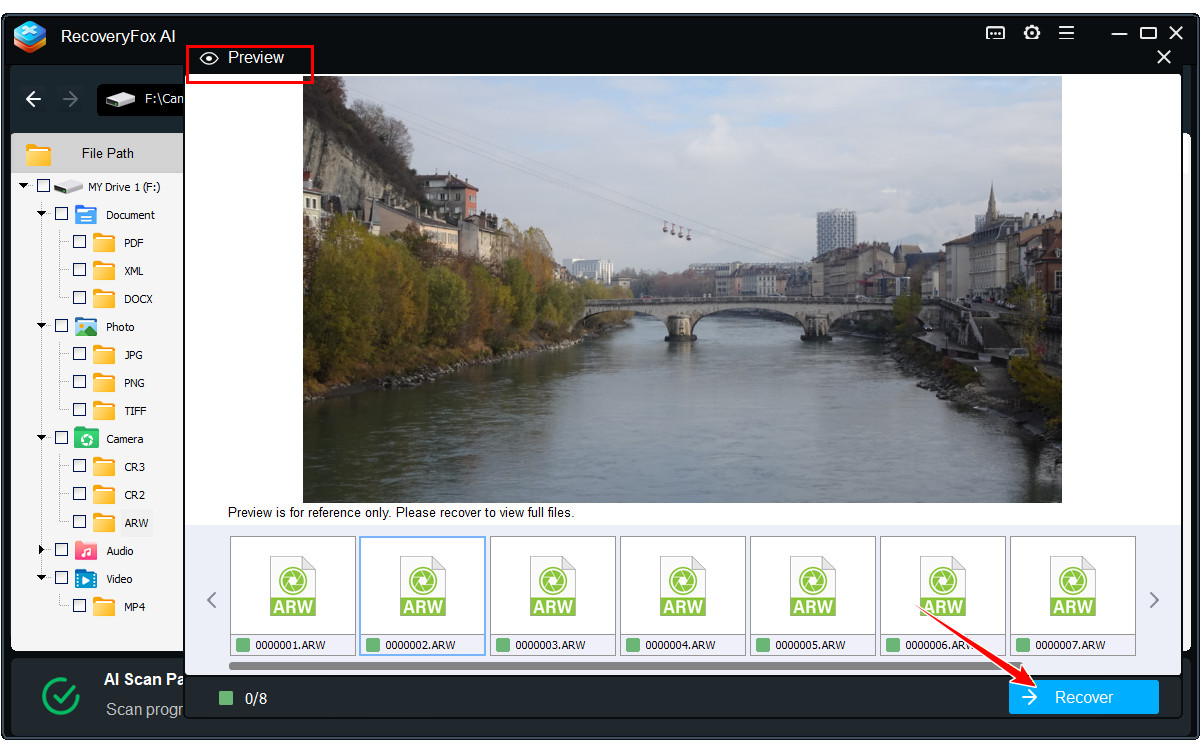
To recover files precisely from a formatted hard disk, you can preview them before recovery. Right-click a file and choose Preview.
RecoveryFox AI now supports previewing common file formats, including images, web files, documents, text files, and camera files. Support for more file types is continuously expanding.
After previewing, select the needed items and click Recover.
To prevent data overwriting, always save recovered files to a different drive or location.
In Conclusion
Formatting is commonly used to erase storage devices such as hard drives, USB drives, and SD cards before reuse. However, data loss happens at times during the process, whether due to accidentally formatting the wrong drive or realizing important files were still needed afterward. In many cases, recovery is still possible if the data has not been overwritten.
To maximize recovery success, the key is to act quickly and avoid writing any new data to the formatted drive. And for best results, use a professional recovery tool like RecoveryFox AI as soon as possible after data loss. It can help you retrieve deleted files before they are replaced or lost permanently.
Download the tool and add an extra layer of protection to your data. You can free scan & preview files before recovery:
FAQ: Recovering Files After Formatting
Q1. Can data be recovered from a formatted hard drive?
Yes. If the data has not been overwritten, it can often be recovered. Stop using the affected drive and use a reliable recovery tool like RecoveryFox AI to start recovering.
Q2. Can you recover data after a full format?
Rarely. A full format overwrites data and checks disk sectors, making recovery difficult or often impossible compared to a quick format.
📚 To better understand how Quick Format and Full Format work differently, you can check out this guide: Quick Format vs. Full Format: Why Is Your Data Still Recoverable?
Q3. How to recover data from formatted hard drive without software?
You can only recover data from formatted hard drive without software if you have backups, such as File History, system image backups, or cloud storage like OneDrive. Otherwise, professional data recovery services are required. Without backups or services, recovery is generally impossible.
📚 Related reading: How to Make a PC Backup for Free on Windows: Complete Guide
Q4. How can you recover data from a formatted external hard drive?
Stop using the drive immediately, then connect it to a computer and use recovery software to scan and restore lost files. Save the recovered files to a different location.
Q5. How to recover data from a formatted hard disk in Windows 10?
To recover data from a formatted hard drive in Windows 10, install a reliable data recovery tool such as RecoveryFox AI, TestDisk, PhotoRec, or Windows File Recovery on a separate drive. Then, run a full scan on the formatted disk, preview recoverable files, and restore them to a different storage location.

A technical content writer for RecoveryFox AI at WonderFox Soft, creating clear guides on data recovery, storage technologies, and Windows troubleshooting. She specializes in simplifying complex technical topics and enjoys exploring technology, running, and discovering new experiences.





 English ^


