






 Free Download
 Windows


⚠️ Warning: If your RAW SD card contains files you still need:
1. Stop using the RAW SD card.
2. Do not format, repartition, run CHKDSK, or attempt other repairs before recovering your data.
3. Before RAW SD card recovery, connect the card through a reliable card reader and check whether Windows detects it in Disk Management.
4. Use specialized RAW drive data recovery software to scan the RAW SD card and preview recoverable files for free before recovery. [ Check the full safe recovery steps >> ]
Can You Recover Data from a RAW SD Card?
Yes, you can often attempt data recovery from a RAW SD card, provided the card is still detected and the underlying data has not been overwritten or become inaccessible because of severe hardware failure.
When Windows displays an SD card as RAW, it generally means that Windows cannot recognize or access the file system normally. You might see symptoms such as:
❗Windows asks you to format the SD card.
❗File Explorer cannot open the card.
❗Disk Management shows the card as RAW.
❗The SD card has no accessible files or folders.
❗CHKDSK reports that the file system is RAW or that CHKDSK is not available for the volume.
However, a RAW status does not by itself mean that all files have been deleted. The underlying file data may still exist even though Windows can no longer access it through the normal file system.
But why does an SD card become RAW? Improper ejection is one possible cause. Other causes include:
❌ Interrupted data transfer
❌ File-system corruption
❌ An interrupted or failed formatting process
❌ Incompatible devices or readers
❌ Bad sectors or flash-memory deterioration
❌ SD card controller failure
❌ Malware or software-related problems
The chances of successful recovery depend on the condition of the SD card, the type and extent of file-system damage, whether new data has overwritten the original data, and whether the card has physical or controller problems.
If the card is still detected, the safest approach is to recover your important files first. After the data has been recovered, you can decide whether the card can be repaired and reused.
Recover Your Files from a RAW SD Card with Data Recovery Software
When Windows detects the SD card as RAW and you cannot open or browse its files, use specialized deletion data recovery software to scan the card and recover your files before attempting repair or formatting.
RecoveryFox AI provides advanced scanning technology and can work with storage devices whose file systems are unrecognized, including RAW SD cards. It is designed for various logical data-loss situations and can also help recover Shift-Deleted files, files lost after formatting, and data from unallocated or lost partitions.
Download RecoveryFox AI to start a free scan and preview first:
Step 1. Select and Scan Your RAW SD Card
Insert the SD card into a reliable card reader and connect it to a working Windows PC.
Press Win + X, select Disk Management, and check whether Windows detects the SD card and shows its file system as RAW.
Run RecoveryFox AI and select your RAW SD card from the drive list. Click the SD card to start scanning.
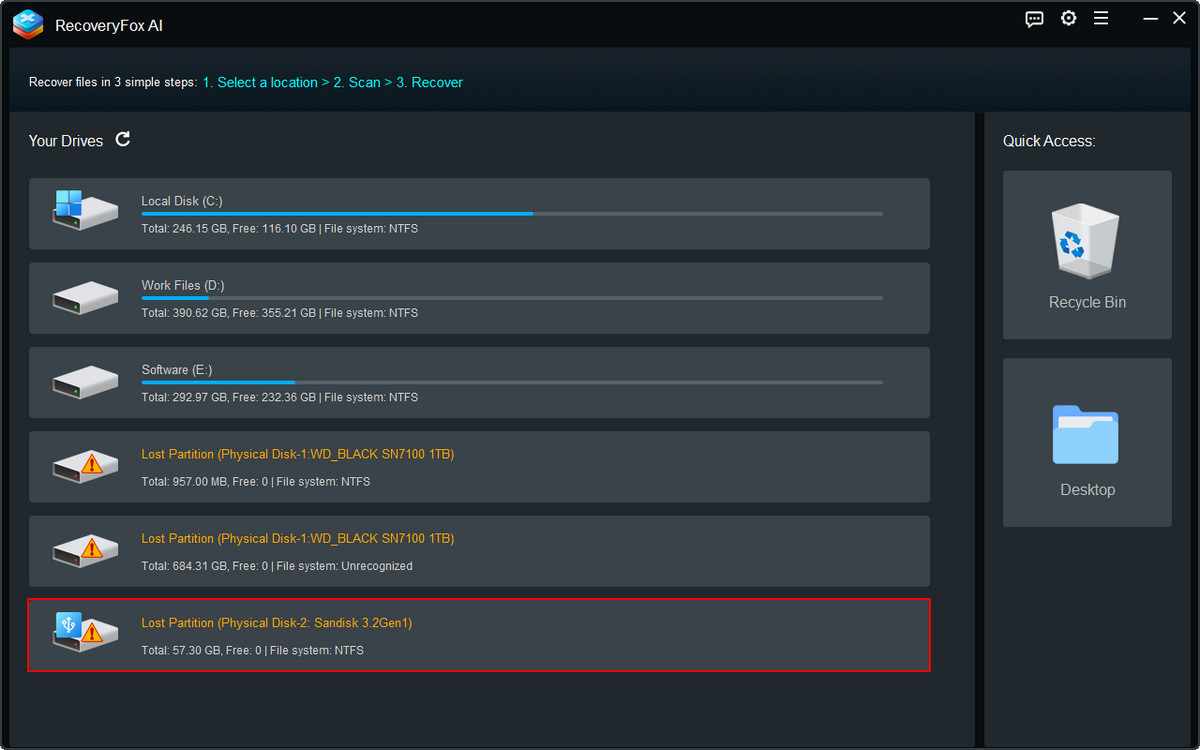
Step 2. Scan the RAW SD Card
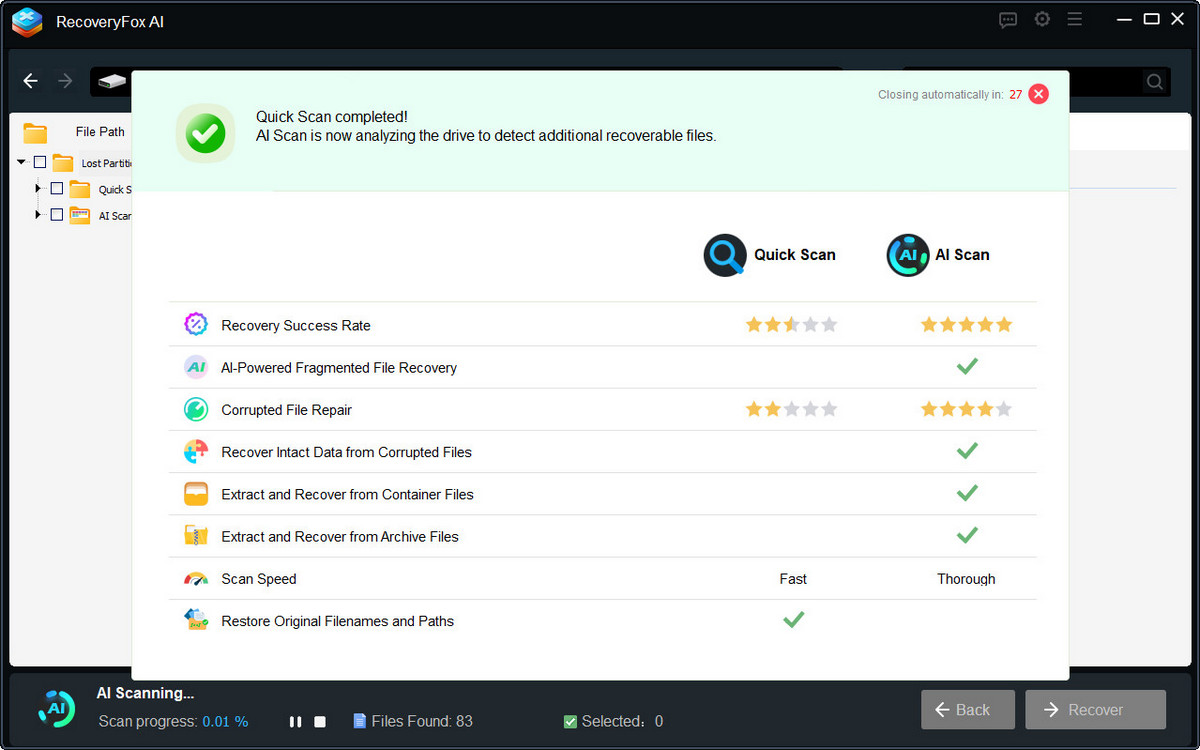
RecoveryFox AI uses a Quick Scan + AI Scan workflow for affected storage devices.
Because Quick Scan relies on the file system, it may not be able to recover files from a RAW SD card when the file system is no longer accessible. In this situation, Quick Scan may finish quickly without finding usable results.
RecoveryFox AI then starts AI Scan, which can scan the storage more directly instead of relying on normal file-system access. This allows it to search for recoverable data on RAW or otherwise unrecognized file systems.
You can pause the AI Scan to browse and preview the results found so far.
For the most complete results, however, it is recommended to let the scan finish before starting recovery.
Step 3. Find and Preview Your Files
To quickly locate your files, you can use filters such as File Type, Modified Date, File size, or Keywords.
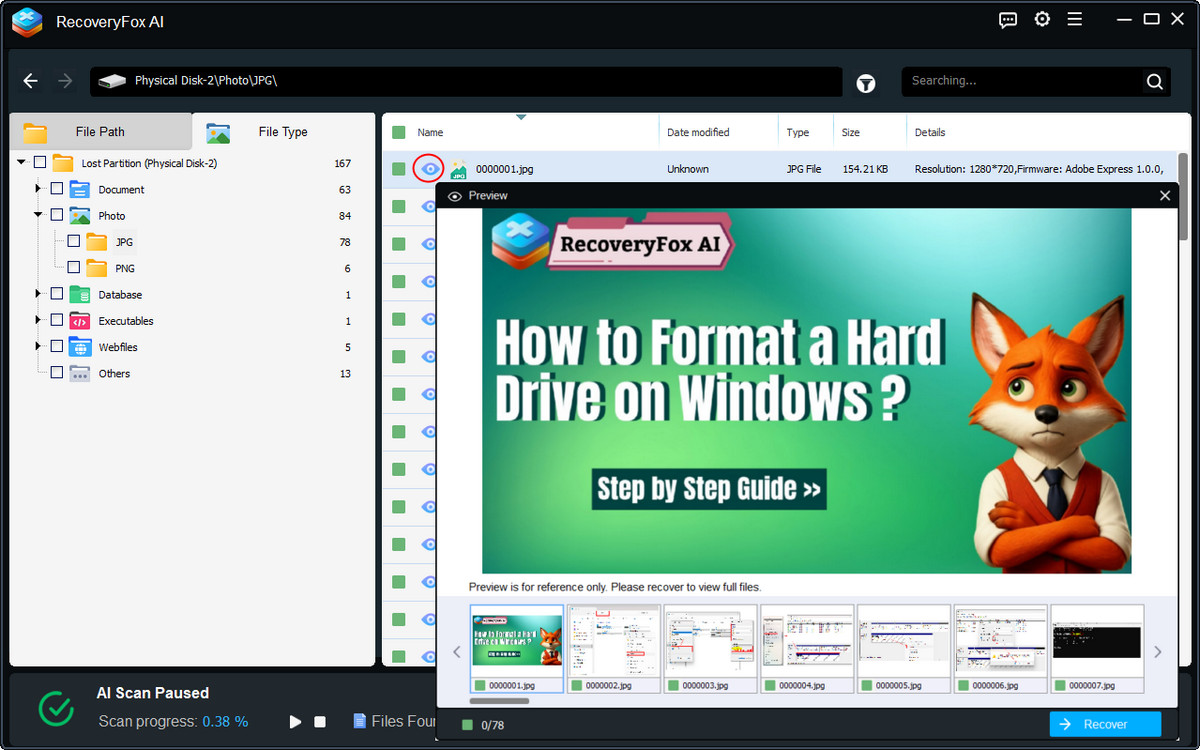
You can preview supported files, including common camera formats, videos, audio, images, documents, and professional project files such as CAD files.
Click the eye icon to browse them in the Preview window.
Step 4. Recover the RAW SD Card Data
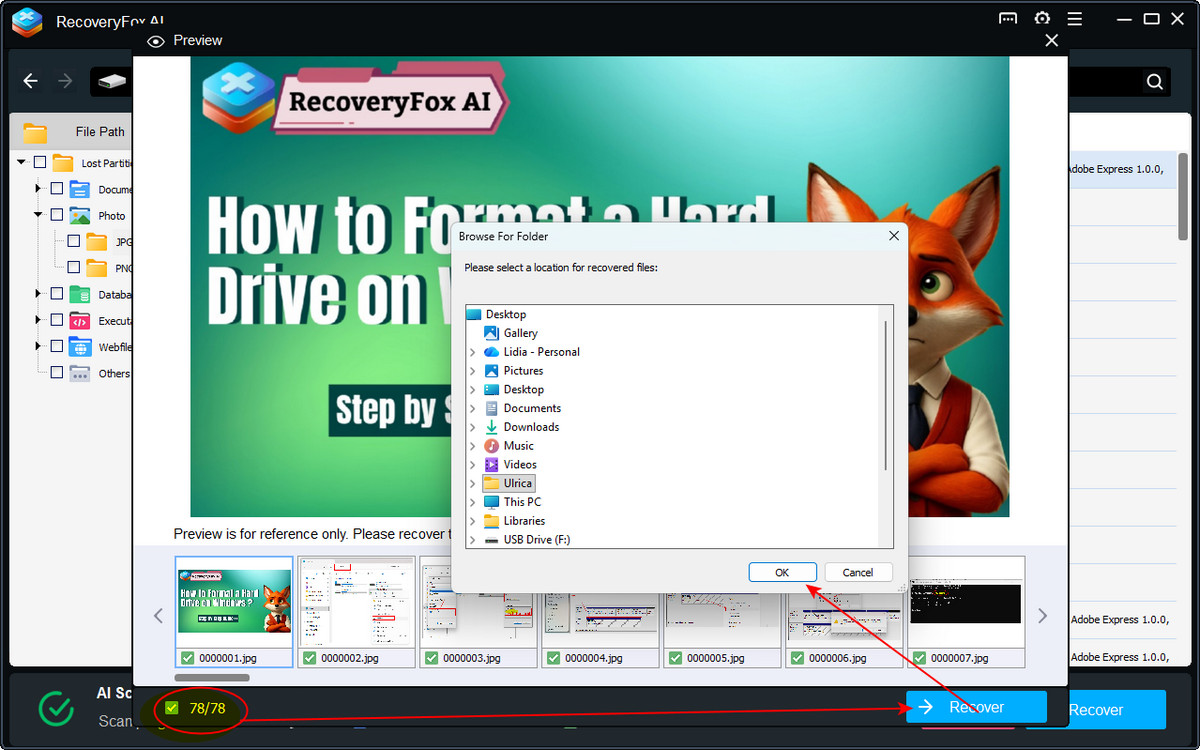
Select the photos, videos, documents, or other files you need, and click Recover.
Choose a different safe storage location to avoid overwriting data that you may still need to recover.
💡 RAW SD Card Recovery Troubleshooting
Below are two common issues you may encounter when recovering data from a RAW SD card, along with practical troubleshooting tips.
🔶 What if the RAW SD card is unstable or keeps disconnecting?
If your RAW SD card is extremely slow, frequently disconnects, or causes Windows tools to freeze, repeatedly scanning the original card may place additional stress on an unstable device.
If the card can still be read reliably enough, consider creating a sector-by-sector disk image or clone using a tool such as Win32 Disk Imager first. You can then use RecoveryFox AI to scan and recover data from the copy instead of repeatedly accessing the original card.
If the SD card cannot be read consistently enough to create an image, or the computer cannot detect the card correctly, this may indicate a hardware or controller problem. If the data is important, consider professional data recovery rather than continuing to any DIY attempts.
🔶 What if recovery software finds corrupted or duplicate files?
Recovery results can vary depending on the condition of the SD card, the extent of file-system damage, whether the original data has been overwritten, and the recovery method used. To improve your chances of getting usable files:
🔷 Preview files before recovering them whenever possible.
🔷 Let the full scan complete before deciding that a file cannot be found.
🔷 Save recovered files to a different storage device.
How to Fix a RAW SD Card After Data Recovery
Once you have recovered and verified the important files from your RAW SD card, you can try to make the card usable again.
The appropriate method depends on how Windows detects the card and what caused it to become RAW.
⚠️ Make sure your important files have already been recovered before trying the following fixes. Some repair and formatting operations can change the card’s file-system structure and may make further data recovery more difficult.
🛠️ Fix 1. Try Another Card Reader or Computer
- The RAW SD card problem may be caused by the card reader, adapter, USB port, or computer if you see signs such as:
- The SD card takes a long time to appear.
- The card is detected on one computer but not another.
- Windows repeatedly disconnects and reconnects the card.
- Disk Management behaves abnormally when the card is inserted.
- The card works intermittently.
In these cases, try a different card reader or adapter, connect the card to another USB port, and, if possible, test it on another Windows computer. Then check whether Windows can detect the card normally.
If the card works normally with another reader or computer, the original reader, adapter, USB port, or computer may be contributing to the problem.
If the SD card remains RAW, the problem is more likely related to the card’s file system or the card itself. If it also disconnects repeatedly, reports 0 bytes or No Media, or causes Disk Management to freeze, stop troubleshooting and consider professional recovery if the data is important.
🛠️ Fix 2. Try Partition Recovery Tools
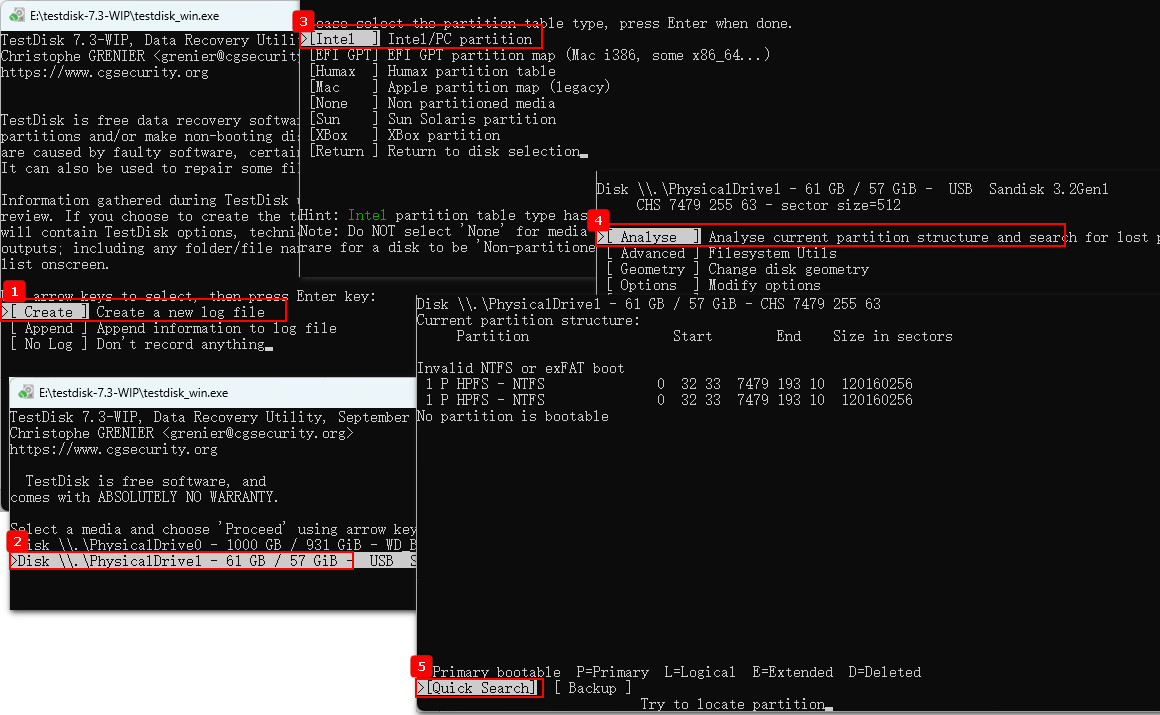
A partition recovery tool like TestDisk can help if your goal is to restore a RAW SD card to normal use. Although it can also assist with data recovery, it is not the most user-friendly option for recovering individual files.
When using TestDisk to rebuild the partition table, be cautious before writing the changes. This can alter the card's partition structure and may overwrite data or make existing files harder to recover.
Step 1. Download TestDisk and run it as an administrator.
Step 2. Select Create to allow TestDisk to create a log file.
Step 3. Select the SD card from the device list.
Step 4. Select the appropriate partition-table type. For many SD cards, TestDisk may identify the correct type automatically.
Step 5. Go to Analyse → Quick Search to look for lost partitions.
Step 6. If the desired partition is not found, run Deeper Search.
🛠️ Fix 3. Format the RAW SD Card with Disk Management
You can format the RAW SD card to create a new file system and make it usable again. Disk Management is a free utility built into Windows that you can use for this.
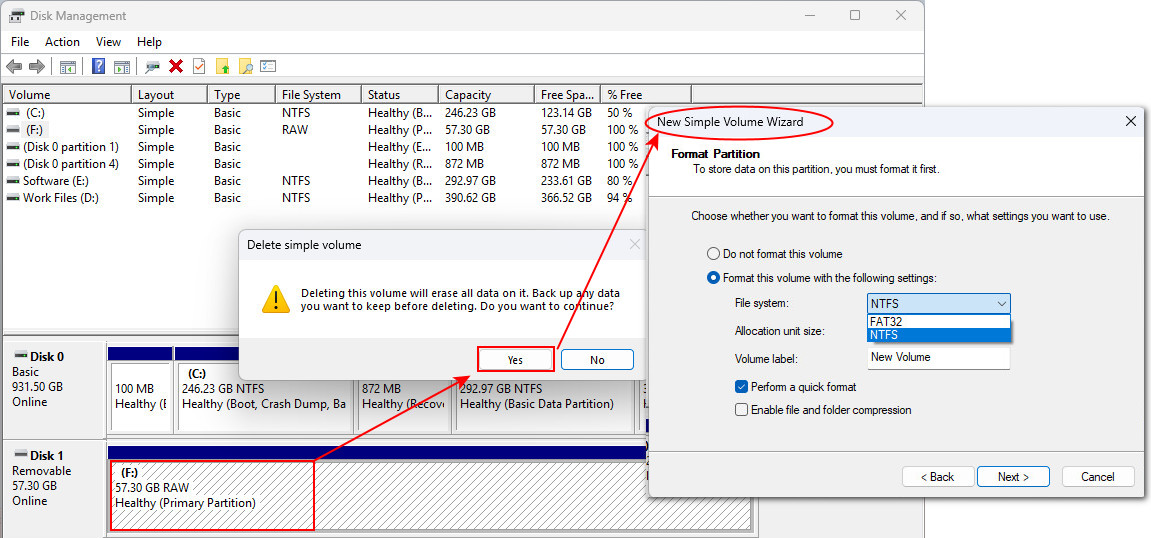
Step 1. Press Windows + R, type “diskmgmt.msc”, and press Enter to open Disk Management.
Step 2. Locate your SD card, right-click it and select “Delete Volume”.
Step 3. When the card shows as “Unallocated”, right-click it and select “New Simple Volume”.
Step 4. Follow the New Simple Volume Wizard to set the volume size, assign a drive letter, and choose a suitable file system.
Leave other options at their default settings, then, click “Next”.
Step 5. Review the settings and click Finish to complete the process.
When Should You Stop Trying to Recover & Fix a RAW SD Card Yourself?
Stop attempting software-based recovery or repairs when the SD card:
- 🔸Is not detected at all.
- 🔸Shows 0 bytes or No Media.
- 🔸Repeatedly disconnects or causes Disk Management to freeze.
- 🔸Becomes unusually hot.
- 🔸Cannot be read consistently enough to create a disk image.
- 🔸Contains critical or irreplaceable data and you are unsure whether a repair operation is safe.
In these situations, continued troubleshooting can make the situation worse or reduce the chances of successful recovery. For important data, consider a professional data recovery service.
Conclusion
A RAW SD card does not necessarily mean that your photos, videos, or other files are gone. In many cases, the most important thing you can do is stop using the card and recover your data before attempting to fix or format it.
If Windows detects the card, start with a dedicated recovery tool such as RecoveryFox AI. You can download the software to start a free scan and preview first:
After your important files have been safely recovered, you can try to reformat, repartition, or repair the RAW SD card.
But if your SD card involves hardware damages or controller failure rather than simple file-system corruption, professional data recovery may be the safest option.
Recover Files from a RAW SD Card FAQs
Q1. Can I recover data from a RAW SD card without formatting it?
Yes. If Windows detects the SD card, you can try RecoveryFox AI to recover your files before formatting it.
Q2. How can I fix a RAW SD card without losing data?
Recover your important files first. Then try another card reader or computer, or use appropriate repair tools. Format the card only after your data is safely recovered.
Q3. Can a RAW drive be recovered?
Yes, in many cases. If Windows detects the drive and the data has not been overwritten or severely affected by hardware problems, recovery software may recover the files.
Q4. Can I use CHKDSK to fix a RAW SD card?
Usually, no. CHKDSK may report that it is not available for RAW drives. If you need the files, recover them before attempting repair or formatting.
Q5. What should I do if my RAW SD card is not detected?
Try another card reader, USB port, or computer. If it shows 0 bytes or No Media, repeatedly disconnects, becomes unusually hot, or causes Disk Management to freeze, the problem may be hardware-related. If the data is important, avoid repeated repair attempts and consider professional data recovery.

A technical content writer for RecoveryFox AI at WonderFox Soft, creating clear guides on data recovery, storage technologies, and Windows troubleshooting. She specializes in simplifying complex technical topics and enjoys exploring technology, running, and discovering new experiences.





 English ^


