






 Free Download
 Windows


When you insert a USB drive into your PC and try to open it, you may see an error message that prevents you from accessing the drive. If you check it in Disk Management, the drive may appear as “Unallocated.”
In many cases, the data on an “Unallocated” USB drive is still intact. Using data recovery software can give you a good chance of recovering your files before repairing the drive.
In this guide, we’ll share safe steps to recover data from an “Unallocated” USB drive, as well as methods to repair the USB drive and make it usable again.
🔰 Don't need the theory? Recover your data now >>
🔰 No important data on the drive? Fix the USB drive now >>
⚠️ Note: Repairing an “Unallocated” USB drive—for example, by formatting it, creating a new partition, or running Check Disk—may cause the original data to be lost. If the drive contains important files, always recover your data first. When recovering data, use a tool that works in read-only mode and does not write any data to the affected drive.
Why Does a USB Drive Become Unallocated?
“Unallocated” means that the physical storage capacity of a USB drive or other storage device is recognized, but the partition used to organize and manage the data is no longer recognized. Think of it like seeing a large parking lot but no marked parking spaces, making it impossible to tell where each car belongs or where to find a particular vehicle.
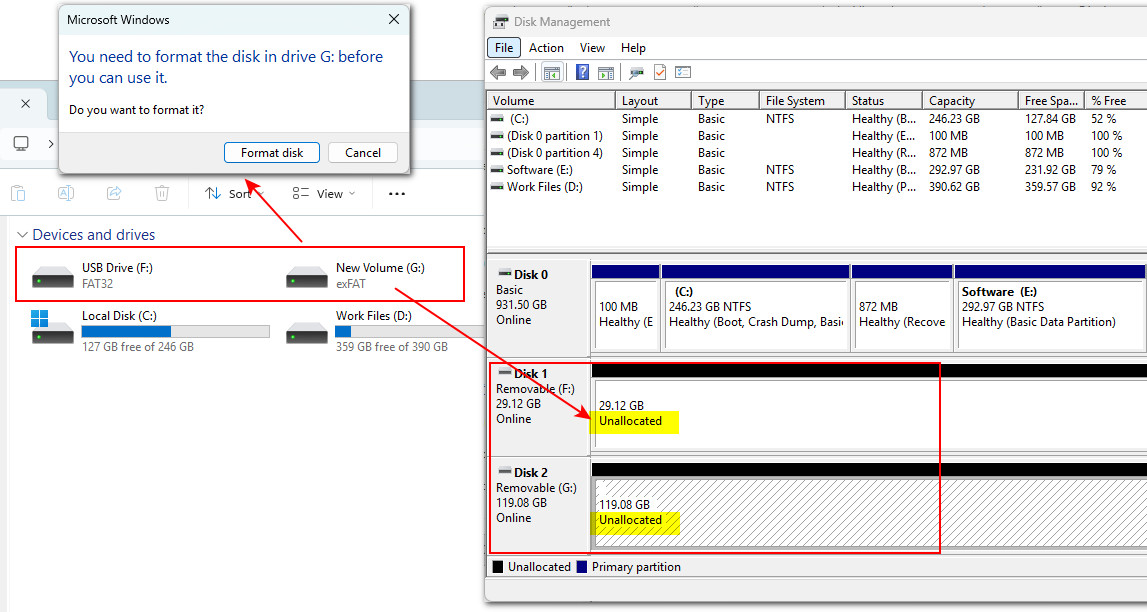
A USB drive can become unallocated due to either logical or physical problems. In most cases, the cause is a logical issue.
◆ Logical Issues (The Parking Spaces Have Been Removed)
- Accidental deletion of the partition using DiskPart or Disk Management
- Partition table damage caused by viruses or malware
- File system corruption
- Sudden power outages, improper formatting, or failed formatting
◆ Physical Issues (The Parking Lot Has Been Damaged)
- A worn-out or damaged USB connector
- Normal wear and tear over time
- Physical damage caused by impact, water exposure, or similar incidents
◆ How to Identify the Cause
In general, if the USB drive is detected in Disk Management, the problem is likely logical; if the drive is not detected at all, it is more likely to be a physical problem. With a logical issue, you have a good chance of recovering the data and fixing the error yourself. If the problem is physical, we recommend consulting a professional data recovery service.
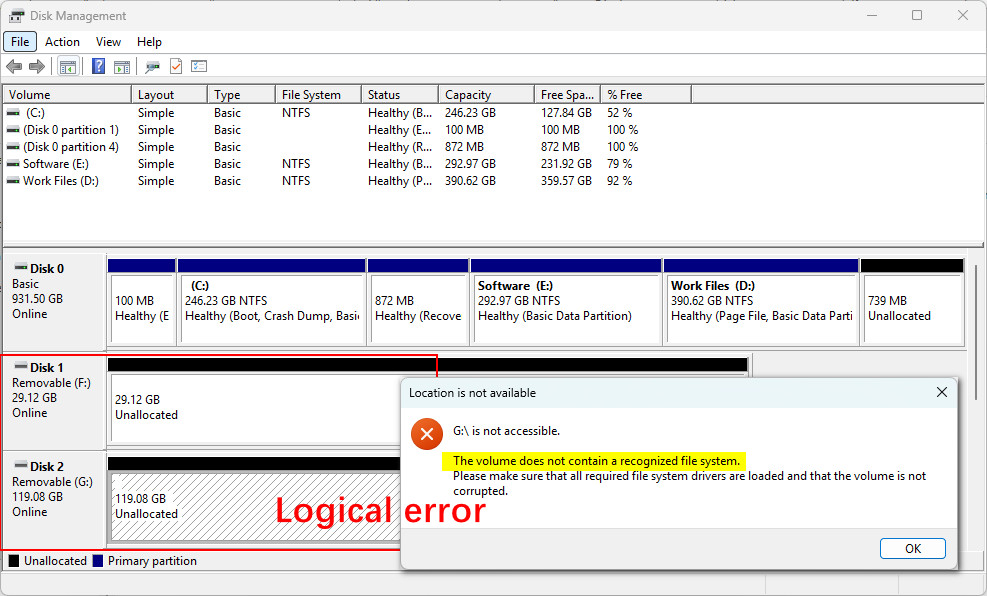
Why You Can Recover Data and Why You Should Do It Before Fixing the Error
Seeing a USB drive as "Unallocated" in Windows does not necessarily mean that your files are gone. In many cases, Windows can no longer access the drive because its partition information is missing or corrupted, leaving no valid partition or file system for File Explorer to mount.
However, many data recovery tools can scan the affected device directly, bypassing the missing or corrupted partition information to search for recoverable files. This gives you an opportunity to recover important data before making changes to the drive that could reduce its recoverability.
By contrast, fixing an unallocated USB drive often involves creating a new partition or formatting the drive. Depending on the situation, these operations may overwrite existing file system information or data, making previously recoverable files more difficult or even impossible to recover.
Therefore, if your unallocated USB drive contains important files, recover your data first and repair the drive afterward.
How to Safely Recover Data from an Unallocated USB Drive
Once you have confirmed that your USB drive appears as Unallocated, the safest approach is to recover any important files before attempting to recreate the partition or format the drive. This is where RecoveryFox AI can help.
RecoveryFox AI can scan an unallocated USB drive directly without requiring you to format or repartition it first, helping you recover lost files while minimizing the risk of further data loss.
In addition to unallocated partition recovery, this powerful USB data recovery software also supports recovery from various data loss situations, including accidental formatting, Shift + Delete, RAW drives, virus attacks, deleted partitions, and other common scenarios.
- ✅Advanced AI Scan: Uses AI technology to identify fragmented data and reconstruct complete files.
- ✅Non-destructive and safe: Works in read-only mode, so it does not modify or overwrite data on the storage device.
- ✅Easy for beginners: Recover your data in just three simple steps with an intuitive interface.
- ✅Free Scan and preview: Scan and preview recoverable files including videos, audio, images, documents, camera photos, and more.
🔢 Steps to Recover Unallocated USB Drive Data Using RecoveryFox AI
Step 1: Scan the Unallocated USB Drive
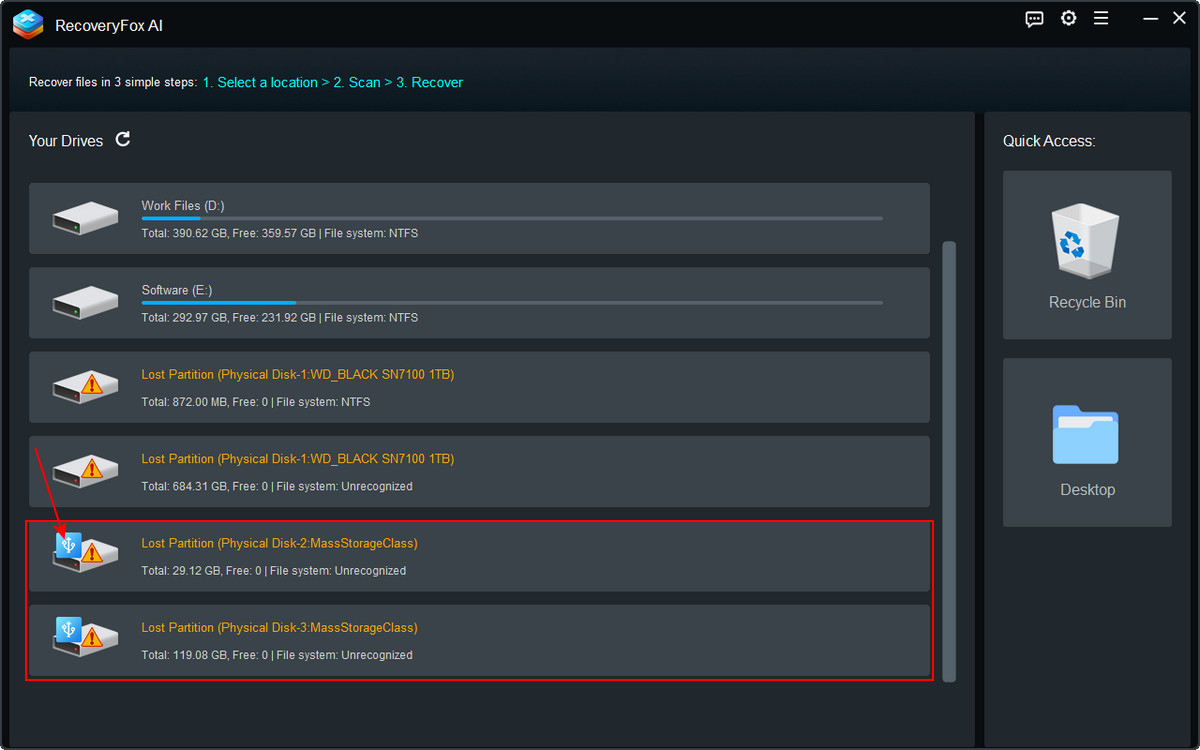
Launch RecoveryFox AI and you'll see all available drives listed on the main screen. You can see that the unallocated USB drive is marked with a problem icon. Click the drive to start scanning for data.
RecoveryFox AI first performs a Quick Scan, followed automatically by an AI Scan.
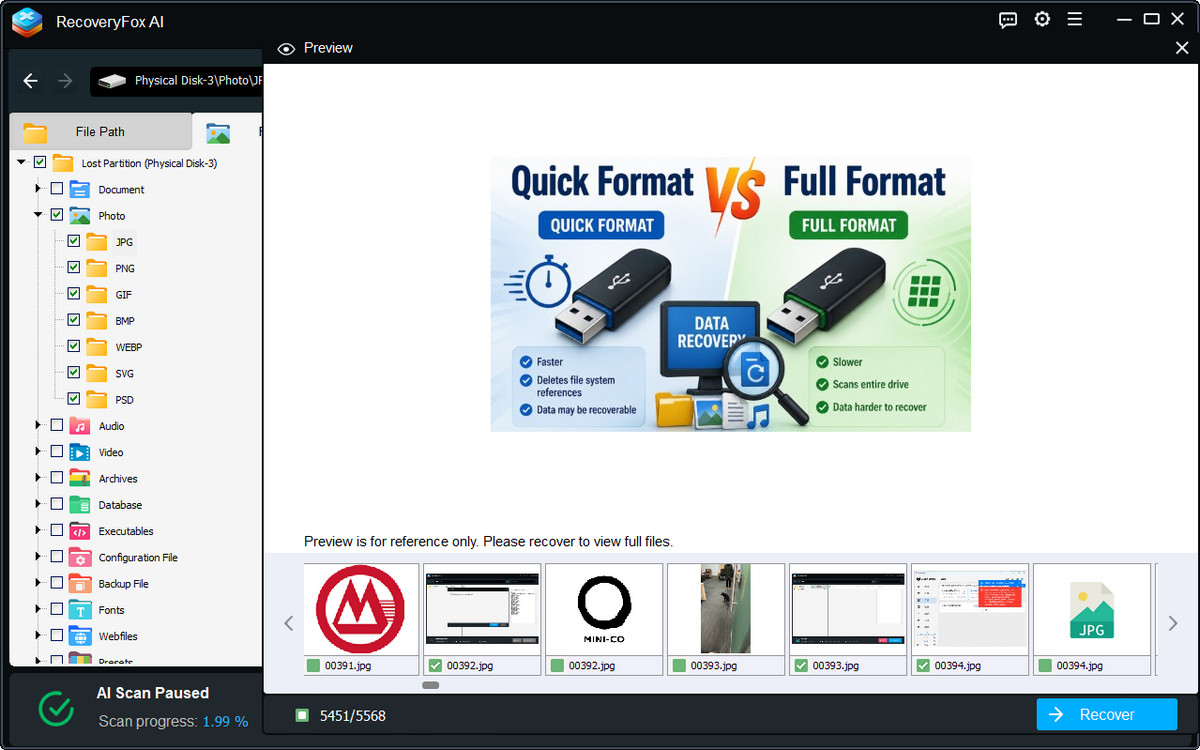
You can browse the scanned result list during the AI scanning. Or, you can pause the AI Scan at any time to preview the scanned files in detail.
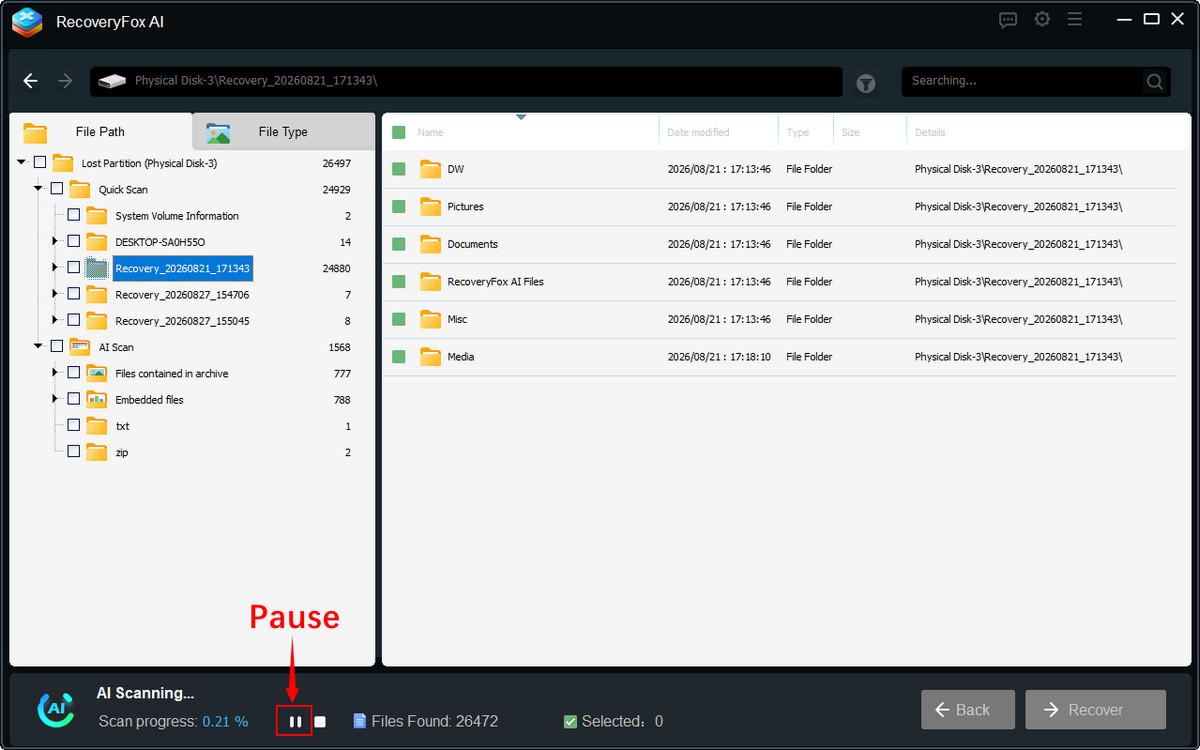
Step 2: Preview Your Files
Use the “File Path” tab to locate the folder where your files were stored, or switch to the “File Type” tab to find files by file type and format.
Also, you can sort the file list by keywords, date, size, and other filters.
Click the eye icon to preview videos, audio files, images, documents, and other recoverable files.
Step 3: Recover the Files
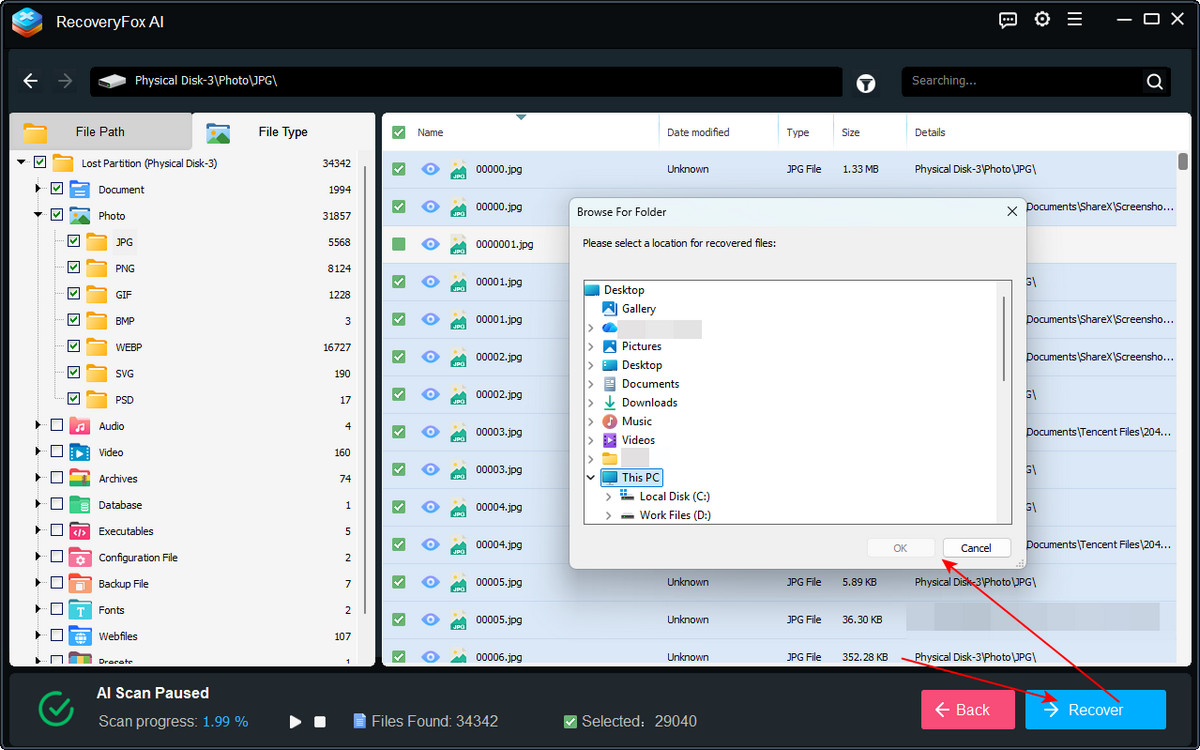
Once you find the files you want to recover, select the checkboxes next to them and click the “Recover” button in the lower-right corner. Choose a safe, different location as the recovery destination and recover the files from the unallocated USB drive.
How to Repair an Unallocated USB Drive After Recovering Your Data
Once you have recovered your important data, you can use built-in Windows tools such as Disk Management or DiskPart to repair the unallocated USB drive and make it usable again.
Step 1: Recreate the Partition in Disk Management
In most cases, you can fix an unallocated USB drive simply by creating a new partition in Disk Management.
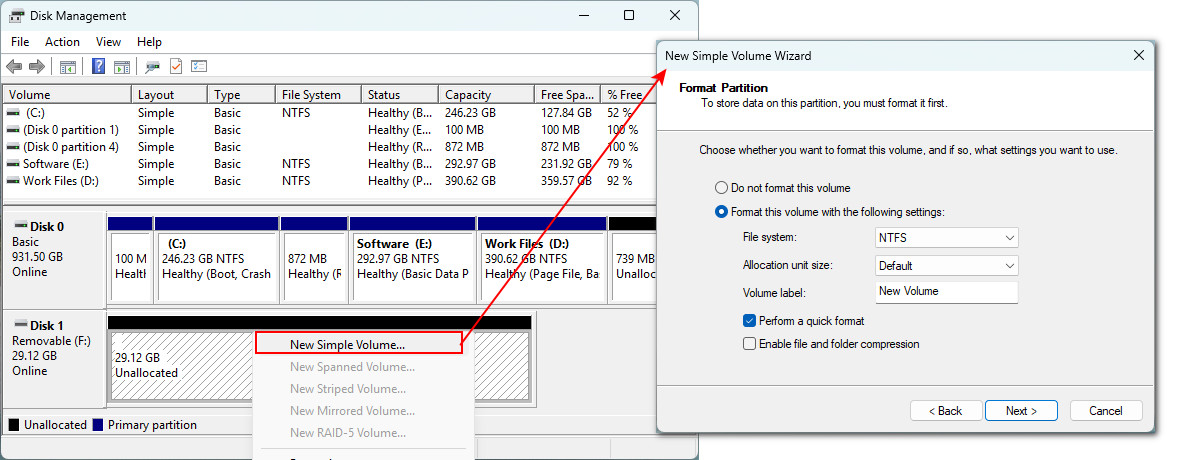
1️⃣Right-click the Start menu and select “Disk Management.”
2️⃣Find the unallocated USB drive in the list at the bottom, right-click it, and select “New Simple Volume.”
3️⃣Click “Next” three times to reach the “Format Partition” screen. Here, you can choose the file system for your USB drive. If you only plan to use the USB drive with Windows, you can choose either NTFS or exFAT. If you also want to use it with a Mac, choose exFAT. Then, make sure the “Perform a quick format” option is selected.
4️⃣Click “Next” > “Finish” to create the new partition and restore the USB drive to working condition.
Step 2: Initialize the Unallocated USB Drive Using DiskPart
If Disk Management displays an error and fails to create a new partition, you can try the more powerful DiskPart utility to repair the unallocated USB drive.
⚠️ Note: DiskPart is an advanced tool, and incorrect commands can seriously affect your PC or cause data loss. Do not use it casually unless you are confident that you understand each step.
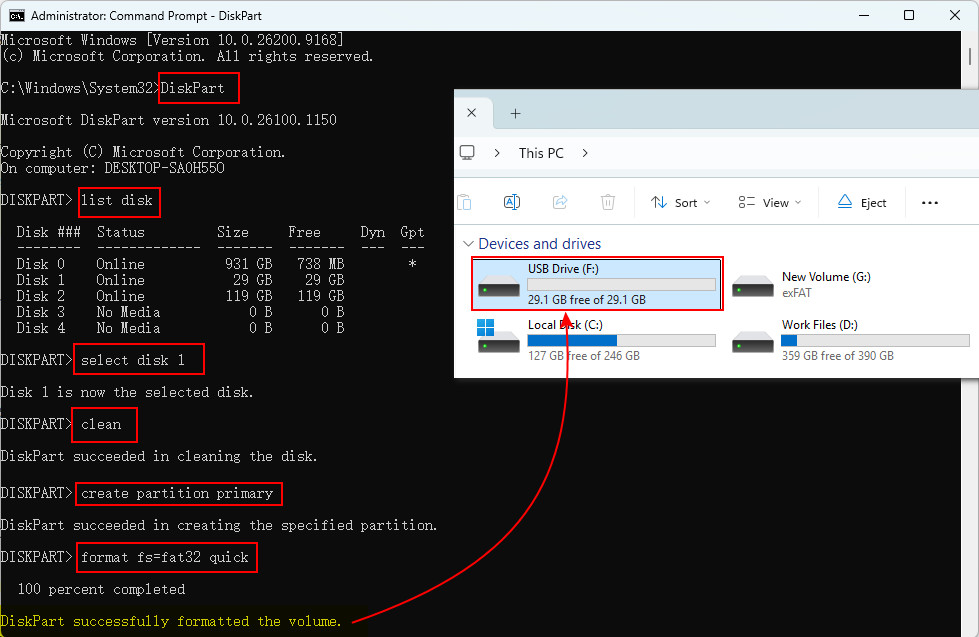
1️⃣Type “cmd” in the search box and run “Command Prompt” as an administrator from the search results.
2️⃣Type “DiskPart” and press “Enter.”
3️⃣Type “list disk” and press “Enter.” All connected disks will be listed. Check their capacities to identify the number assigned to your USB drive.
4️⃣Type “select disk <number>”—for example, “select disk 2”—and press “Enter” to select the USB drive.
5️⃣Type “clean” and press “Enter.”
6️⃣When the message “DiskPart succeeded in cleaning the disk” appears, type “create partition primary” and press “Enter.”
7️⃣Type “format fs=<file system> quick”—for example, “format fs=ntfs quick”—and press “Enter.”
8️⃣When the message “DiskPart successfully formatted the volume” appears, type “exit” and press “Enter.” Then close Command Prompt.
Step 3: Update the USB Driver
A USB drive that is working properly may sometimes appear as unallocated because of a recognition error on the PC. If the two methods above do not solve the problem, try updating the USB driver on your PC.
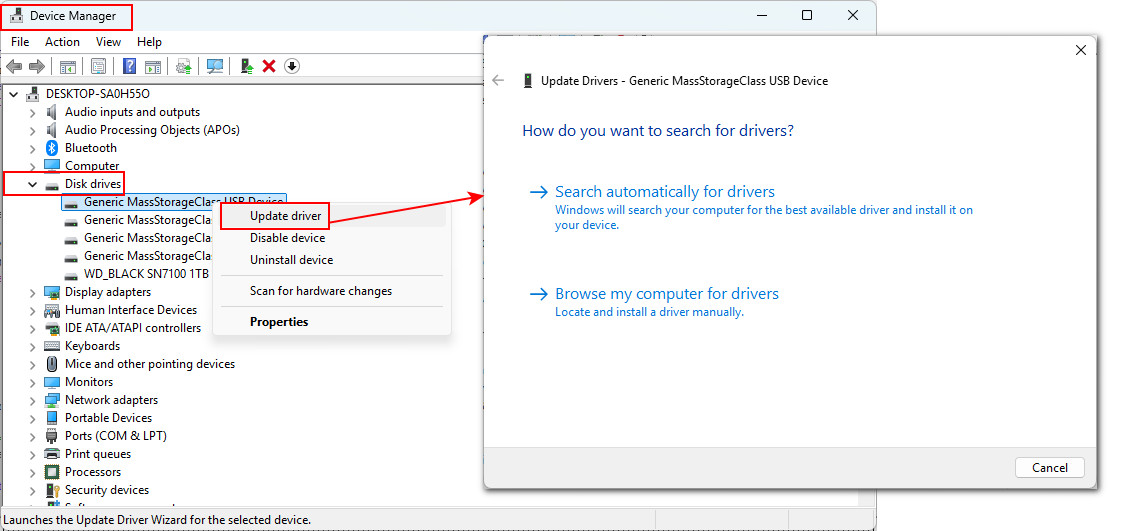
1️⃣Right-click the Start menu and select “Device Manager”.
2️⃣Expand “Disk drives”, right-click the USB drive or its associated driver, and select “Update driver”.
3️⃣Select “Search automatically for drivers” or “Browse my computer for drivers” to update the driver.
Conclusion
That covers how to recover data from an unallocated USB drive and how to repair the USB drive itself. We hope this guide helps you recover your data and get your USB drive working again.
The methods introduced here can also be used to attempt data recovery and repair when an SD card, HDD, SSD, or other storage device becomes unallocated. Most importantly, always recover your data before attempting to fix the error.
With RecoveryFox AI, you can safely recover data from RAW or unallocated drives without formatting them. If you want to check whether your data is recoverable for free, click the button below to get started.
FAQs About Repairing an Unallocated USB Drive
Q 1. Is the data still there when a USB drive is unallocated?
Yes, the data may still be recoverable. “Unallocated” usually means Windows can no longer recognize the partition information, not necessarily that all files have been erased. Avoid formatting or writing new data to the drive and try data recovery first.
Q 2. Why can't I format an unallocated USB drive?
You can't normally format unallocated space because it does not contain a valid partition or volume. You generally need to create a new partition first, then format it. However, if the USB drive contains important data, recover the data before doing this.
Q 3. Can I still recover data after formatting a USB drive?
Yes, in some cases. Quick formatting usually removes file system information rather than immediately erasing all underlying data. If the data has not been overwritten, data recovery software may be able to recover some or all of the files. Stop using the USB drive as soon as possible after formatting.
🔗Read More: Quick Format vs. Full Format: What’s the Difference and Can You Recover the Data?
Q 4. How to fix USB Pendrives showing unallocated space in diskmgmt?
If you don't need the data, you can open Disk Management, right-click the unallocated space, select New Simple Volume, and follow the wizard to create and format a new partition. If you need the existing files, do not create a new volume or format the drive first. Recover your data before repairing the partition.
Q 5. Can I recover data myself if the USB drive has physical damage?
It depends on the type and severity of the damage. If the USB drive is still detected and can be scanned, recovery software may help. However, if the drive is not detected, has severe physical damage, or disconnects repeatedly, avoid further attempts and consider a professional data recovery service to reduce the risk of permanent data loss.

A technical content writer for RecoveryFox AI at WonderFox Soft, creating clear guides on data recovery, storage technologies, and Windows troubleshooting. She specializes in simplifying complex technical topics and enjoys exploring technology, running, and discovering new experiences.





 English ^


