






 Free Download
 Windows


Common Symptoms of a USB Drive Detected but Inaccessible
When your computer physically detects a USB drive, you can usually hear the connection sound and can find it in the hardware lists. However, if you cannot access its data or do not see the device in the drive list under “This PC,” the issue is typically related to the file system, partition, or Input/Output layer.
The most common symptoms of an inaccessible but recognized USB drive include:
| Primary Symptom | What You See/Experience |
| USB not appearing in File Explorer | Volume exists but listed as “RAW”; prompts to format when accessed |
| No drive letter and the “Change Drive Letter and Paths” greyed out. | |
| Drive shows as “Unallocated” or “Not Initialized” | |
| Drive cannot be opened | Clicking the drive triggers messages “Access is denied”, “Parameter is incorrect”, or “You need to format the disk in drive X before you can use it” |
| 0 bytes capacity | Properties may show normal size but 0 bytes used. |
| “Insert disk” message | Drive shows in File Explorer but prompts to insert disk |
| Disconnect and reconnect loop | USB connects then disappears repeatedly with constant reconnection sounds. |
| Very slow or freezing | Drive opens but is heavily laggy or unresponsive |
Common symptoms and causes of this issue typically fall into four categories: file system corruption, partition table damage, mounting failure, or hardware issues.
Among them, file system corruption, partition table damage, and mounting failure are often resulted by unsafe removal, a power failure, or OS crash during a write operation. Hardware issues, on the other hand, are usually related to a damaged USB controller, degraded NAND flash memory, unstable power supply, or faulty USB ports and cables.
If your USB contains important files, avoid formatting or repairing it before recovering your data. Some repair operations may permanently overwrite recoverable files.
Recover Files from an Inaccessible USB Drive First (Recommended)
If your USB drive contains valuable data, recovering the files should be your first priority.
🔥️ RecoveryFox AI is designed to recover files from RAW, corrupted, formatted, unallocated, and inaccessible USB drives. Files are often restored with original filenames and preserved folder structure. It features an AI-powered scanning mode that not only restores corrupted files but can also reconstruct fragments into complete files for better file integrity.
Try this powerful USB recovery software to safely retrieve your files before attempting repair:
Step 1. Connect the inaccessible USB drive to your computer and launch RecoveryFox AI.
Step 2. Select the flash drive from the drive list to begin scanning.
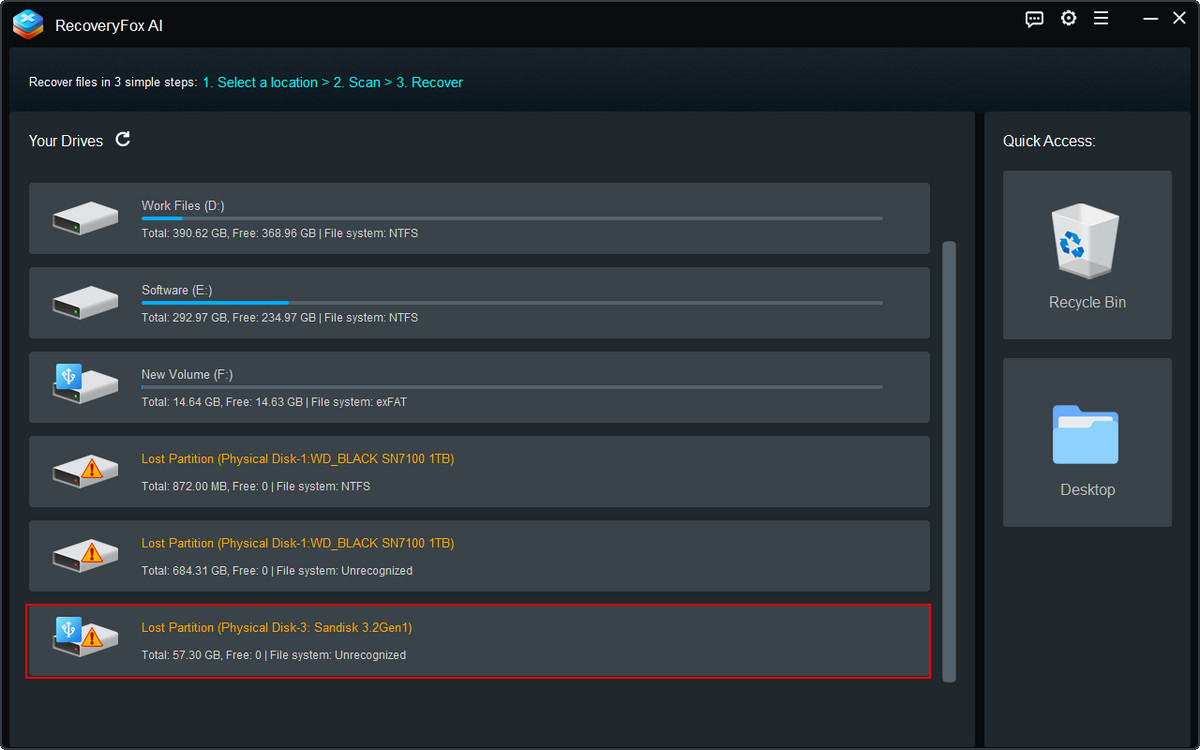
Step 3. RecoveryFox AI first performs a Quick Scan to locate recently lost files. Once completed, AI Scan automatically starts to perform a deeper analysis for files lost due to corruption, formatting, RAW file systems, or other complex issues.
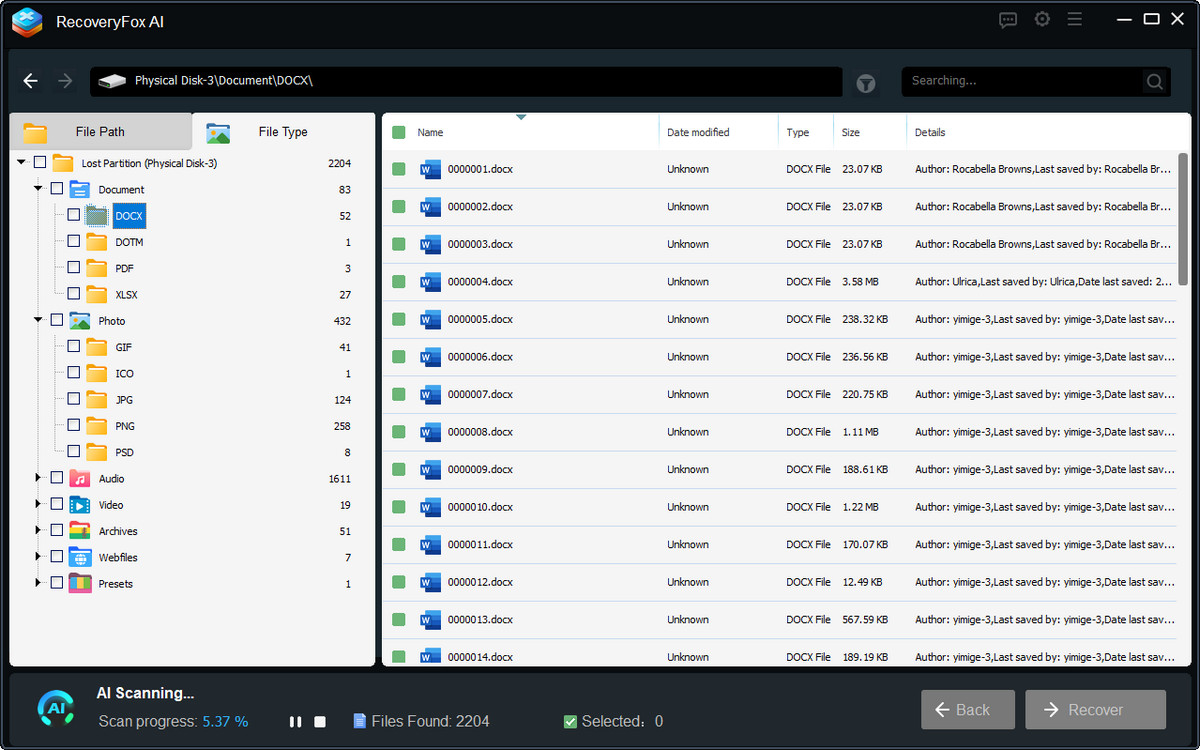
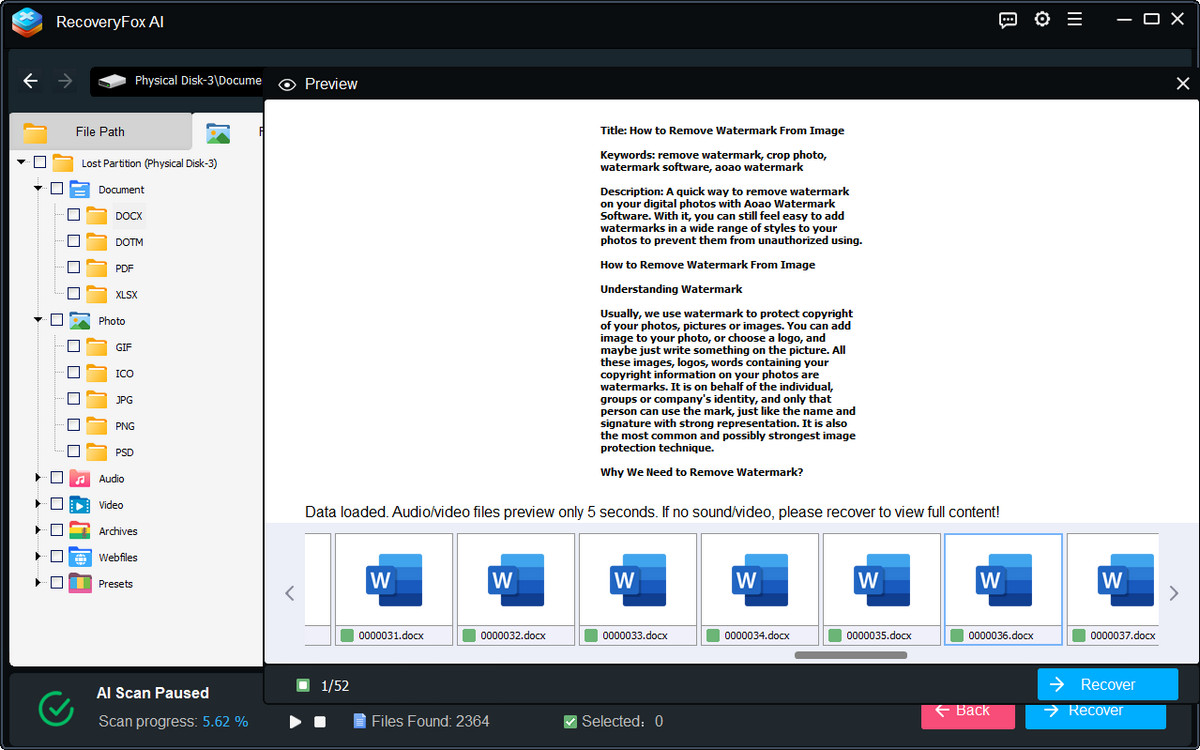
Step 4. Browse the scan result list during scanning or pause the AI Scan once your desired files are found.
Click an image, document, PDF, or camera photo to “Preview”.
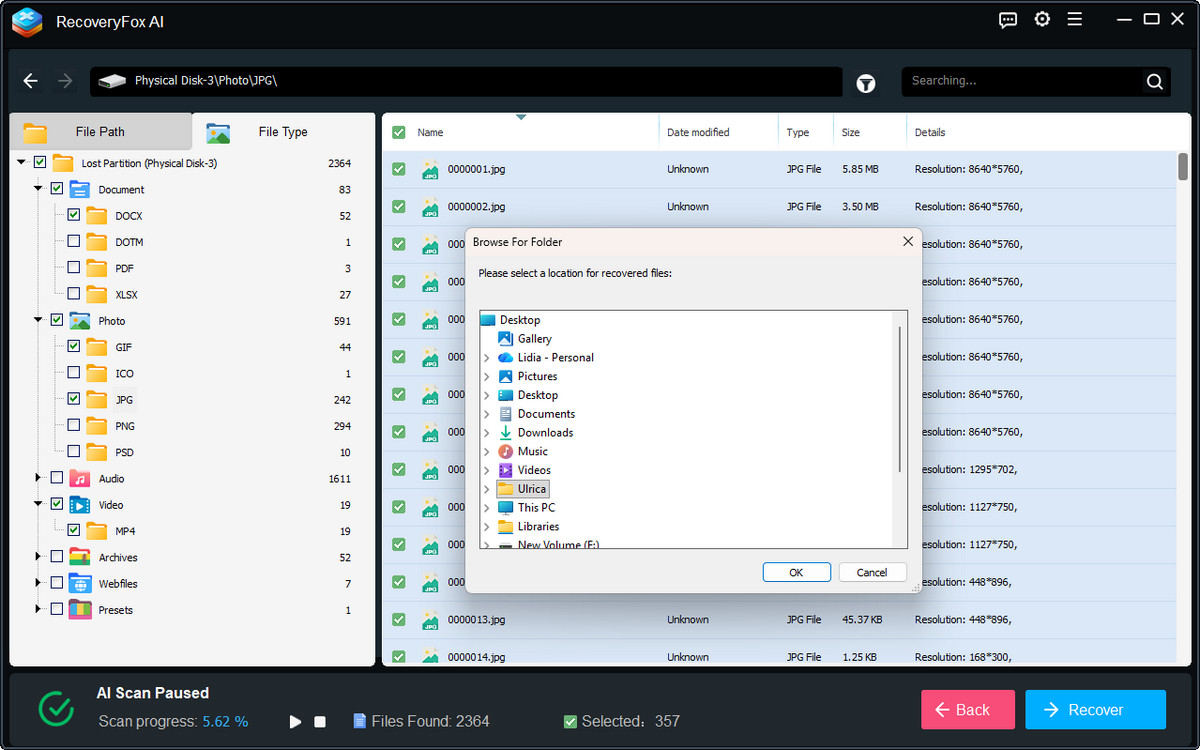
Step 5. Select the files you want to recover, click “Recover”, and save them to another storage device instead of the original USB drive.
How to Fix USB Drive Detected but Not Accessible?
After recovering your important files, you can now safely repair the detected but inaccessible USB drive using the following methods.
Fix 1. Reconnect the USB Drive
Sometimes the problem is caused by a temporary connection issue rather than the USB drive itself. So, the quickest check is to unplug and reconnect the USB drive, or try another USB port.
If possible, connect the drive to another computer. If it works normally there, the issue is likely related to your Windows system instead of the drive.
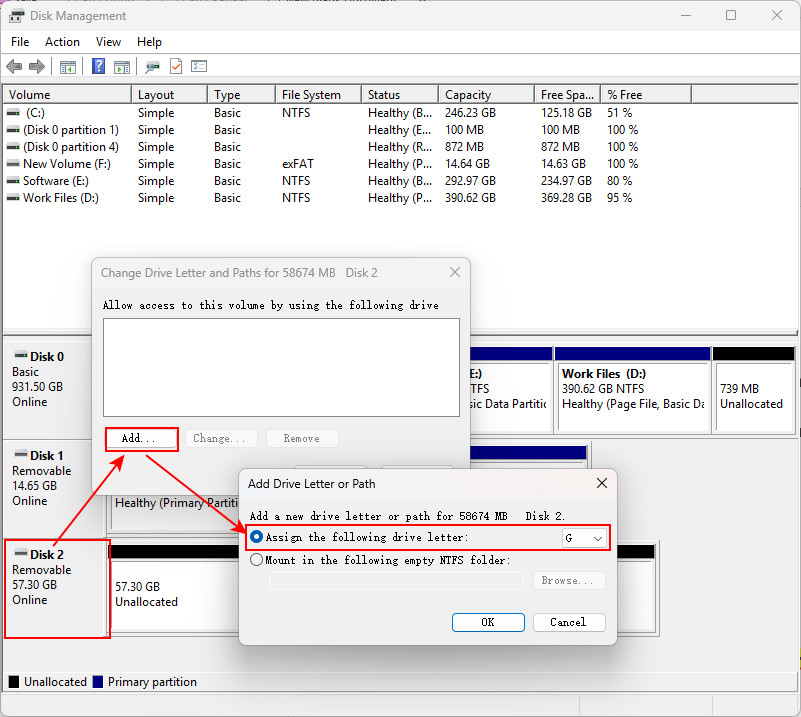
Fix 2. Assign a Drive Letter
If you’re encountering the “No drive letter” symptom, assign one:
- Press Win + X and select Disk Management.
- Locate your USB drive.
- Right-click it and choose Change Drive Letter and Paths.
- Click Add or Change.
- Assign an available drive letter.
- Click OK.
Fix 3. Reformat the Inaccessible USB drive
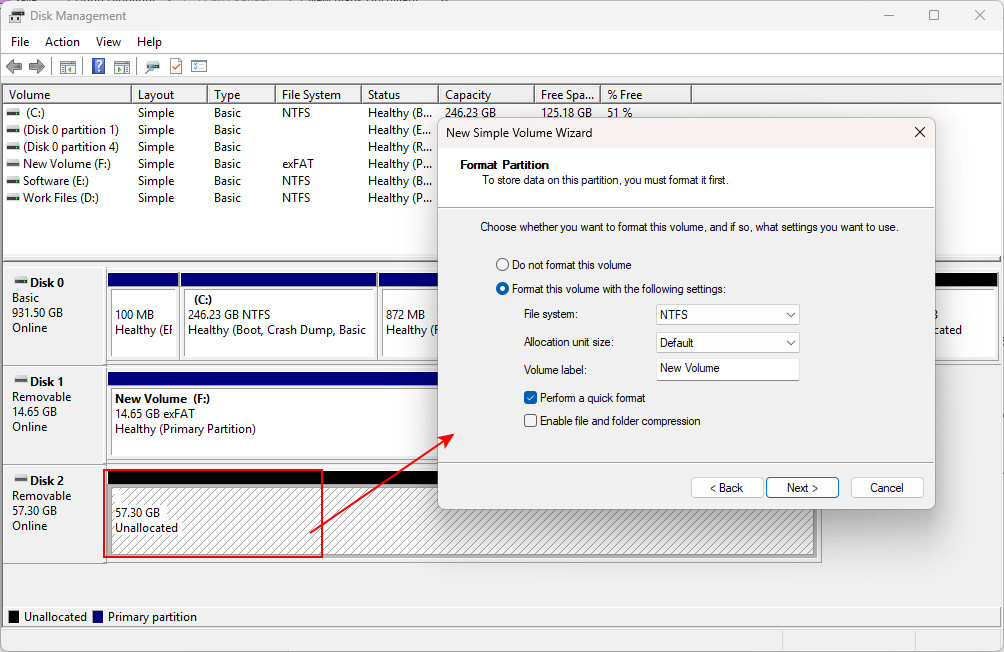
For a USB device becoming “RAW”, “Unallocated”, or “Uninitialized”, reformatting may help restore it for normal use.
- Press Win + R, type “diskmgmt.msc”, and press Enter to open Disk Management.
- Locate your USB drive.
- Right-click it and select “Delete Volume” if it reads as RAW. For unallocated drives, choose “New Simple Volume”.
- Then, follow the wizard to select a file system, volume size, and assign a drive letter.
- Click “Next”.
- Review your settings and click “Finish” to complete the process.
Fix 4. Run CHKDSK
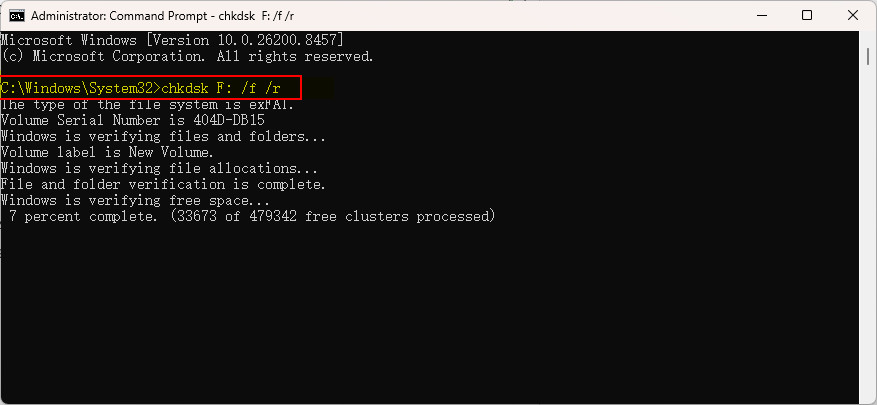
If file system corruption is preventing access to the USB drive, CHKDSK may help repair logical errors.
- Search for “cmd”, select Command Prompt, and run it as Administrator.
- Run chkdsk F: /f /r. Remember to replace “F” with your USB drive letter.
- Wait until Windows finishes scanning and repairing the drive.
⚠️ If the USB drive has become RAW, CHKDSK may report “The type of the file system is RAW. CHKDSK is not available for RAW drives.”
Fix 5. Run an SFC Scan
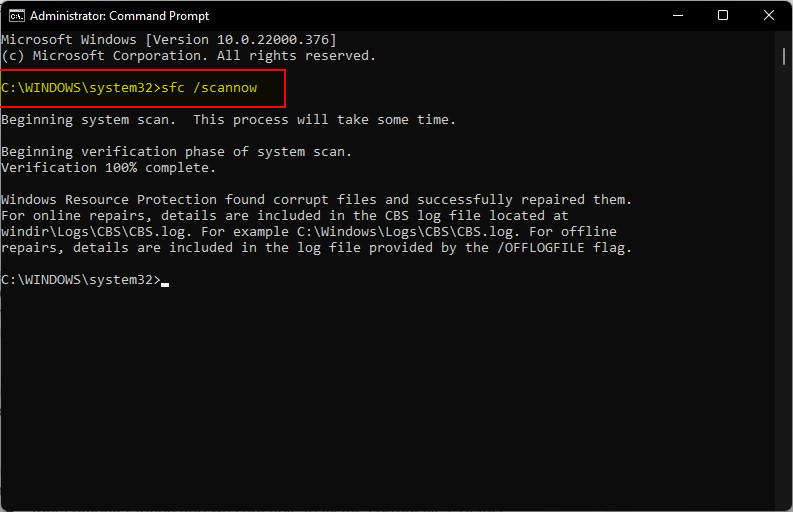
Corrupted Windows system files can also prevent removable drives from working correctly. You can use System File Checker (SFC) scan, a built-in Windows repair utility, to fix it.
- Search for “cmd”, select Command Prompt, and run it as Administrator.
- Then, type sfc /scannow, hit Enter.
- Wait for the scan to complete.
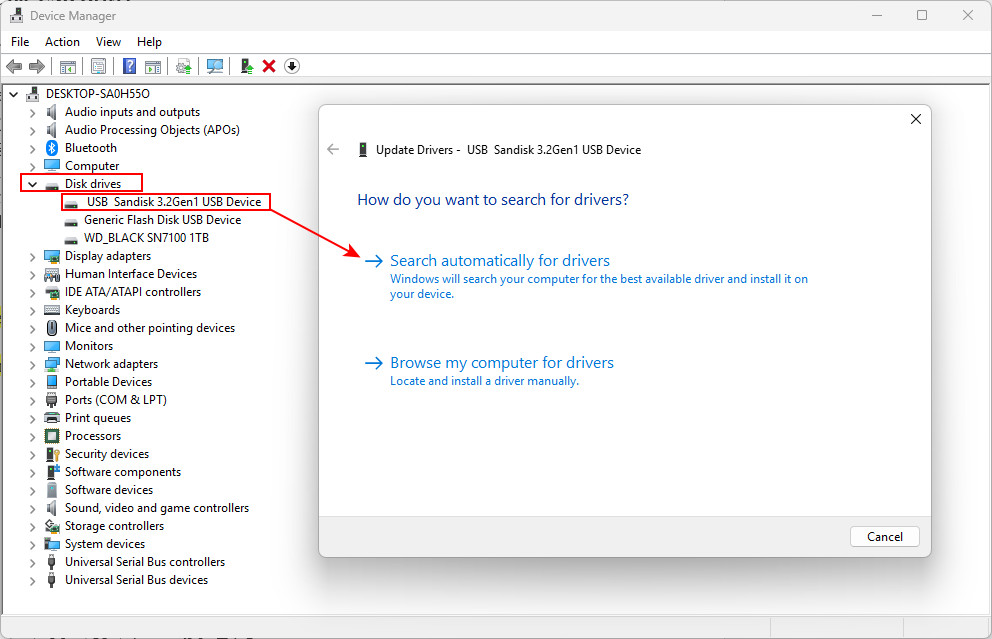
Fix 6. Update the USB Driver
A damaged or outdated USB driver may prevent Windows from accessing the drive.
- Press Win + X and open Device Manager.
- Expand Disk drives.
- Right-click the USB device and select “Update driver”.
- Choose “Search automatically for drivers”.
- If no updates found, try “Browse my computer for drivers”
- Select “Let me pick from a list of available drivers”
In Conclusion
If your USB flash drive is detected but not accessible on Windows 10/11, don’t rush to format it. In many cases, the problem is caused by file system corruption, missing drive letters, or driver issues, while your files remain recoverable.
Always recover your important data from the problematic drive first using RecoveryFox AI, then apply the appropriate repair method shared in this guide to make your device useable again.
Act quickly and avoid unnecessary writes to the device. Doing so can greatly improve the chances of successful data recovery.
USB Drive Detected but Not Accessible FAQs
Q 1. Why is my USB drive detected but not accessible?
The most common reasons include file system corruption, missing drive letters, bad sectors, corrupted USB drivers, malware infections, or physical damage to the drive.
Q 2. How to fix pen drive is not accessible?
First, recover your important files using RecoveryFox AI if possible. Then try assigning a drive letter, formatting the drive, running CHKDSK or SFC scan, or updating the USB driver.
📚 Related: How to Format a Hard Drive on Windows: 3 Free Methods
Q 3. Why does Windows say “Access is denied” when opening my USB drive?
This error may be caused by file permission issues, file system corruption, malware, or hardware problems with the USB drive.
Q 4. Can I recover files from an inaccessible USB drive?
Yes. If the data hasn’t been overwritten and the storage hardware is not severely damaged, a professional data recovery tool like RecoveryFox AI can recover files from formatted, corrupted, RAW, or otherwise inaccessible USB drives.

A technical content writer for RecoveryFox AI at WonderFox Soft, creating clear guides on data recovery, storage technologies, and Windows troubleshooting. She specializes in simplifying complex technical topics and enjoys exploring technology, running, and discovering new experiences.





 English ^


