






 Free Download
 Windows

When your USB flash drive is read as RAW in Disk Management, it means its file system has become corrupted or unreadable. The operating system can no longer recognize it as exFAT, FAT32, or NTFS. As a result, you won’t be able to access its files, and the RAW USB won’t appear in File Explorer at all.
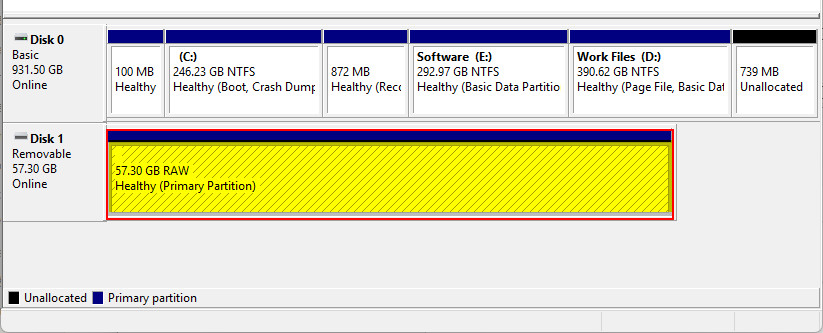
Common Causes of Why a USB Drive Turns RAW
A file system is how your computer or storage device organizes and accesses the data stored on it. Without it, storage media like a USB drive would be unreadable.
So, why does your USB flash drive suddenly become RAW?
Some common causes include:
- Removing the USB without safely ejecting it.
- File system corruption due to power loss, sudden unplugging, or system crash.
- Interrupted or failed formatting process.
- Partition table or boot sector damage.
- Malware infection that damages disk metadata.
- Bad sectors or aging flash memory.
- Unsupported file system, such as one created on another OS.
- Physical damage or controller failure.
Fortunately, although your USB appears as “RAW”, it usually does not mean the data is completely gone. In many cases, the data remains recoverable until it is overwritten.
If you want to restore your data, avoid reformatting the RAW USB drive. Doing so may cause further data loss and make recovery more difficult.
Instead, you can recover your files before any repair attempts using RecoveryFox AI. This AI-powered USB data recovery software allows you to directly scan and restore files from a RAW USB without formatting.
How to Recover Files from a RAW USB without Formatting?
RecoveryFox AI is a trusted USB RAW data recovery tool for Windows users. It features powerful, advanced scanning modes that help retrieve files even when the file system is RAW or has been quick-reformatted. Files from your RAW USB can often be recovered with original names and folder structure intact.
Act quickly and let RecoveryFox AI scan and recover the USB once it becomes RAW.
Step 1. Check Your USB in Disk Management
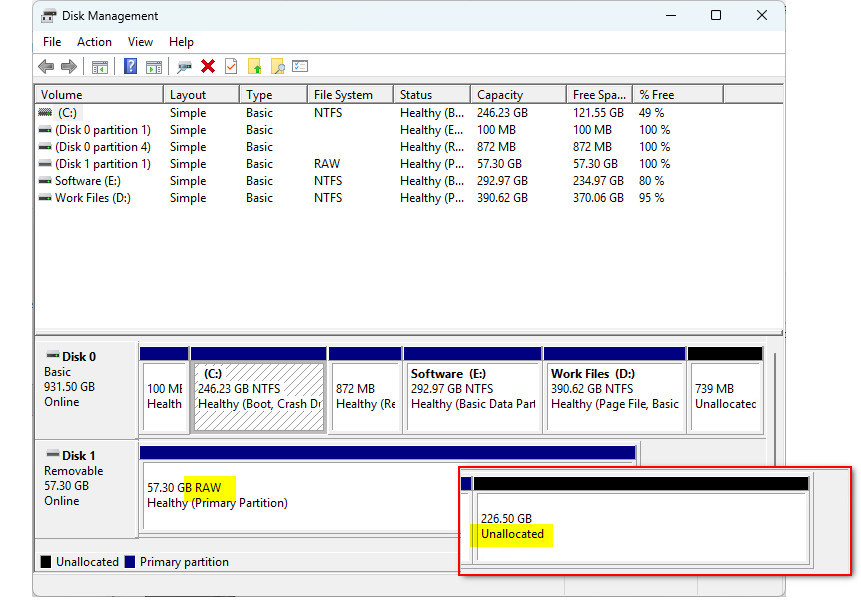
Insert your USB flash drive, then press Win + X and choose Disk Management.
Check whether the USB is detected and show as RAW.
It’s also fine if it shows as “Unallocated”, as RecoveryFox AI can restore data from unallocated space as well.
Step 2. Run RecoveryFox AI and Select the RAW USB to Scan
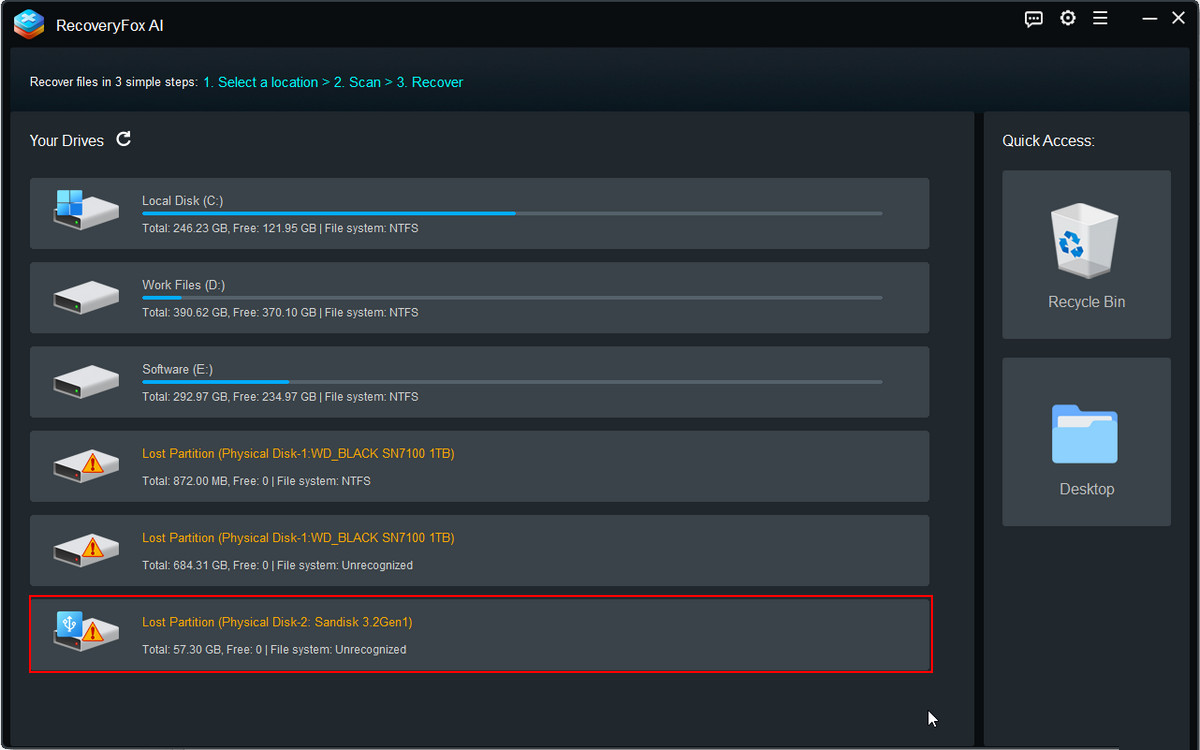
Launch RecoveryFox AI, select the USB that has become RAW, and click it to start scanning.
Step 3. Preview Scanned Results
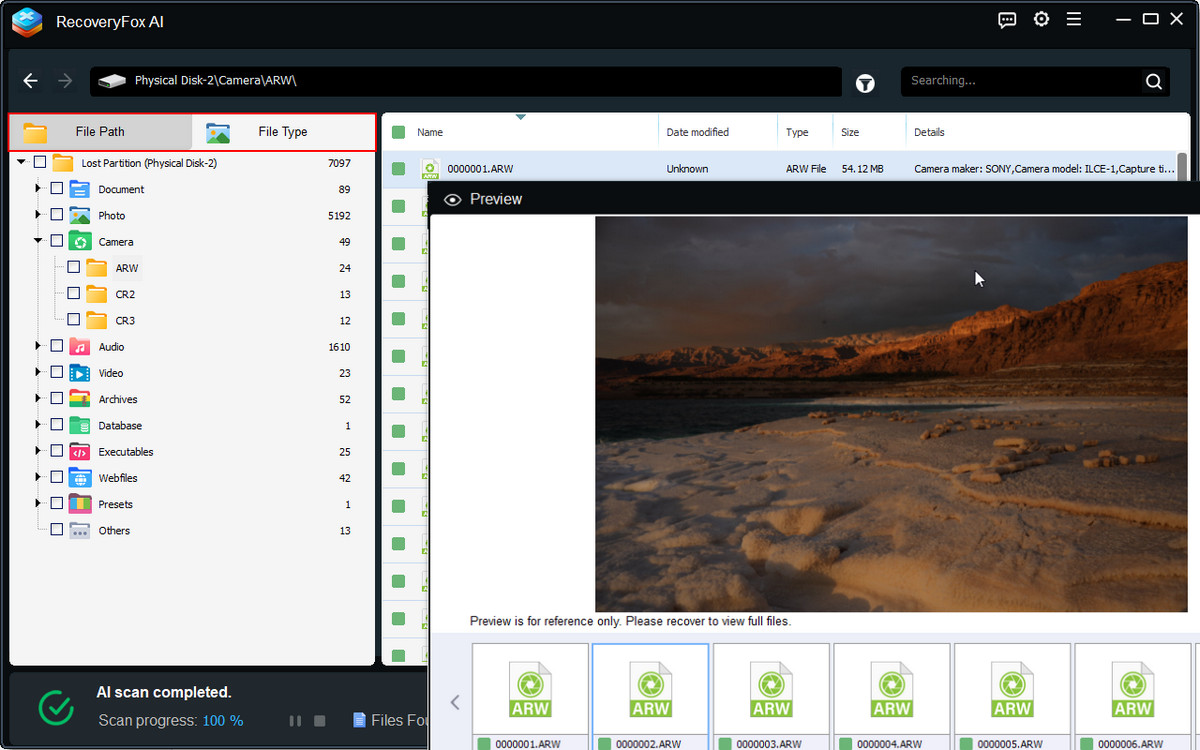
This USB RAW data recovery tool will start scanning for all USB data and display recoverable files by File Path or File Type.
You can browse the result list during scanning or pause AI Scan to preview the content in detail.
Simply right-click an image, document, PDF file, or camera photo and select “Preview”.
Step 4. Restore Data from the RAW USB Drive
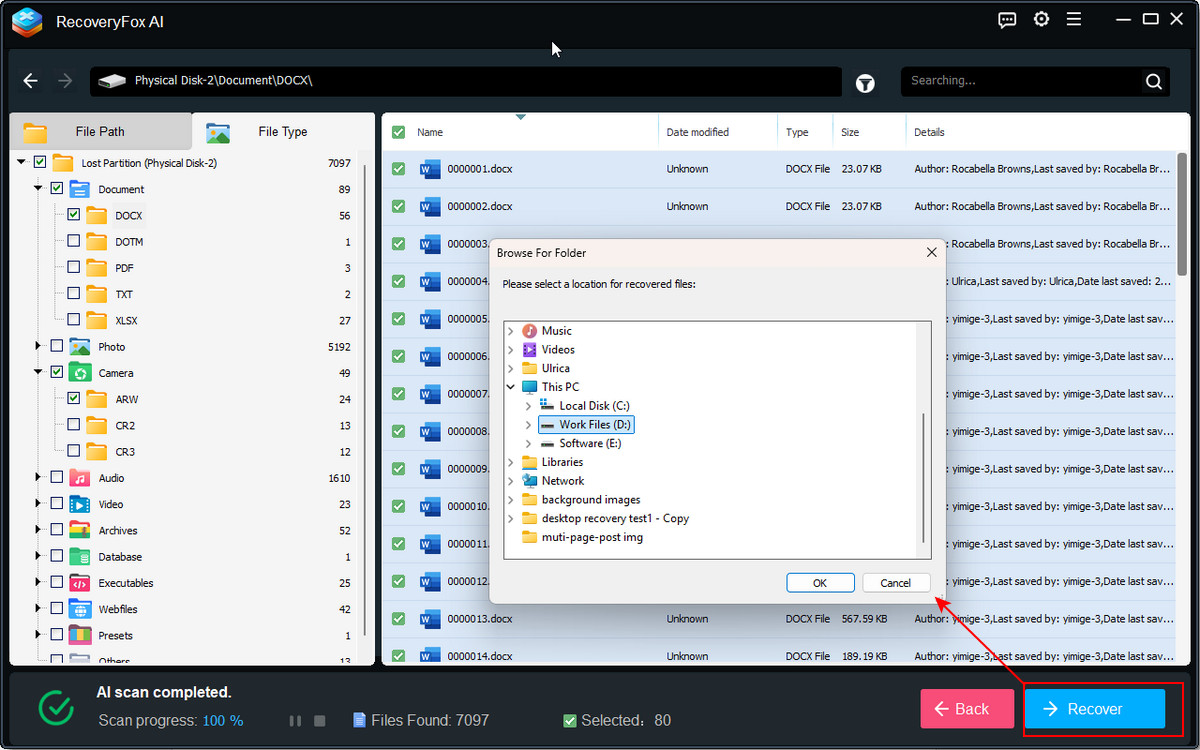
You can select the wanted files, whether the whole scanned list, a file type group, or individual items, then click “Recover” to save them to a different location.
How to Fix a RAW USB Drive?
After recovering your important data from the RAW USB drive, you can now reformat it from RAW to NTFS or another file system as needed. Here is how:
Step 1. Press Win + X and choose Disk Management. Alternatively, you can press Win + R, type “diskmgmt.msc”, and press Enter to open Disk Management.
Step 2. Locate the USB that appears as RAW.
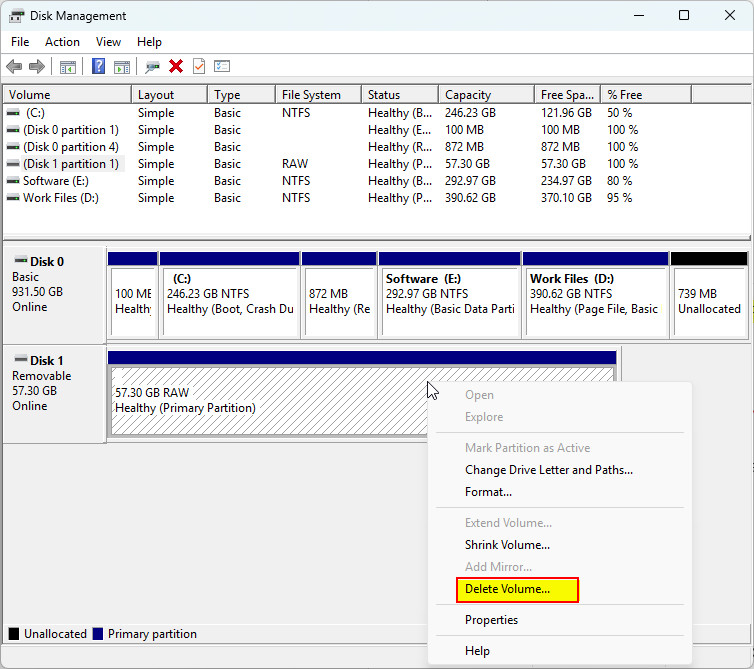
Step 3. Right-click it and select “Delete Volume”.
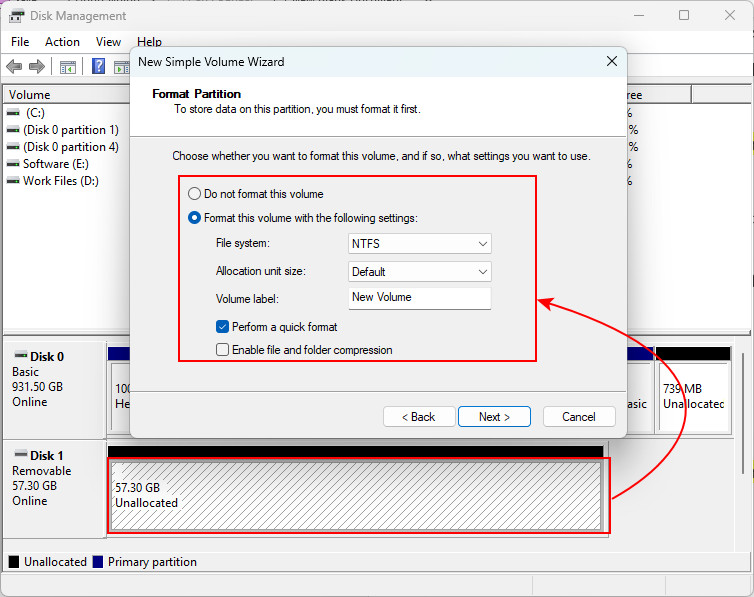
Step 4. Then, right-click the unallocated space and choose “New Simple Volume”.
Step 5. Follow the wizard to pick a file system like NTFS for Windows, specify the volume size, and assign a drive letter. Then click “Next”.
Step 6. Review your configurations and click “Finish” to complete the formatting process. After formatting, the USB should be accessible in File Explorer again and be usable.
Tips to Prevent Your USB from Becoming RAW
To avoid USB drives or other portable storage devices like SD cards turning RAW, follow these tips:
- Always use "Safely Remove Hardware" before unplugging the USB
- Avoid disconnecting the USB drive during file transfers
- Regularly scan removable drives for malware.
- Replace USB drives that frequently develop bad sectors or connection issue.
- Regularly back up your important files.
Conclusion
If, all of a sudden, your USB drive is still detected but becomes inaccessible after turning RAW, don’t panic. Your data is still recoverable, as long as you avoid formatting it and do not save new data to it.
Recover your files first using specialized RAW data recovery software such as RecoveryFox AI. Then safely restore them to a different location, and finally reformat the RAW USB drive for normal use. This practical workflow gives you the best chance of preserving your important documents, photos, videos, and other important files.
FAQs about USB RAW Data Recovery
Q 1. Can I fix a RAW USB without losing data?
Yes. Recover your files first using RecoveryFox AI, then reformat the drive in Disk Management afterward.
Q 2. Will CHKDSK fix a RAW USB?
Usually not. When running CHKDSK on a RAW drive, you often see this message “The type of the file system is RAW. CHKDSK is not available for RAW drives.” You can fix a RAW USB using Disk Management or other dedicated partition tools, but always recover your data before attempting any repairs.
📚 Related: Why Does Windows Think Your USB Drive Is RAW? Explained
Q 3. Does formatting permanently erase my files?
USB recovery after a quick format is still possible, since a quick format does not immediately erase all data. Instead, it removes the file system structure and marks the storage space as available, which can reduce recovery success over time. For this reason, it’s recommended to recover important files before reformatting whenever possible.

A technical content writer for RecoveryFox AI at WonderFox Soft, creating clear guides on data recovery, storage technologies, and Windows troubleshooting. She specializes in simplifying complex technical topics and enjoys exploring technology, running, and discovering new experiences.





 English ^


