






 Free Download

 Windows

Whether you accidentally uninstall an important app, delete its installer (e.g., setup.exe, xxx-setup.exe, or xxx-installer.exe), empty the Recycle Bin, use Shift + Delete, or format a drive, you may still be able to recover the lost programs.
To maximize your chances of recovery, stop using the affected drive immediately. New data may overwrite deleted files, making them difficult or impossible to recover.
Your chances of uninstalled program recovery also depend on factors, including:
👉 Internal or external drive: Recovery from an internal drive may be more challenging because background processes can continuously write new data. External drives may be easier to leave unused after data loss.
👉 Storage device type: Lost data on HDDs typically remains intact until overwritten. On SSDs, TRIM and garbage collection may erase deleted data, making recovery more difficult.
👉 Drive condition: Physical damage and file system corruption can affect data accessibility and recovery.
💡 When you delete files from an SSD, Windows may issue a TRIM command, allowing the SSD's garbage collection process to erase the corresponding data blocks. Recovery may therefore become impossible even before new data overwrites them. Acting quickly may improve your chances, but recovery is not guaranteed.
What Happens When You Uninstall a Program on Windows?
When you uninstall a program through Settings > Apps > Installed apps > Uninstall or select Uninstall from the Start menu, Windows launches the application’s uninstaller. It typically removes the program’s executable files, associated components, shortcuts, and some registry entries.
Once files are deleted, they may remain recoverable until their storage space is reused or the data is otherwise erased.
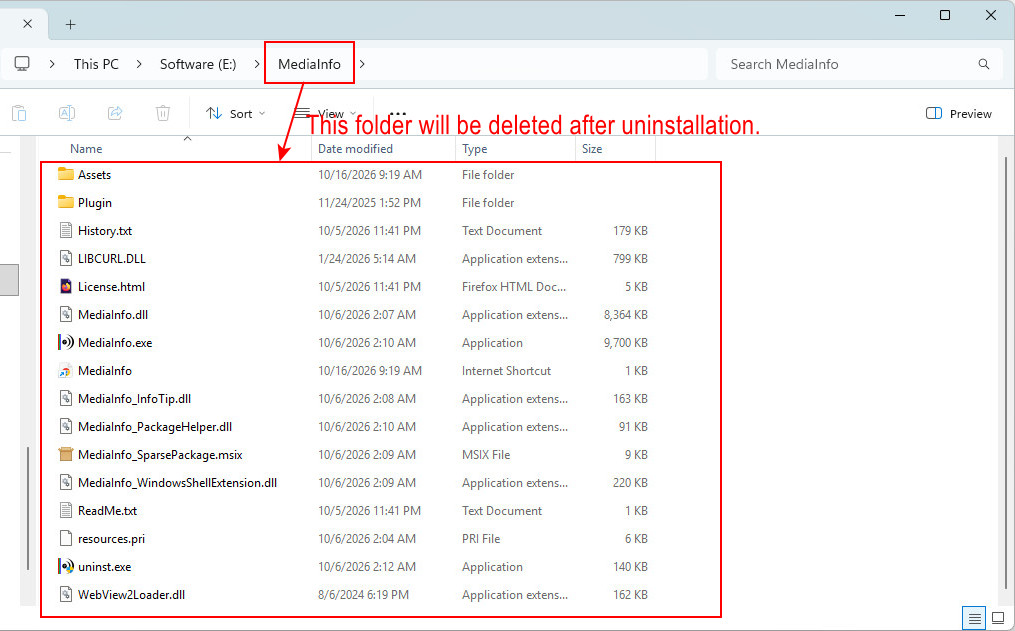
How to Recover Uninstalled Programs on Windows 10/11
Professional data recovery software like RecoveryFox AI can handle common data loss scenarios, such as deletion, formatting, partition loss, virus attacks, etc. It helps recover deleted or lost files from internal and external storage devices, including HDDs, SSDs, SD cards, and USB flash drives.
With simple clicks, this tool can search for recoverable program-related files, including .exe, .dll, .sys, .bat, .lnk, etc., as well as installation files that may have been deleted accidentally.
Run RecoveryFox AI to start a free scan and preview recoverable files now:
( ⚠️ Do not install or run the recovery software on the drive containing the uninstalled programs. )
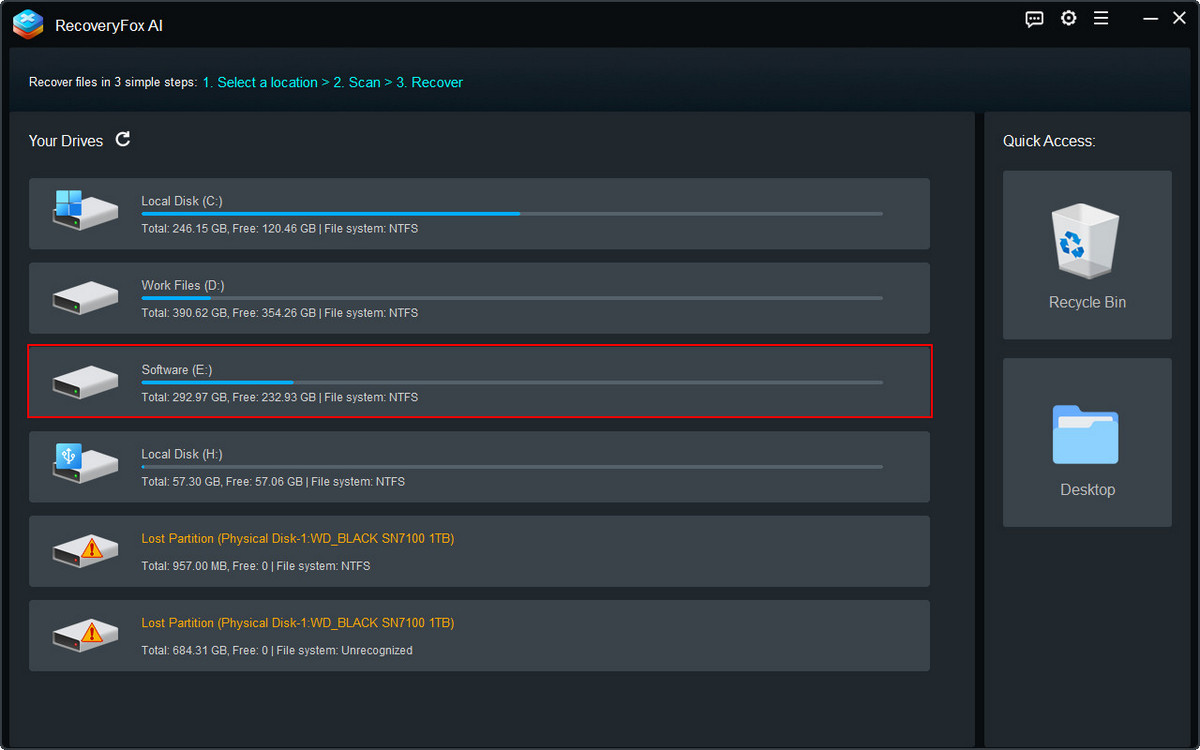
Step 1. Select File Location to Scan
Launch RecoveryFox AI and select the affected drive from the device list to start scanning.
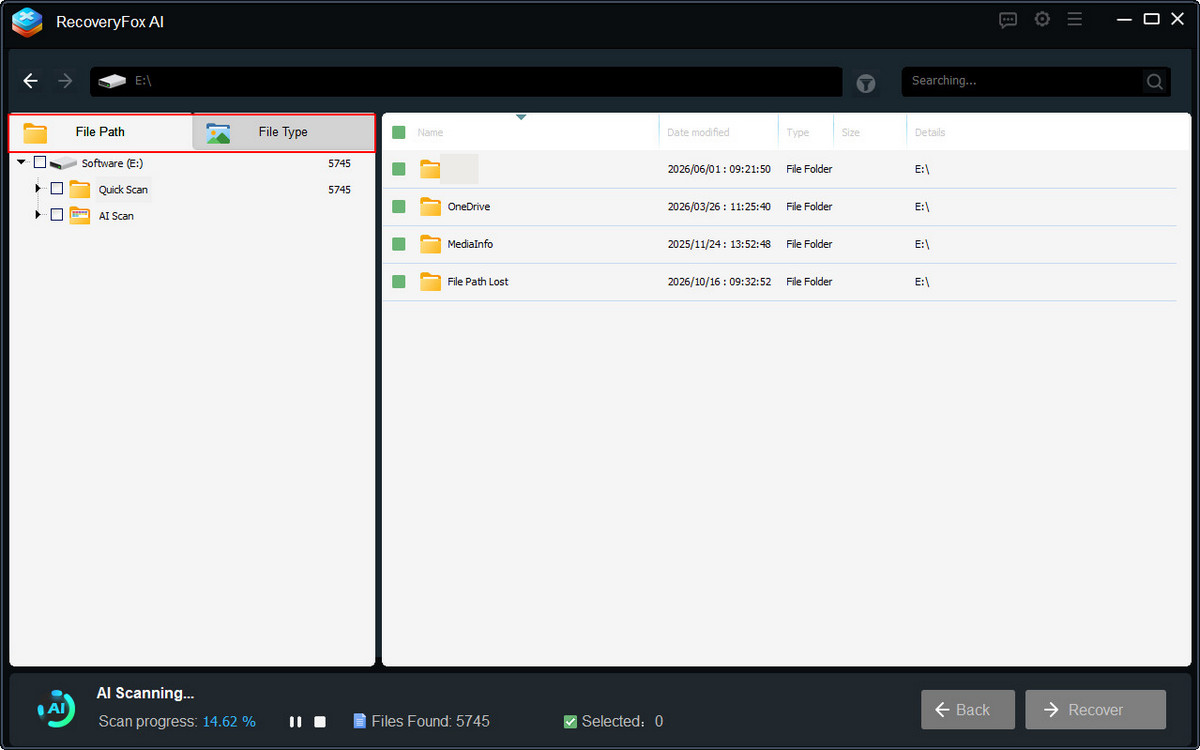
Step 2. Scanning for Uninstalled Program Data
RecoveryFox AI starts with Quick Scan to find deleted files on drives with recognized file systems. After Quick Scan, AI Scan automatically searches for additional recoverable data, including files lost due to formatting or file system corruption.
You can browse scan results by File Path or File Type while scanning continues.
Step 3. Preview and Recover Uninstalled Programs
Pause AI Scan if needed, or let it finish for a more complete search.
Browse the Quick Scan results first, as these files usually retain their original filenames or folder paths.
If the files appear with generic names such as 0000xx, switch to the File Type tab and use filters such as keywords, modification date, or file size to locate them.
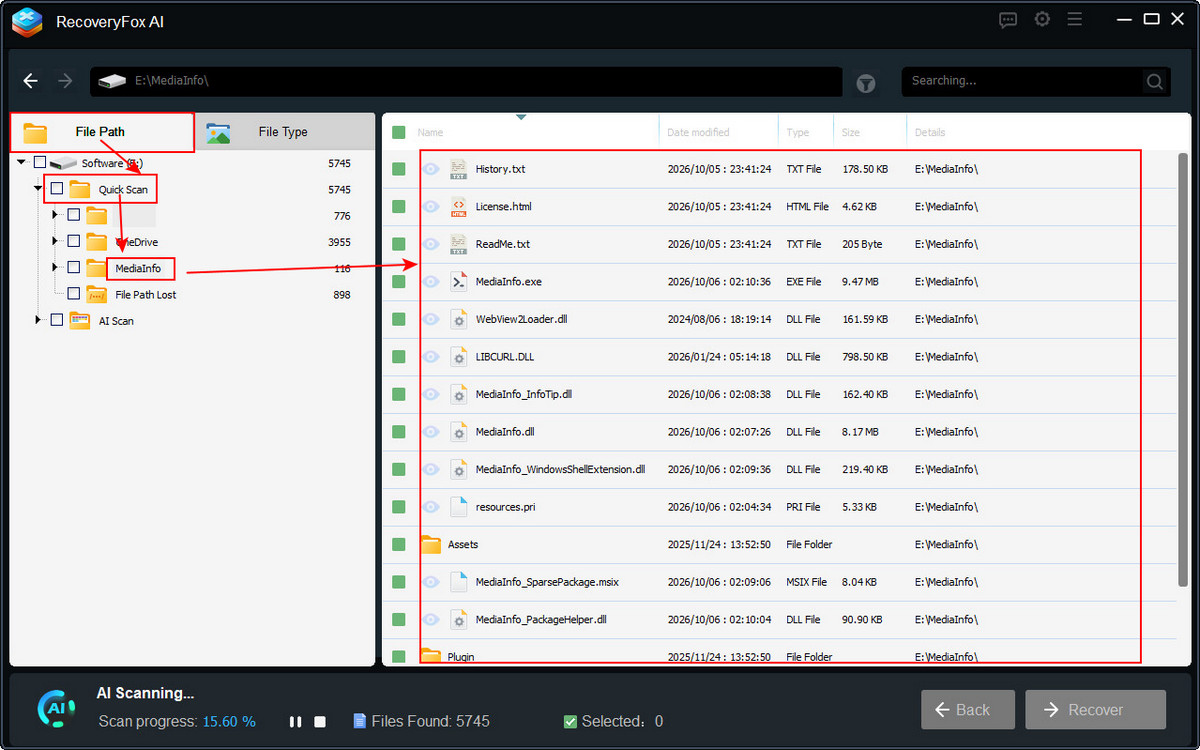
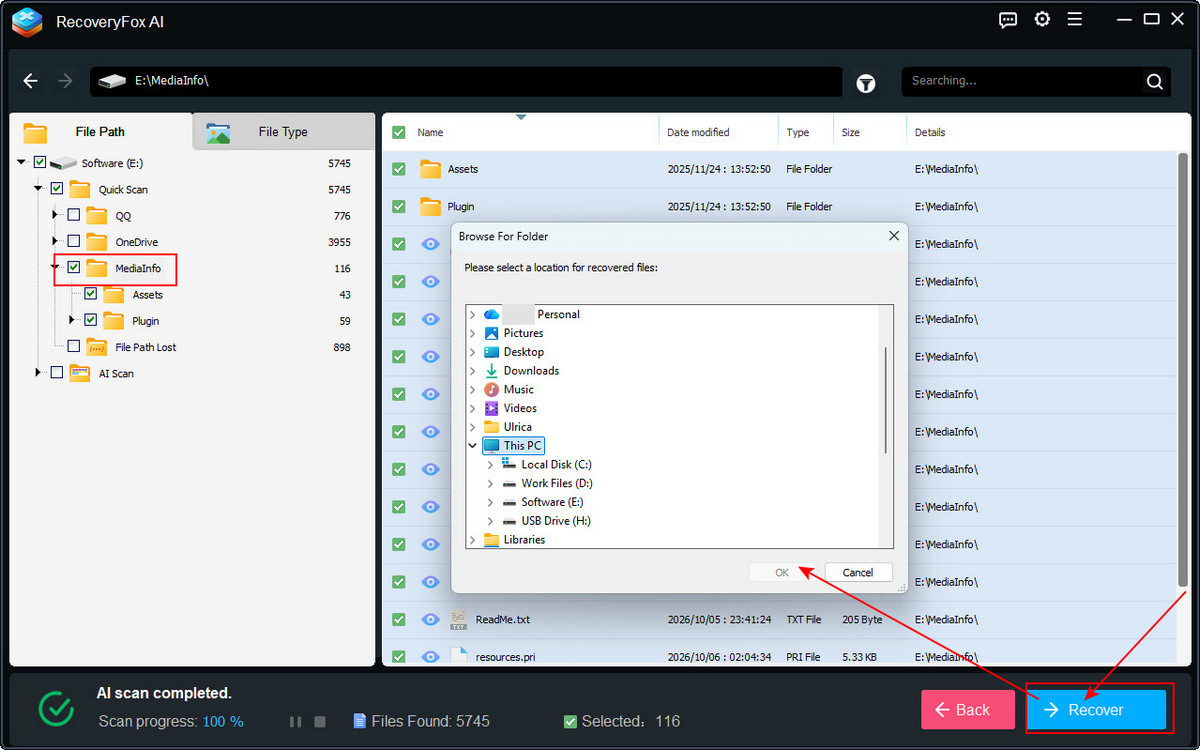
Select the files you want to restore and click “Recover”.
Choose where you want to restore the files. Be sure to choose somewhere other than the same drive location, as recovering data back onto the card can render the data unusable.
Once recovery is complete, run the recovered .exe installer to reinstall the program and check whether it works properly.
In Conclusion
Accidentally uninstalling a program or deleting its installation files doesn’t always mean they're gone forever. With the right recovery solution, you may be able to recover uninstalled programs and associated setup files, provided the data hasn’t been overwritten or erased by SSD TRIM and garbage collection.
For the best chance of recovery, stop using the affected drive immediately, scan it with RecoveryFox AI, and save recovered files to a different drive.
How to Recover Uninstalled Programs FAQs
Q 1. Can I recover an uninstalled program without reinstalling it?
Yes, but recovery depends on whether the deleted files have been overwritten, the storage type (HDD or SSD), and the drive’s condition.
Q 2. Can I recover deleted programs after emptying the Recycle Bin?
Yes, in some cases. Emptying the Recycle Bin removes the files’ directory references, but their data may remain on the drive until overwritten or erased.
Q 3. Can I recover uninstalled programs from an SSD?
Possibly, but SSD recovery can be more difficult than HDD recovery. TRIM and garbage collection may erase deleted data, sometimes making it unrecoverable even before new data is written. Stop using the SSD as soon as possible to avoid further activity that could reduce your chances.
Q 4. Can I recover a program after formatting a drive?
Files may remain recoverable after a Quick Format, depending on the drive’s condition and subsequent activity. Recovery after a Full Format on modern Windows versions is generally much less likely because the process typically writes zeros across the volume. Avoid writing new data to the formatted drive before attempting recovery.

A technical content writer for RecoveryFox AI at WonderFox Soft, creating clear guides on data recovery, storage technologies, and Windows troubleshooting. She specializes in simplifying complex technical topics and enjoys exploring technology, running, and discovering new experiences.





 English ^


