






 Free Download

 Windows

In many cases, deleted files are not immediately removed from the storage device. Recovery may still be possible depending on how the files were deleted, whether the storage space has been overwritten, and where the files were stored.
Whether you want to recover individual downloaded files, files from the Downloads folder, or an entire Downloads folder that has disappeared, the methods below cover common Windows recovery options.
For the best chance of recovery, avoid writing new data to the drive where the Downloads folder was located. Do not download new files, install recovery software on the affected drive, or save recovered files back to the same location.
💡 SSD recovery is different from recovery from other storage devices. If your downloaded files or Downloads folder are stored on an SSD, especially an internal SSD used as a Windows system drive, recovery can be much more difficult after files are permanently deleted. This is because Windows may send TRIM commands to the SSD after files are deleted, allowing the SSD to reclaim the space and potentially making the deleted data harder or impossible for recovery software to retrieve. For the best chance of recovery, stop using the SSD as soon as possible after data loss and run a free scan to see whether the files are still recoverable.
Now, let's explore how to recover deleted downloads using four different methods.
Method 1. Recover Permanently Deleted Downloads with Data Recovery Software
If a downloaded file is permanently deleted, you can usually download it again if the original file or download source is still available. However, if the file has been permanently deleted and you can no longer access the original download source, you may need data recovery software to retrieve the deleted copy from your storage device.
RecoveryFox AI is Windows data recovery software that can help recover permanently deleted files and handle various logical data loss scenarios. It supports major file systems and a wide range of storage devices. You can also scan for lost files and preview supported files for free before recovering them.
👉 Here is how to recover deleted downloads with RecoveryFox AI:
Step 1. Download and install RecoveryFox AI.
If possible, install it on a different drive from the one where your deleted downloads were stored to avoid overwriting recoverable data.
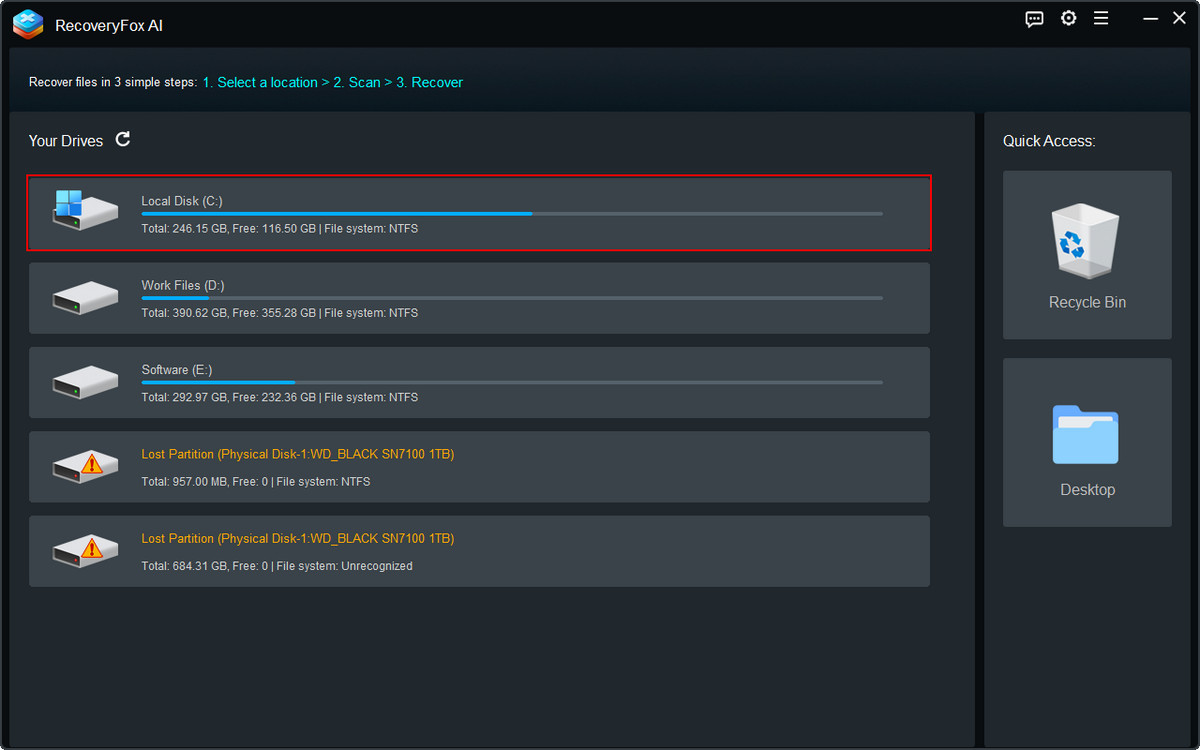
Step 2. Start RecoveryFox AI and select the drive or location where your Downloads folder was stored.
If the Downloads folder was on your Windows system drive, select that drive, usually the C: drive, to begin scanning.
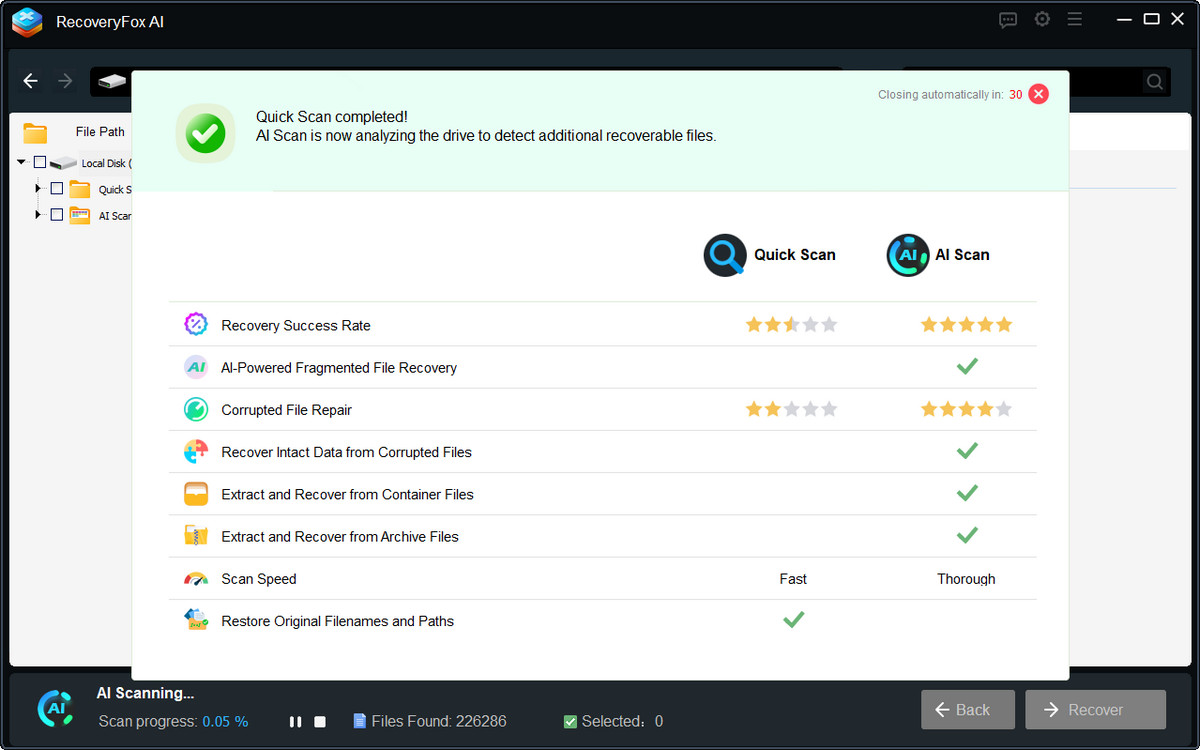
Step 3. Start the scan and let RecoveryFox AI search for deleted data.
RecoveryFox AI starts with Quick Scan, which is designed to recover deleted files from devices with a valid file system. In some cases, it can recover files with their original filenames and folder structure preserved.
AI Scan starts automatically when Quick Scan completes. It can help detect and reconstruct fragmented data and supports devices with unrecognized file systems, ideal for RAW or unallocated drives.
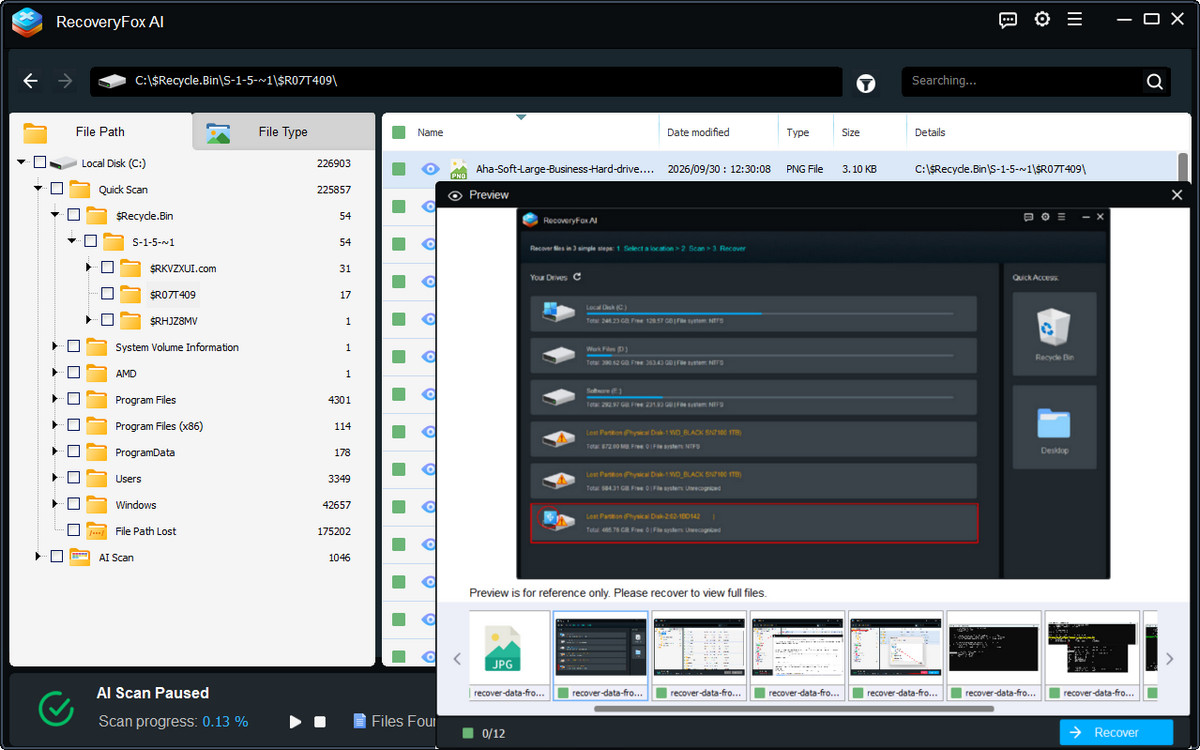
Step 4. Browse the scan result list while AI Scan is running, or pause the scan to locate your files using filters such as File Path, File Type, or Keywords.
Click the eye icon to view a selected file in the Preview window.
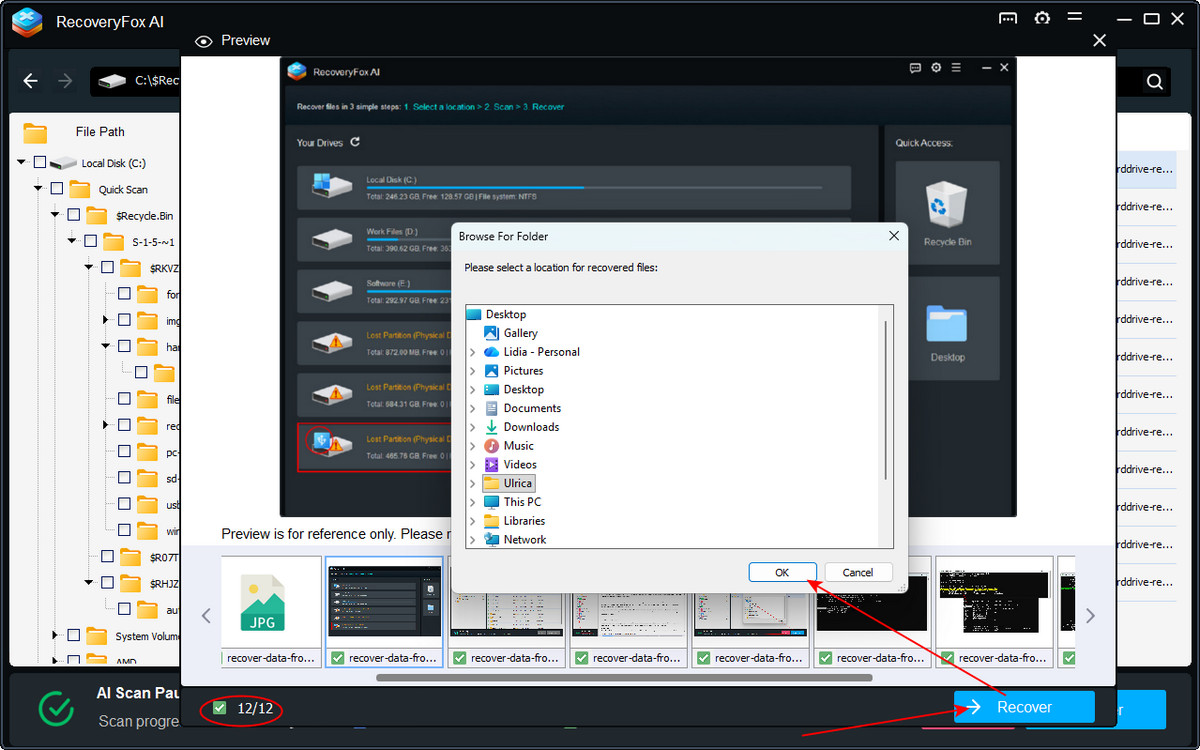
Step 5. Finally, select the deleted downloads you want to restore and click Recover.
Save the recovered files to a different drive or safe location, rather than the original Downloads location. This helps reduce the risk of overwriting other recoverable data.
Method 2. Recover Deleted Downloads from the Recycle Bin
Use this method if you accidentally deleted downloaded files by pressing Delete and have not emptied the Recycle Bin.
Windows normally places deleted files in the Recycle Bin instead of immediately removing them from the storage device. If your downloaded files are still there, you can restore them to their original location.
👉 Here is how to recover deleted downloads from the Recycle Bin:
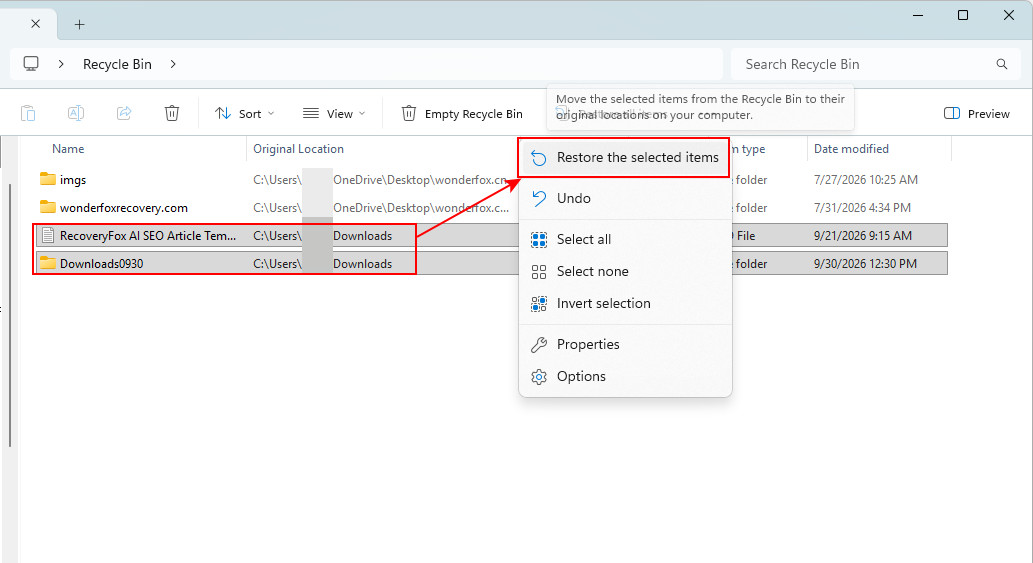
Step 1. Open Recycle Bin from the Windows desktop.
Step 2. Look for the deleted downloaded file or folder.
Step 3. Select the file you want to recover. To select multiple files, hold Ctrl while clicking the files.
Step 4. Click the See more icon and choose “Restore the selected items”.
Step 5. Windows will return the selected files to their original location.
Method 3. Recover Deleted Downloads from OneDrive (Windows 11)
If your downloaded files were stored in a OneDrive-synced folder, you may be able to recover them from the OneDrive Recycle Bin after they were deleted. By default, OneDrive can back up selected folders such as Desktop, Documents, and Pictures, but Downloads is not included by default. This method only applies if your downloaded files were stored in a OneDrive folder or another folder that you had set up to sync with OneDrive.
👉 Here’s how to recover deleted downloads from OneDrive:
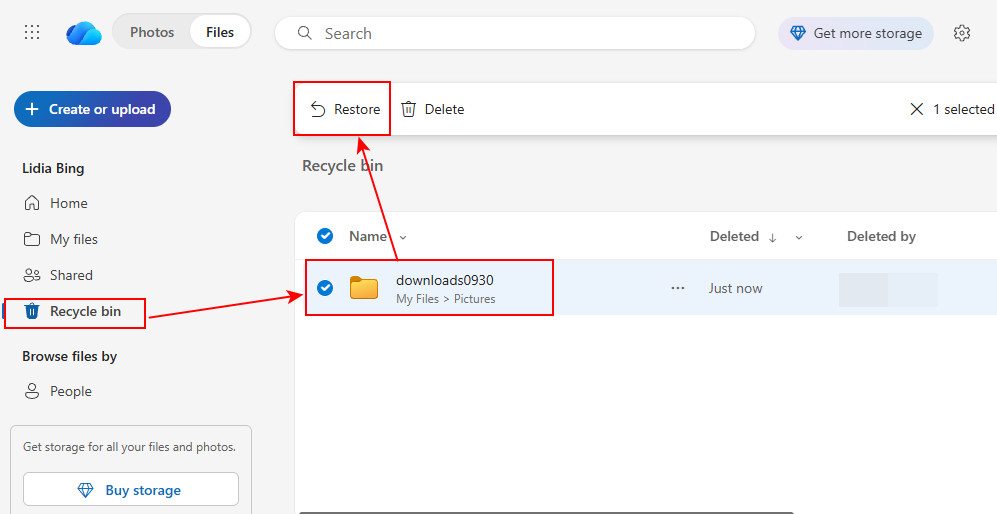
Step 1. Open OneDrive and select View Online.
Step 2. You’re be directed to the OneDrive website. Sign in with your Microsoft account.
Step 3. Select Recycle bin from the left navigation pane.
Step 4. Locate the deleted downloads you want to retrieve, select them, and click Restore.
Step 5. The restored files will be restored them to their original locations in OneDrive.
If the folder is synced to your PC, the restored files will also become available in the corresponding local folder.
Method 4. Recover Deleted Downloads with Previous Versions
If File History was enabled and the Downloads folder was included in its backup scope before your files were deleted, you may be able to restore an earlier version of the folder. File History does not necessarily include the Downloads folder by default, so this method only works if a suitable backup version of your Downloads folder is available.
👉 Here is how to recover deleted downloads using Previous Versions:
Step 1. Open the Downloads folder that previously contained your deleted files.
Step 2. Right-click the Downloads folder, select Show more options, and choose Restore previous versions.
Step 3. From the list of available versions, select one from before the files were deleted.
Step 4. Click Restore to restore the selected folder version to its original location.
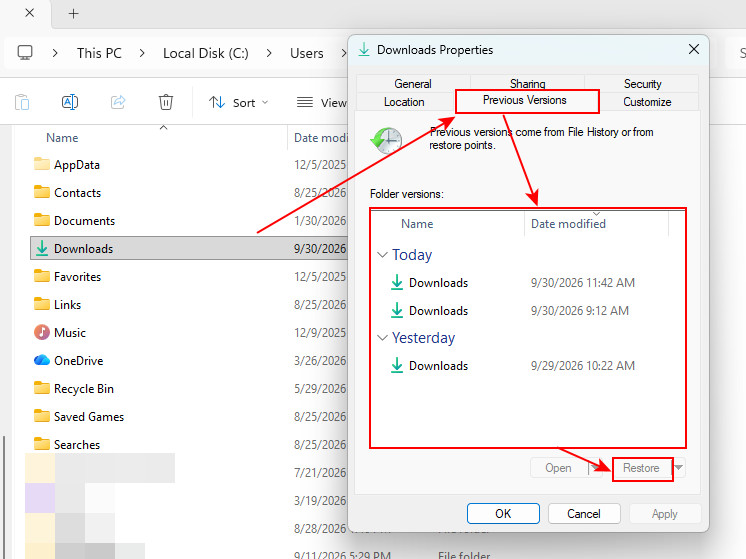
📢 File History is a built-in Windows backup feature, but it must be enabled and configured before your files are deleted. If no previous version is available, Windows will display the message “There are no previous versions available.”
Which Method Should You Try First?
The best method to try depends on what happened to the downloaded files.
| Your Situation | Method to Try |
| Deleted normally and the Recycle Bin is not empty | 🔸 Recycle Bin |
| Need to recover files after pressing Shift + Delete | 🔸 RecoveryFox AI |
| Recycle Bin was emptied | 🔸 RecoveryFox AI |
| Deleted downloads were synced with OneDrive | 🔸 OneDrive Recycle Bin |
| File History or another previous backup exists | 🔸 Previous Versions |
| You need to search for files that are no longer visible in Windows | 🔸 RecoveryFox AI |
How to Find Deleted Downloads on Windows?
Sometimes, your files are not actually deleted. They may have been moved, renamed, or saved to a different folder. Before attempting data recovery, try the following ways to locate them.
🔶 Check your browser's download history. It can show the original file name and download URL and may help you determine where the file was saved.
🔶 Search with File Explorer. You can search by file name or extension and use Advanced Query Syntax (AQS) to narrow the results. For example:
filename:work datemodified:this month
You can replace "work" and the date filter "this month" with search terms relevant to your file.
🔶 Use a dedicated file-search tool. A tool such as Everything can help you search for files across your Windows system when File Explorer does not quickly locate them.
If the Downloads folder is no longer visible in the left-side navigation pane, it does not necessarily mean that the folder or its files have been deleted.
🔹Open File Explorer, select This PC.
🔹Navigate to:
C:\ Users \YourUserName\
🔹 Look for the Downloads folder there.
Conclusion
If you accidentally deleted downloaded files or the Downloads folder on Windows, you may still be able to recover them.
Start by checking the Recycle Bin if the files were normally deleted. If the files were synced with OneDrive or included in a previous backup, those options may also help. For files deleted with Shift + Delete, after emptying the Recycle Bin, or when they are no longer accessible in Windows, RecoveryFox AI may be the next option.
With RecoveryFox AI, you can run a free scan and preview recoverable files, including images, camera files, videos, audio, documents, and web files, before recovery. Give it a try now:
How to Recover Deleted Downloads FAQs
Q1. Are deleted downloads gone forever?
Not necessarily. If the deleted data hasn’t been overwritten, you may still be able to recover it from the Recycle Bin, a backup, or with data recovery software.
Q2. Where can I find deleted downloads?
Check the Recycle Bin first. If they’re not there, check OneDrive, Previous Versions, or a backup if you had one configured.
Q3. Why can’t I find my deleted files in the Recycle Bin?
They may have been permanently deleted, removed after the Recycle Bin was emptied, or deleted using Shift + Delete.
Q4. How do I recover downloads after emptying the Recycle Bin?
Check Previous Versions or another available backup first. If no backup is available, try data recovery software such as RecoveryFox AI.
Q5. Can I recover downloads deleted with Shift + Delete?
Possibly. Shift + Delete bypasses the Recycle Bin. Recovery depends on whether the deleted data has been overwritten, so avoid using the affected drive until you attempt recovery.

A technical content writer for RecoveryFox AI at WonderFox Soft, creating clear guides on data recovery, storage technologies, and Windows troubleshooting. She specializes in simplifying complex technical topics and enjoys exploring technology, running, and discovering new experiences.





 English ^


