






 Free Download
 Windows


TL;DR
🔶 Recovering deleted Excel files is often possible on Windows if you can take an immediate action and choose a right Excel file recovery method.
🔶 Use the decision table below to first identify your situation, then find the best method to recover your deleted or unsaved Excel files.
| What happened to your Excel file? | Start with |
| I accidentally deleted an Excel file | 🔸 Recycle Bin |
| I permanently deleted an Excel file | 🔸 RecoveryFox AI |
| I emptied the Recycle Bin | 🔸 Previous Versions 🔸 RecoveryFox AI |
| The deleted Excel file was stored in OneDrive | 🔸 OneDrive Recycle Bin |
| The Excel file was backed up before deletion | 🔸 Previous Versions 🔸 Backup storage device |
| The file disappeared from its original folder | 🔸 Previous Versions |
| Excel crashed and the file was never saved | 🔸 Document Recovery 🔸 Recover Unsaved Workbooks 🔸 AutoRecover Folder |
| I never saved the Excel workbook | 🔸 Recover Unsaved Workbooks 🔸 AutoRecover Folder |
| I overwrote the Excel file | 🔸 Previous Versions |
| The Excel file is still there but won't open | 🔸 Open and Repair |
Method 1. Restore a Deleted Excel File from the Recycle Bin
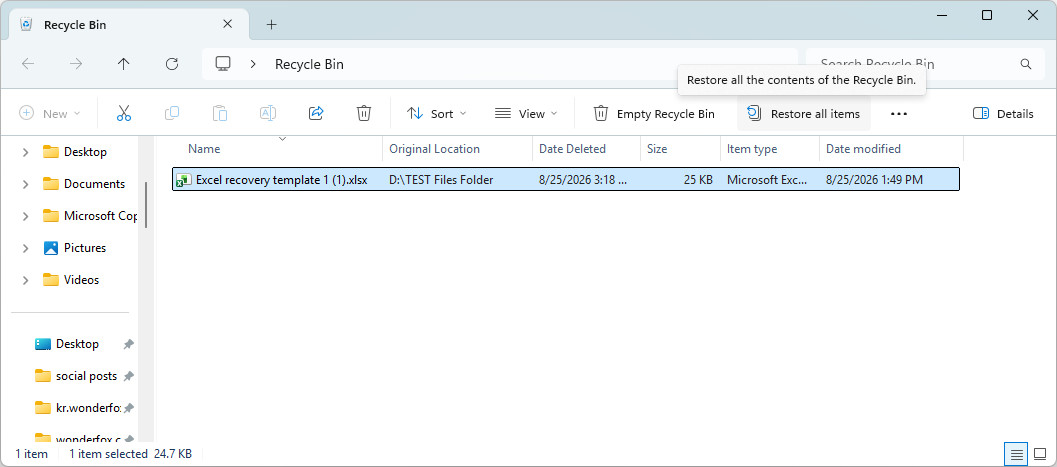
If you accidentally deleted an Excel file by pressing the Delete key, the file may still be in the Windows Recycle Bin.
👉 Here is how to recover a deleted Excel file from the Recycle Bin:
Step 1. Open Recycle Bin from the desktop.
Step 2. Find the deleted Excel file you want to recover.
You can sort the files by Name, Original Location, Date Deleted, or Size to locate the workbook more quickly.
Step 3. Right-click the Excel file and select “Restore”.
The file will be returned to its original location.
Method 2. Recover Permanently Deleted Excel Files with RecoveryFox AI (🔥)
If your Excel file is no longer in the Recycle Bin, you can try a professional undelete file recovery tool such as RecoveryFox AI. It scans your storage drive for deleted files and lets you preview recoverable Excel files before recovery.
This AI-enhanced data recovery software supports common Excel formats, including XLSX, XLS, XLSM, and XLSB, as well as PDF, DOCX, PPT, photos, videos, audio, archives, and 500+ more.
RecoveryFox AI can help recover lost files caused by Shift + Delete, accidental formatting, system crashes, virus attacks, RAW drives, or unallocated partitions.
👉 Here is how to recover permanently deleted Excel files using RecoveryFox AI:
Step 1. Download and install RecoveryFox AI.
⚠️ Important: Do not install the recovery software on the same drive where your deleted Excel files were stored. New data written to the drive may overwrite the deleted files and reduce the chance of successful recovery.
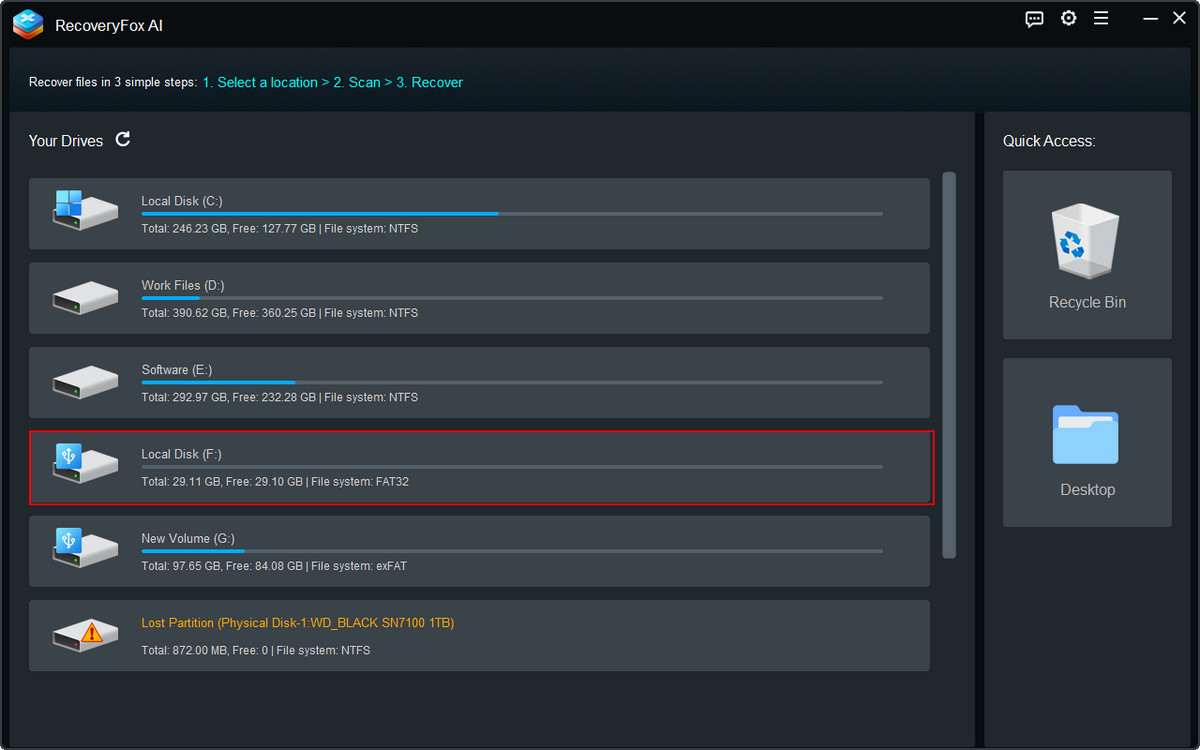
Step 2. Launch RecoveryFox AI and locate the drive or location where the Excel file was originally stored.
Click it to start searching for deleted files.
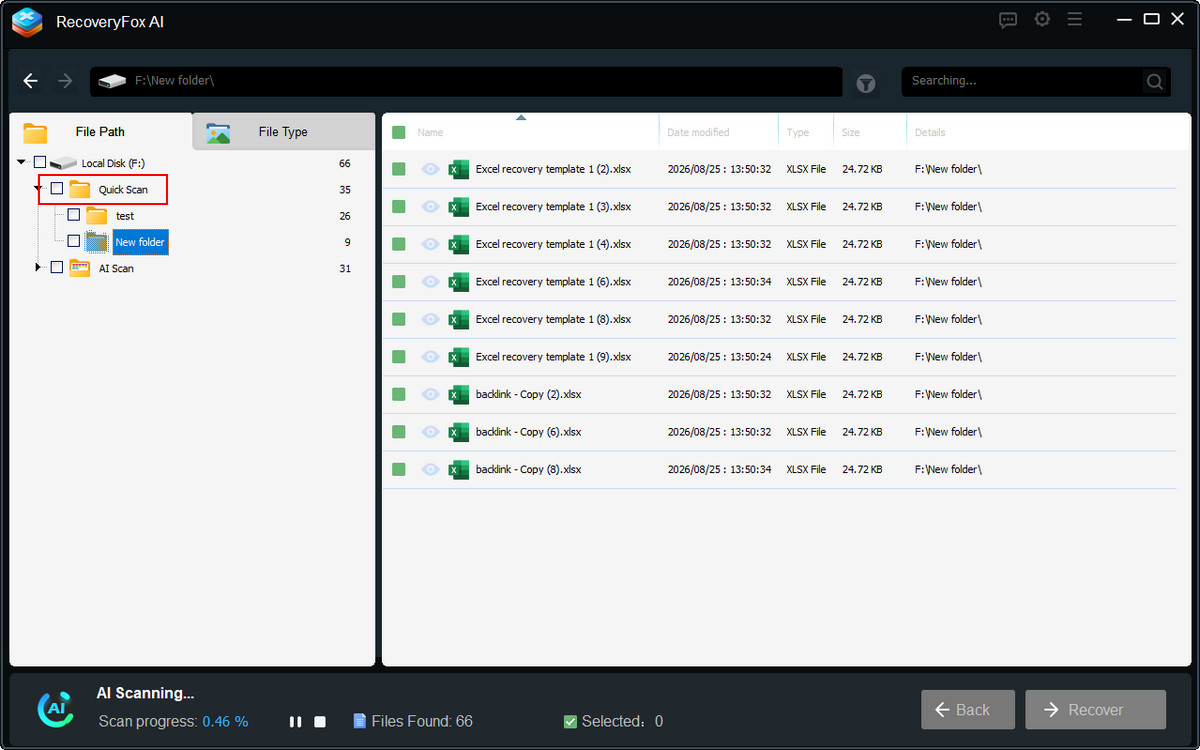
Step 3. RecoveryFox AI starts with Quick Scan, which excels at finding recently deleted Excel files, and often with the filenames and folder structure preserved.
If the required Excel file cannot be found, AI Scan will continue with a deeper scan to search for more recoverable data.
You can browse the scan results’ list under File Path or File Type while the scan is running.
Step 4. Pause the AI Scan and go to File Type > Document to quickly find your deleted Excel files.
Alternatively, let the AI Scan complete for a more thorough scan, then use filters such as Keywords, Date Modified, or File Size to pinpoint the files you need.
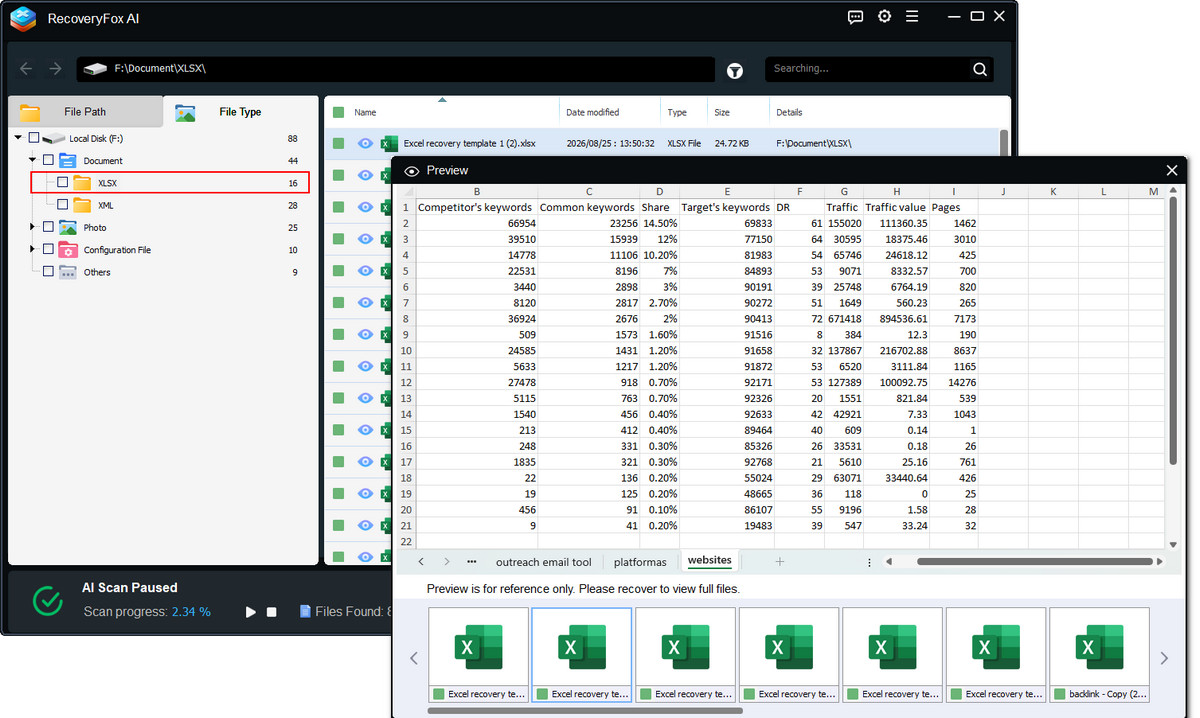
Step 5. If the file is the one you need, click Recover and save it to another safe location.
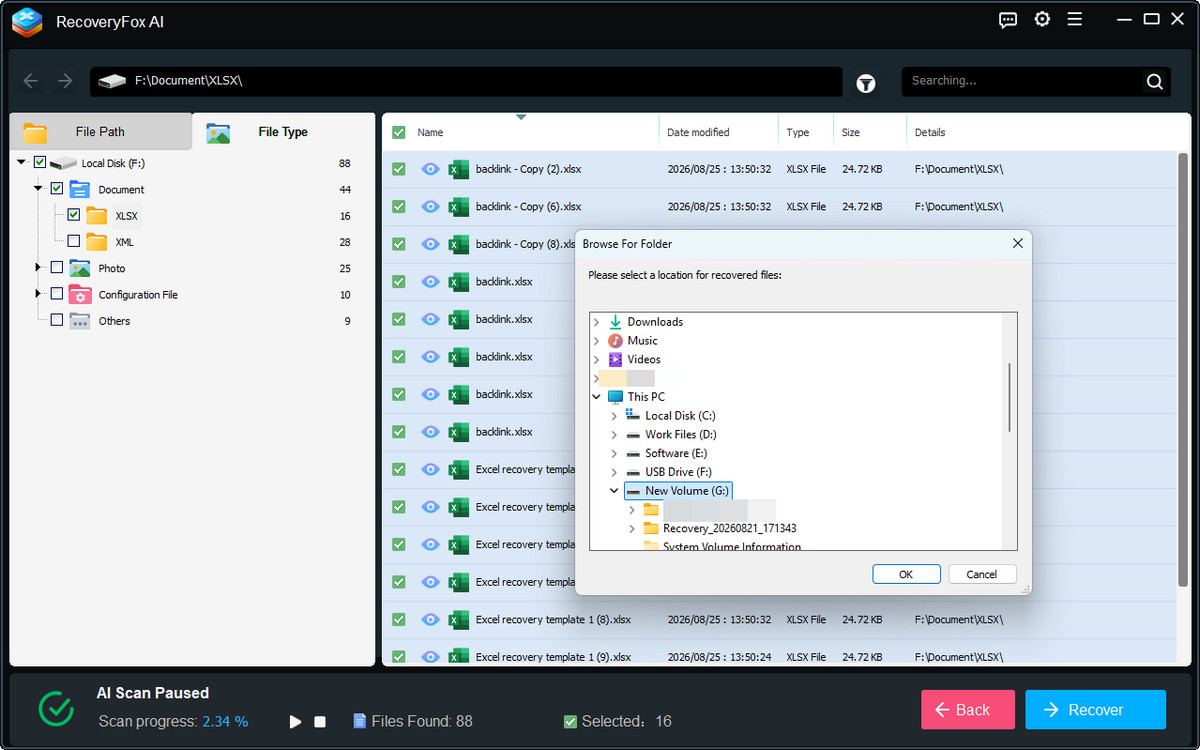
📢 Recovery Tip: Save the recovered Excel file to a different drive or location whenever possible. This helps prevent the recovered data from overwriting other files that may still be recoverable.
Method 3. Recover Deleted Excel Files from Previous Versions
If you have previously enabled File History, Backup and Restore (Windows 7), or another Windows backup feature, you may be able to recover an earlier version of the folder that contained your deleted Excel file.
This method is especially useful if the Excel file was deleted from a folder (usually Libraries, Desktop, Contacts, and Favorites) that Windows had previously backed up.
👉 Here is how to recover a deleted Excel file from Previous Versions:
Step 1. Open the folder where your deleted Excel file was originally stored.
Step 2. Right-click the folder and select “Show more options”.
Step 3. Go to “Restore previous versions”.
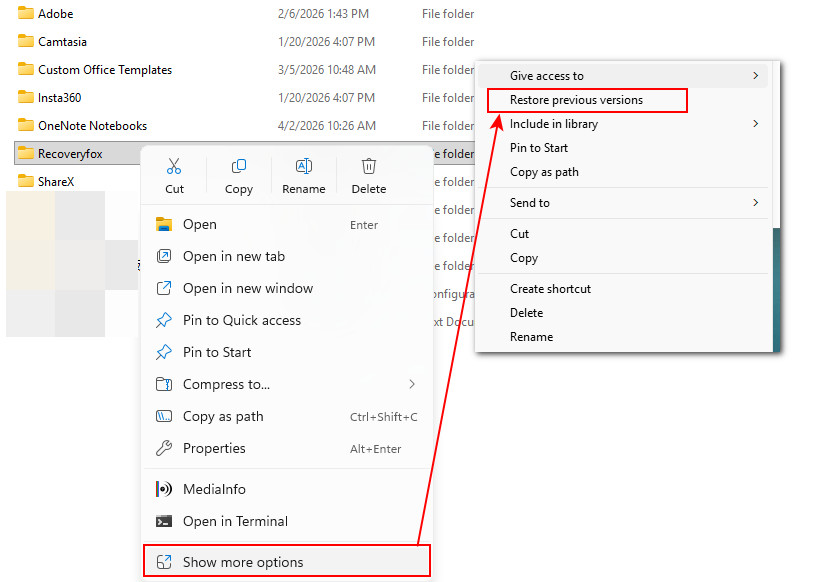
Step 4. If available, you will see a list of previous versions of the folder.
Select a version created before the Excel file was deleted.
For some files, you can “Open in File History” to preview whether the selected version is what you need.
Step 5. Once you find the required Excel file, restore it to a safe location or restore the previous version.
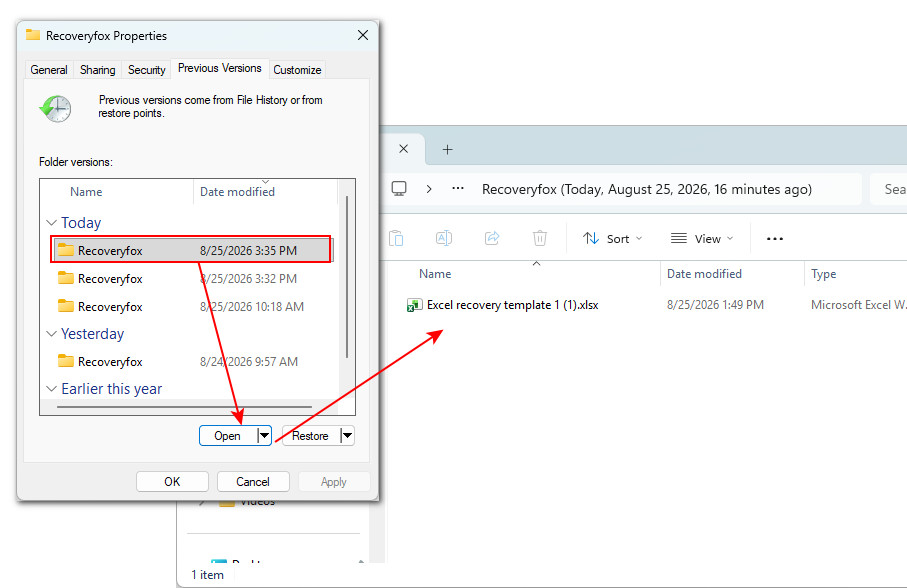
📢 Note: Previous Versions only works when Windows has an available backup or previous version. If you see “There are no previous versions available”, this method cannot recover your deleted Excel file.
Method 4. Retrieve a Deleted Excel File from the OneDrive Recycle Bin
If your Excel file was previously synced to OneDrive, deleting the local file does not necessarily mean that it is gone forever. Deleted files may remain in the OneDrive Recycle Bin for a limited period, allowing you to restore them.
👉 Here is how to recover a deleted Excel file from the OneDrive Recycle Bin:
Step 1. Open OneDrive and sign in with the Microsoft account that you use to sync your Excel files.
Step 2. Open the Recycle Bin in OneDrive.
Step 3. Find the deleted Excel file you want to retrieve.
You can select the file and check its Name, Original location, and Date deleted information to make sure it is the correct workbook.
Step 4. Select the Excel file and click Restore.
The file will be restored to its original location in OneDrive and should sync back to your computer.
Step 5. Open the original folder on your PC and check whether the Excel workbook has been restored successfully.
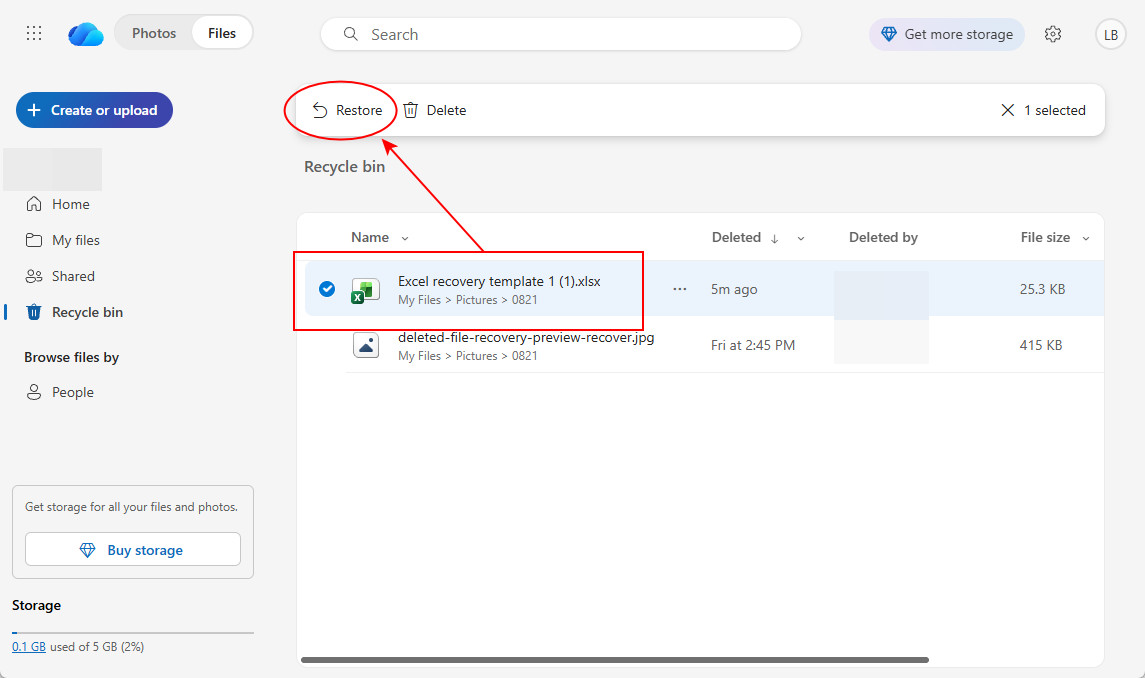
📢 Note: This method only works if the Excel file was saved in a OneDrive-synced folder, such as Documents, Desktop, Pictures, Music, or Videos, and successfully synced to OneDrive. If the file was never synced or has been permanently deleted from OneDrive, try another recovery method.
Bonus Tips: If Your Excel File Was Unsaved…
If, unfortunately, you closed Excel without saving your workbook, or Excel crashed before you could save your work, you may still be able to recover the unsaved Excel file.
Microsoft Excel provides several built-in recovery features that can help you find and restore unsaved workbooks. Now, try the following methods to recover an unsaved Excel file.
# Recover Unsaved Excel Files with Recover Unsaved Workbooks
This method is worth trying first if you accidentally clicked Don’t Save or Excel closed unexpectedly.
👉 Here is how to recover an unsaved Excel file with Recover Unsaved Workbooks:
Step 1. Open Microsoft Excel and create a new blank workbook.
Step 2. Click File > Open > Recent.
Step 3. Scroll to the bottom of the Recent workbooks list and click “Recover Unsaved Workbooks”.
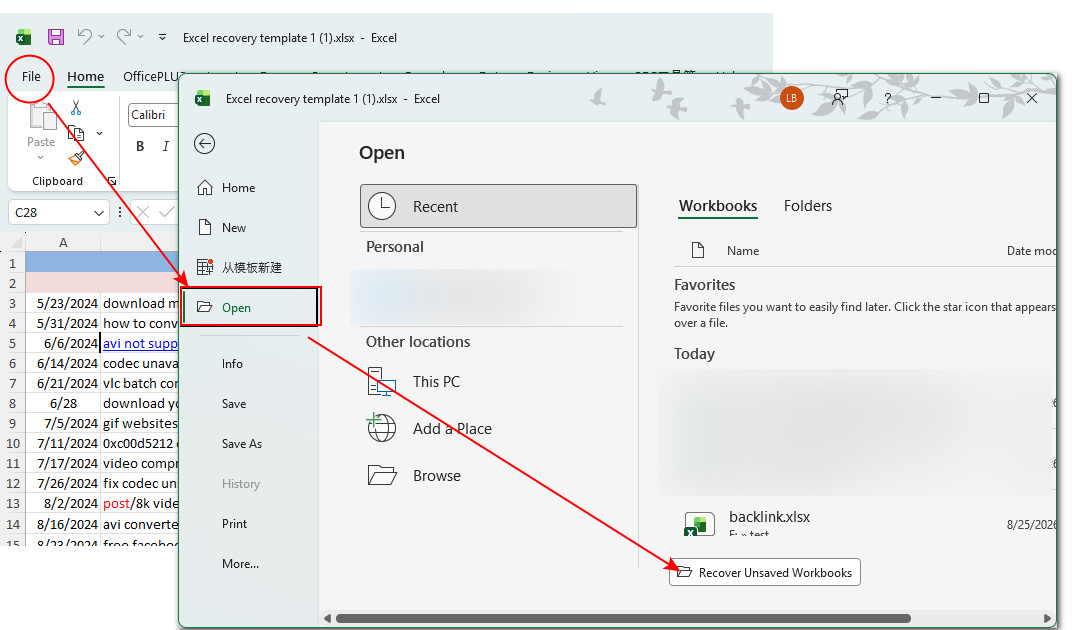
Step 4. Browse the list of available unsaved Excel files and select the workbook you want to recover.
Step 5. Click Open to open the recovered workbook.
Step 6. If the workbook contains the data you need, click “Save As” and save it to a safe location.
# Recover Unsaved Excel Files with Document Recovery
If Excel closes unexpectedly before you save your latest changes, Document Recovery may help you recover your work. When you restart Excel, the Document Recovery pane automatically opens if recoverable files are available, showing recovered versions of files that were open before the unexpected shutdown.
👉 Here is how to recover an unsaved Excel file with Document Recovery:
Step 1. Open Microsoft Excel after the unexpected crash or shutdown.
Step 2. Check whether the Document Recovery pane appears on the left side of the Excel window.
Step 3. Look through the recovered files and find the Excel workbook you were working on.
You may see multiple versions of the same workbook. Check the date and time to identify the most recent version.
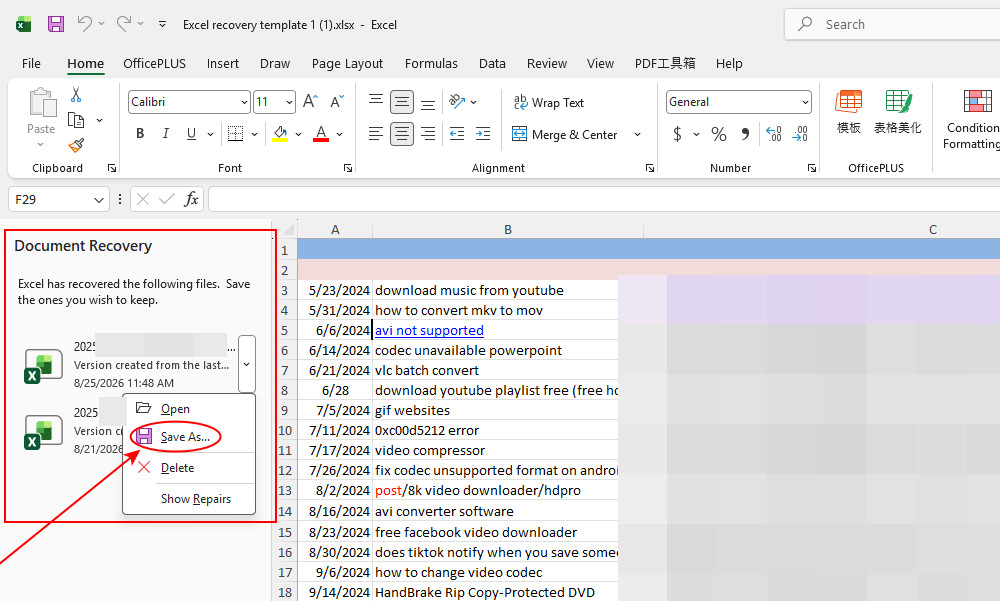
Step 4. Click the recovered workbook to open it.
Step 5. Check the recovered content carefully, then click “Save As” to save the workbook to a safe location.
# Find Unsaved Excel Files in the AutoRecover Folder
If you cannot find your unsaved workbook through Excel's built-in recovery options, you can manually check the AutoRecover folder. Excel automatically saves temporary copies of your workbooks there when AutoRecover is enabled.
👉 Here is how to find unsaved Excel files in the AutoRecover folder:
Step 1. Open Excel and go to File > Options (at the bottom).
Step 2. Click “Save” from the left panel, find “AutoRecover file location” and copy the folder path.
Step 3. Open File Explorer and paste the copied path into the address bar.
Step 4. Look for recently created or modified Excel recovery files.
You may find files with extensions such as .xlsx, .xlsb, or .xlsm, depending on the workbook and Excel version.
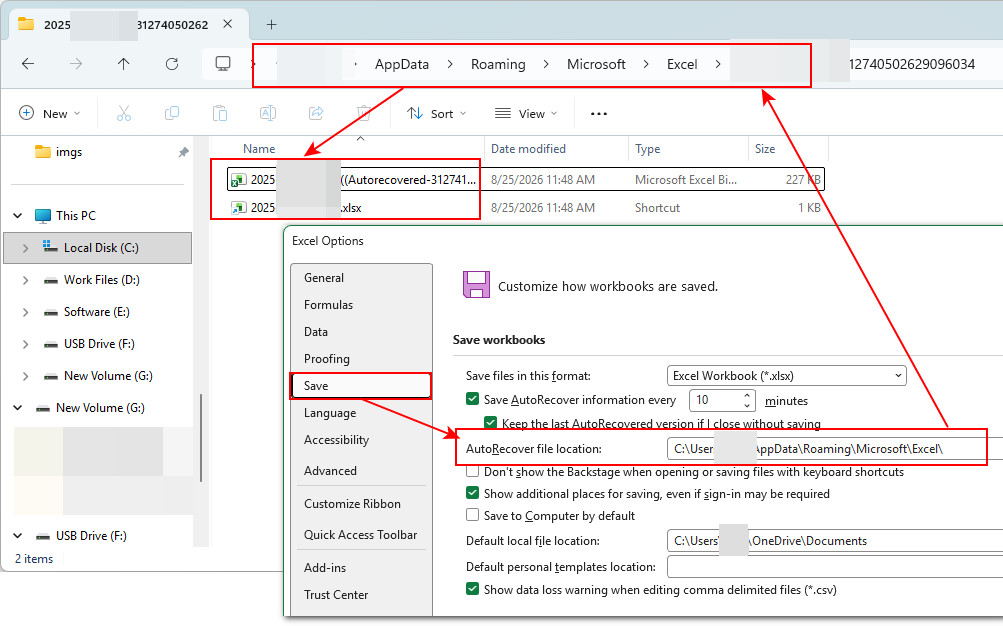
Step 5. Open the file you need with Excel and check whether your unsaved work has been recovered.
Step 6. If the file contains the required data, use “Save As” to save it as a regular Excel workbook.
Conclusion
Accidentally deleting an Excel file does not always mean that it is gone forever. Depending on how the file was deleted and whether a backup or recovery copy is available, you may be able to restore it from the Recycle Bin, Previous Versions, OneDrive Recycle Bin, or a data recovery tool.
If your Excel file was never saved, don’t give up either. Excel’s built-in Recover Unsaved Workbooks, Document Recovery, and AutoRecover features may help you get your work back.
For permanently deleted Excel files with no available backup, RecoveryFox AI is worth trying. It can scan your drive for recoverable Excel files and lets you preview the files before recovery. Remember to stop using the affected drive and save recovered files to a different location to reduce the risk of overwriting recoverable data.
The sooner you start the recovery process, the better your chances of getting your Excel files back.
FAQs about Excel File Recovery
Q1. Can I recover a permanently deleted Excel file?
Yes, you may be able to recover a permanently deleted Excel file if its data has not been overwritten. If the file is no longer in the Recycle Bin, act quickly and run RecoveryFox AI to scan the drive for recoverable Excel files. The sooner you stop using the affected drive, the better the chance of successful recovery.
Q 2. Can I recover an Excel file after emptying the Recycle Bin?
Yes. Emptied Recycle Bin file recovery is still possible. Although the file is no longer accessible through the Recycle Bin, its underlying data may remain on the drive until it is overwritten. You can try Previous Versions if you have an available backup or use RecoveryFox AI to scan the drive for recoverable files.
Q 3. Where are deleted Excel files stored?
When you normally delete an Excel file in Windows, it is first moved to the Recycle Bin. If you empty the Recycle Bin or use Shift + Delete, the file is no longer accessible through the Recycle Bin. However, its data may still be recoverable until new data overwrites it.
4. Can I recover an unsaved Excel file?
Yes. If you closed Excel without saving or Excel crashed unexpectedly, you can try Excel's built-in recovery features, including Recover Unsaved Workbooks, the Document Recovery pane, and the AutoRecover folder.
5. Can I recover an overwritten Excel file?
It depends. If an earlier version of the Excel file is available through Version History, Previous Versions, File History, or another backup, you may be able to restore it. If no previous version or backup exists, recovering the overwritten content can be much more difficult because the original data may have already been replaced.

A technical content writer for RecoveryFox AI at WonderFox Soft, creating clear guides on data recovery, storage technologies, and Windows troubleshooting. She specializes in simplifying complex technical topics and enjoys exploring technology, running, and discovering new experiences.





 English ^


