






 Free Download
 Windows


By clicking “Format disk”, you can quickly fix this “need to format it before use” error on Windows and make your USB flash drive usable again. Formatting is a common way to prepare storage devices, like USB drives, for new use, clear up data, and fix compatibility issues. However, this will also remove the files on the USB drive.
If you need to format a USB flash drive but don’t want to lose the data stored on it, this article shares safe methods and walks you through how to format a USB drive without losing data on Windows.
Can You Format a USB Drive without Losing Data?
Formatting a USB drive normally removes the existing file system and makes the files stored on it inaccessible.
Although a quick format is different from a full format in how thoroughly it erases the existing data, neither should be treated as a way to preserve your files.
If your USB drive is working normally and you can open its files, back up everything important to another storage device before formatting.
If the USB drive is inaccessible, corrupted, shows as RAW or Unallocated, or Windows asks you to format it before you can use it, do not immediately click Format. Your files may still be recoverable, and formatting first can make data recovery more difficult.
Once you have verified that your important files are safely backed up or recovered, you can proceed with formatting the USB drive.
In the following sections, we'll show you how to save your USB data before formatting and then format the USB drive safely using several Windows methods.
How to Format USB without Losing Data on Windows?
Step 1. Save Your USB Files Before Formatting
If you want to format a USB flash drive without losing data on Windows, the first step depends on whether you can currently access the files on the USB drive.
🔰 Scenario 1: If your USB data is inaccessible, follow these steps >>
🔰 Scenario 2: If your USB data is accessible, follow these steps >>
🔰 Scenario 1: If Your USB Data Is Inaccessible
If your USB drive appears in File Explorer or Disk Management but you cannot access its files, you may notice one of the following signs:
❗The USB drive is read as RAW or Unallocated in Disk Management.
❗Windows prompts “You need to format the disk in drive before you can use it.” after inserting the USB or clicking it in File Explorer.
❗The USB drive appears in File Explorer, but you cannot open it.
❗Windows cannot recognize the USB drive's file system.
In these situations, recover your inaccessible USB data first, save the recovered files to another location, and then format the USB drive if necessary.
① Insert the USB flash drive into a working USB port on your Windows computer.
Press Win + X to open Disk Management and make sure Windows detects the USB drive.
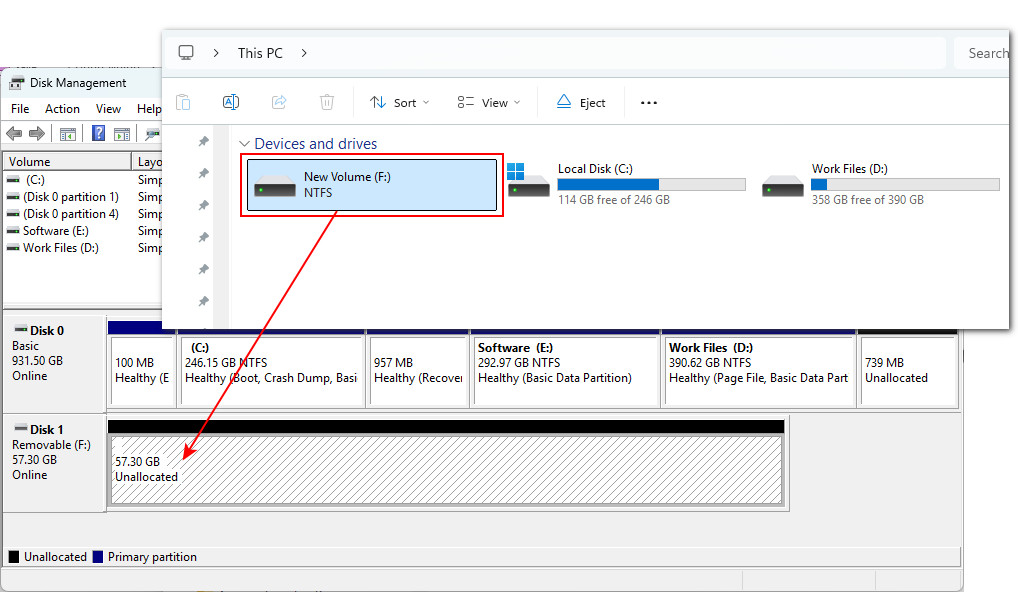
② To recover files from an inaccessible USB drive without formatting it first, you can use RecoveryFox AI. This USB flash drive recovery software can scan a RAW/unallocated/corrupted USB flash drive and search for recoverable files.
Download and launch RecoveryFox AI, then select the affected USB drive to start scanning.
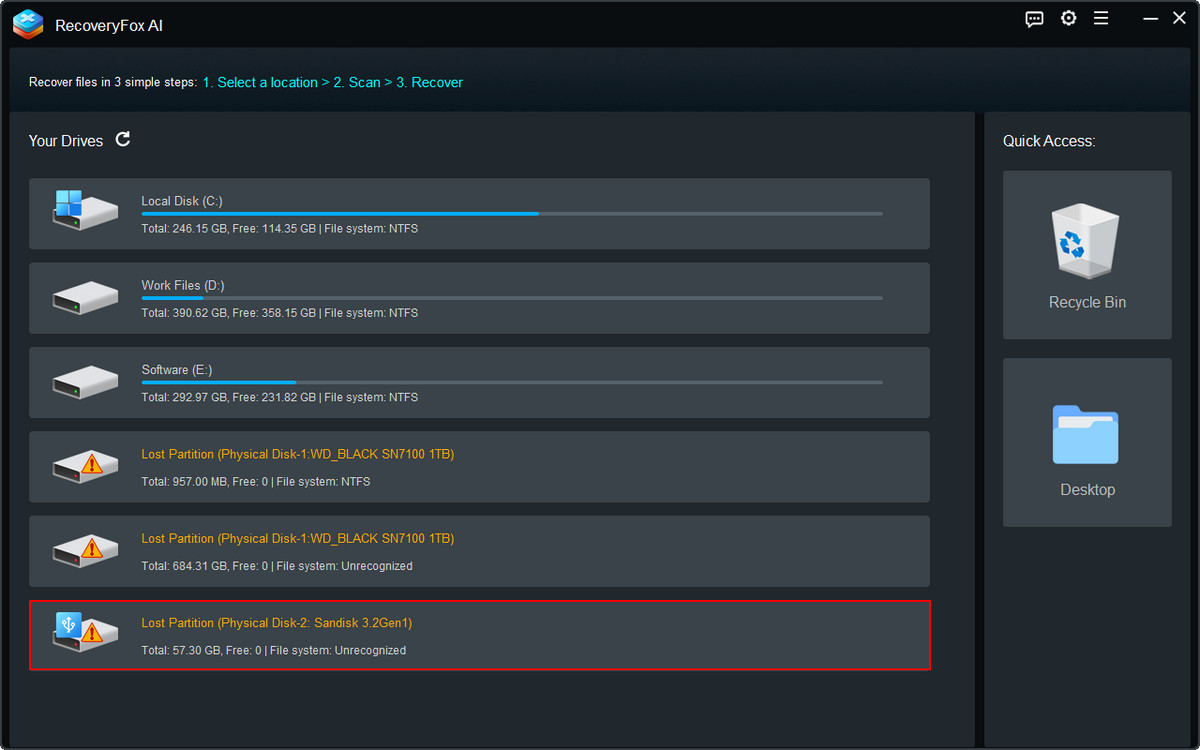
③ RecoveryFox AI starts with a Quick Scan, which is ideal for retrieving recently deleted files. If the USB drive is inaccessible, corrupted, or has a damaged file system, AI Scan can perform a deeper search to help reconstruct fragmented file data.
For the best chance of recovery, let the scan complete. You can also pause the scan and use Preview (eye icon) to check whether your photos, videos, documents, and other files are recoverable before proceeding.
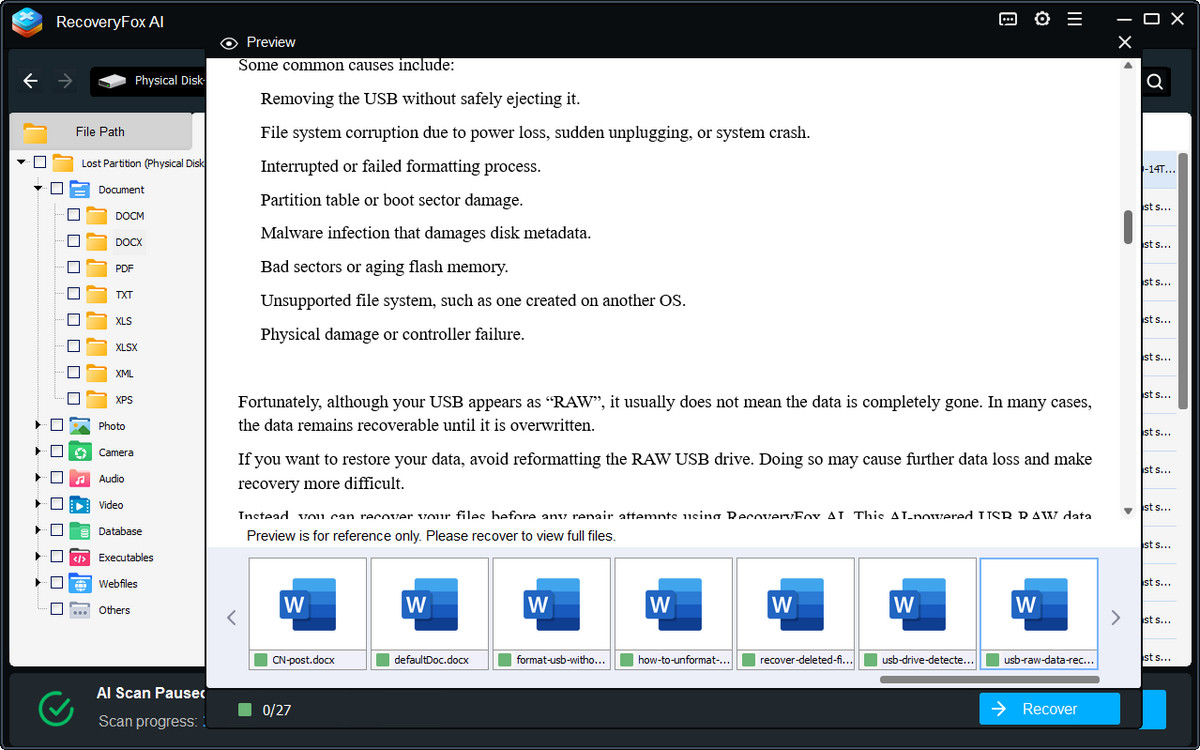
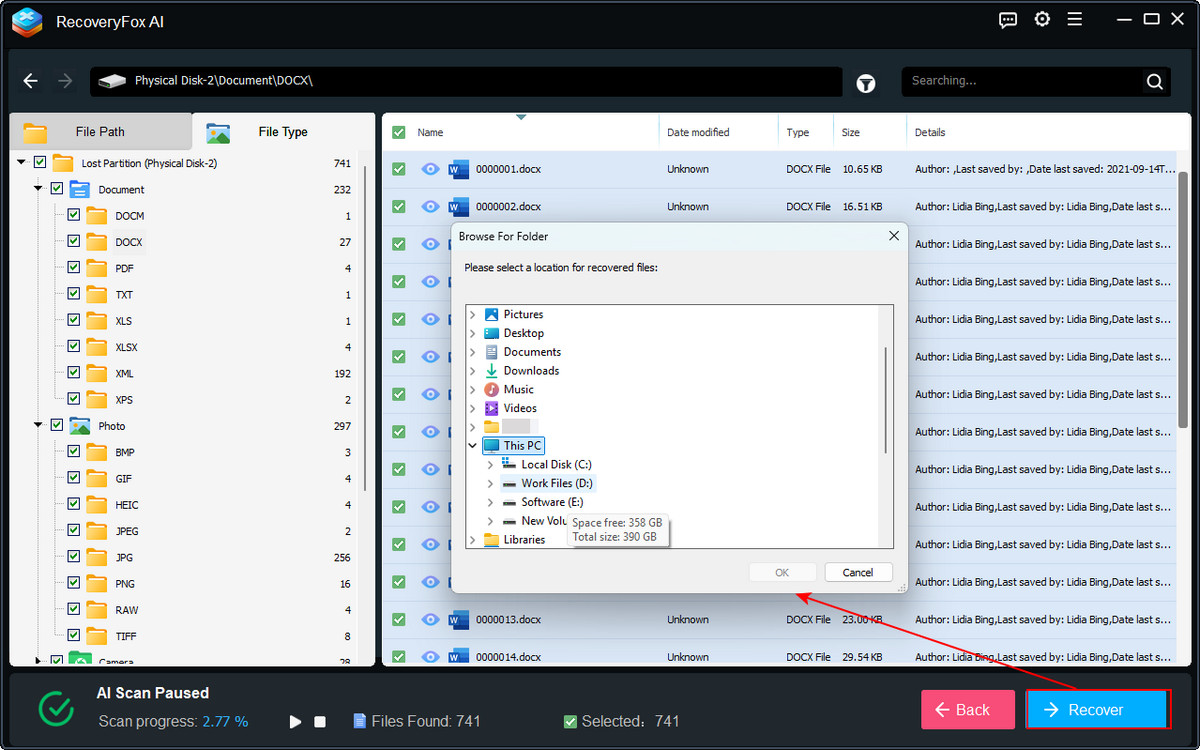
④ Finally, select the files you want to restore and click Recover.
Save the recovered files to a different drive or storage location to avoid overwriting other recoverable data.
🔰 Scenario 2 # If your USB data is accessible…
If you can open the USB drive normally and access all your files, formatting it without losing data is much easier. Simply copy your important files to another safe location before formatting.
① Connect the USB flash drive to your Windows computer and open File Explorer.
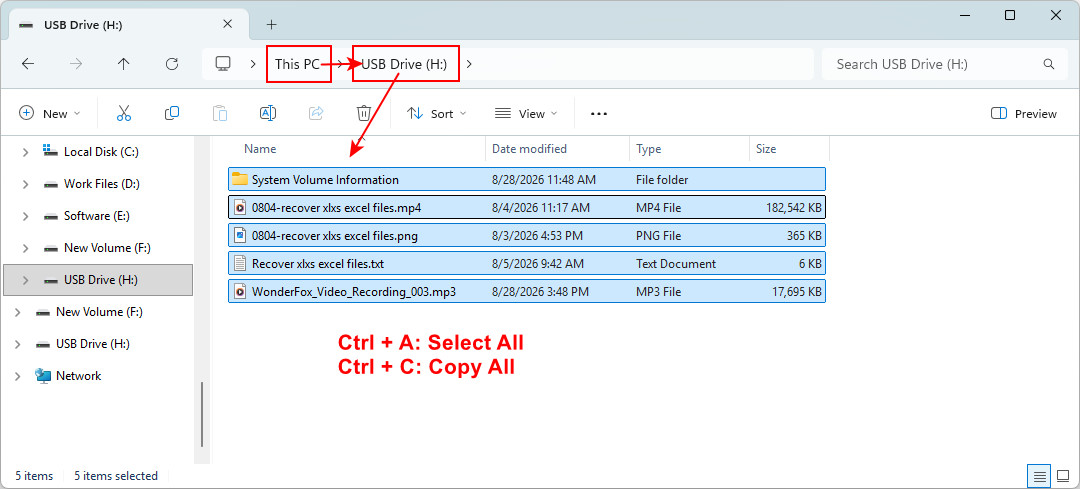
② Go to This PC and double-click your USB drive.
③ Press Ctrl + A to select all files and folders, then press Ctrl + C to copy them.
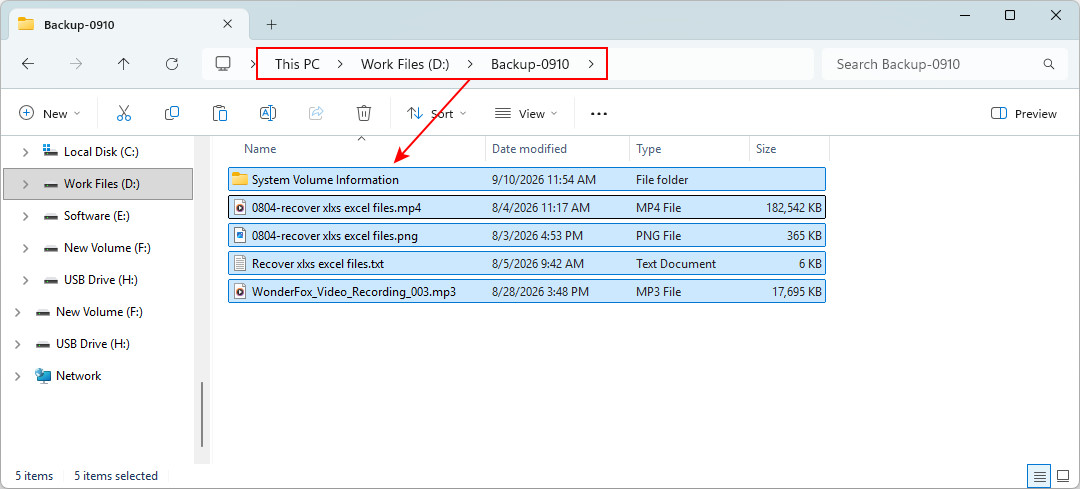
④ Open another internal or external storage location, create a new folder, and press Ctrl + V to paste the copied files.
⑤ Open several copied files to verify that the backup is complete and the files work normally.
Step 2. Format USB without Losing Data
After you have successfully recovered or backed up your important USB files, you can format the USB drive without losing data on Windows.
Method 1. File Explorer
File Explorer is the easiest way to format a USB flash drive that is working normally in Windows.
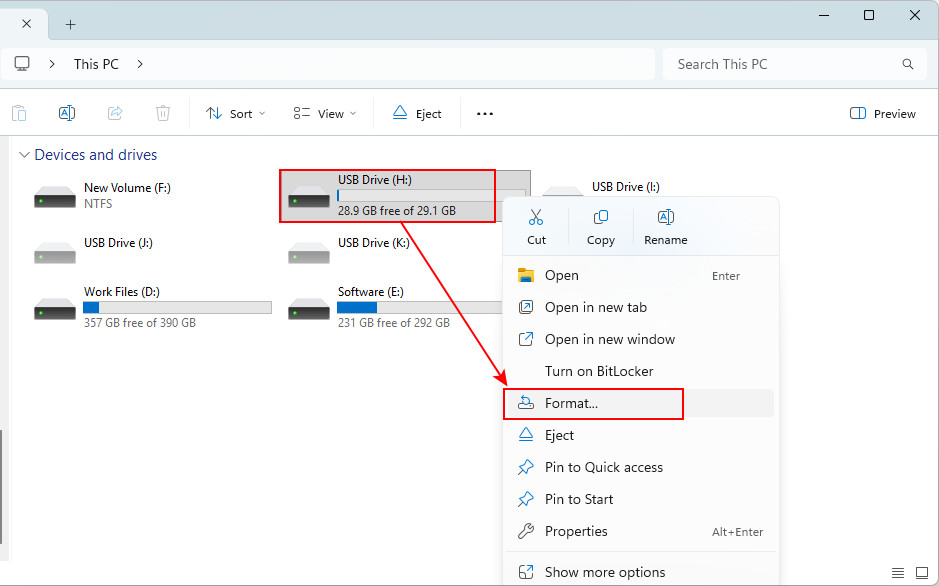
① Open File Explorer and go to This PC.
② Find your USB flash drive, right-click it, and select “Format”.
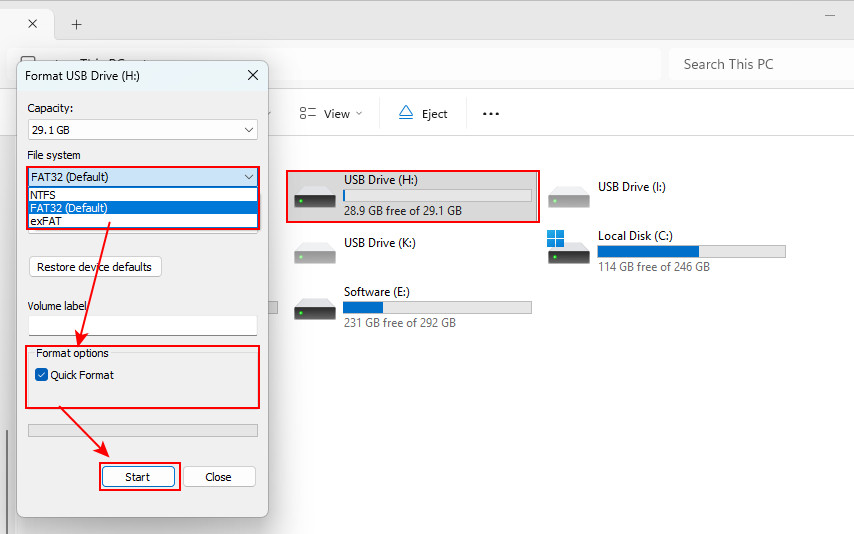
③ In the Format window, choose an appropriate file system:
- 🔷 exFAT – best for pen drives across different operating systems.
- 🔷 NTFS – the device will mainly be used with Windows
- 🔷 FAT32– broad compatibility but has a 4 GB maximum individual file size.
④ Leave “Allocation unit size” at its default setting.
⑤ Check the “Quick Format” box. But if you prefer a more thorough full format, uncheck it.
⑥ Click “Start”, then confirm the warning that formatting will erase the data on the drive. Wait until Windows reports that the format is complete.
Method 2. Disk Management
If File Explorer fails to format your USB drive or you cannot access the pen drive here, you can use Disk Management.
① Press Win + X and select Disk Management.
Alternatively, press Win + R, type diskmgmt.msc, and press Enter.
② Locate the USB drive in the list of disks and volumes. Double-check its capacity to ensure you choose the right one. Then, right-click it and select Format.
- 💡For a RAW USB drive, go for “Delete Volume” first;
- 💡For an Unallocated USB drive, go for “New Simple Volume” first.
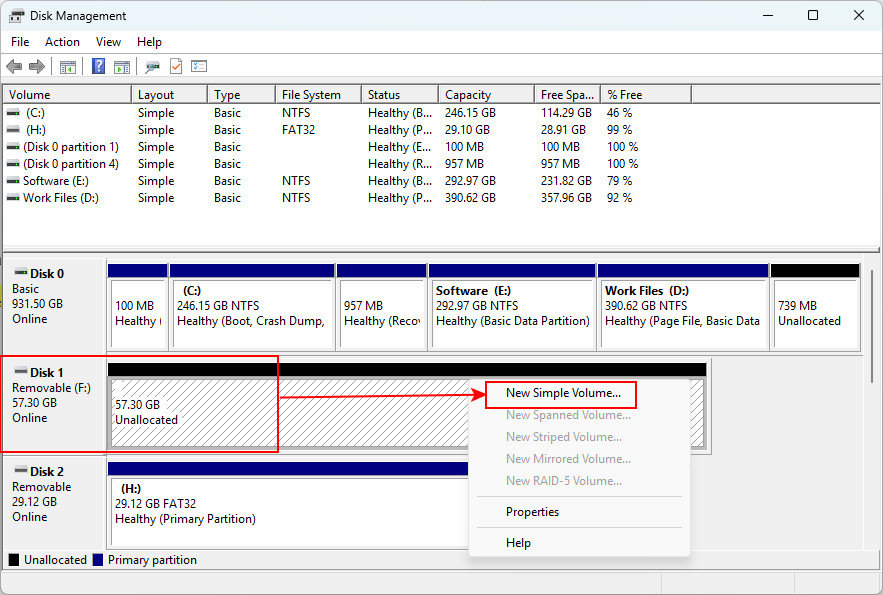
③ Then, follow the New Simple Volume Wizard window to enter a volume size, assign a drive letter, and choose a file system.
④ Check the “Perform a quick format” box (if you want to run a full format, uncheck it), and click “Next”.
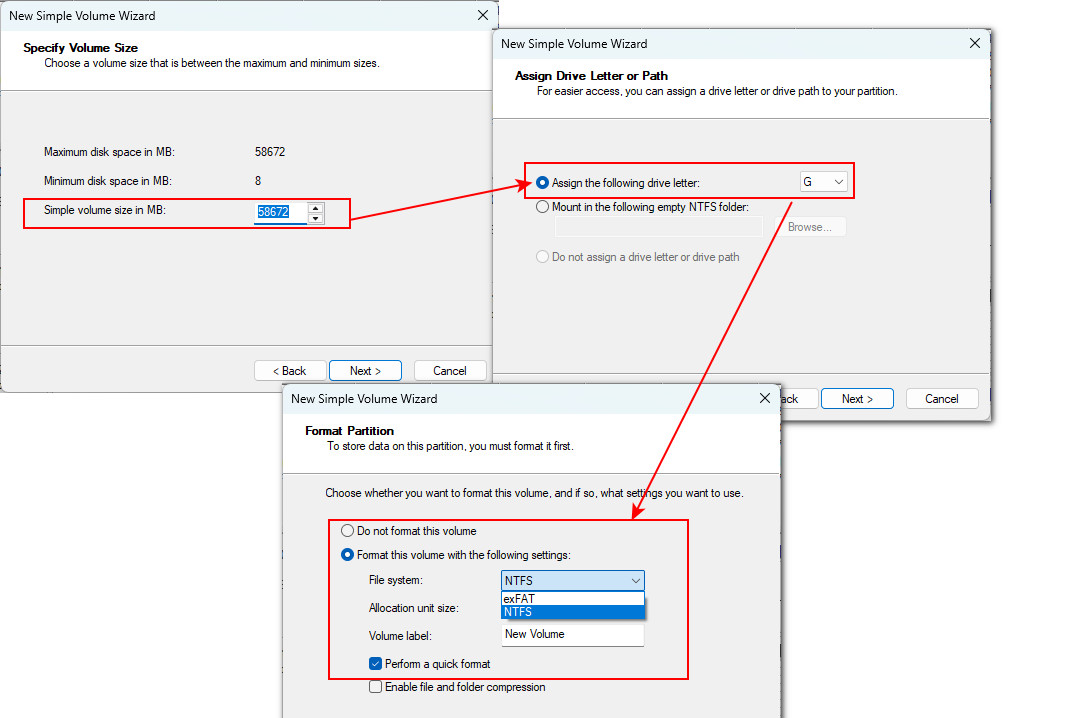
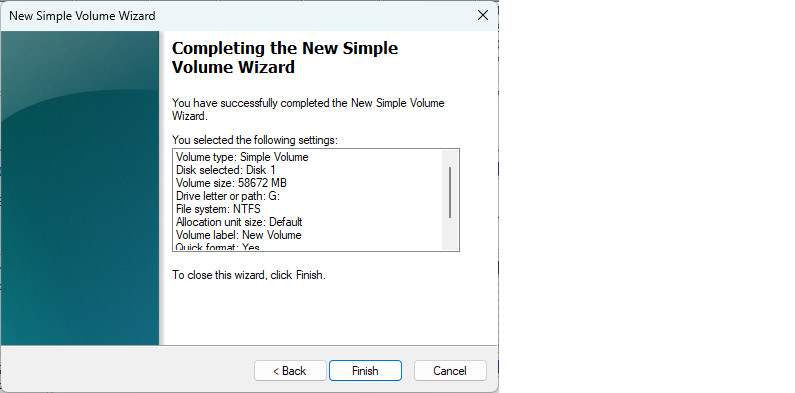
⑤ Carefully review your settings and click “Finish” to complete this formatting.
After formatting finishes, the USB drive should appear as a newly formatted volume.
Method 3. DiskPart
DiskPart is a command-line utility built into Windows for managing disks, partitions, and volumes. With it, you can also reformat a USB flash drive.
① Press Win + S, search for “Command Prompt”, and choose “Run as administrator”.
② Enter the following command and press Enter to launch DiskPart.
diskpart③ Enter the following command and press Enter to list all connected physical disks:
list disk④ Identify the USB drive by its capacity. Then, type the following command, replace X with the correct disk number, and press Enter:
select disk X⑤ Run this command and press Enter to erase the partition information on that USB drive:
clean⑥ When you see “DiskPart succeeded in cleaning the disk,” run the following command and press Enter to create a new primary partition:
create partition primary⑦ Then, based on your needs, for example, to format the USB drive as exFAT, type this command and press Enter:
format fs=exfat quick⑧When the message “DiskPart successfully formatted the volume” appears, type this command to assign a disk letter and press Enter:
assign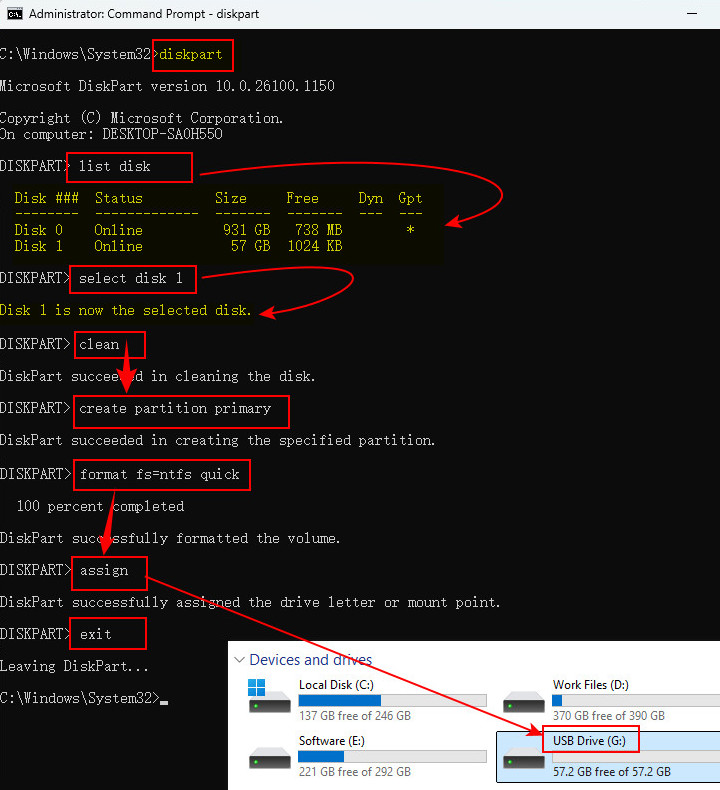
Method 4. 3rd-Party USB Formatting Utilities
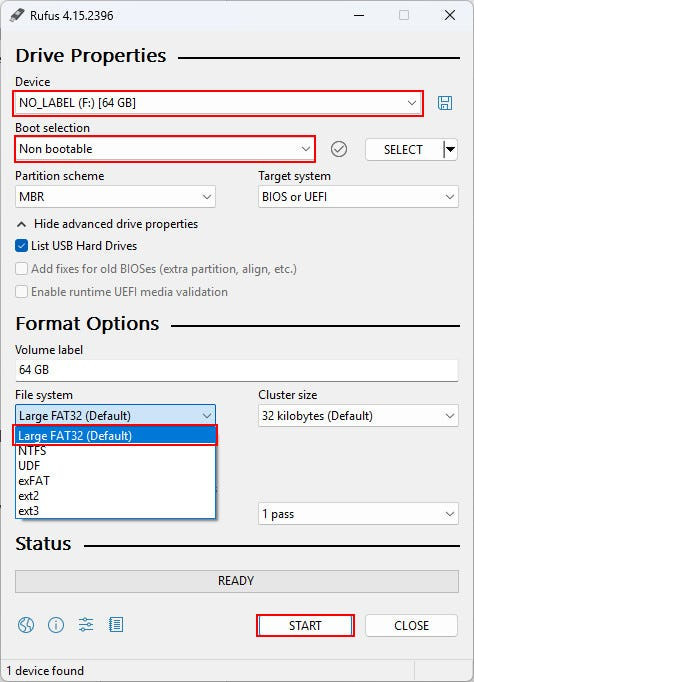
If Windows’ built-in tools do not provide the file system options you need, you can use a third-party USB formatting utility such as Rufus. This free USB formatter is helpful if you want to bypass the traditional 32GB FAT32 limitation to create a FAT32 partition on larger storage devices.
① Download Rufus from its official website:
② Insert your USB flash drive into your computer.
③ Open Rufus and select your drive under the Device section.
④ Choose Non bootable under the Boot selection option.
⑤ Select your preferred file system from the dropdown menu.
⑥ Keep the default cluster size unless you have specific compatibility requirements.
⑦ Click Start and confirm the warning that all data on the USB drive will be erased.
⑧ Wait for Rufus to format the USB drive.
Remember to open File Explorer to check that your formatted USB is usable.
In Conclusion
So, can you format a USB drive without losing data?
Yes, but not by formatting the drive itself while preserving the existing files. The safe approach is to back up or recover your important data first, then format the USB drive.
If the USB drive is accessible, copy your files to another storage location and verify the backup before formatting.
If the USB drive is inaccessible, RAW, Unallocated, corrupted, or Windows asks you to format it, do not format it immediately. Recover the important files first using the recommended RecoveryFox AI. You can run it to start a free scan and preview recoverable files before recovery:
After your data is safe, you can use File Explorer, Disk Management, DiskPart, or a trusted third-party utility to format the USB drive according to your needs.
Format a USB drive without Losing Data FAQs
Q 1. Can I format a USB drive without deleting files?
Not in the normal sense. Formatting a USB drive recreates or changes its file system and can make the existing files inaccessible. To avoid losing important data, back up or recover the files before formatting.
🔎 Related Readings: How to Format a Hard Drive on Windows: 3 Free Methods
Q 2. Does formatting a USB drive permanently delete everything?
It depends on the type of format and what happens afterward. If you run a quick format on your USB and perform a recovery immediately, your data may remain recoverable. But for a full format, the recovery chance decreases significantly.
🔎 Related Readings: Quick Format vs. Full Format: What’s the Difference and Can You Recover the Data?
Q3. Can I recover files after formatting a USB drive?
Yes, files may still be recoverable after a quick format and you have not written new data to it. Stop using the USB drive and scan it with reliable formatted recovery software as soon as possible.
Q4. What should I do if Windows says I need to format my USB drive?
Do not click Format if you have important files on the drive. The message can indicate a damaged or unreadable file system. Recover or back up the important data first, then format the USB drive.
Q5. How do I format a USB drive that is not showing up in File Explorer?
First, open Disk Management and check whether Windows detects the USB drive. If it appears there but has no drive letter, the problem may be related to the partition or drive letter. If it appears as RAW or Unallocated and contains important files, recover the data before attempting to format or repartition it.

A technical content writer for RecoveryFox AI at WonderFox Soft, creating clear guides on data recovery, storage technologies, and Windows troubleshooting. She specializes in simplifying complex technical topics and enjoys exploring technology, running, and discovering new experiences.





 English ^


