






 Free Download
 Windows


Problems like improper ejection, file system confliction, changes to file attributes, malware infections, or manual accidental deletion and wrong formatting, all could cause data loss on a USB flash drive.
That’s why we’ll show you how to recover lost or deleted files from a USB drive in this guide.
⚠️Before trying any of the following methods, please:
Stop using the USB flash drive immediately after your data is deleted or lost. Any new data written to the USB may overwrite the deleted files, significantly reducing the chance of successful recovery.
How to Recover Permanently Deleted Files from USB?
The best way to recover USB deleted files is with dedicated data recovery software, especially when you have no backups. The following two options are worth trying!
Method 1. RecoveryFox AI (🔥)
RecoveryFox AI can recover deleted files from a USB drive while preserving original names and folder structure whenever possible. With advanced scanning modes, it can also recover data from USB drives that have become RAW, unallocated, or formatted. It supports NTFS, exFat, FAT32, FAT16, XFS, HFS+, and all major file systems.
Best of all, it lets you scan and preview files for free before recovery. Follow these simple steps to recover deleted files from a flash drive:
Step 1. Connect your USB drive to a computer and run RecoveryFox AI.
Step 2. From the drive list, select the USB drive where your deleted files were stored and click it to start scanning.
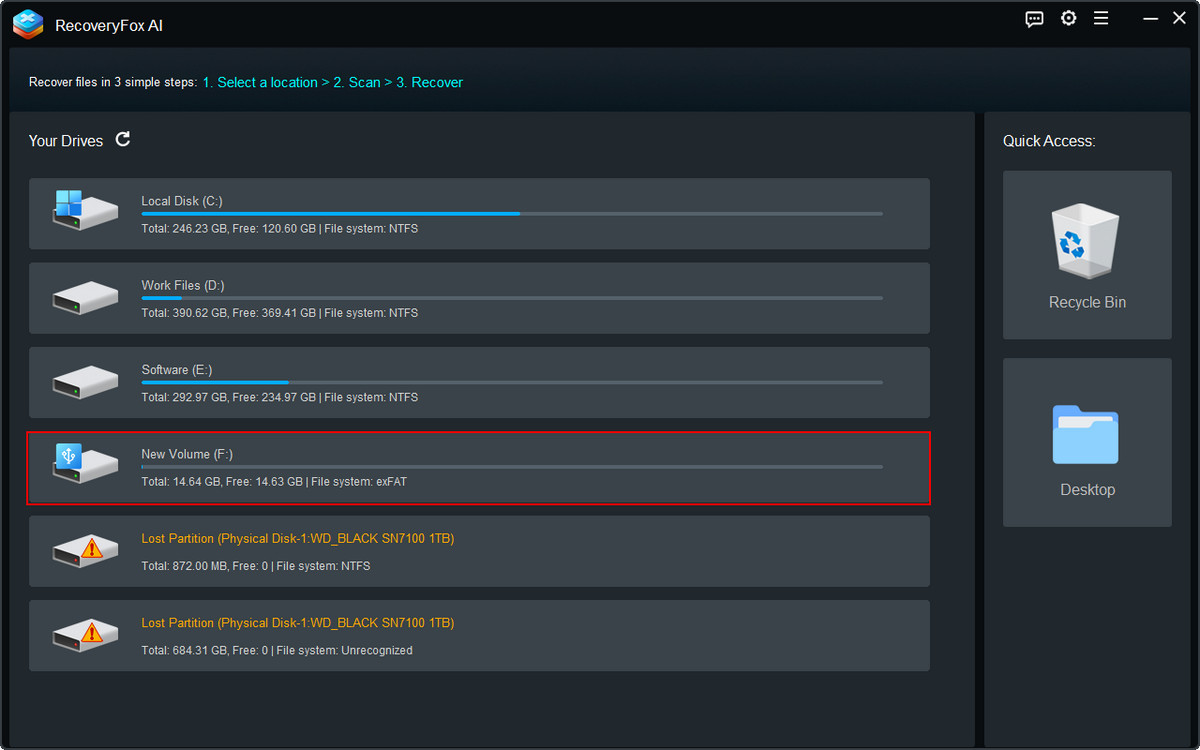
Step 3. RecoveryFox AI begins with Quick Scan. This mode is best for retrieving recently lost files caused by Shift+Delete, emptying the Recycle Bin, or other accidental deletion. These files can often be recovered with their original filenames and folder structure.
Once Quick Scan is complete, AI Scan follows automatically for a deeper and smarter analysis. This mode can recover data lost in more complex situations and reconstruct file fragments into complete files for better file integrity.
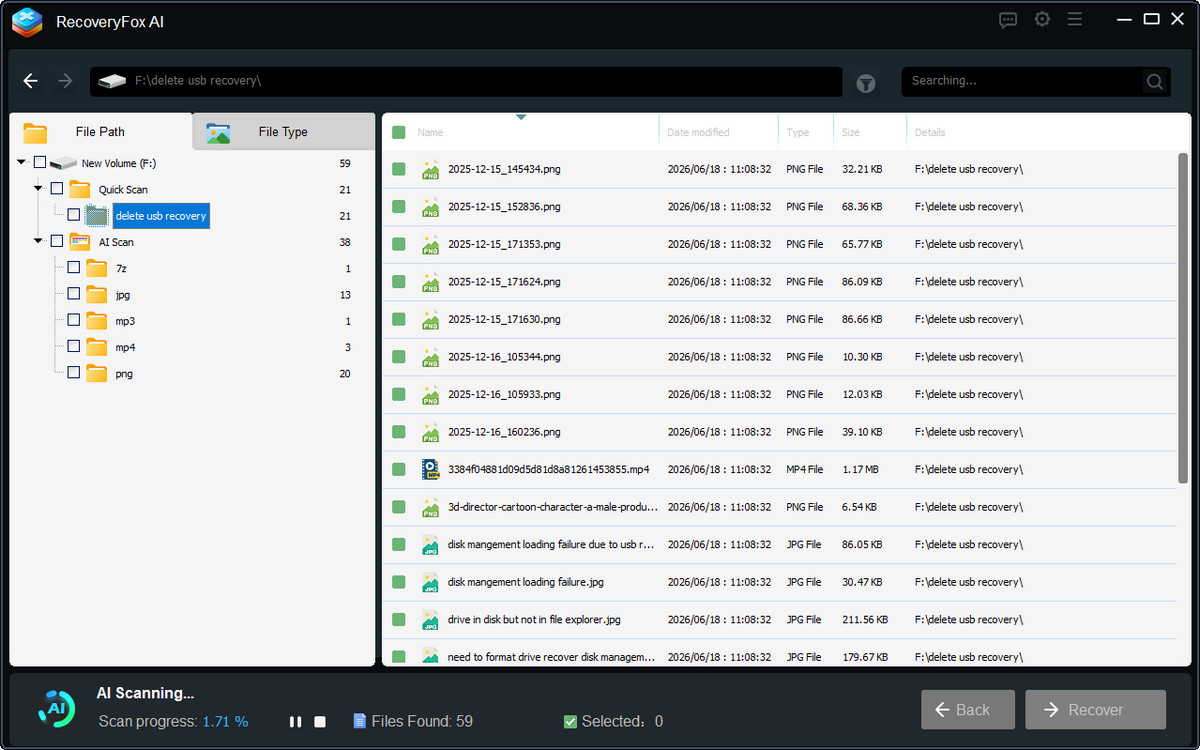
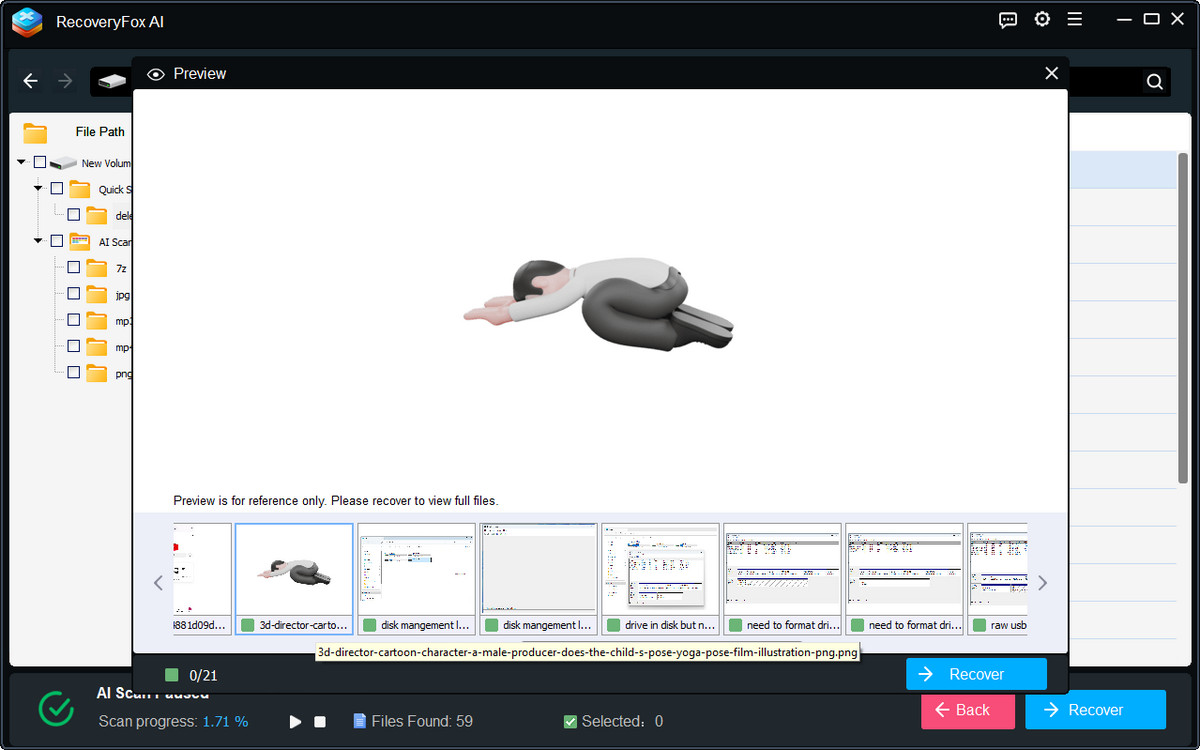
Step 4. You can browse the scan result list during scanning or, once the desired files are found, pause the AI Scan to preview their contents in detail.
RecoveryFox AI currently supports previewing common file types, including images, documents, camera photos, CAD drawings, and more.
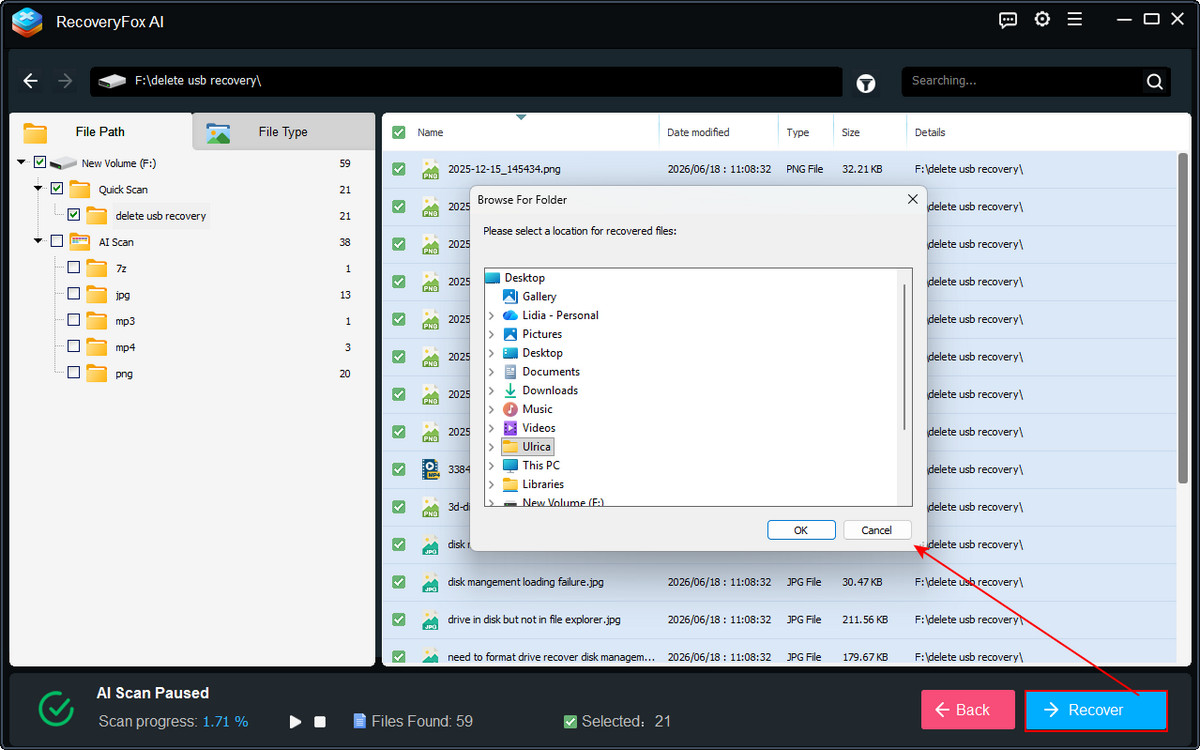
Step 5. Select the files you want to recover, click Recover, and choose a different drive or storage device as the destination to avoid overwriting recoverable data.
Method 2. Windows File Recovery
If you’re using Windows 10 or 11 and prefer a free, secure USB data recovery tool, Windows File Recovery is another good choice. Although it relies on command-line operations and isn’t intuitive as third-party recovery programs, it can recover deleted files from USB flash drives, SD cards, hard drives, and other storage devices.
Here is how to recover deleted files from your USB drive on Windows:
Step 1. Download and install Windows File Recovery from the Microsoft Store. Then directly launch it from here.
Step 2. Inside the command window, you can find a simple instruction sheet explaining the command syntax, available modes and switches, and examples commands.
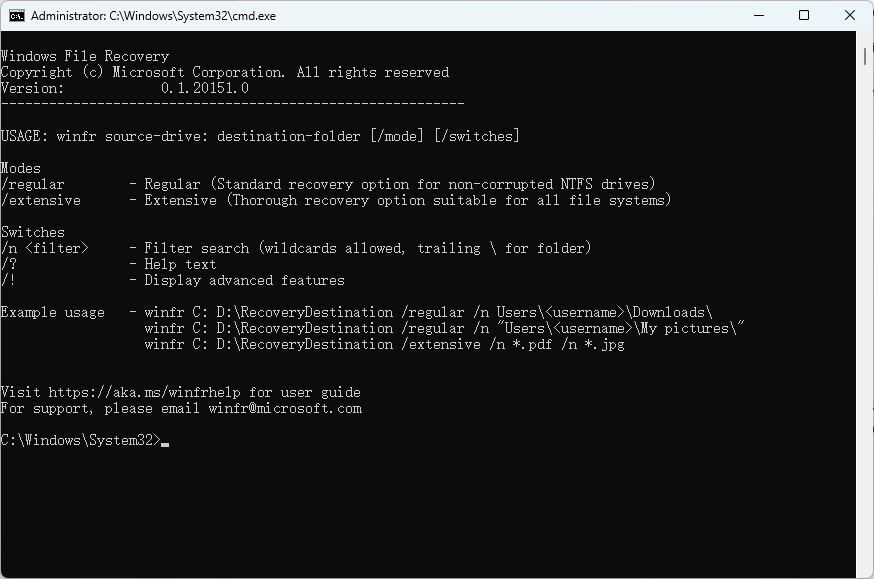
Step 3. To recover all deleted files from a flash drive, run the following command and press Enter.
winfr F: D: /regular
If your USB drive is formatted with a non-NTFS file system, such as exFAT or FAT32, replace “/regular” with “/extensive”.
Step 4. Before proceeding, double-check your recovery settings and make sure you choose a different location to save the recovered files.
Then simply press “Y” to begin the recovery process.
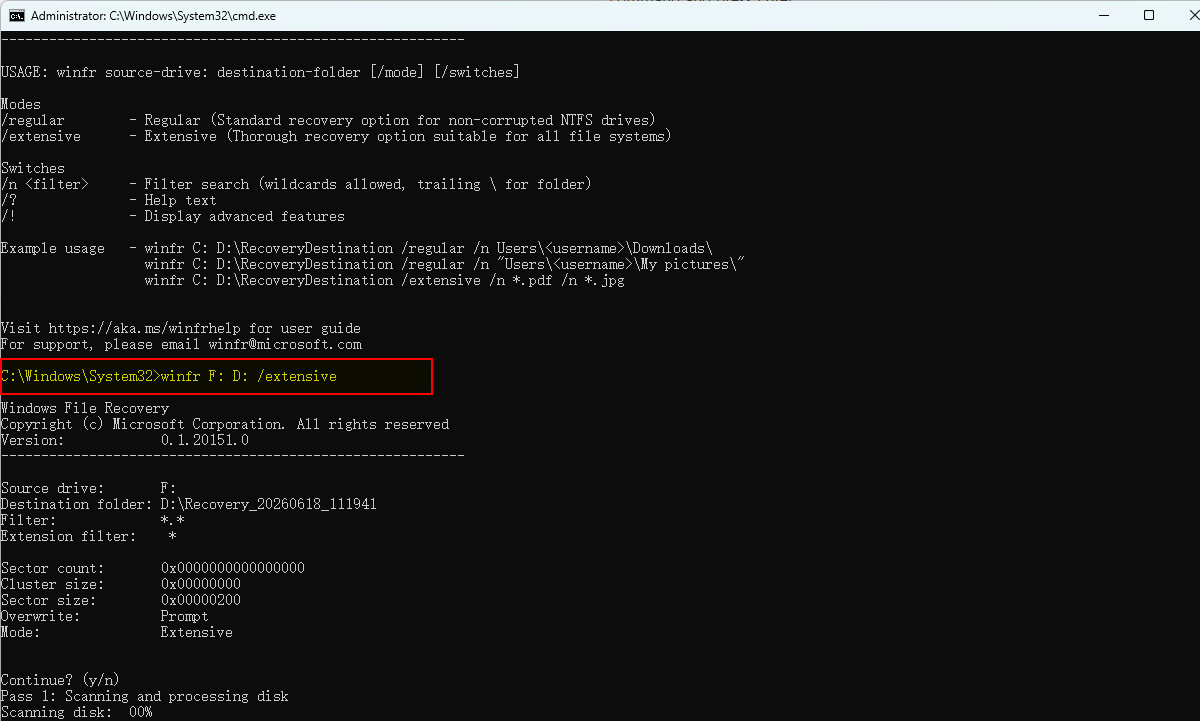
📢 By using different filter options, you can narrow down the recovery results as needed. If you want to get the most out of this tool, don’t miss this in-depth guide on using Windows File Recovery to recover files efficiently in different recovery scenarios: 👉 Windows File Recovery: How to Recover Files for Free on Windows
Part 2. How to Recover Deleted Files from USB Without Software?
If you don’t want to install third-party software, check whether your deleted USB files can be restored from a Windows backup.
If File History was enabled before the files were deleted, Windows may have created backup versions that you can restore through Previous Versions. Although File History is primarily designed for files stored on internal drives, it can also back up external drives when configured manually.
Step 1. Connect the USB flash drive to your computer.
Step 2. Open File Explorer and locate the folder where the deleted files were originally stored.
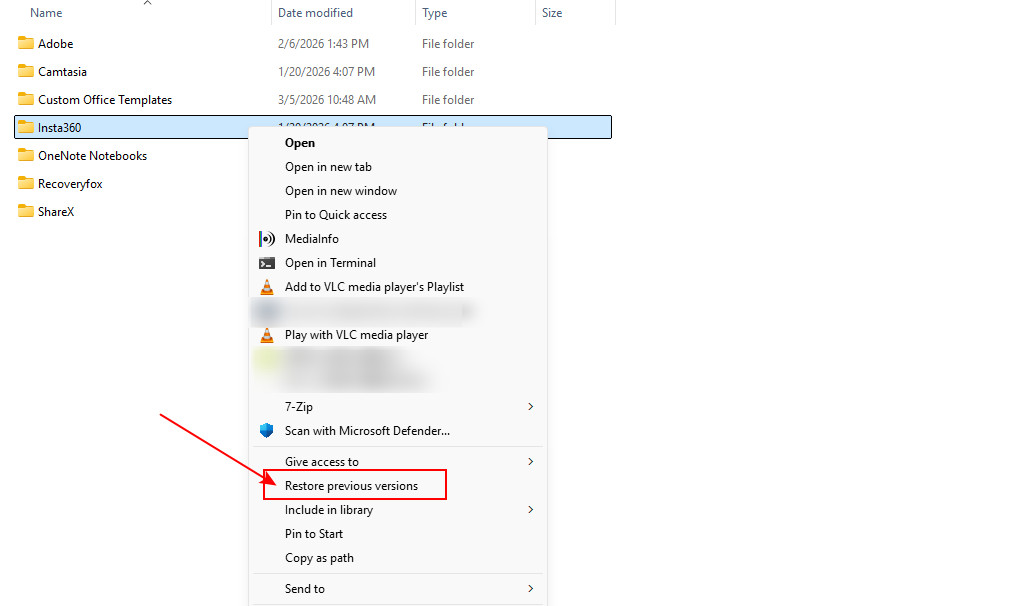
Step 3. Right-click the folder and choose “Restore previous versions”.
Step 4. If available, select a version that contains your deleted files and click “Restore”.
Alternatively, if the “Open in File History” option is available, you can preview the deleted files first and then restore the version you need.
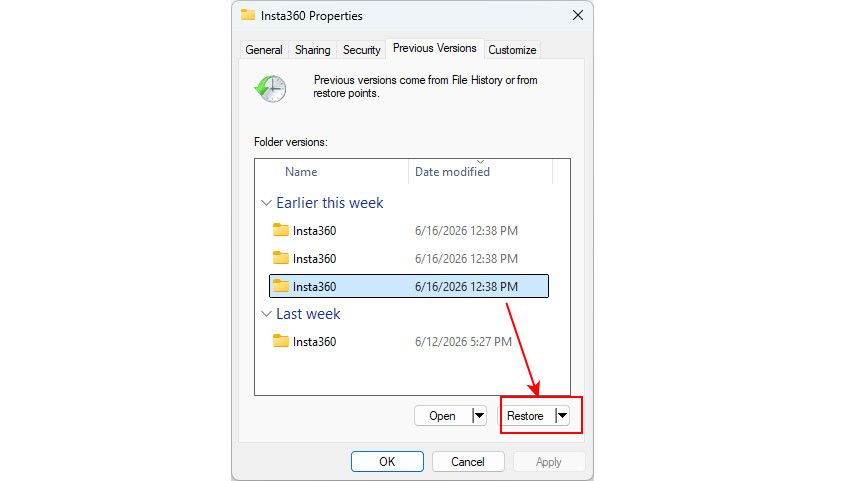
❗Note: This method only works if Previous Versions were created before the files were deleted. If no restore point or File History backup exists, Windows will return “There are no previous versions available”.
In Conclusion
Accidentally deleting files from a USB drive doesn’t necessarily mean they’re gone forever. Whether the files were permanently deleted, or lost after formatting or file system corruption, there’s still a good chance they can be recovered.
The key is to stop using the USB drive as soon as data loss occurs and begin recovery immediately before the deleted files are overwritten.
Start by checking whether Previous Versions or another backup is available. If you don't have a backup, dedicated data recovery software like RecoveryFox AI can help maximize your chances of successful recovery.
Recover Deleted Files from USB FAQs
Q 1. Can permanently deleted files be recovered from a USB drive?
Yes. Permanently deleted files are often recoverable as long as they haven’t been overwritten by new data. To maximize the chances of recovery, stop using the USB immediately and perform recovery as soon as possible.
Q 2. How can I recover permanently deleted data from a pen drive?
Files deleted directly from a flash drive usually bypass the Recycle Bin because removable storage devices don’t use the Windows Recycle Bin by default. As a result, pressing the Delete key on a USB typically removes the file immediately.
But your data may still be recoverable. When files are deleted, they usually remain on the pen drive until new data overwrites the storage space. The sooner you stop using the drive and run a scan with professional data recovery software like RecoveryFox AI, the better your chances of recovering deleted files.
Q 3. Can I recover deleted files from a corrupted USB drive?
If the corruption is logical, the USB flash drive may no longer appear in File Explorer but can still be detected in Disk Management. In this situation, you can often recover lost files using professional data recovery software. However, if the drive is not recognized at all or has suffered physical damage, you may need assistance from a professional data recovery service.

A technical content writer for RecoveryFox AI at WonderFox Soft, creating clear guides on data recovery, storage technologies, and Windows troubleshooting. She specializes in simplifying complex technical topics and enjoys exploring technology, running, and discovering new experiences.





 English ^


