






 Free Download

 Windows


Someone help me.🙏🙏. I mistakenly deleted a folder from my PC from the desktop by Shift + delete button. In which very important documents Xls, pdf and docs were there. I used Windows 11 I HP for the 8th generation. Now how can I restore the folder. Plz”
— A Facebook user
If you’re facing a similar data loss situation, you’re not alone. Whether you deleted a folder using Shift + Delete, emptied the Recycle Bin, or deleted data from a USB drive or SD card, your files may remain on the storage device until they are overwritten.
To avoid overwriting recoverable data, minimize activity on the affected drive and avoid saving new files or recovered data to it.
Before choosing a recovery method, identify how the folder was deleted and whether a backup is available. Use the table below to find the best place to start.
| How You Deleted a Folder | Recommended Methods |
| Press the “Delete” key | 🔸 Restore it from the Recycle Bin 🔸 Try Undo Delete (Ctrl + Z) |
| Use Shift + Delete or emptied the Recycle Bin. | 🔸 RecoveryFox AI 🔸 Windows File Recovery |
| Delete a folder from a USB drive or SD card. | |
| File History or another backup was enabled before deletion. | 🔸 Use File History or your available backup. |
| The folder was synced with OneDrive. | 🔸 Check the OneDrive Recycle Bin |
⚠️ If the deleted folder was stored on an SSD with TRIM enabled, recovery may be difficult or even impossible. TRIM allows Windows to notify the SSD that deleted data blocks are no longer needed, allowing the drive to erase them in the background. Once the data has been erased, data recovery software may not be able to restore the files. Therefore, stop using the affected SSD as soon as possible to avoid reducing your chances of recovery.
How to Recover a Permanently Deleted Folder in Windows?
In this section, we’ll explore two professional data recovery solutions and see how effectively they can recover permanently deleted folders.
# Recover Permanently Deleted Folders Using RecoveryFox AI (🔥)
RecoveryFox AI is a powerful data recovery tool that helps you recover permanently deleted folders on Windows. It is user-friendly and supports recovering files from the Windows desktop, an internal drive, and various external storage devices.
One of RecoveryFox AI’s standout features is its scanning capability. Quick Scan helps locate recently deleted files and folders, often preserving their original names and folder structure when the necessary file system information is still available. For files deleted long ago, its AI-powered scan is designed to improve recovery chances by identifying recoverable data and reconstructing fragmented files whenever possible.
Now, follow these steps to recover your deleted folder in Windows:
⚠️ Before You Begin
If the folder was deleted from your system drive, avoid unnecessary activity on that drive. Installing or downloading recovery software to the affected drive may overwrite data you want to recover. If possible, connect the affected drive to another computer as a secondary drive and run the recovery tool from there.
Step 1. Open RecoveryFox AI and select the drive that originally contained the deleted folder.
If the deleted folder was on your Windows Desktop or you emptied the Recycle Bin, select the corresponding Desktop or Recycle Bin tab here to start scanning.
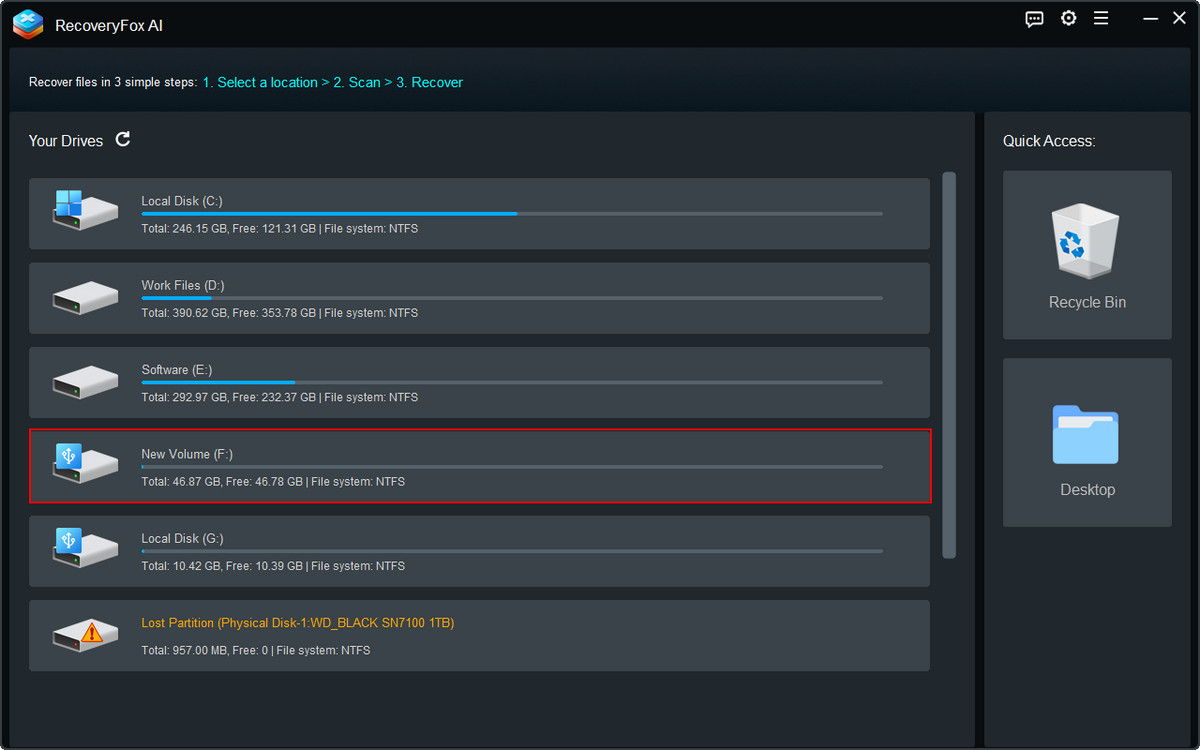
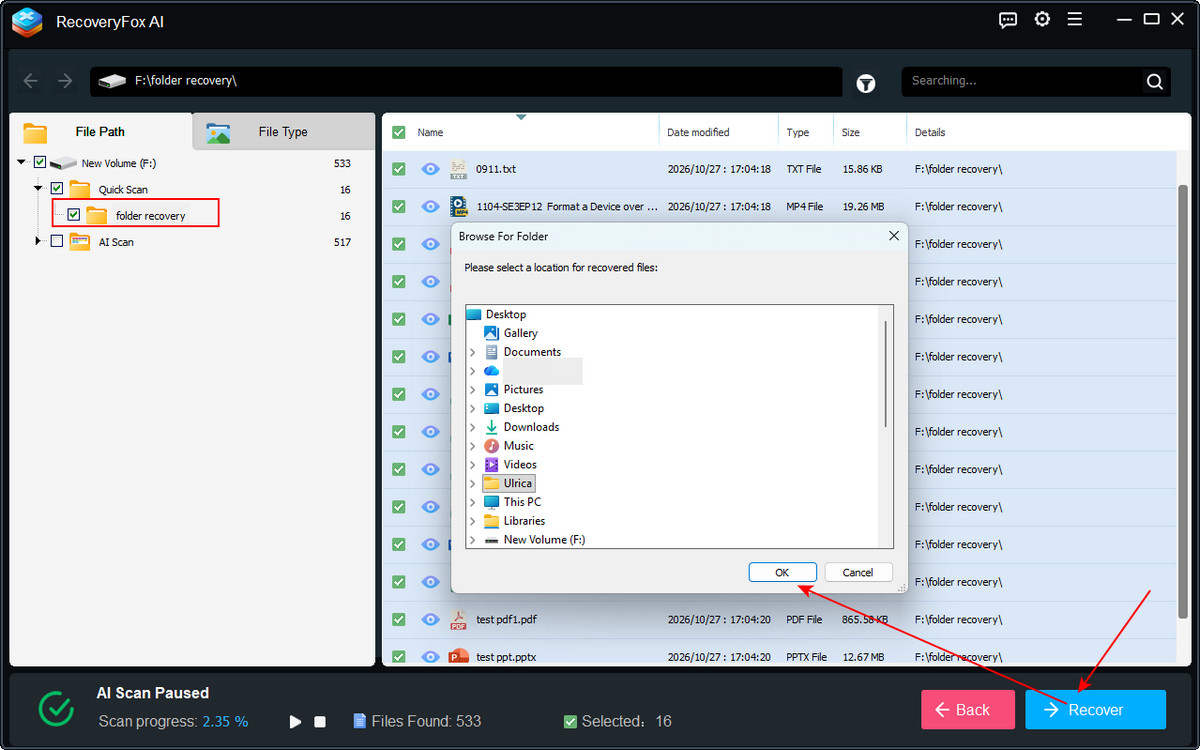
Step 2. For the best results, let the scan complete. You can browse the scan results while the AI Scan is in progress.
First, expand the Quick Scan folder under the File Path tab to check whether the whole deleted folder can be found with its original name and folder structure intact.
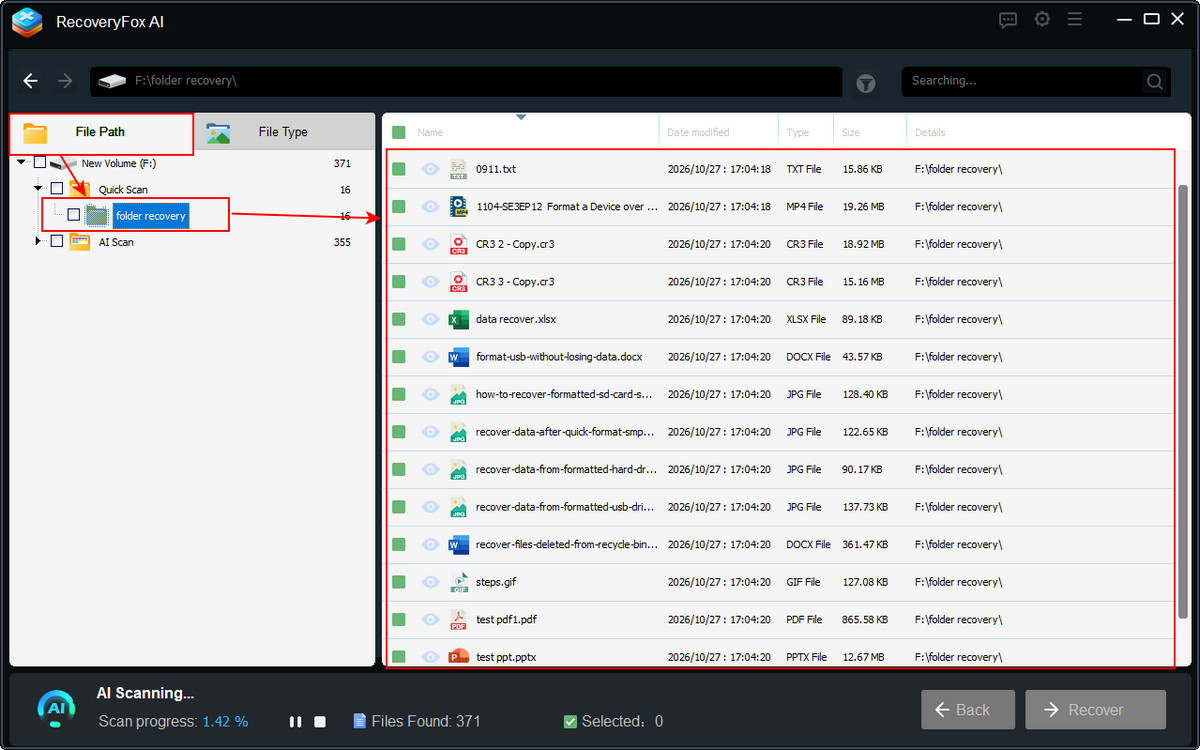
For folders that were deleted a long time ago, the original file system metadata may no longer be available. In this case, you can switch to the File Type tab to locate recoverable files by category, such as images, documents, and videos.
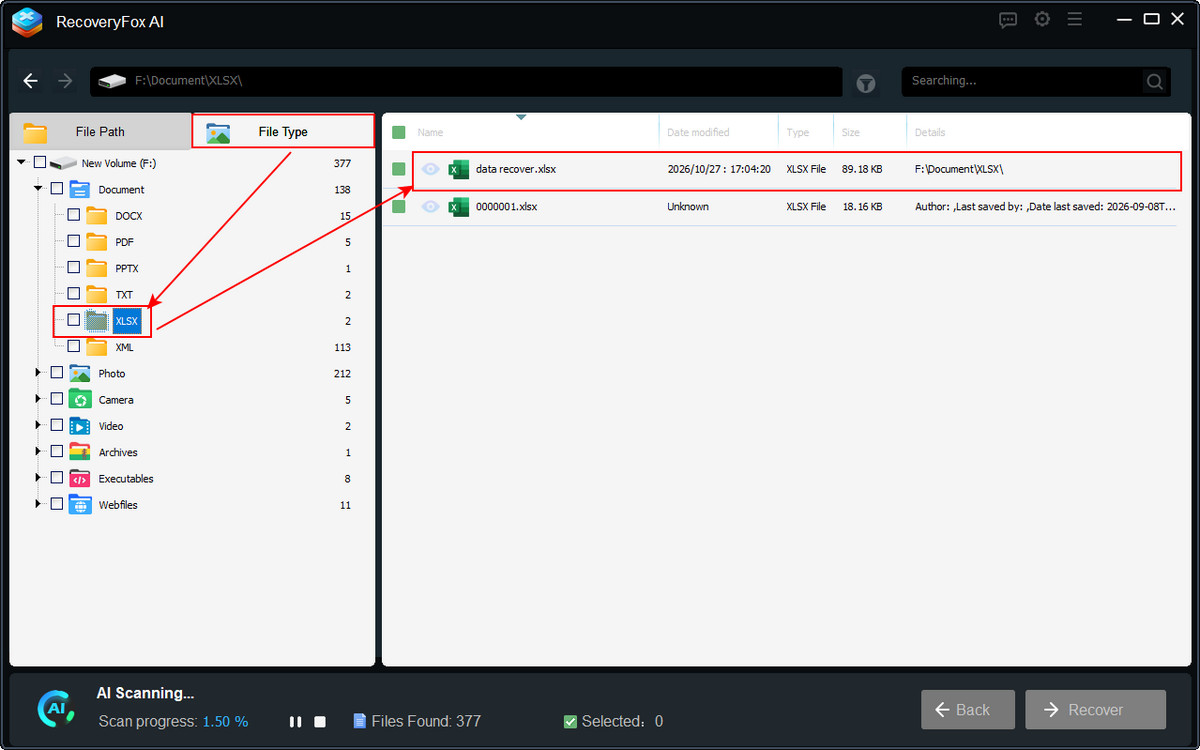
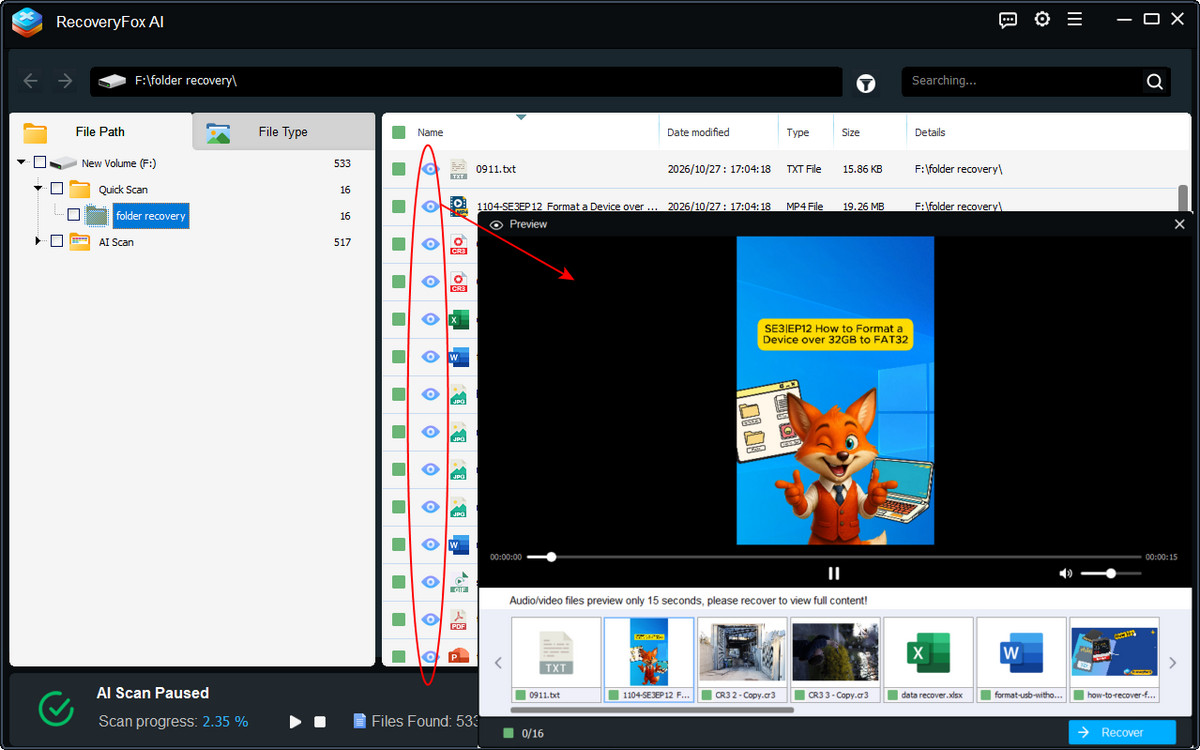
Step 3. You can wait for the scan to finish or pause the AI Scan to preview the results in more detail.
Click the eye icon next to a file to open the Preview window and check its contents before recovery.
Step 4. Select the files you want to restore and choose a different drive or another safe location as the recovery destination.
Do not save recovered files back to the affected drive, as doing so could overwrite other recoverable data.
Prefer a Video Tutorial? 🎬 Watch How to Recover a Deleted Folder in Windows 11 Here 👇
# Recover Deleted Folder in Windows 10/11 Using Windows File Recovery
Microsoft offers a free tool called Windows File Recovery. It helps recover shift-deleted files from NTFS, exFAT, and FAT file systems. However, the tool runs through Command Prompt and requires you to enter commands manually, which may be challenging for beginners. If you prefer a free solution and are comfortable using command-line tools, it is worth trying.
Step 1. Download and install Windows File Recovery from the Microsoft Store.
Step 2. Launch the tool. In the Command Prompt window, enter a command using this format:
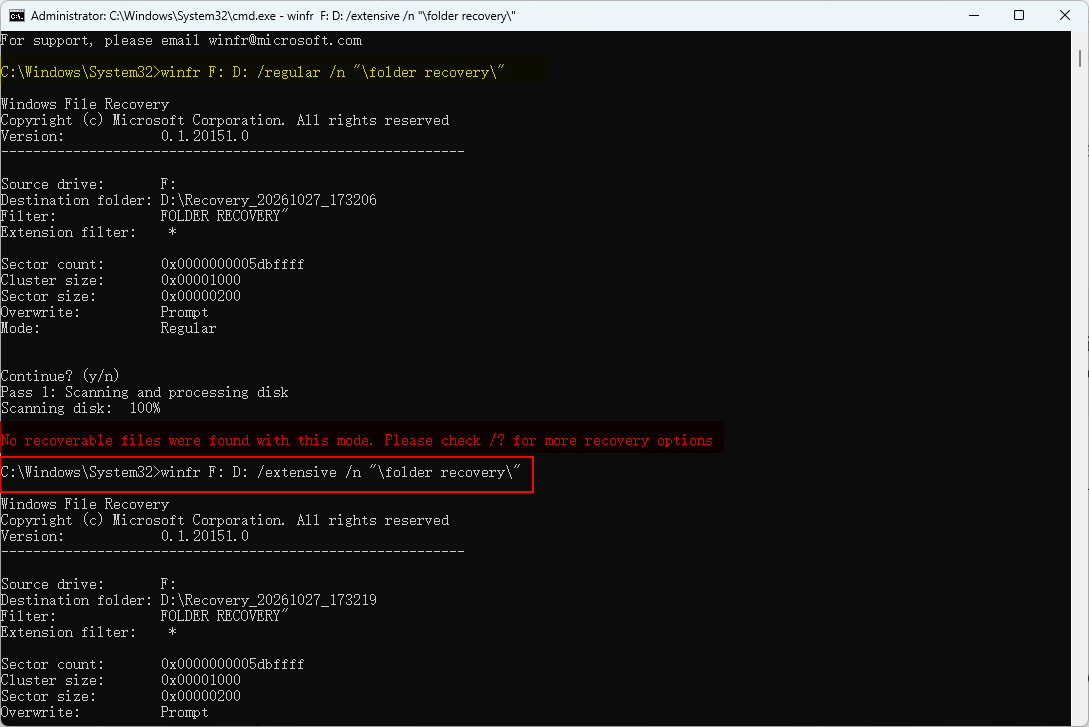
winfr source-drive: destination-drive: /mode /switchFor example, if the deleted folder was located on the Drive F: and you want to recover its files to drive D:, use the following command, replacing [folder recovery] with your actual folder’s name:
winfr F: D: /regular /n "\folder recovery\"If Regular mode does not find your files, or if the files were stored on a FAT or exFAT drive, try Extensive mode instead:
winfr F: D: /extensive /n "\folder recovery\"📚 Regular mode is recommended for recently deleted files on healthy NTFS drives. Extensive mode is recommended for files deleted some time ago, formatted or corrupted NTFS drives, and FAT or exFAT drives.
Step 3. Then, press “Y” to confirm the operation. Press Enter to start scanning and recovering files.
Step 4. Once the recovery completes, press “Y” to open the destination drive. Windows File Recovery automatically creates a folder named Recovery_ < date-time > to store the recovered files.
Check this folder to see whether your deleted files have been recovered successfully.
💡Windows File Recovery is a useful free option in simple recovery cases, particularly when used soon after deletion. For more information about command examples, see the official support page.
How to Recover a Deleted Folder in Windows 11/10 without Software?
When you delete a folder using the standard Delete key, Windows usually moves it to the Recycle Bin, where you can restore it if needed. Besides this, you can also try the following methods.
Method 1. Undo a Recent Folder Deletion in File Explorer
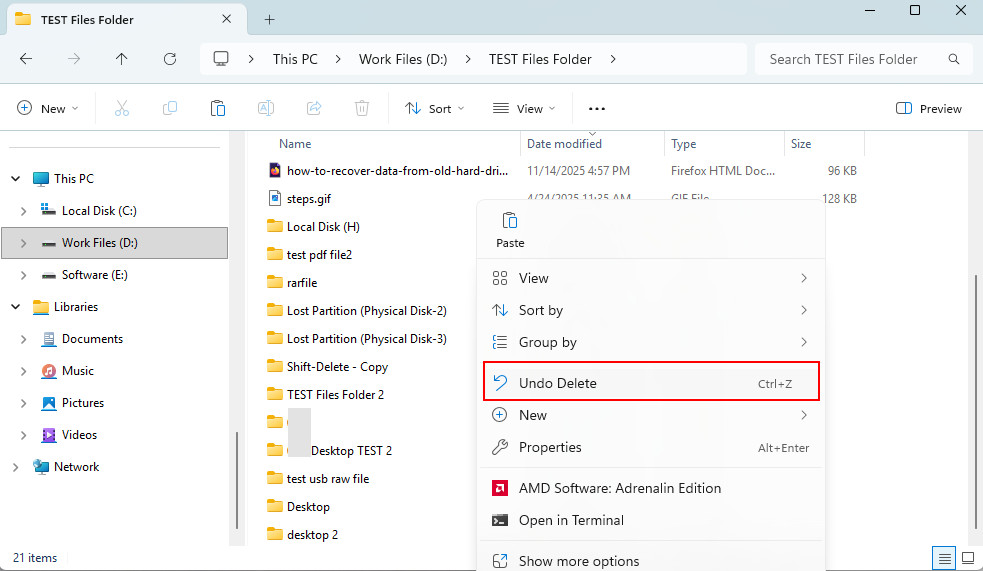
Windows File Explorer includes an Undo Delete option that lets you reverse a recent deletion and restore the folder to its previous location. If you have just deleted a folder, this can be a quick alternative to opening the Recycle Bin.
Here is how to recover a deleted folder in File Explorer easily:
Step 1. After deletion, right-click an empty area in the file location where you deleted the folder.
Step 2. Select “Undo Delete” from the context menu.
Alternatively, you can immediately press Ctrl + Z to invoke the undo deletion operation.
Method 2. Restore a Deleted Folder Using File History
File History is a built-in Windows backup feature that automatically saves copies of your personal files in selected locations. If File History was enabled and had backed up the folder before it was deleted, you may be able to restore a previous copy.
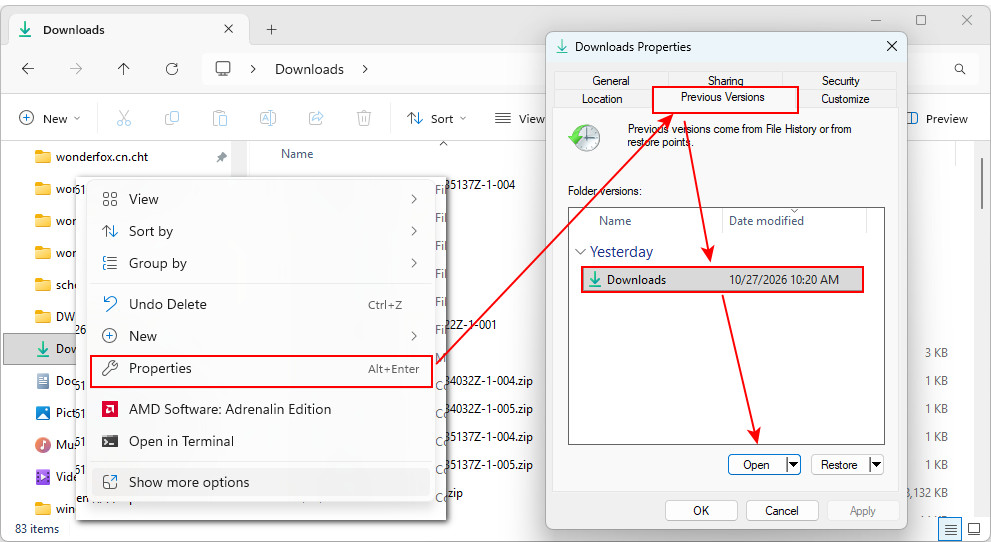
Here is how to access and restore available backup copies of your lost folder through the Previous Versions tab using File History:
Step 1. Right‐click the drive or location that previously stored the deleted folder.
Step 2. Choose “Properties” from the context menu and click “Previous Versions”.
Or, go to Show more options > Restore previous versions.
Step 3. If previous versions are available, select a version that contains the folder you want to recover and click Restore.
If available, you can also choose “Open in File History” to inspect its contents before restoring it.
📚 By default, File History backs up your personal files in Library folders (Documents, Music, Pictures, and Videos), Desktop, Contacts, and Favorites. For more details on configuring and using File History, visit the official Microsoft support page on File History.
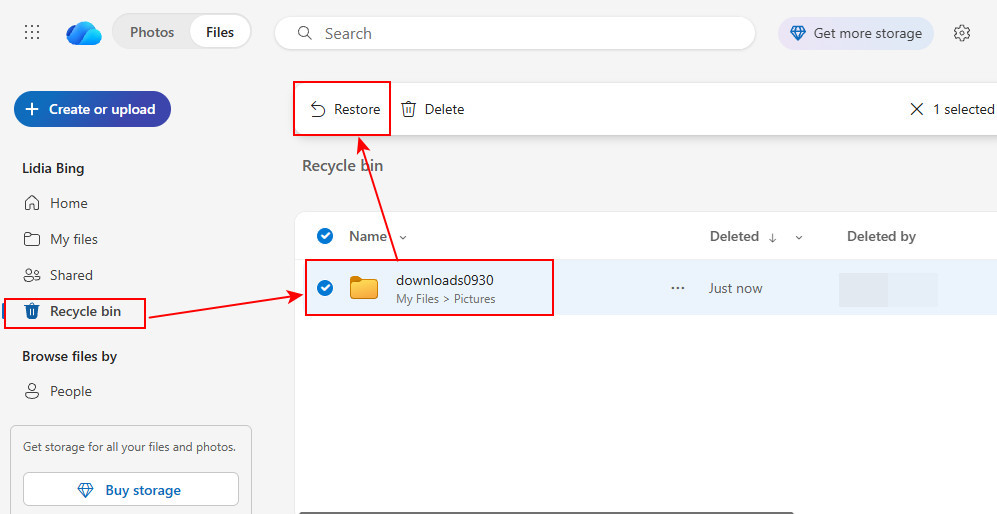
Method 3. Restore a Deleted Folder from OneDrive Recycle Bin
Did you permanently delete a folder that was synced with OneDrive? Even if the folder disappears from your computer, a copy may still be available in the OneDrive online Recycle Bin.
However, files deleted from OneDrive are retained only for a limited period, depending on your account type and organizational settings. Check the Recycle Bin as soon as possible.
Here is how to recover the deleted folder from the OneDrive Recycle Bin online:
Step 1. Open OneDrive and sign in with the Microsoft account associated with your files.
Step 2. Select Recycle bin from the left navigation pane.
Step 3. Locate the deleted folder, select it, and click Restore. If necessary, you can also select and restore individual files.
Step 4. The restored folder or files will be saved to their original locations in OneDrive.
Conclusion
With the methods mentioned above, whether you have backups or not, you can find a way you prefer to recover a deleted folder in Windows 11 or 10.
For permanently deleted folders and other data loss situations, RecoveryFox AI is worth considering. It can recover deleted files from USB flash drives, SD cards, hard drives, and other storage devices. You can run a free scan and preview recoverable files before deciding what to restore.
Recover Deleted Folder in Windows 11/10 FAQs
Q 1. How do I recover a folder I accidentally deleted in File Explorer?
If you deleted a folder using the Delete key, restore it from the desktop Recycle or press Ctrl + Z in File Explorer to undo the deletion. If you used Shift + Delete or emptied the Recycle Bin, check your backups first. If no backup is available, try a data recovery tool such as RecoveryFox AI.
Q 2. How can I recover deleted files that are not in the Recycle Bin on Windows 11?
Check File History, other available backups, or OneDrive’s online Recycle Bin if your files were synced. If no backup is available, try a data recovery tool such as RecoveryFox AI or Windows File Recovery. Stop using the affected drive as much as possible to reduce the risk of overwriting recoverable data.
Q 3. Can I recover a deleted folder in Windows 11 without software?
Yes. You can restore the folder from the Recycle Bin, recover it from File History, or use an existing backup. If the folder was permanently deleted and no backup is available, you may need data recovery software.
Q 4. How do I recover a deleted folder from the desktop in Windows 11?
First, check the Recycle Bin and restore the folder if it is there. If your Desktop is synced with OneDrive, check the OneDrive online Recycle Bin as well. If neither option works, try restoring a backup or scanning the affected drive with RecoveryFox AI, which supports recovery from the Desktop.
Q 5. Can I recover a deleted folder in Windows 11 after formatting a drive?
Yes, recovery may be possible after formatting a drive, especially after a quick format if no new data has been written. Stop using the drive and try a robust formatted data recovery tool such as RecoveryFox AI. Recovery is not guaranteed, particularly after a full format or when SSD TRIM has erased the deleted data.

A technical content writer for RecoveryFox AI at WonderFox Soft, creating clear guides on data recovery, storage technologies, and Windows troubleshooting. She specializes in simplifying complex technical topics and enjoys exploring technology, running, and discovering new experiences.





 English ^


