






 Free Download

 Windows

“How can I recover a power point presentation I delete by mistake?”
- A user case from Microsoft Community.
“Possessed or what not, clicked not save when exiting ppt. How do I get my file back?”
- A user case from Reddit.
If you’ve encountered a similar problem and lost an important PowerPoint presentation, this guide can help you identify the most suitable recovery method. Whether your PPT or PPTX file was accidentally deleted, lost after a system crash, overwritten by unwanted changes, or left unsaved when you closed PowerPoint, the right approach depends on your specific situation.
Use the table below to find the recovery method that best matches your case.
| Scenarios | Recommended Methods |
| Accidentally deleted a PowerPoint file by pressing Delete | 🔸 Restore from the Recycle Bin |
| Permanently deleted a PowerPoint file with Shift + Delete, or emptied the Recycle Bin | 🔸 Check backups and Previous Versions if available; 🔸 Use robust document file recovery software 🔸Try Windows File Recovery, a free, command-based data recovery utility |
| Formatted a drive containing PowerPoint files | |
| Overwrote a PowerPoint file with another file using the same name | |
| A drive appears as RAW or unallocated, or a partition is missing | |
| Deleted a PowerPoint file stored in OneDrive | 🔸 Check the OneDrive Recycle Bin |
| Lost unsaved PowerPoint changes after an unexpected shutdown | 🔸 Reopen PowerPoint and check the Document Recovery pane; 🔸 Try Recover Unsaved Presentations and the AutoRecover folder location |
| Closed a new presentation without saving, or selected Don't Save | 🔸 Try Recover Unsaved Presentations and the AutoRecover folder location |
| Overwrote an existing presentation or saved unwanted changes | 🔸 Check Version History |
| Cannot open a PowerPoint file because it is corrupted | 🔸 Try PowerPoint’s “Open and Repair” feature 🔸Restore a healthy copy from Previous Versions or Backups |
| Lost PowerPoint files on a physically damaged drive | 🔸 Stop using the drive and consult a professional data recovery service . |
How to Recover Deleted PowerPoint Files on Windows?
For deleted PowerPoint presentation files, always check the Recycle Bin first. If your file is no longer there, you can proceed with the following methods to recover permanently deleted or lost files on Windows.
⚠️ Before you begin, avoid saving new files to the drive where your PowerPoint presentations were stored, as new data may overwrite the deleted files and reduce the chances of recovery. The sooner you start the recovery process, the higher your chances of recovering your files.
Method 1. Recover Permanently Deleted PowerPoint Files with RecoveryFox AI
RecoveryFox AI helps recover various documents, including PowerPoint files, from a wide range of storage devices. It features advanced scanning algorithms and supports major file systems, including FAT12/16, EXT2/3/4, XFS, HFS+, APFS, and more. You can also use it to recover data from drives that appear as RAW or unallocated.
Another useful feature is its file preview capability. You can scan for lost PowerPoint files and preview formats such as .ppt, .pptx, and .ppsx before recovery.
Download this data recovery tool to start a free scan and preview:
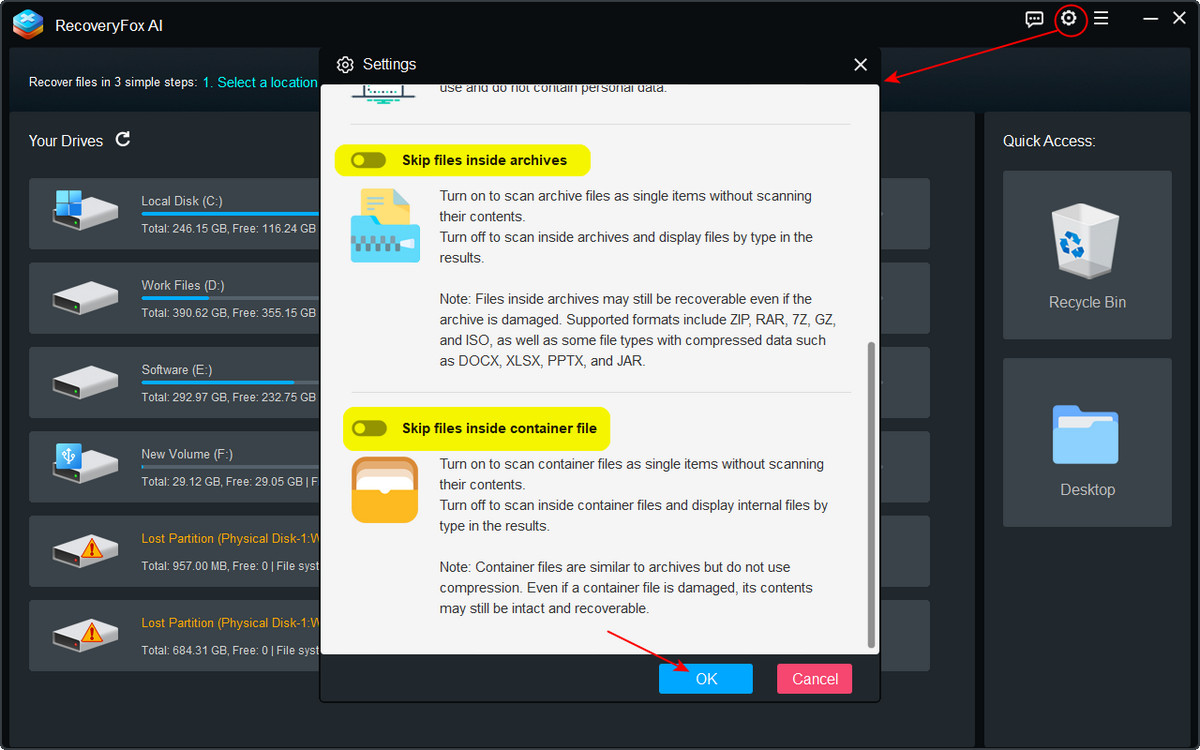
Step 1. Launch RecoveryFox AI. Click the gear icon in the upper-right corner to open Recovery Settings.
Scroll down to find these options:
Skip files inside archives
Skip files inside container files
For archive and document file recovery, it's recommended to uncheck these options so the software can scan for and display more potentially recoverable files.
You can also adjust other settings as needed, then click OK to apply your changes.
Step 2. From the drive list, select the drive where your deleted PowerPoint file was stored and click it to start scanning.
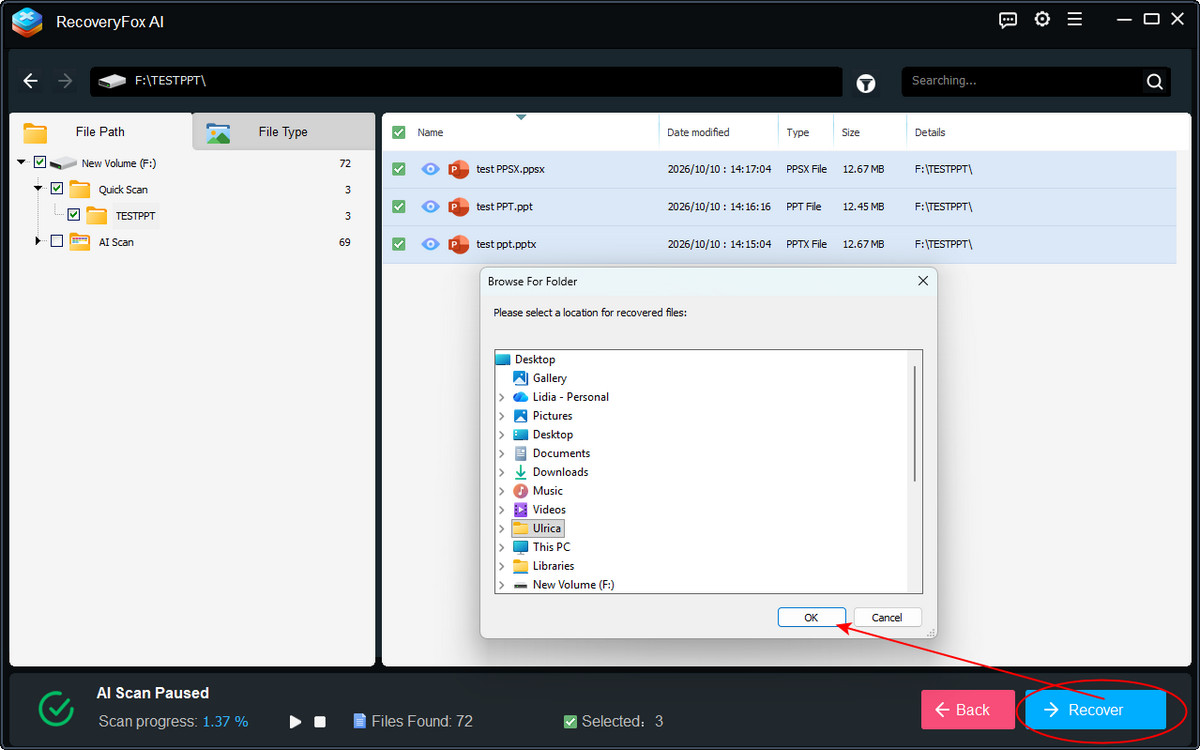
You can wait for the scan to finish while viewing results in real time. Alternatively, you can pause the AI Scan and preview the files found so far in detail.

Step 3. Once the scan is complete, use the file-type filters, keywords, modification date, and file size to locate your missing presentation.
Click the eye icon to preview the PowerPoint slides and check whether they contain the data you need.

Step 4. Select the PowerPoint files you want to recover and click Recover.
Save the recovered files to a different drive or storage location rather than the source drive.
After recovery, open the presentation in PowerPoint and check whether the slides and content are intact.
Method 2. Recover Deleted PowerPoint Files with Windows File Recovery
Windows File Recovery is Microsoft's command-line utility for recovering deleted files from local storage devices with recognized file systems, such as NTFS, exFAT, and FAT32. It may help recover a PowerPoint presentation that has been permanently deleted or is no longer available in the Recycle Bin.
👉 Here is how to try recovering PowerPoint files with Windows File Recovery:
Step 1. Download and install Windows File Recovery from the Microsoft Store.
Step 2. Prepare a separate destination drive with enough free space to store recovered files.
Step 3. Open Windows File Recovery as an administrator, then use the command format:
winfr source-drive: destination-drive: [/mode] [/switches]For example, to search for PowerPoint files on drive F: and save recovered results to drive D:, you can try:
winfr F: D: /regular /n *.pptx /n *.pptThis example searches for files matching the .pptx and .ppt extensions using Regular mode.
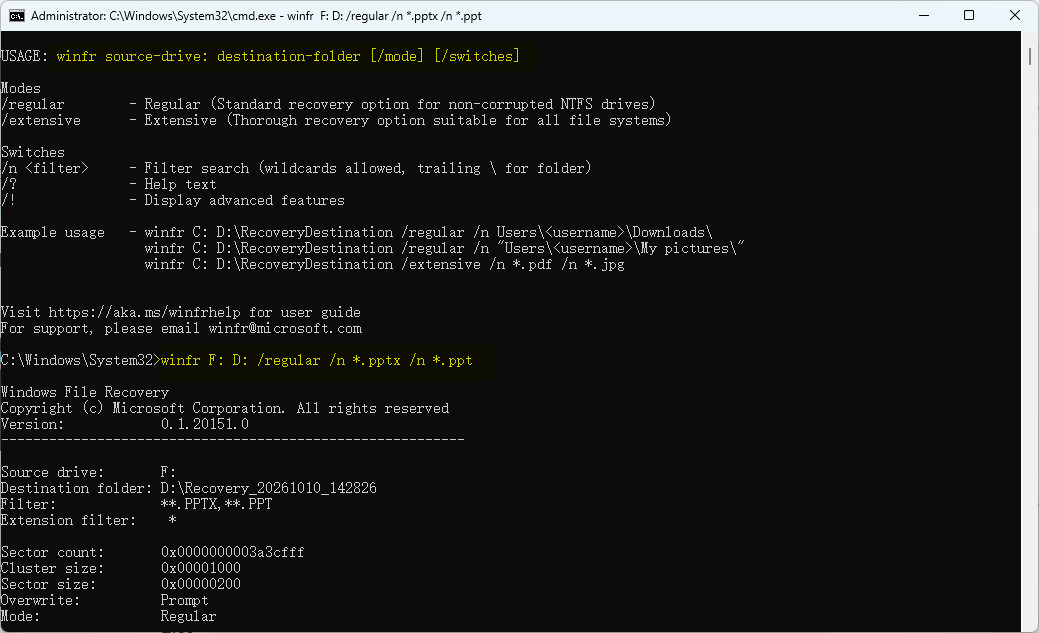
The Regular mode is intended for recently deleted files on a healthy NTFS drive. If this mode does not find the files, or if the source uses FAT or exFAT, try Extensive mode, which supports more file-system and data-loss scenarios.
winfr F: D: /extensive /n *.pptx /n *.pptPress Enter > Y to start the recovery operation.
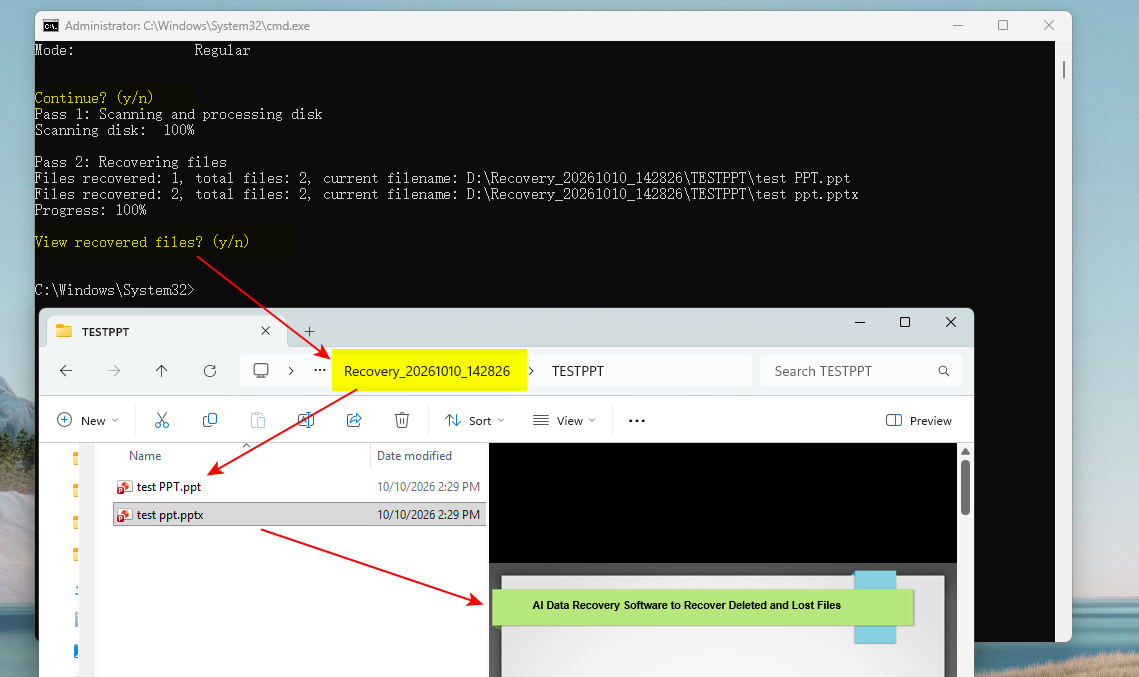
Step 4. After the scan reaches 100%, press “Y” to open the destination folder.
The recovered files are usually saved in a folder named in this format:
Recovery_[date-time]
Method 3. Recover PowerPoint Files from Previous Versions
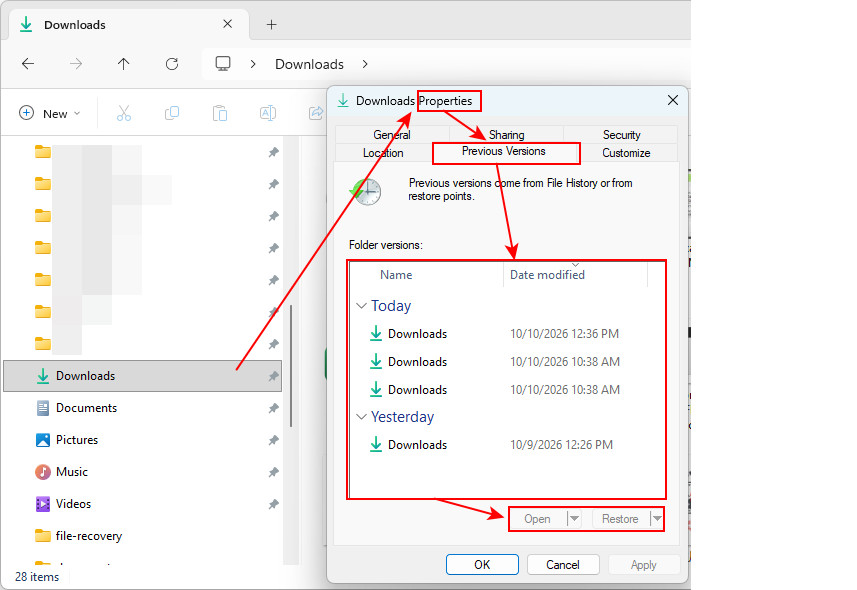
If you deleted or overwrote a PowerPoint presentation and had previously enabled File History and configured the folder containing your PowerPoint files as a backup source, you may be able to restore an earlier copy using Previous Versions. Here's how:
Step 1. Open the drive or folder that previously contained the deleted PowerPoint presentation.
Step 2. Right-click the folder and select Properties.
Step 3. Go to the Previous Versions tab and check whether any backups or earlier versions are available.
Step 4. Select a version dated before the presentation was deleted or overwritten.
If available, choose “Open in File History” to view the contents before restoring anything, or use “Restore to” to save the version to a different location.
Method 4. Restore Deleted PowerPoint Files from the OneDrive Recycle Bin
If you’ve synced the folder containing your PowerPoint presentation to OneDrive, deleting the file doesn’t necessarily mean it’s gone forever. The deleted PPT file may remain in the OneDrive Recycle Bin for a limited time, so act quickly to restore it. Here is how:
Step 1. Open OneDrive and sign in with the Microsoft account you use to sync your presentation.
Step 2. Open the Recycle Bin in OneDrive.
Step 3. Find the deleted PowerPoint file you want to retrieve. Check its Name, Original location, and Date deleted information to make sure it’s the correct file.
Step 4. Select the file and click Restore.
The file will be restored to its original location in OneDrive and should sync back to your computer.
Step 5. Open the original folder on your PC and check whether the PowerPoint presentation has been restored successfully.

Method 5. Seek Professional Data Recovery Services
If your device makes unusual clicking or grinding noises, repeatedly disconnects, has sustained physical or liquid damage, or is not reliably detected by your computer, stop using it immediately. Recovery software cannot repair physical damage, and repeatedly attempting to access a failing device may make the situation worse.
In such cases, consider professional data recovery services instead of software-based recovery. To avoid further damage, you should:
❌ Stop using the affected device.
❌ Avoid opening or attempting to repair the device yourself.
How to Recover Unsaved PowerPoint Files on Windows?
Microsoft Office includes built-in recovery features to help retrieve unsaved Excel workbooks, Word documents, and PowerPoint presentations after an unexpected shutdown, application crash, or power outage, or if you accidentally close a presentation without saving.
Method 1. Check the Document Recovery Pane
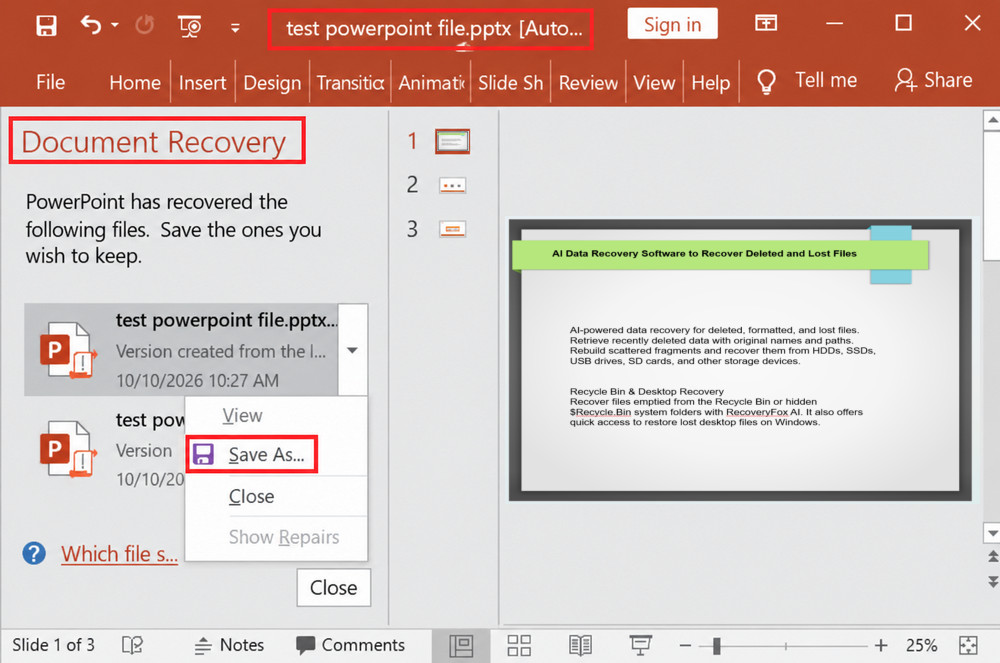
When PowerPoint closes unexpectedly, it may automatically display the Document Recovery pane the next time you launch the application. This pane lists recovered versions of presentations when available, allowing you to retrieve changes that were saved through AutoRecover.
Step 1. Restart Microsoft PowerPoint.
Step 2. If the Document Recovery pane appears on the left side of the window, review the available recovered files. Check their timestamps to identify the most recent version that contains your missing changes.
Step 3. Select the relevant file to open it and check its contents.
Step 4. Press Ctrl + S to save the recovered presentation immediately. If necessary, use File > Save As to save it under a new name or to a different location.
Method 2. Use “Recover Unsaved Presentations”
If the Document Recovery pane does not appear, you can try to locate an AutoRecover copy manually using PowerPoint's Recover Unsaved Presentations feature. The exact menu path may vary slightly depending on your PowerPoint version.
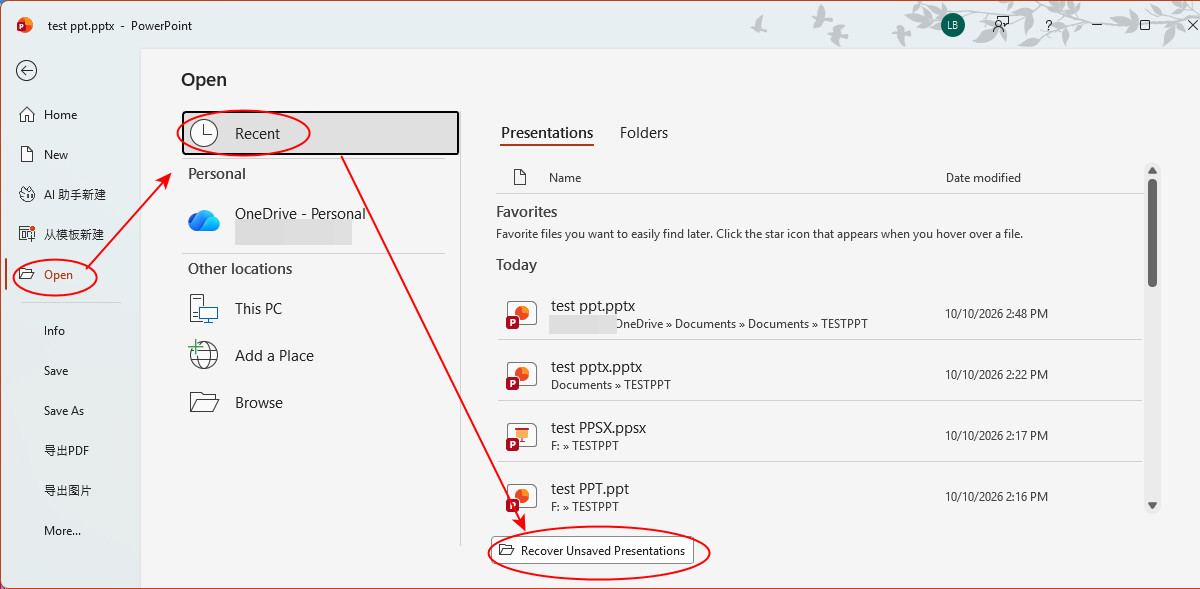
Step 1. Open Microsoft PowerPoint and select File > Open.
Step 2. Click “Recover Unsaved Presentations” at the bottom of the Recent presentations list. In some versions, you may need to select “Recent” first.
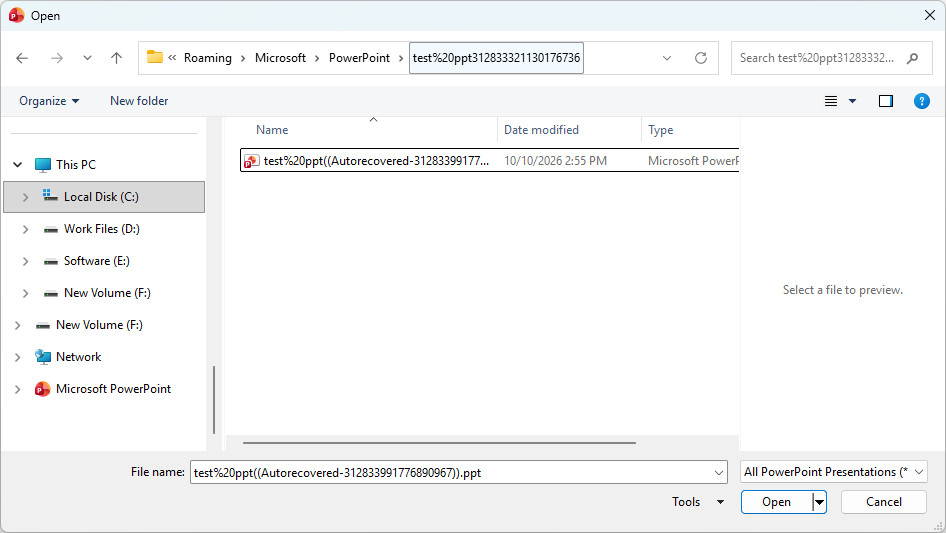
Step 3. In the dialog box that opens, browse the available unsaved presentations and look for the file you want to recover.
Step 4. Select the relevant presentation and click Open.
Step 5. Check whether the presentation contains your missing content. If it does, immediately save it using File > Save As and choose a safe location.
Method 3. Check the AutoRecover Folder
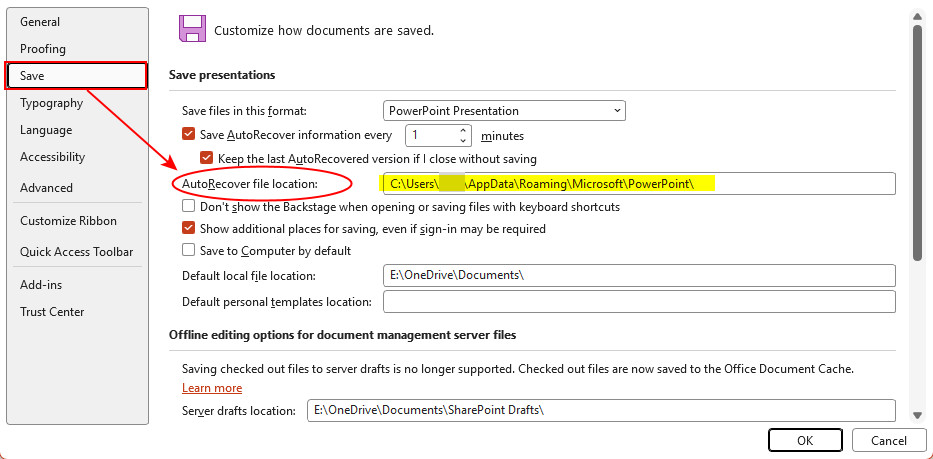
You can also directly check PowerPoint's AutoRecover folder for available recovery files. The folder location may vary depending on your Windows account and PowerPoint configuration, so check the path in PowerPoint first.
Step 1. Open PowerPoint and go to File > Options > Save.
Step 2. Find the AutoRecover file location field and copy the folder path shown there. The default location in many Windows installations is:
C:\Users\ username \AppData\Roaming\Microsoft\PowerPoint Step 3. Open File Explorer, paste the copied path into the address bar, and press Enter.
Step 4. Look for files modified around the time you lost your work.
Check any potentially relevant files, keeping in mind that AutoRecover files may not have a standard .pptx extension or may not be directly accessible.
Step 5. If you find a potentially recoverable file, try opening it in PowerPoint.
If PowerPoint cannot open it, do not rename or overwrite the original file immediately. Make a copy first and try working with the copy.
If the presentation opens successfully and contains your missing content, use File > Save As to save it as a new PowerPoint presentation in a safe location.
Method 4. Restore an Earlier Version from Version History
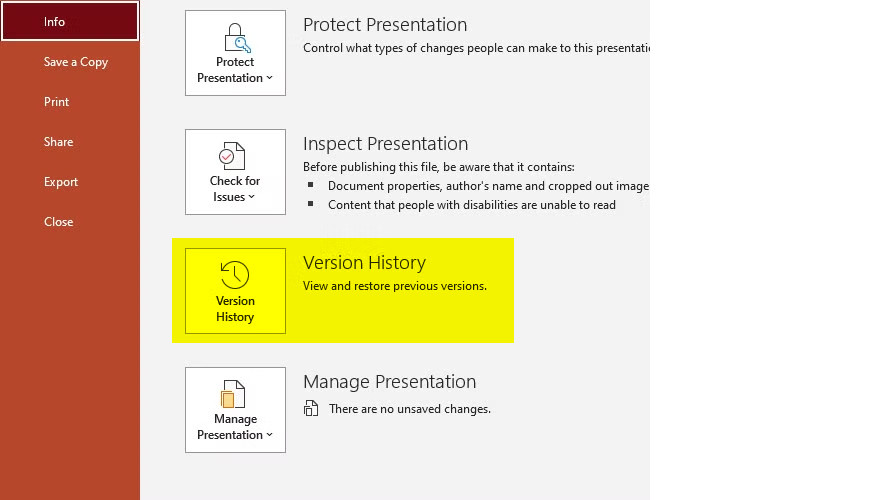
If your PowerPoint presentation is saved to OneDrive, OneDrive for Business, or SharePoint Online, you may be able to restore an earlier version using Version History. This feature is particularly useful if you accidentally overwrite existing content or need to retrieve changes from a previous saved version.
Step 1. Open the presentation in PowerPoint and make sure you are signed in to the account associated with the cloud-stored file.
Step 2. Click the presentation's filename at the top of the PowerPoint window, then select Version History.
Alternatively, open the file's version history through OneDrive or SharePoint.
Step 3. Review the available versions and their dates and times. Open a suitable version to check whether it contains the content you want to recover.
Step 4. If the version contains your missing content, select Restore if available.
To avoid losing your current work, consider saving a separate copy of the current presentation first.
Alternatively, open or download the desired earlier version and save it as a new file, if supported by your version of PowerPoint.
Conclusion
The best way to recover a PowerPoint presentation depends on how it was lost. For unsaved work, built-in recovery features such as Document Recovery, Recover Unsaved Presentations, and AutoRecover can be helpful.
However, if you need a more robust solution for recovering permanently deleted or lost PowerPoint presentations, consider RecoveryFox AI. It helps recover files in various logical data-loss scenarios and supports a wide range of storage devices.
FAQs about PowerPoint File Recovery
Q1. How do I recover a deleted PowerPoint file on Windows?
First, check the Recycle Bin and restore the file if it is there. If you cannot find it, check OneDrive or other backups. No backups? Use powerful data recovery software like RecoveryFox AI to scan your drive for deleted PowerPoint files.
Q2. How can I recover a PowerPoint presentation that I forgot to save?
Open PowerPoint and go to File > Open > Recent > Recover Unsaved Presentations. Select the presentation if it appears and save it immediately. You can also check the AutoRecover location configured in PowerPoint settings.
Q3. Can I recover a permanently deleted PowerPoint file after emptying the Recycle Bin?
Yes, recovery may still be possible if the deleted data has not been overwritten. Stop saving new files to the affected drive and scan it with RecoveryFox AI. You can also check available backups or cloud storage.
Q4. How can I recover an overwritten PowerPoint presentation?
Check Version History if the file is stored in OneDrive or SharePoint, or restore a previous version from File History or another backup if available. If the presentation file is overwritten by a file with the same name, Recovery Fox AI may also help.
Q5. Can I recover a PowerPoint presentation after clicking “Don’t Save”?
Possibly. Open PowerPoint and check Recover Unsaved Presentations or the AutoRecover location.
Q6. How can I recover a corrupted PowerPoint file that won't open?
In PowerPoint, go to File > Open > Browse, select the file, click the arrow next to Open, and choose Open and Repair. If that fails, try a backup or a previous version of the file.

A technical content writer for RecoveryFox AI at WonderFox Soft, creating clear guides on data recovery, storage technologies, and Windows troubleshooting. She specializes in simplifying complex technical topics and enjoys exploring technology, running, and discovering new experiences.





 English ^


