






 Free Download

 Windows

RAR is a popular archive format that uses the .rar file extension to package one or more files into a single archive, making them smaller and easier to store, organize, and transfer. However, losing a RAR archive can mean losing access to multiple files at once.
Can you recover deleted or lost RAR files? Yes, in many cases. When a RAR archive is deleted, its data may remain on the storage device until it is overwritten by new data. This means recovery may still be possible, even if you permanently deleted the archive using Shift + Delete, formatted the drive, or lost access to the files following a virus attack.
RAR archives can be lost in several situations, including:
❗ Permanently deleting RAR files using Shift + Delete in Windows
❗ Deleting RAR files and then emptying the Recycle Bin
❗ Deleted RAR files with large sizes bypass the Recycle Bin
❗ Having RAR archives removed by Storage Sense
❗ Losing RAR archives after formatting a drive
❗ Losing access to RAR files due to a deleted or lost partition
❗ A storage device showing as RAW or Unallocated
❗ A storage device being detected by Windows but remaining inaccessible
❗ Windows prompting you to format a storage device before you can use it
❗ Deleting RAR files from an SD card or USB flash drive, where they typically bypass the Windows Recycle Bin
If you’ve lost RAR archives in any of these situations, dedicated data recovery software such as RecoveryFox AI may help you retrieve them.
The following guide walks you through how to scan for and recover deleted or lost RAR files on Windows using RecoveryFox AI.
How to Recover Deleted or Lost RAR Files on Windows?
RecoveryFox AI is Windows data recovery software designed to handle various logical data-loss scenarios. It supports RAR file recovery from HDDs, SSDs, USB drives, SD cards, and a range of storage devices.
Its AI Scan mode can also help detect fragmented file data and reconstruct files as completely as possible, potentially improving the chances of recovering lost RAR archives.
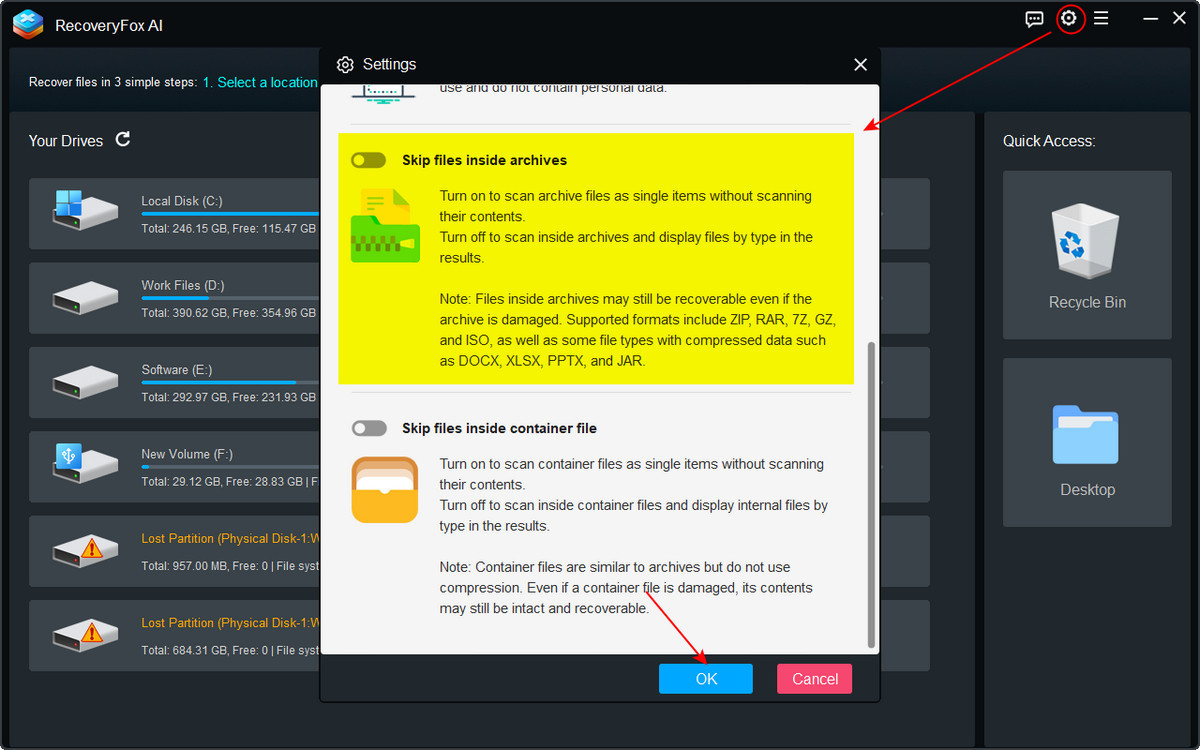
The software also includes a “Skip files inside archives” option, which lets you choose whether to scan for a RAR archive as a single file or scan for files inside the archive individually.
👉Now, follow these steps to restore your permanently deleted or otherwise lost RAR archives.
Step 1. Download and Install RecoveryFox AI
Download and install RecoveryFox AI on a different drive to avoid overwriting the recoverable data.
Step 2. Configure the Recovery Settings
Launch RecoveryFox AI and click the gear icon to open “Recovery Settings”. Scroll down to find the “Skip files inside archives” option.
🔰 Turn it on if you want to scan for the .rar archive as a single file without scanning and displaying its contents individually.
🔰 Turn it off if you want the software to scan for files inside the RAR archive and display the detected files by type in the results.
You can also adjust other settings as needed. Click “OK” to apply your changes and return to the main interface.
Step 3. Select a Location and Scan for Lost RAR Files
Select the drive or partition where your RAR files were originally stored. RecoveryFox AI will start scanning the selected location for recoverable data.
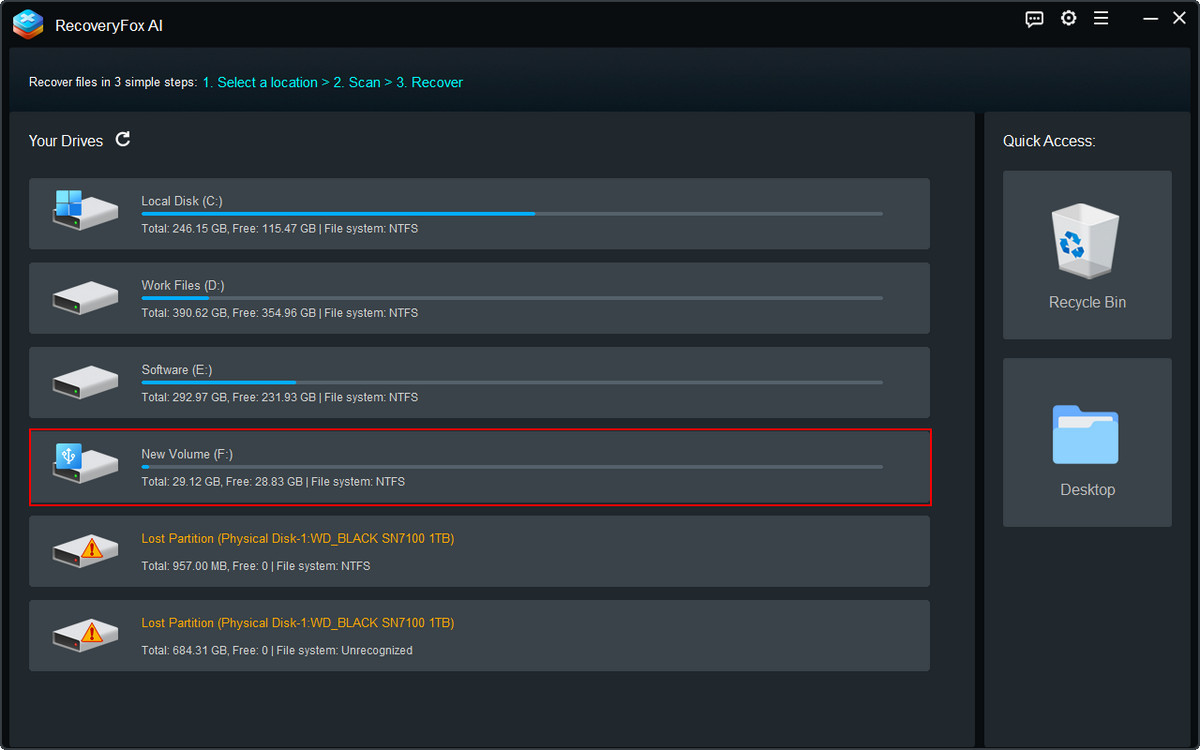
💡 If you want to recover RAR archives from a RAW drive or deleted or unallocated partitions, press Win + X and open Disk Management to check how Windows detects the device. Make sure the storage device is properly connected.
Do not format or repartition the device before attempting recovery. These actions may overwrite data or make recovery more difficult.
Step 4. Browse and Preview the RAR Files
For the best chance of finding recoverable files, allow RecoveryFox AI to complete its AI Scan before reviewing the results.
Files found through Quick Scan may retain their original filenames and folder structures, making them easier to identify.
If the original filenames are missing, use the available file-type filters, keywords, or file sizes to narrow down the results.
Keep in mind that RecoveryFox AI does not currently support opening or extracting RAR archives for preview. If you scan for a RAR archive as a single file, you will need to recover it first and then open it with a compatible archive utility to check its contents.
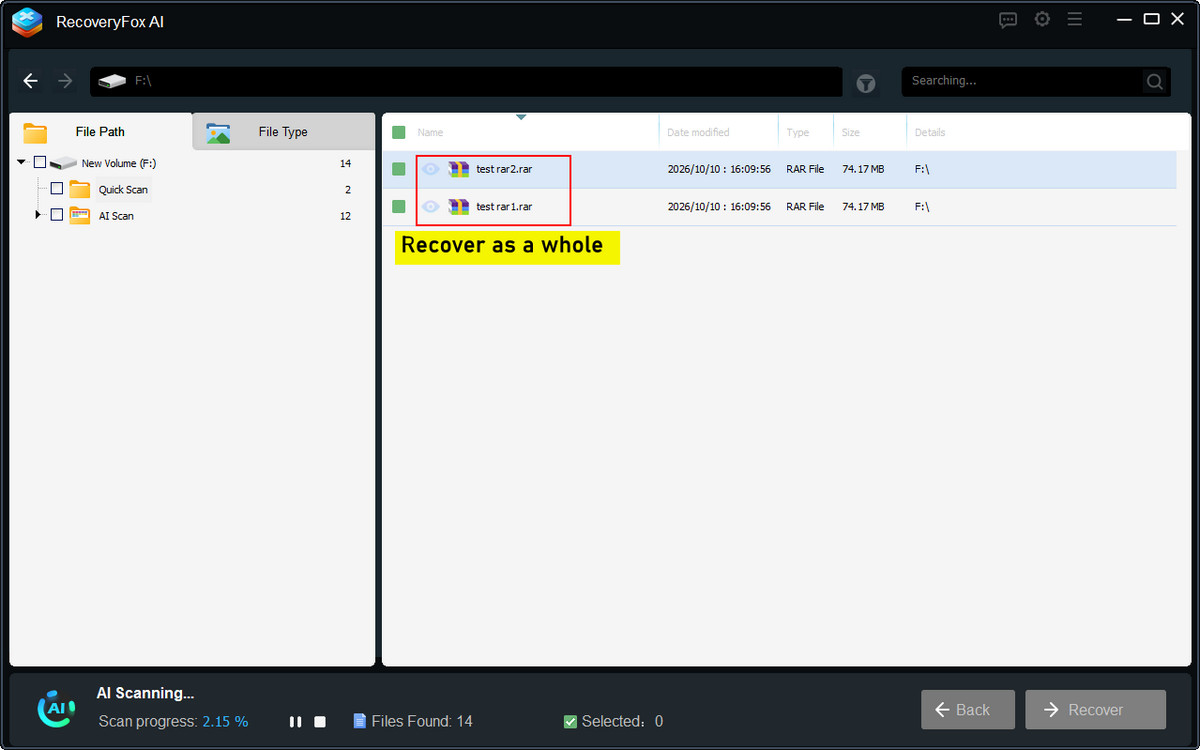
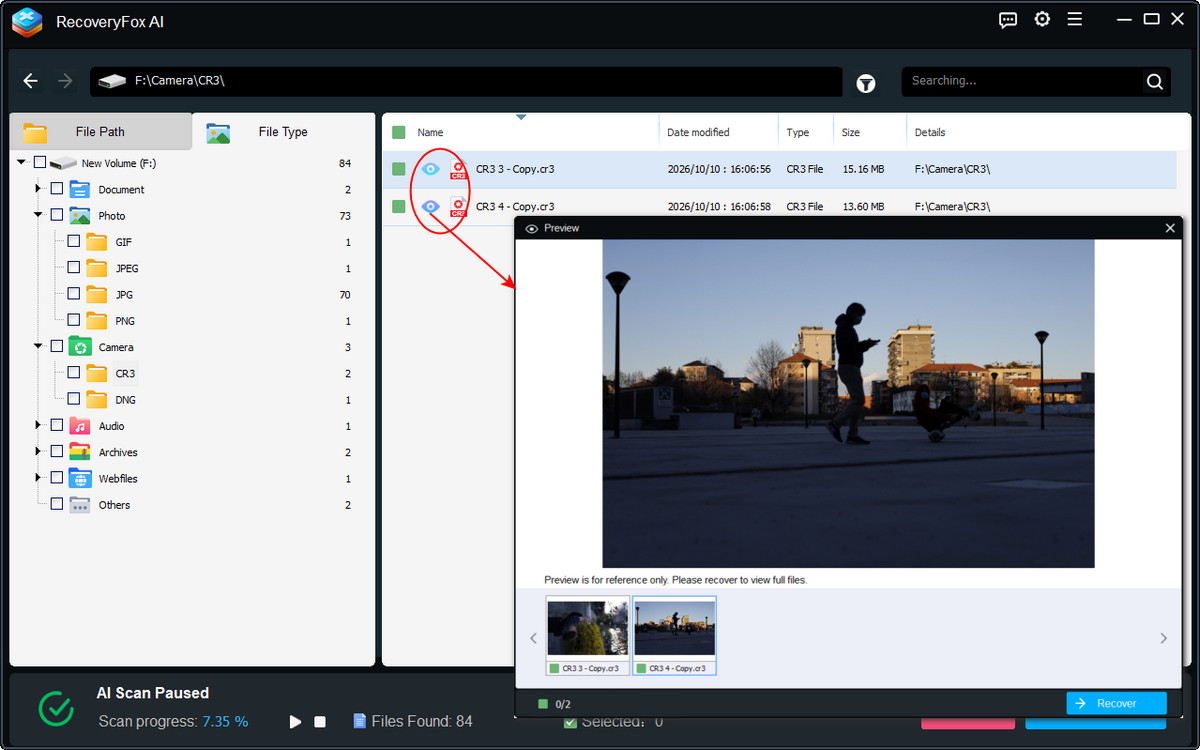
Alternatively, if you uncheck “Skip files inside archives”, RecoveryFox AI can scan for supported files inside the archive individually. Depending on the file types detected, you may be able to preview images, documents, audio files, videos, and other supported formats before recovery.
Simply click the eye icon to preview the file.
Step 5. Recover the Selected RAR Archives
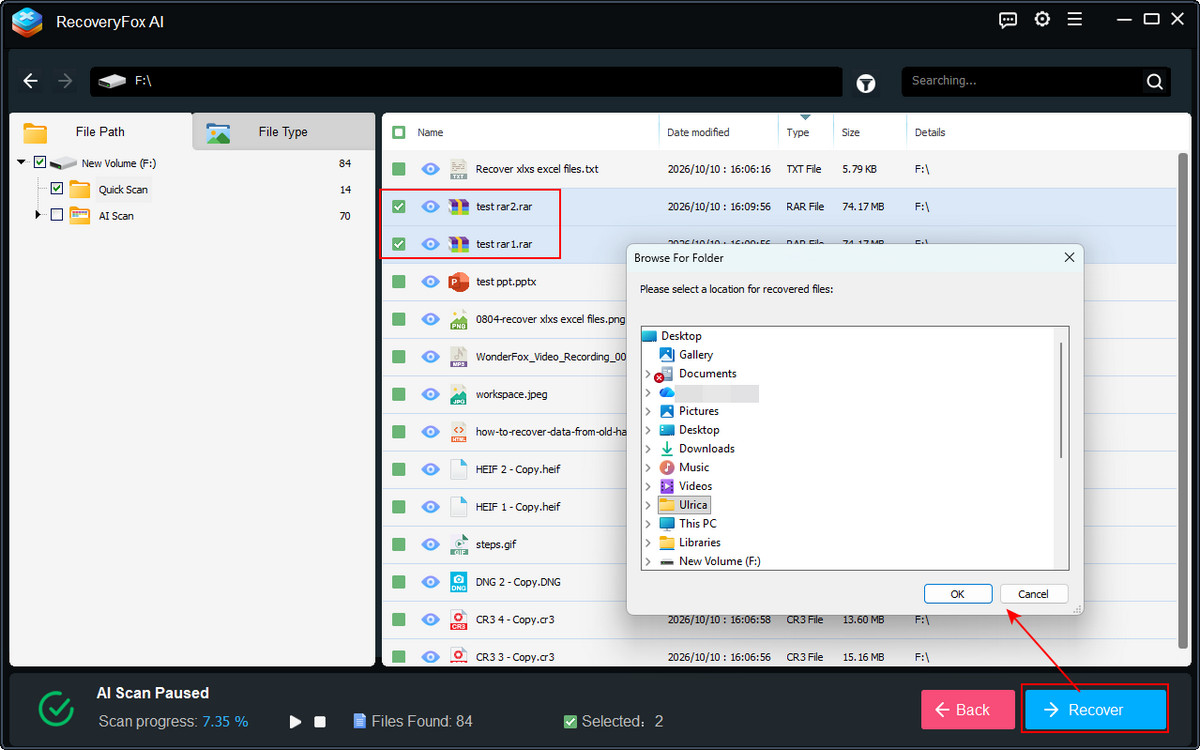
Select the RAR archives or individual files you want to restore, then click “Recover”.
Save the recovered files to a different drive or storage device rather than the original location to avoid overwriting other recoverable data.
Once recovery is complete, try opening the restored RAR archives with a compatible archive utility to check whether they are accessible and their contents are intact.
3 Other Common RAR File Recovery Methods
Not every data loss situation requires dedicated recovery software. Depending on how your RAR archives were lost, you can try the following methods to restore them.
Method 1. Recover Deleted RAR Files from the Recycle Bin
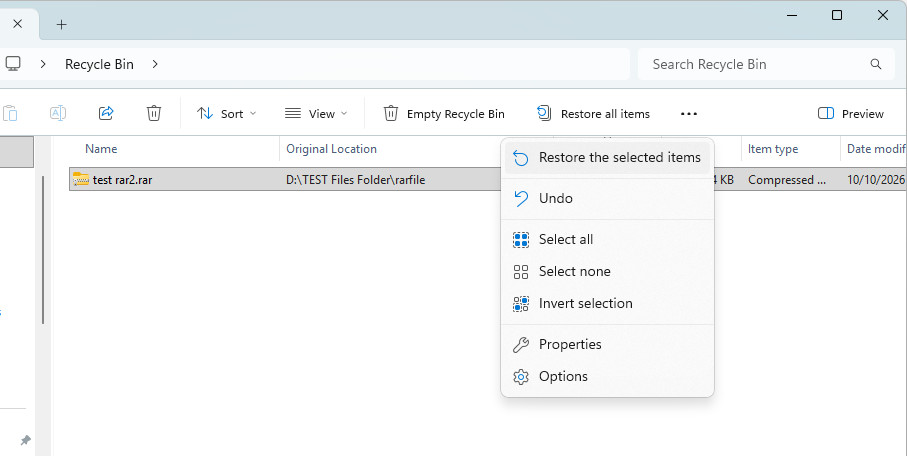
If you deleted a RAR archive normally, it may still be in the Recycle Bin.
Step 1. Open the Recycle Bin on your desktop.
Step 2. Find the deleted .rar file by name.
Step 3. Right-click the file and select “Restore the selected items”.
Method 2. Recover RAR Files from a Backup
If you previously enabled a built-in Windows backup feature, such as File History, or created a backup, you may be able to restore an earlier copy of your RAR archive. Here's how to check for and restore a copy using Previous Versions.
Step 1. Open the drive or folder that previously contained the RAR file.
Step 2. Right-click the folder and select “Properties”.
Step 3. Open the “Previous Versions” tab and check whether any previous versions are available.
Step 4. Select a version from a date when your RAR file still existed and its contents were intact. You can double-click the selected folder to inspect the files it contained at that time.
Step 5. Click “Restore” to restore the selected version.
To avoid overwriting newer files, consider using “Open in File History” to check the available contents or “Restore to” to save a previous version to another location, if these options are available.
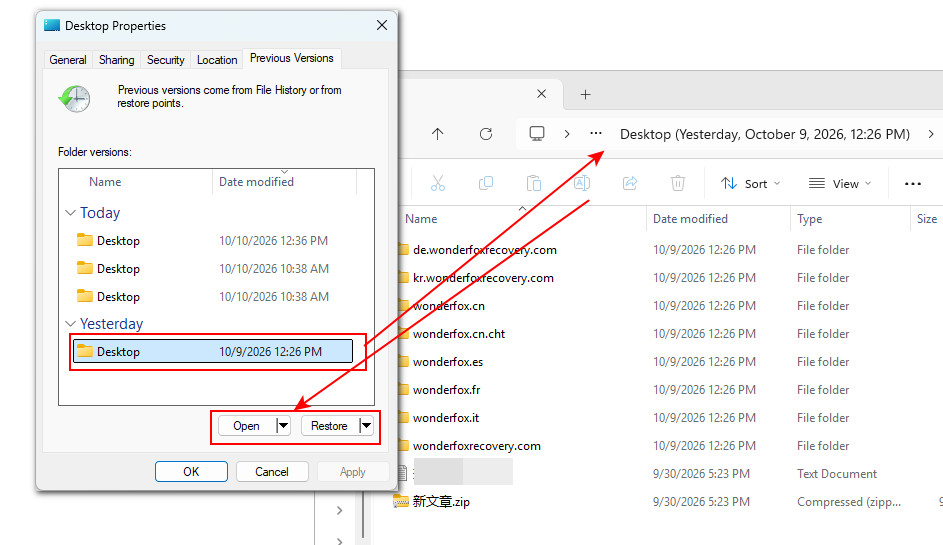
💡 File History and Backup and Restore are built-in Windows backup features. If you didn’t configure a backup or include the folder containing the RAR file in your backup sources, you may see the message “There are no previous versions available” in the Previous Versions tab.
Method 3. Contact a Professional Data Recovery Service
If your storage device shows signs of physical damage or makes unusual noises, disconnect it immediately.
Avoid running further scans or attempting repairs, as these actions could worsen the damage. Instead, contact a professional data recovery service to assess the device and determine whether your lost RAR files can be recovered.
Conclusion
Losing an important RAR archive can be stressful, but RAR archive recovery is often possible if the lost data has not been overwritten.
Start with simple options, such as checking the Recycle Bin and existing backups. If your RAR archive was permanently deleted, lost after formatting, or disappeared from a USB drive, SD card, HDD, or SSD, dedicated recovery software such as RecoveryFox AI may help you retrieve it.
👉 Download RecoveryFox AI to start a free scan and preview recoverable files before recovery:
RAR Archive Recovery FAQs
Q1. Can I recover a permanently deleted RAR file?
Yes, recovery may be possible. If the deleted RAR data has not been overwritten, professional deleted file recovery software may be able to find and restore the archive. Stop using the affected drive as soon as possible to reduce the risk of overwriting recoverable data.
Q2. How do I recover a deleted RAR file from an emptied Recycle Bin?
Use dedicated data recovery software to scan the affected drive. RecoveryFox AI can help you find and recover files deleted from the Recycle Bin, provided the data remains recoverable. Avoid saving new files to the affected drive before scanning.
Q3. Can I recover RAR files after formatting a drive?
Yes, recovery may be possible after a quick format. Your chances depend on factors such as whether the original data has been overwritten, the type of storage device, and its current condition. Stop using the formatted drive and scan it for recoverable data as soon as possible.
Q4. Is it possible to recover password-protected RAR files?
Yes, password-protected RAR archives can often be recovered as files. However, recovering the archive does not remove its password protection. You will generally need the correct password to extract its contents.
Q5. How can I recover a RAR file that won’t open or extract?
Select the RAR file in WinRAR, then choose Tools → Repair archive (Alt + R). Save the repaired copy and try extracting it. Repair is more likely to succeed if the archive contains a recovery record.
If repair fails, try extracting with “Keep broken files” enabled to salvage partial contents, though those files may still be unusable. Otherwise, restore a backup or download a fresh copy of the archive.

A technical content writer for RecoveryFox AI at WonderFox Soft, creating clear guides on data recovery, storage technologies, and Windows troubleshooting. She specializes in simplifying complex technical topics and enjoys exploring technology, running, and discovering new experiences.





 English ^


