






 Free Download
 Windows

Formatting a USB drive is a common way to resolve compatibility issues, fix certain errors, or free up space for new data. However, formatting can make your existing files inaccessible or invisible. Yet, it doesn’t necessarily mean they are permanently gone. In many cases, you still have a chance to recover files from a formatted USB flash drive.
In this guide, we’ll explain what “unformatting” a USB drive really means, how to unformat a USB drive.
Can You Unformat a USB Drive?
To answer this question, let’s first clarify what you really mean when asking, “Can I unformat a USB drive?” Then, jump to the method that best matches your situation:
| What “unformat USB” really means | What to do |
| Want to restore the USB drive to its previous file system or storage state | A completed format cannot normally be undone directly. But you can reformat it to the desired file system or free up space. Check the full steps >> |
| Want to undo the formatting process | You can cancel formatting only while it is in progress; once complete, it cannot be reversed. |
| Accidentally formatted the USB and lost important files | Recover the lost files from the formatted USB drive. Check the safe recovery steps >> |
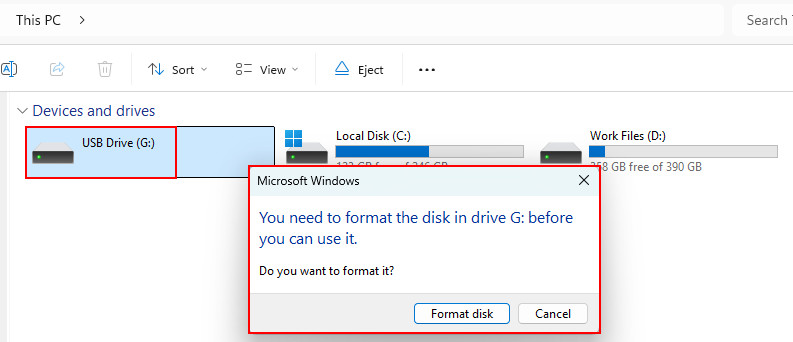
| The USB asks you to format it before you can use it | Do not format the USB yet. Recover the files first. Check the safe recovery steps >> |
| Want to format a USB drive so it can be used normally again | Reformat/Repartition the USB with a compatible file system. Check the full steps >> |
In most cases, “unformat a USB” actually means recovering files from a formatted USB drive. You cannot normally undo a completed format, but you may still be able to recover your files if the data has not been overwritten.
Other important factors affecting whether your USB data can be recovered include:
- 🔷 Type of format: Quick Format or Full Format
- 🔷 Data overwriting: Once lost files are replaced by new data written to the drive, recovery becomes unlikely. Stop using the USB drive immediately to prevents this.
- 🔷 File system and formatting changes: FAT32, exFAT, NTFS, and other file systems may affect how data recovery works.
- 🔷 USB drive condition: Hardware problems can make the data inaccessible even when the files have not been overwritten.
- 🔷 Whether the data was encrypted: If the USB used BitLocker To Go or another encryption method, recovery software often fails to find the files.
How to Unformat a USB Drive with Data Recovery Software (Recommend)
If you need to unformat a USB drive and recover formatted data, or safely retrieve files from a USB stick that Windows cannot access and prompts you to “format before use”, the most practical approach is to use dedicated data recovery software.
RecoveryFox AI can be a safe, reliable option. It supports all standard USB drive file systems, incl. NTFS, exFAT, FAT12/16, etc. Without reformatting or repairing your USB first, this unformat USB drive recovery software can directly and safely scan for your lost data. It also allows recovering files from RAW drives, unallocated partitions, virus-affected devices, and more.
Just try RecoveryFox AI and start a free scan and file preview before recovery now:
➡️ Steps to Unformat a USB Drive with RecoveryFox AI
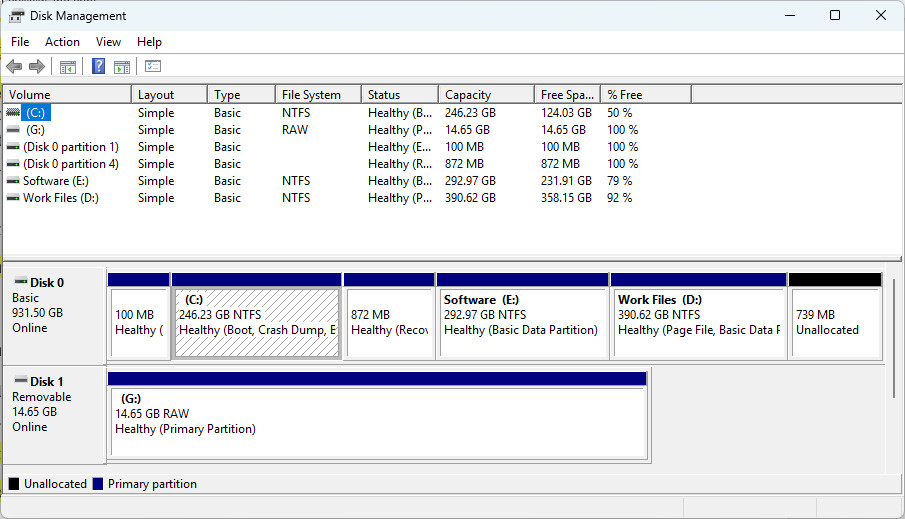
Step 1. Connect the USB drive to your computer. Press Win + X, select Disk Management, and make sure your USB drive is detected and listed there.
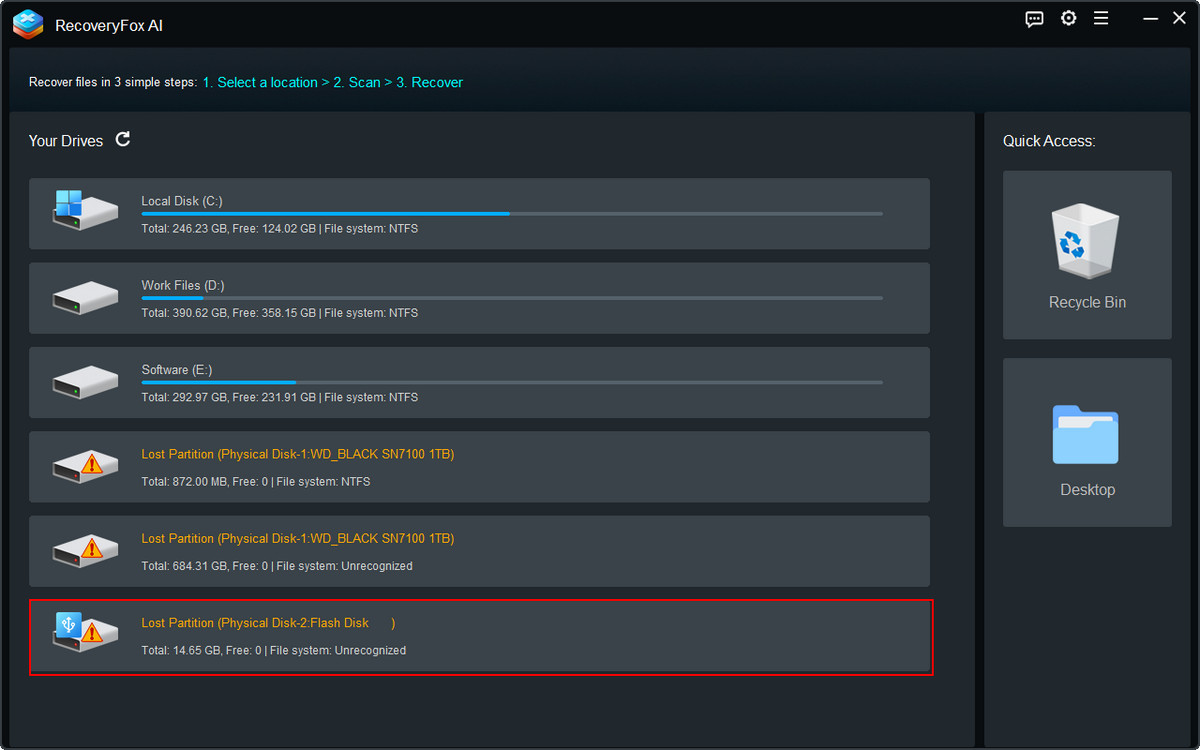
Step 2. Launch RecoveryFox AI, locate your USB drive in the drive list, select it, and click to start scanning.
Step 3. RecoveryFox AI first performs a Quick Scan, which usually completes within seconds when scanning a formatted or corrupted USB drive. Once the Quick Scan finishes, AI Scan starts automatically to handle more complex data-loss scenarios.
Powered by AI technology, AI Scan can search for additional recoverable data and reconstruct fragmented data into as many complete files as possible.
You can browse the list of scan results in real time while the AI Scan is running.
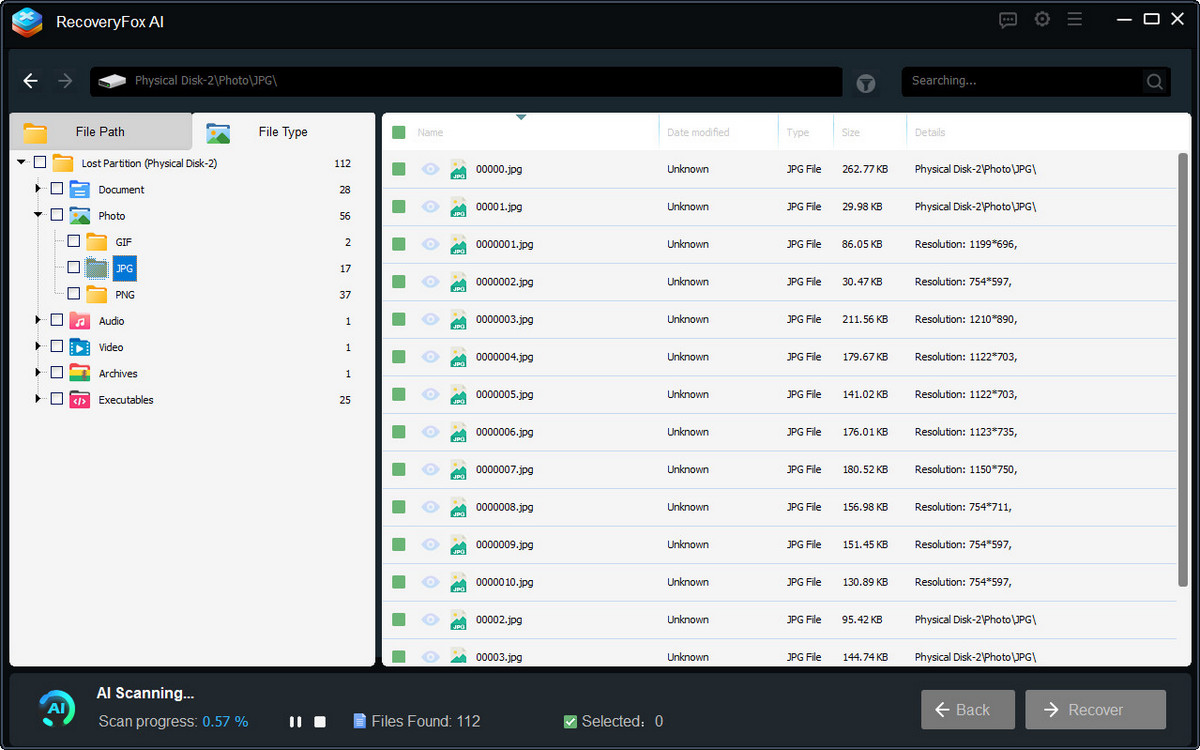
Step 4. You can pause the AI Scan at any time and click the eye icon to preview a file's content.
For the best possible recovery results, however, it is recommended that you let the scan complete.
Once the scan is finished, browse the results by File Path or File Type. You can also use filters such as Keywords, Date, and Size to find specific files more quickly.
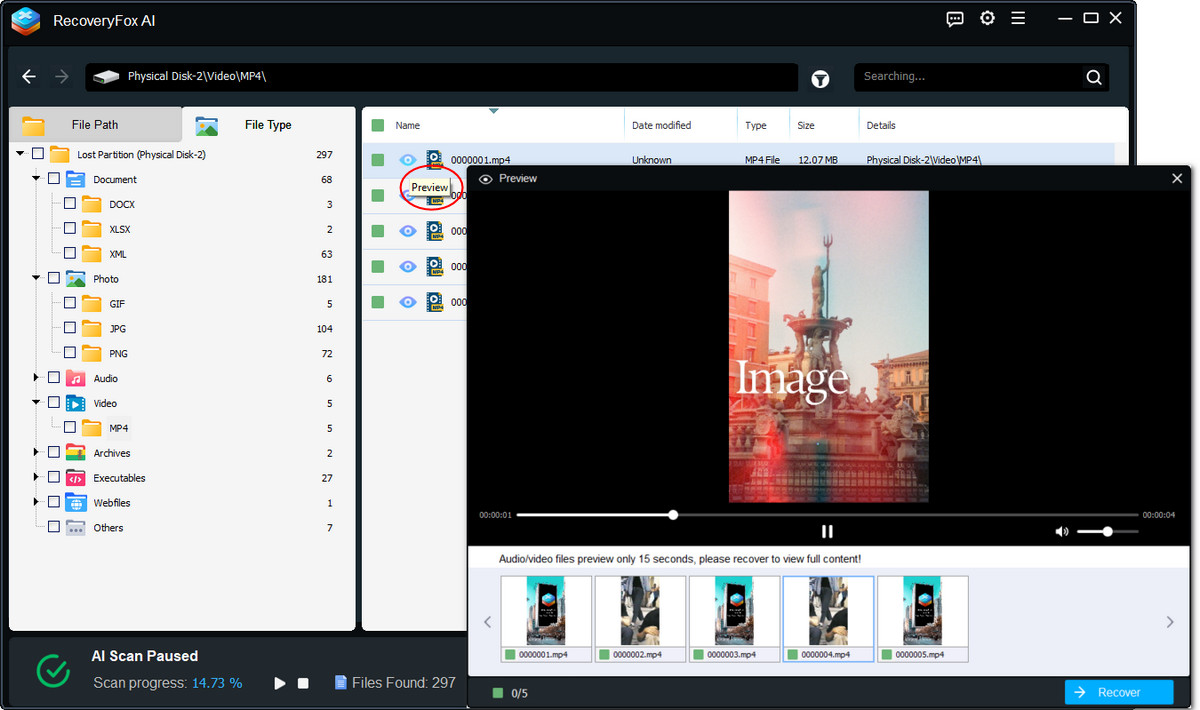
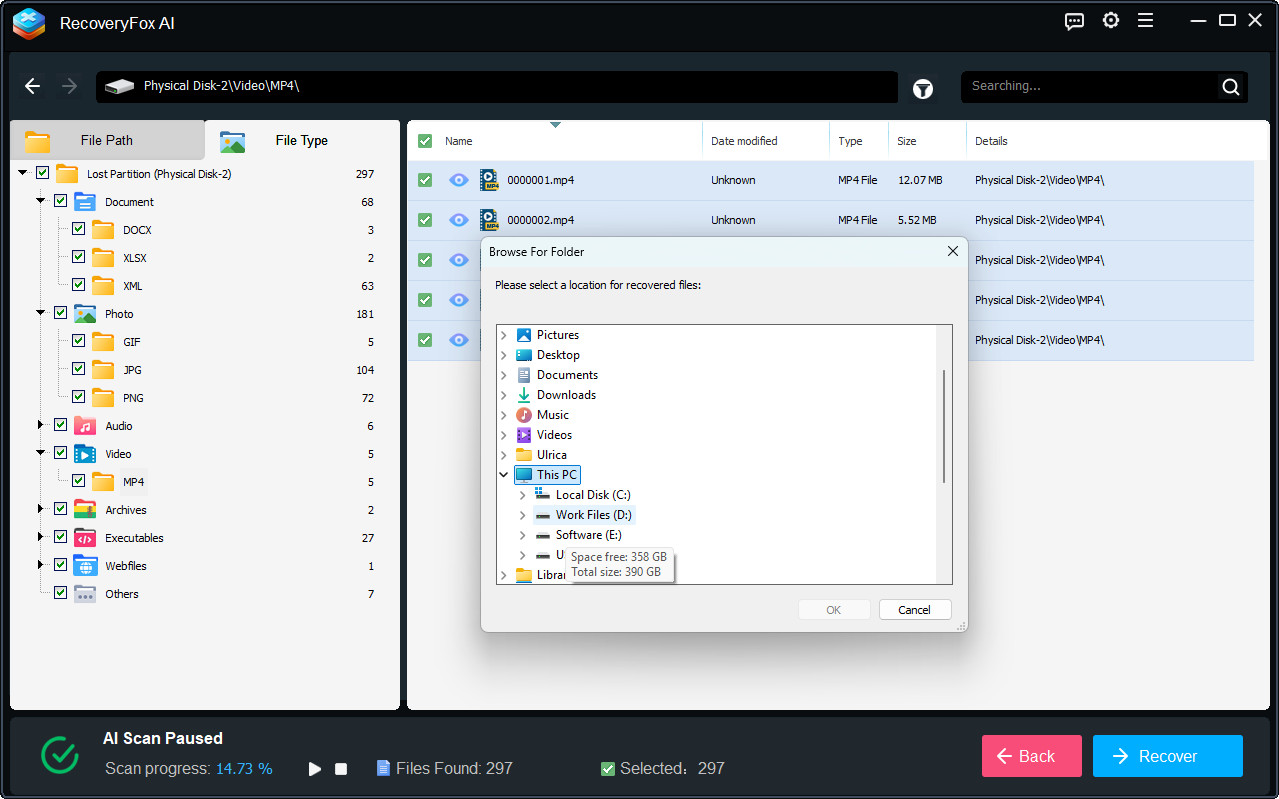
Step 5. Select the files you want to recover and click Recover.
Select a different drive instead of saving the recovered files back to the formatted USB drive. This helps prevent the recovered data from being overwritten.
Can CMD Unformat a USB Drive?
CMD does not have a dedicated “Unformat” command that can reverse a completed formatting process.
Instead, CMD commands can help you reformat, repair, or manage the USB drive, while recovering files from a formatted drive requires a data recovery solution.
As mentioned above, when searching for “how to unformat a USB drive,” you may come across different tools and methods. The right approach depends on what you actually want to achieve.
If you simply want to reformat or repair a problematic USB drive for reuse, you can use one of the following command-line tools, depending on the specific issue.
# CHKDSK
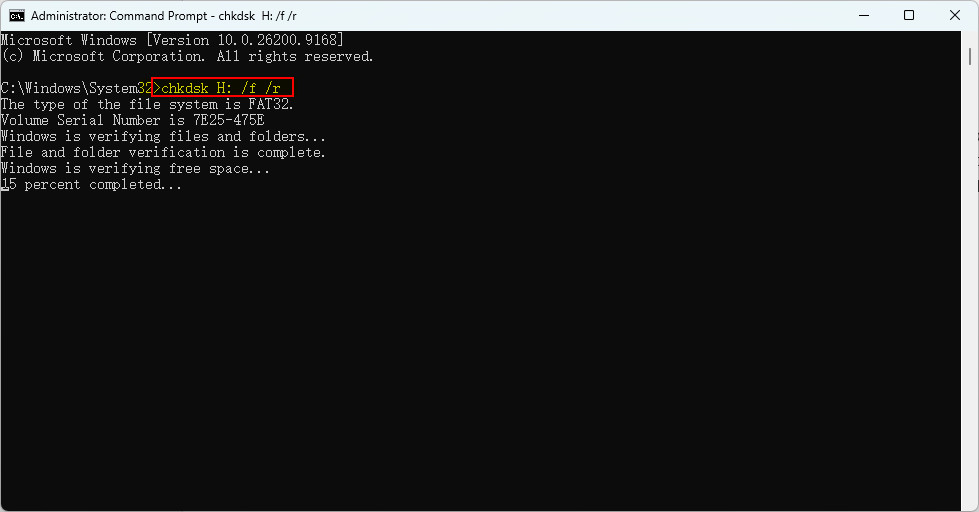
If your USB is inaccessible due to file-system errors and you want to repair it so you can reuse it, CHKDSK is a free repair tool you can try.
However, it’s important to note that CHKDSK is not a data recovery tool. It may modify the file system and potentially make data recovery more difficult. Therefore, if you still need the files on the USB drive, recover your data first. Then, if necessary, run CHKDSK to repair the file system.
- Open and run Command Prompt as an administrator.
- Then, type the following command and press Enter:
chkdsk H: /f /r
❗ Replace H: with the drive letter assigned to your USB.
# ATTRIB
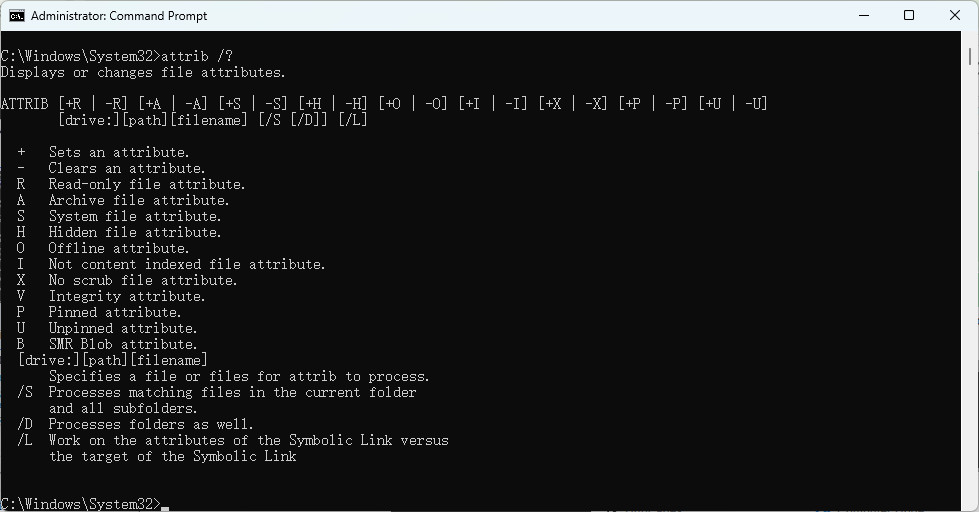
Similarly, ATTRIB cannot reverse formatting or recover files from a formatted USB drive. Instead, this command manages file attributes such as Hidden, Read-only, and System. It can be useful when existing files are hidden because their attributes have been changed, for example, by malware or other system issues.
- Open Command Prompt as an administrator.
- Type the following command and press Enter:
attrib -h -r -s H:\*.* /s /d
❗ Replace H: with the drive letter assigned to your USB drive.
# DiskPart
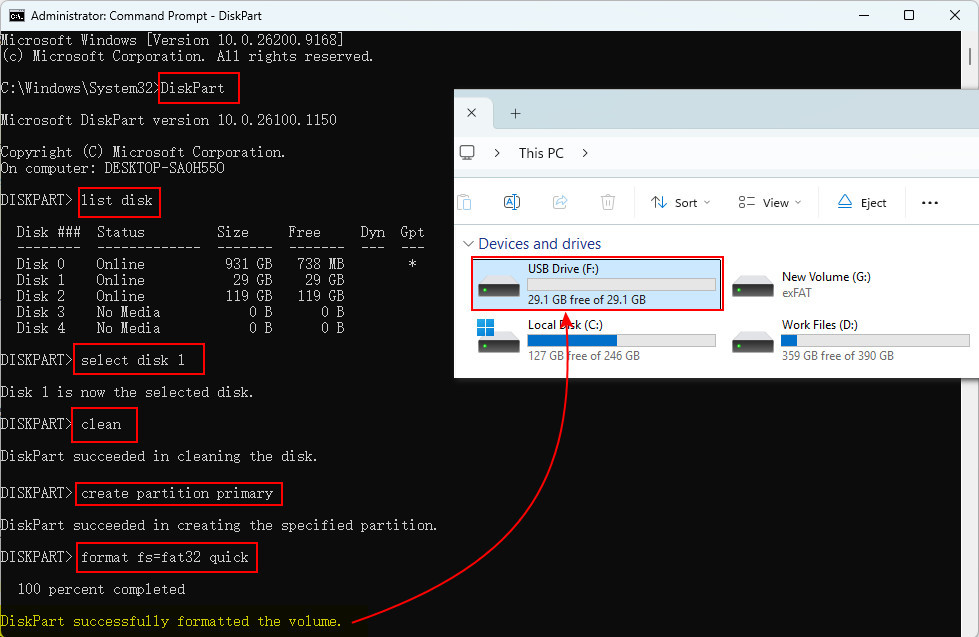
DiskPart can be used to reformat a USB drive, but this is not the same as recovering or reversing a previous format. In particular, the clean command removes partition information from the selected disk, which can make existing data inaccessible. If you still need the files, recover or back them up first.
- Open and run “Command Prompt” as an administrator.
- Type “DiskPart” and press “Enter.”
- Type “list disk” and press “Enter.” From the list of connected disks, identify your USB drive.
- Type “select disk Yourdisknumber” , for example, “select disk 2” , and press “Enter” to select the USB drive.
- Type “clean” and press “Enter.”
- When “DiskPart succeeded in cleaning the disk” appears, type “create partition primary” and press “Enter.”
- Type “format fs=filesystem quick” , for example, “format fs=ntfs quick”, and press “Enter.”
- When the message “DiskPart successfully formatted the volume” appears, the whole unformatting process in DiskPart is done.
How to Format a USB Drive After Recovering Your Files
After recovering the files you need, you can format the USB drive and continue using it. You can do this with DiskPart or directly in Disk Management.
- Press Windows + X and open Disk Management.
- Locate your USB drive and right-click it.
- Select “Format”.
- Choose the desired file system.
- Select “Perform a quick format” if appropriate.
- Click “OK”.
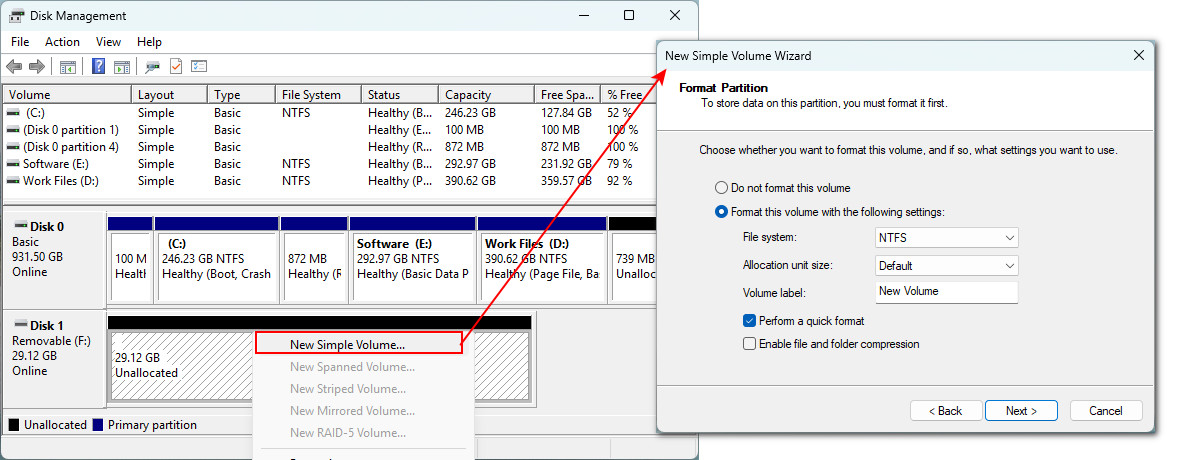
💡Note: If your USB drive appears as "Unallocated" or "RAW", you need to create a new simple volume through Disk Management once you have confirmed that no further data recovery is needed.
Conclusion
So, how to unformat a USB drive?
The safest approach is to identify your specific situation first:
- 🔰 If you want to fix or reformat a USB drive for reuse only, you can try CHKDSK, ATTRIB, DiskPart, or Disk Management, depending on the problem.
- 🔰 If you want to recover files from a formatted or inaccessible USB drive, choose RecoveryFox AI. After retrieving your important data, you can format the USB drive using these tools and continue using it.
FAQs About Unformatting a USB Drive
Q1. Is it possible to unformat a USB drive?
Not directly in modern Windows. Instead, you can try to recover the files that remain on the formatted USB drive.
Q2. Can I recover files after formatting a USB drive?
Yes. Files may still be recoverable after a Quick Format, depending on whether the underlying data has been overwritten.
Q3. Does formatting a USB drive erase everything?
A Quick Format does not necessarily overwrite all existing data immediately, while a Full Format can make recovery much more difficult.
Q4. Can CHKDSK unformat a USB drive?
No. CHKDSK checks and repairs file-system errors; it does not reverse a completed format.
Q5. Can I use the UNFORMAT command on Windows 10/11?
No. The historical DOS UNFORMAT command is not a standard recovery tool in modern Windows 10/11.
Q6. What should I do if Windows says I need to format my USB drive?
Do not format the drive if it contains important files. The message may indicate file-system corruption or another accessibility problem. Use RecoveryFox AI to perform safe and quick data recovery before formatting.

A technical content writer for RecoveryFox AI at WonderFox Soft, creating clear guides on data recovery, storage technologies, and Windows troubleshooting. She specializes in simplifying complex technical topics and enjoys exploring technology, running, and discovering new experiences.





 English ^


