






 Free Download

 Windows


Sometimes. Even if you have deleted a video permanently or emptied the Recycle Bin, its data may remain on the storage device until it is overwritten or made unavailable by storage features such as SSD TRIM.
A user on Microsoft Community asked a similar question after accidentally deleting an important video folder and emptying the Recycle Bin.
Can I recover permanently deleted videos from pc Windows 11?
"Hello, guys! I recently encountered a super headache, I want to ask you: can I recover permanently deleted videos from PC Windows 11?
The thing is, when I was organizing my computer files, I accidentally deleted a very important video folder, and even emptied the Recycle Bin! Some of those videos are work materials, some are home videos, the total size is about 15GB, and now I can't find them at all."
— A user from techcommunity.microsoft
If you’re in the same situation and can’t find your deleted videos in a backup, recovery software may help you find and restore permanently deleted files, as long as the data hasn’t been overwritten. To improve your chances, avoid saving new files to the affected drive.
How to Recover Permanently Deleted Videos with Recovery Software?
RecoveryFox AI is a powerful, trusted data recovery tool that can help recover deleted videos after Shift-Delete, from an emptied Recycle Bin, or from a lost partition, a hard drive, memory card, flash drive, digital camera, camcorders, and so on.
If the videos were deleted recently, RecoveryFox AI may be able to restore them with their original filenames and folder structure intact, provided the relevant file system information is still available and the deleted data has not been overwritten.
You can download RecoveryFox AI to run a free scan and preview the recoverable videos before recovery:
* Please install RecoveryFox AI on a different drive from the one where your videos were deleted to reduce the risk of overwriting the lost data.
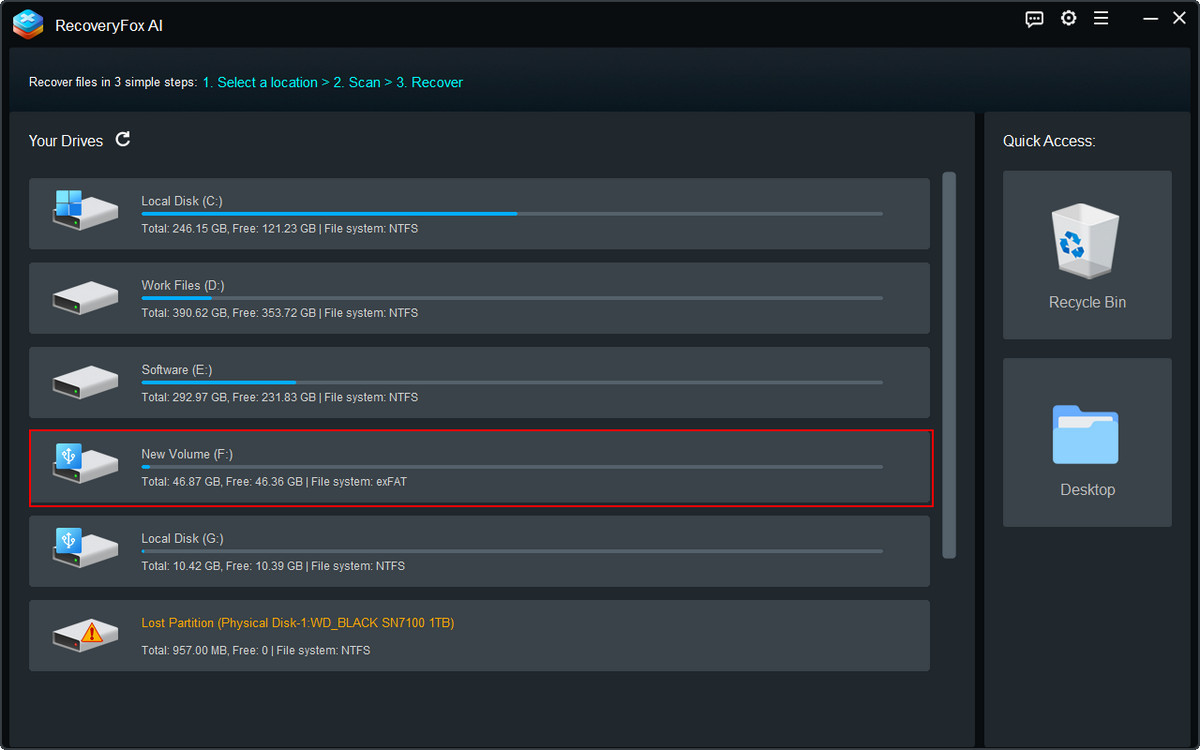
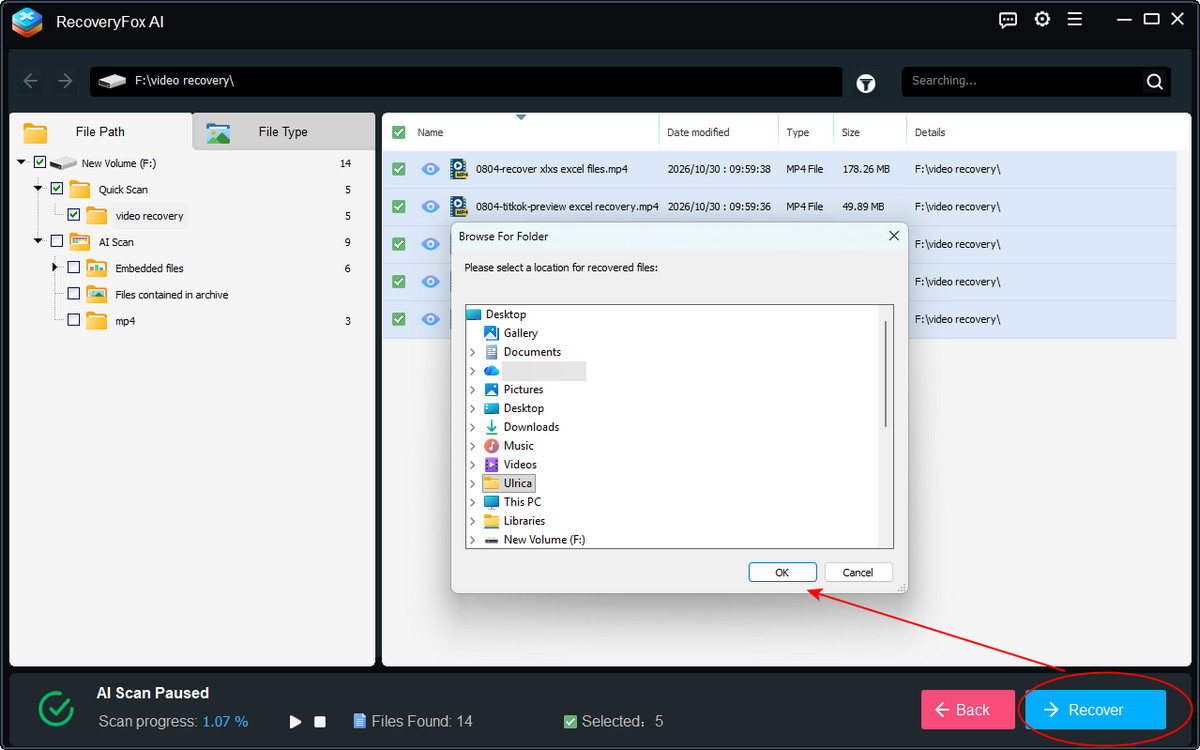
Step 1. Run RecoveryFox AI and click on the drive or file location where your deleted videos were stored to start scanning.
Step 2. Quick Scan runs first. If you scan the drive shortly after deleting the videos, it may find files with their original filenames and folder structure.
You can view the Quick Scan results under File Path while the scan is in progress.
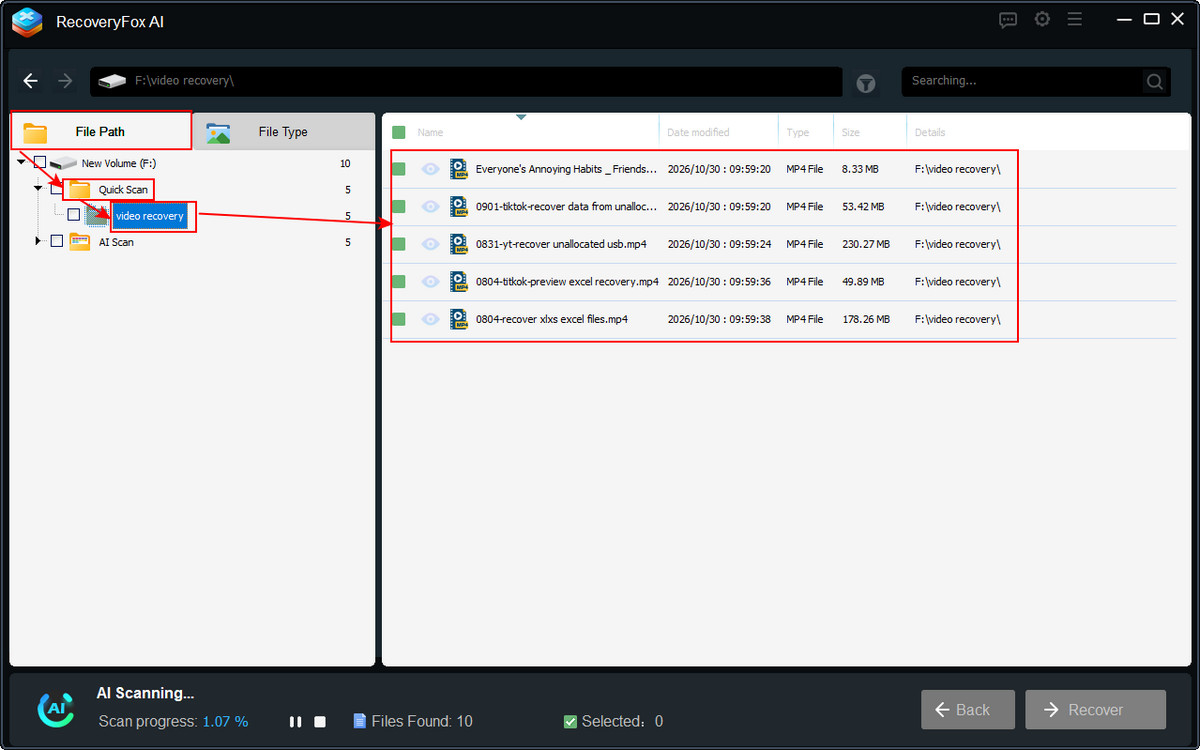
For videos deleted a long time ago, let AI Scan finish to perform a more thorough search. It may find additional video data that Quick Scan does not locate. Depending on the available data, it may also help reconstruct recoverable files.
Use the file type filter, last modified date, or file size to narrow down results.
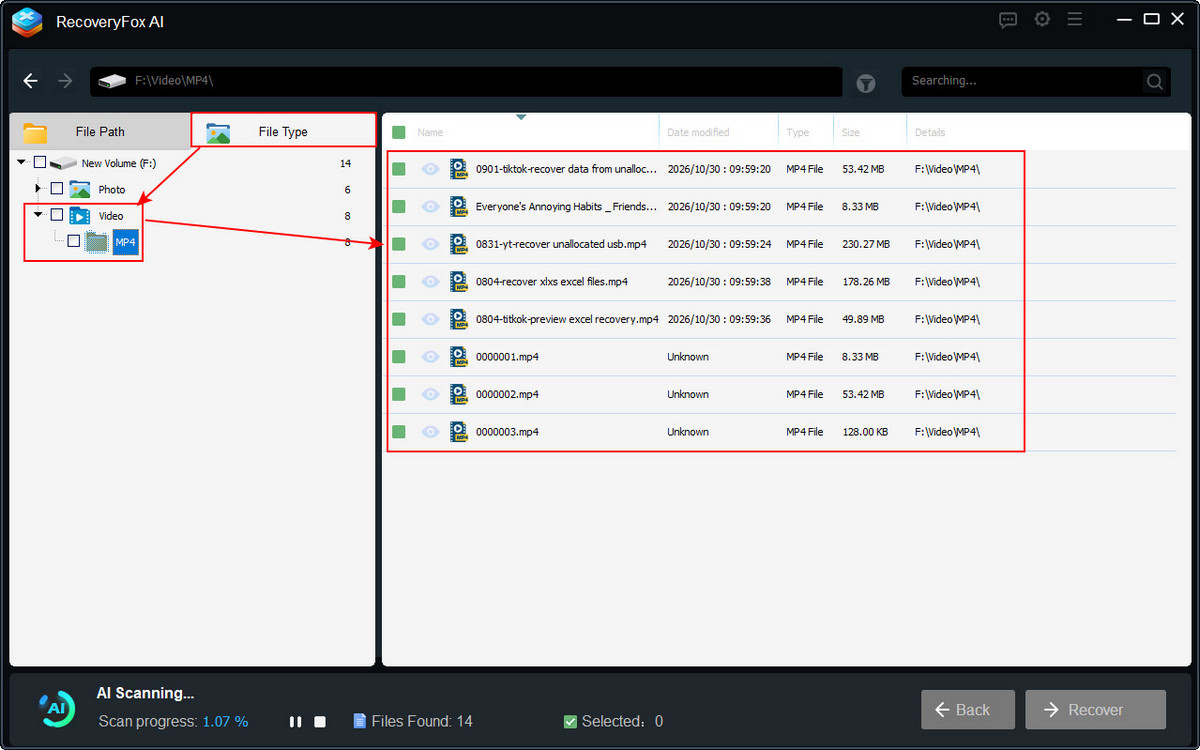
Step 3. You don’t necessarily need to wait for the scan to finish before previewing the videos it has found.
Pause AI Scan and click the eye icon to preview the video content.
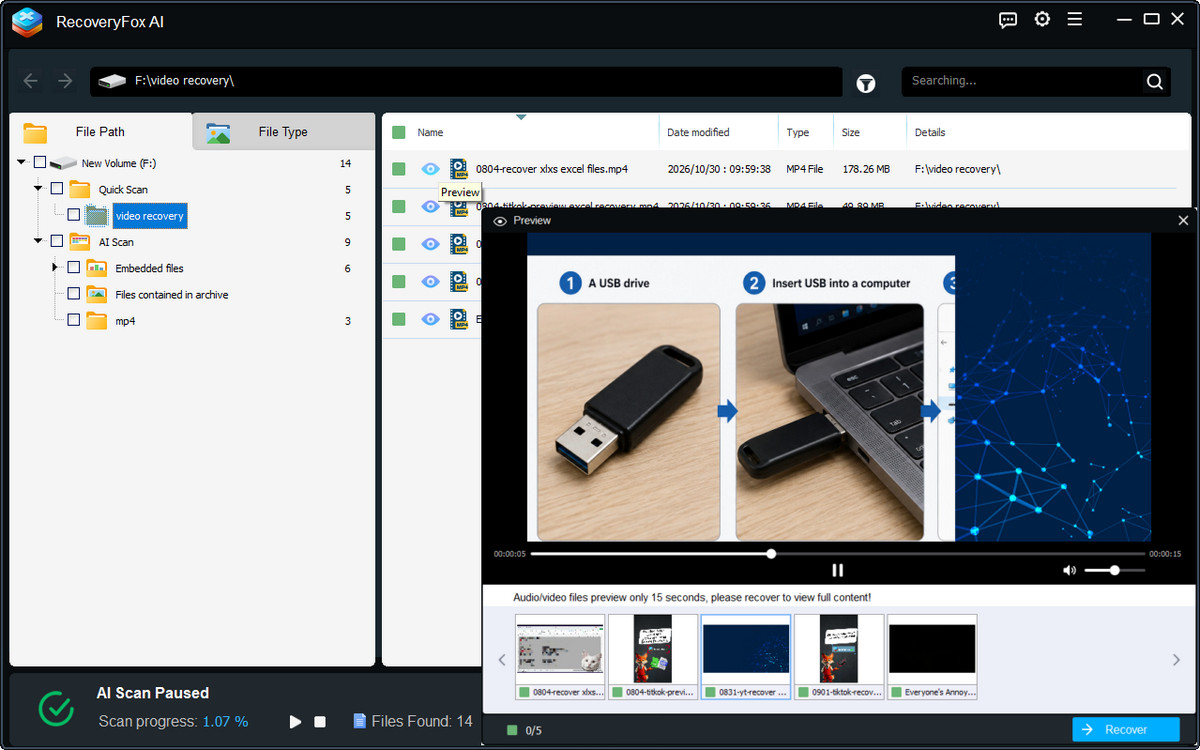
Step 4. If the preview confirms that you've found the video you need, select it and click Recover.
Choose a different drive or storage location to save the recovered video and avoid overwriting other lost data.
Recover Deleted Videos in Windows 10/11 with Windows File Recovery
Windows File Recovery is a free tool from Microsoft that can help recover permanently deleted videos from local storage devices, including internal drives, external drives, and USB devices. It works on Windows 10 version 2004 or later, as well as Windows 11. Because it uses command-line instructions, it may be less convenient for users who prefer a graphical interface.
To ensure a smooth recovery process with Windows File Recovery, prepare the following before you start:
🔸 Prepare a separate destination drive with enough free space for the recovered videos.
🔸 Identify the source and destination drive letters. The source is the drive where the videos were deleted; the destination is where recovered files will be saved.
🔸 Avoid using the source drive as much as possible to reduce the risk of overwriting recoverable data.
Now, follow these steps to get deleted videos back using Windows File Recovery in Windows 10 or Windows 11:
Step 1. Download and install Windows File Recovery from the Microsoft Store.
Step 2. Search for “Windows File Recovery” in the Windows Start menu and launch it.
Step 3. Enter the appropriate recovery command using this syntax:
winfr source-drive: destination-drive: [/switches]For example, to search for MP4 videos on drive D: and save the results to drive J:, you can run:
winfr D: J: /regular /n *.mp4This example uses Regular mode, which is intended for recovering recently deleted files from a non-corrupted NTFS drive. If it doesn’t find your videos, use the Extensive mode.
winfr D: J: /extensive /n *.mp4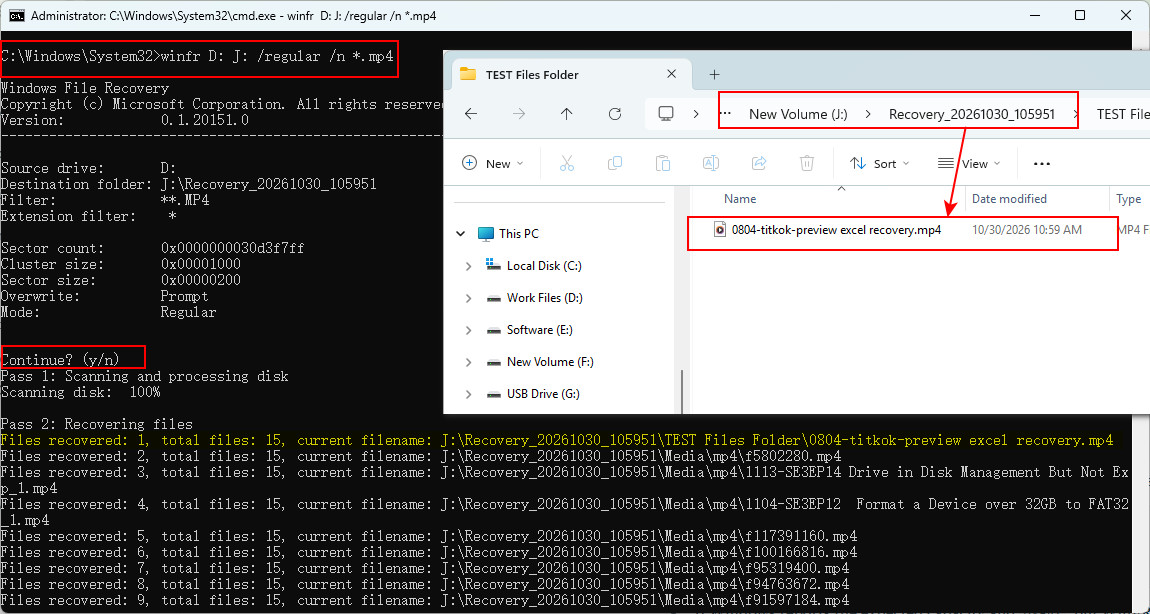
Step 4. Press Enter to run the command. Follow the prompt and type Y if asked to confirm the operation.
Step 5. When the process finishes, follow the prompt to open the destination folder. Recovered files are typically saved in a folder with a name similar to:
Recovery_[date-time]
💡💡 Note from the Author: When I tried using Windows File Recovery in Extensive mode to recover deleted videos from an exFAT-formatted SD card to another drive, the tool stopped at 00% and exited, and displayed the following information:
Sector count: 0x0000000000000000
Cluster size: 0x00000000
I searched for a solution and found a Microsoft Q&A post describing the same issue. However, it didn’t confirm the exact cause or provide a verified fix. I noticed that some users suggested running SFC or DISM commands to repair Windows. I wouldn't recommend trying these repairs first if your priority is to recover deleted files. These tools are designed to repair Windows system files and components, not recover lost data. Depending on the situation, repair operations may write data to the drive, potentially overwriting recoverable files.
In such cases, it's safest to use RecoveryFox AI to scan for your deleted videos before attempting any system repairs. Its read-only scanning approach is designed to avoid modifying the source drive during the scan, helping minimize the risk of further data loss.
How to Restore Deleted Videos Using File History?
File History is a Windows backup feature that automatically saves copies of files in selected folders. However, this method only works if File History was enabled before the videos were deleted and the relevant folders were included in the backup source. Otherwise, you may see the message “There are no previous versions available” when checking for backups through the Previous Versions tab.
Step 1. Open File Explorer and locate the folder where the deleted videos were originally stored.
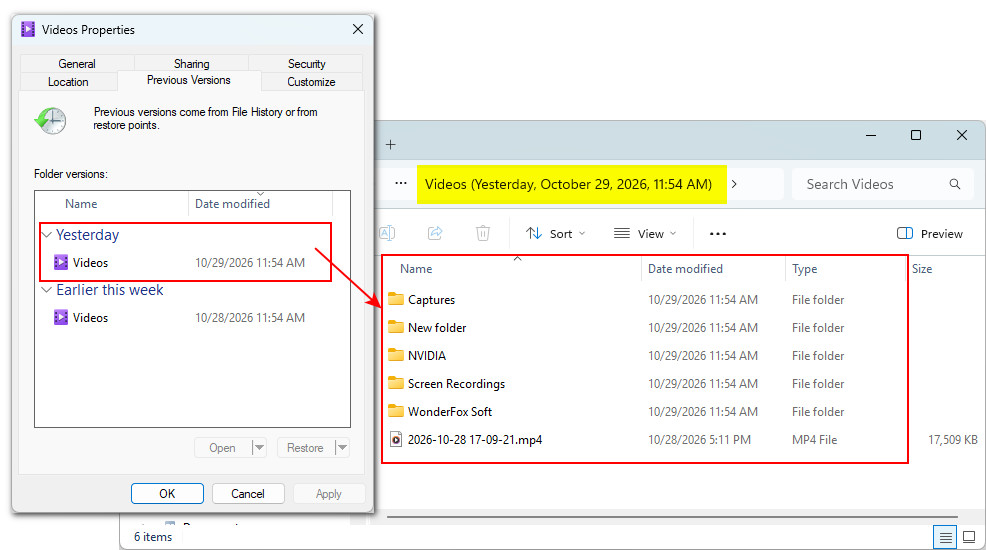
Step 2. Right-click the folder and select Show more options > Restore previous versions.
Alternatively, right-click the folder, select Properties, and open the Previous Versions tab.
Step 3. Check the Date modified column to identify a previous version. Double click the folder to inspect that whether the version contains the deleted videos you need.
Select the appropriate version and click Restore.
If the Open in File History option is available, you can use it to browse the backed-up files, preview their contents, and restore the videos you need.
How to Get Deleted Videos Back from OneDrive Recycle Bin?
Your videos synced with OneDrive? Congrats! There is a good chance to restore your deleted videos from the OneDrive Recycle Bin. Deleted files in personal OneDrive accounts typically remain there for up to 30 days, giving you time to recover them before they’re permanently removed. Here is how:
Step 1. Visit the OneDrive website and sign in with the Microsoft account you used to store your videos.
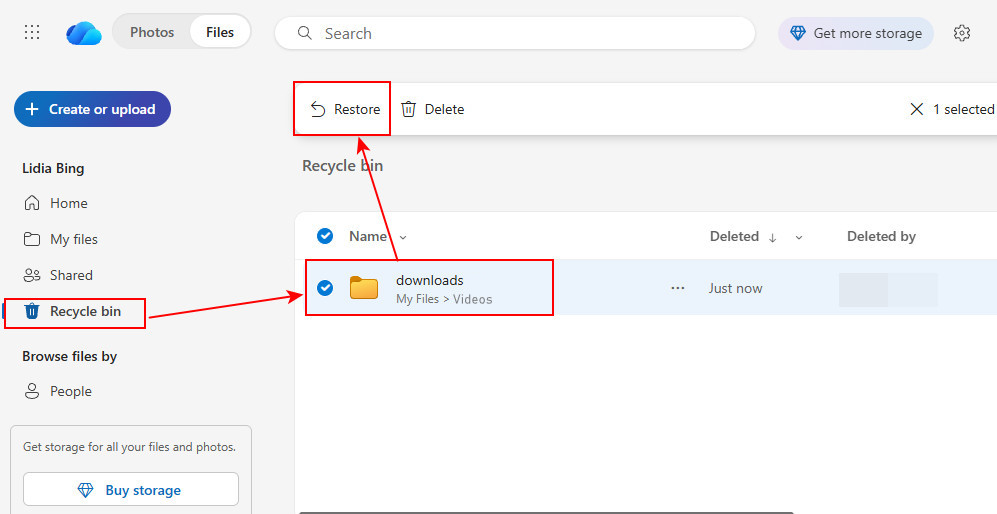
Step 2. Select Recycle bin from the left-hand menu.
Step 3. Find and select the deleted videos you want to recover. You can check the file names and deletion details to identify the right files.
Step 4. Click Restore to return the selected videos to their original OneDrive locations.
Once restored, check your OneDrive folder to make sure the videos are available again.
Can You Recover Videos Deleted Months or Years Ago?
Possibly. The time since deletion alone does not determine whether a video can be recovered. Your chances depend on several factors:
🔸 Whether the data has been overwritten. Continued use of the affected drive can overwrite deleted videos, make recovery difficult or impossible.
🔸 The type of storage device. Deleted videos may remain recoverable on an HDD, a USB flash drive, or a memory card until their data is overwritten. On SSDs, TRIM and background garbage collection can make deleted data unavailable, even if no new files have been saved.
🔸 Whether the videos are fragmented. Large videos may be stored in multiple pieces across a drive. If some pieces have been overwritten or are missing, the recovered videos may be incomplete or unplayable.
🔸 The condition of the drive. Physical damage, unreadable sectors, or other storage problems can make recovery more difficult.
If you recently deleted a video, check the Recycle Bin first, followed by File History, OneDrive, or other available backups.
For videos deleted months or years ago, especially when no backup exists or the drive has been used since deletion, data recovery software, such as RecoveryFox AI, can be your best option for attempting recovery.
However, success isn’t guaranteed, particularly if the video data has been overwritten or affected by SSD TRIM. To reduce the risk of further data loss, stop using the affected drive and save any recovered videos to a different storage device.
In Conclusion
After exploring these recovery methods, have you found the one that best fits your situation and recovered your deleted videos, meeting recordings, or CCTV footage?
Among these methods, RecoveryFox AI is our top recommendation. You can use it to recover recently deleted videos, files lost long ago, or files missing due to disk formatting, virus attacks, system crashes, or file system corruption.
FAQs About Deleted Video Recovery
Q 1. Can permanently deleted videos be recovered?
Yes, in some cases. Videos deleted with Shift + Delete or removed from the Recycle Bin may still be recoverable if their data has not been overwritten or erased by storage features such as SSD TRIM. Recovery is not guaranteed.
Q 2. How can I recover permanently deleted videos on Windows 10/11?
If you have a File History backup or stored the videos in OneDrive or another cloud service, check those backups first. Otherwise, you can try dedicated data recovery software. Avoid saving new files to the affected drive, and save recovered videos to a different location.
Q 3. Can I recover deleted videos after emptying the Recycle Bin?
Yes, you may still be able to recover data from an emptied Recycle Bin. RecoveryFox AI offers a dedicated Recycle Bin recovery feature, allowing you to run a quick scan for deleted data.
Q 4. Can I recover videos deleted months or years ago?
Possibly. The time since deletion doesn’t determine whether it is recoverable. If the deleted data remains intact, recovery software may find it. However, continued drive use, data overwriting, and SSD TRIM can reduce the chances of successful recovery.
Q 5. Can I recover deleted videos from an SSD?
Sometimes, but recovery can be more difficult on an SSD than on a traditional hard drive. SSDs may use TRIM and garbage collection to make deleted data blocks available for reuse. If TRIM has already processed the deleted video data, recovery software may not be able to restore it.

A technical content writer for RecoveryFox AI at WonderFox Soft, creating clear guides on data recovery, storage technologies, and Windows troubleshooting. She specializes in simplifying complex technical topics and enjoys exploring technology, running, and discovering new experiences.





 English ^


