






 Free Download

 Windows

FAT32 (File Allocation Table 32) is a file system commonly used on USB flash drives, SD cards, and other removable storage devices because it is widely compatible with computers, cameras, and other electronic devices. If you’ve lost important files, such as photos, documents, or videos, from a FAT32 drive, can you get them back?
The answer is YES! FAT32 data recovery is possible in many cases, especially if you take immediate action after data loss. Stop using the affected FAT32 drive immediately to avoid overwriting lost data.
Then, use a reliable, dedicated FAT32 data recovery tool to search for lost files, especially if you don’t have a backup and have experienced any of the following situations:
🔸 Files deleted from a FAT32 USB flash drive or SD card through File Explorer usually don't go to the Recycle Bin.
🔸 You pressed Shift + Delete, permanently deleting the files without sending them to the Recycle Bin.
🔸 You accidentally deleted files and later emptied the Recycle Bin.
🔸 You formatted the FAT32 drive.
🔸 Windows prompts you to format the device before you can use it.
🔸 The FAT32 device suddenly becomes inaccessible and appears as RAW or Unallocated in Disk Management.
How to Recover Data from a FAT32 Drive with FAT32 Data Recovery Software [🔥]
RecoveryFox AI handles various types of logical data loss, including those listed above, and supports FAT32, FAT16, FAT12, NTFS, exFAT, and other major file systems. It can also scan drives with unrecognized file systems, such as RAW or Unallocated drives.
You can recover files from a FAT32-formatted drive in three simple steps using RecoveryFox AI.
👉 Not sure whether it works in your situation? Download RecoveryFox AI to run a free scan and preview recoverable FAT32 files before recovery.
Step 1. Select the FAT32 drive to scan
Connect your device to a working computer using a compatible USB adapter.
Then, launch RecoveryFox AI and find the affected FAT32 device in the drive list.
Click it to start scanning.
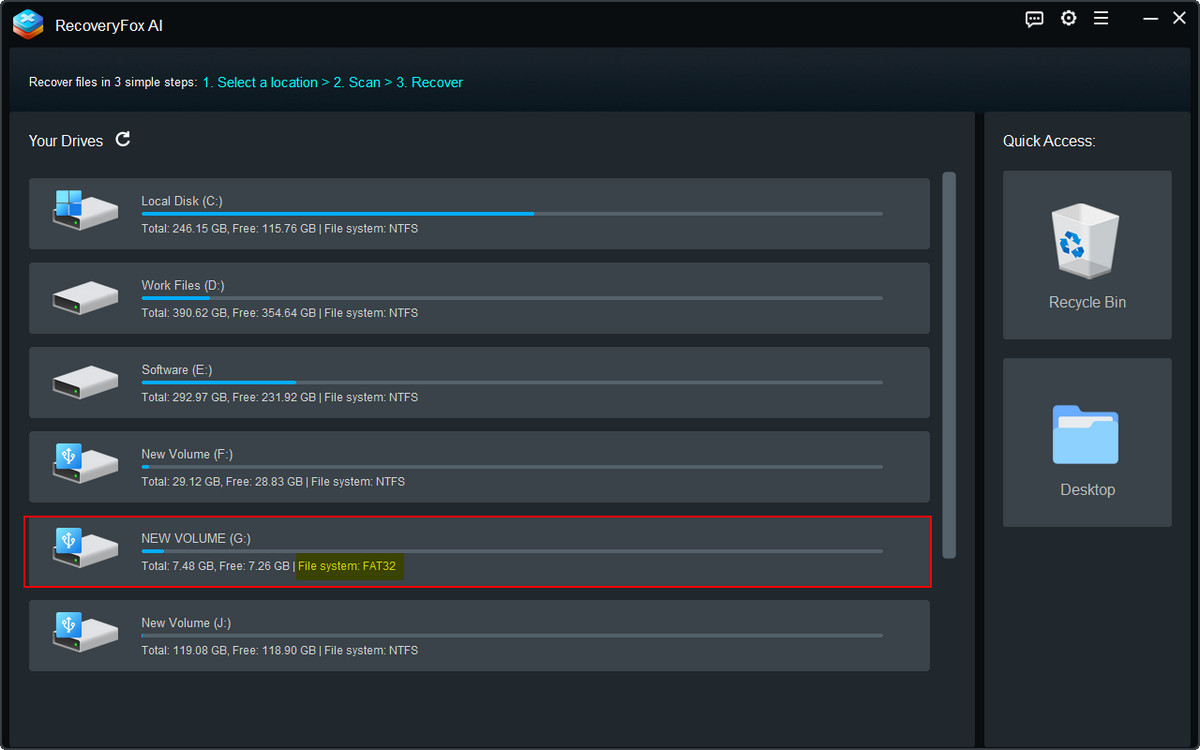
💡If your device doesn’t appear in File Explorer after connecting it, press Win + X and open Windows Disk Management to check whether Windows detects it. If it appears as RAW or Unallocated, do not format it. Try recovering your FAT32 data first.
Step 2. Filter your FAT32 data
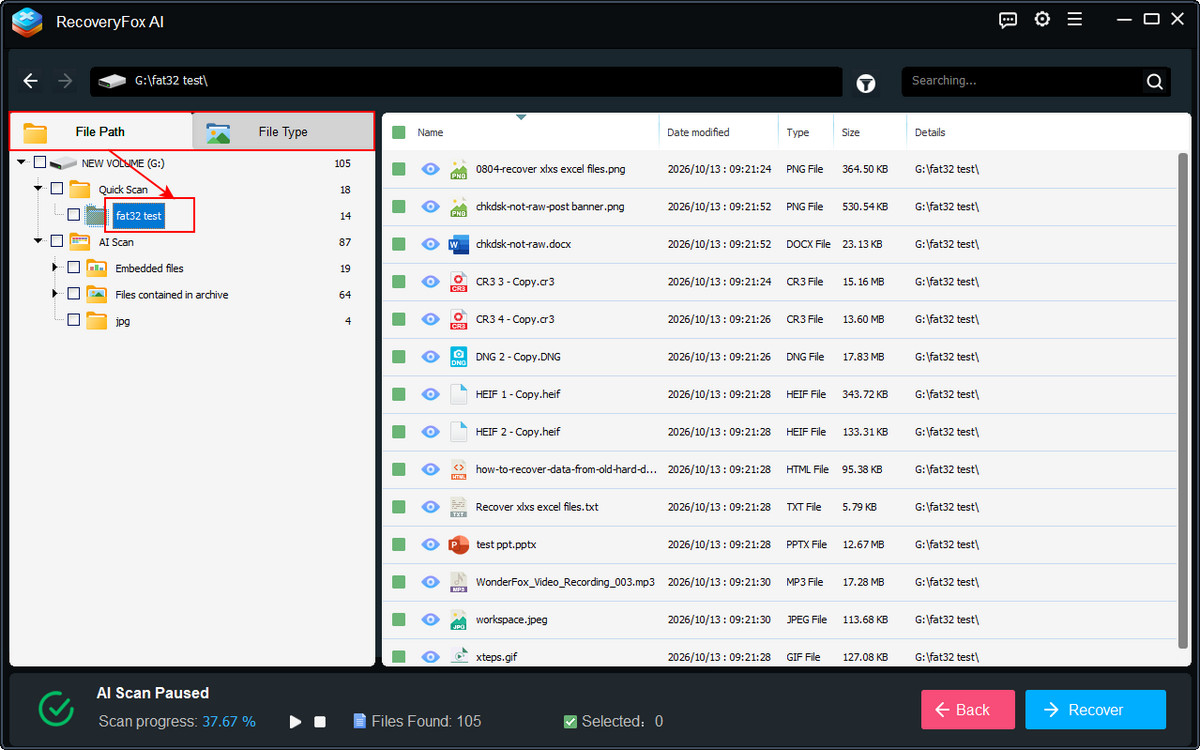
After the scan, the files found will appear in the left panel, organized by File Path and File Type.
You can also narrow down the results using available filters, including Keywords, Modified Date, and File Sizes.
Step 3. Preview and recover needed files
Click the eye icon next to a file to preview its content, including photos, videos, camera footage, audio files, and documents.
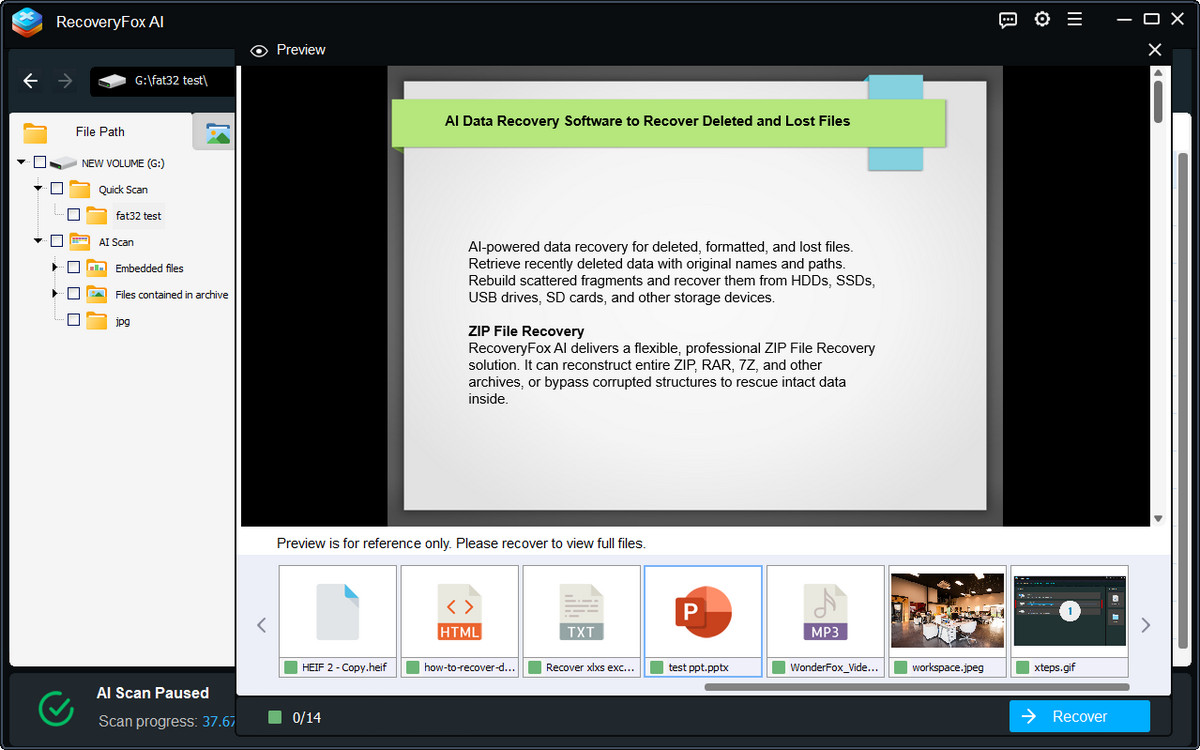
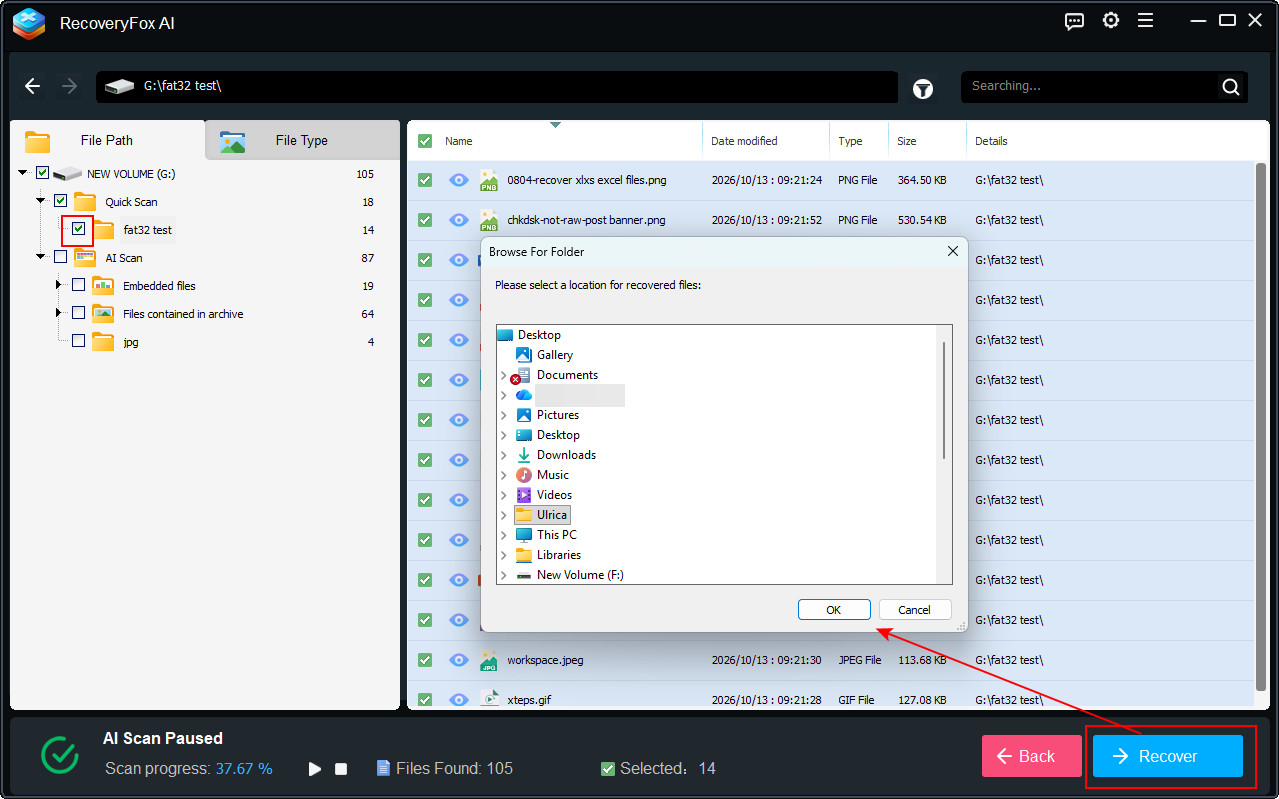
Then, select the files you want to recover and click "Recover" to restore them.
Be careful not to save the recovered files to the original location, as this may overwrite the file.
Can You Recover FAT32 Files from File History?
Strictly speaking, no—not if the files were stored directly on a FAT32-formatted drive and you want to recover them from File History.
File History is a built-in Windows backup feature that automatically backs up files in supported folders, such as Documents, Pictures, Videos, Music, Desktop, and other selected locations, to a configured backup destination.
If you try to back up files from a source that File History cannot back up, you may encounter the following message:
“File History has found files that are encrypted with Encrypting File System, on a network location, or on a drive that doesn’t use the NTFS file system. These files won’t be backed up.”
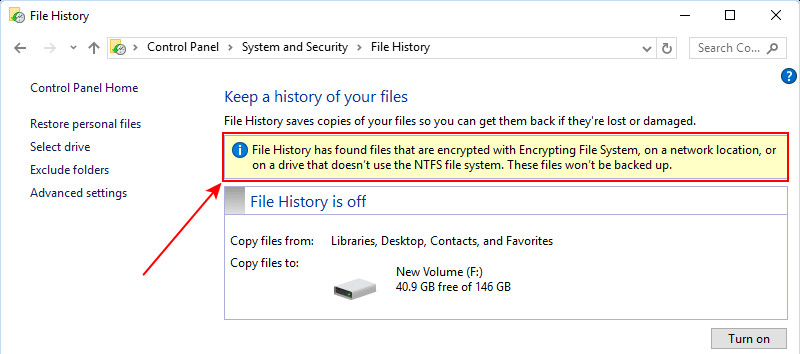
This message indicates that File History excludes EFS-encrypted files, files stored in network locations, and files on drives that do not use NTFS. Since FAT32 is a non-NTFS file system, File History cannot back up files directly from a FAT32-formatted drive.
📚 Related Microsoft Resources on File History: Backup and restore with File History
How to Prevent FAT32 Data Loss?
Although FAT32 data recovery is possible in many cases, prevention is the best way to protect your important files. Follow these tips to reduce the risk of data loss from FAT32-formatted USB flash drives and SD cards.
Although FAT32 data recovery is possible in many cases, prevention is the best way to protect your important files. Follow these tips to reduce the risk of data loss from FAT32-formatted USB flash drives and SD cards.
🔸 Back up important files regularly.
🔸 Safely eject your storage device.
🔸 Avoid interrupting file transfers.
🔸 Do not format a drive unexpectedly; recover or back up important files before attempting repairs.
🔸 Stop using the drive when errors occur.
Following these precautions can help prevent FAT32 data loss and improve your chances of recovering important files if a problem occurs.
Conclusion
FAT32 file recovery is often possible after accidental deletion, formatting, or file-system corruption, provided the lost data has not been overwritten and the storage device remains detected.
Start by stopping all unnecessary use of the affected drive and checking for backups. If no suitable backup is available, the safest approach is to use RecoveryFox AI. This professional flash drive recovery software can scan your FAT32 device, let you preview recoverable files, and help recover the items you need in just a few clicks.
FAT32 File Recovery FAQs
Q 1. Can I recover deleted files from a FAT32 flash drive?
Yes, often. Deleted files may remain recoverable until their storage space is overwritten. Successful recovery depends heavily on timing and low disk activity after deletion events. Stop using the drive and scan it with suitable flash drive recovery software as soon as possible.
Q 2. Can I recover files from a FAT32 drive after formatting?
Yes, recovery may be possible, especially after a quick formatting. However, the results rely on whether new data has been written, as well as the type and the condition of the storage device. Avoid reusing the drive and attempt recovery before formatting it again.
Q 3. How do I recover files from a RAW FAT32 drive?
The RAW status in Disk Management often indicates logical file system corruption on your FAT32 drive. Use a professional RAW data recovery tool such as RecoveryFox AI. Its AI-powered recovery capabilities can scan devices with unrecognized file systems for recoverable data.
Q 4. Why are some recovered FAT32 files corrupted or incomplete?
Recovered files may be corrupted or incomplete if their data has been overwritten, the file system is damaged, or parts of the file cannot be read. Fragmented files may also be difficult to reconstruct fully. Previewing supported files before recovery can help you assess whether the contents are usable, but it cannot guarantee complete recovery.
Q 5. Should I run CHKDSK before recovering FAT32 files?
Generally, no. The chkdsk /f command can modify file-system structures while attempting repairs, which may reduce recovery chances. Recover or image the data first; only consider repair afterward if the recovered data is safely saved elsewhere.
Q 6. Can I recover FAT32 files without software?
Possibly. Check backups, cloud-sync trash or recycle bins, camera manufacturer software, or an older system image before using recovery software.

A technical content writer for RecoveryFox AI at WonderFox Soft, creating clear guides on data recovery, storage technologies, and Windows troubleshooting. She specializes in simplifying complex technical topics and enjoys exploring technology, running, and discovering new experiences.





 English ^


